> ## Documentation Index
> Fetch the complete documentation index at: https://docs.landerlab.io/llms.txt
> Use this file to discover all available pages before exploring further.
# 设置字体排版和文本样式
> 在 Typography 设置中调整字体、字重、字号、颜色、行高和字间距等文字样式,并利用父子元素的继承关系保持全页字体一致。
Typography 区域控制文字的外观,包括字体、字号、间距、对齐等。
用这些设置可以让文字贴合品牌风格,并提升可读性。
## 在哪里找
1. 选中一个文本元素(标题、段落、按钮文字等)
2. 转到**右侧面板**
3. 展开 **Typography** 区域
## Typography 设置项
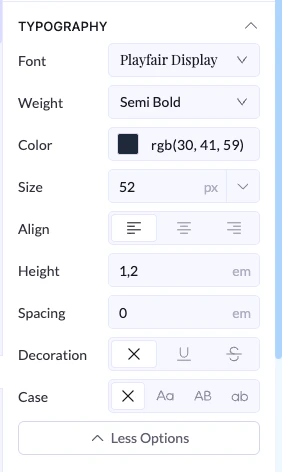 ### Font
* 选择字体
### Weight
* 控制字重
* 从细到粗多个档位
### Color
* 设置文字颜色
* 可以用取色器或 RGB 数值
### Size
* 控制字号
* 通常以像素(px)为单位
### Align
* 文字对齐方式:
* 左对齐
* 居中
* 右对齐
### Line Height
* 控制行间距
* 对可读性影响很大
### Letter Spacing
* 控制字符间距
* 适合标题或有风格的文字
### Decoration
* 文字装饰样式:
* 下划线
* 删除线
* 无
### Case
* 控制英文大小写:
* 全大写
* 全小写
* 首字母大写
## 重要提示(继承关系)
Typography 设置遵循**父元素 → 子元素**的继承结构:
* 如果你在 **父元素(比如 section 或容器)** 上设置了字体
* 里面所有子元素会**自动继承该字体**
👉 前提是子元素**没有单独设置自己的字体**。
### 示例
* 在某个 section 上设置字体为 *Inter*
* 里面所有文字都使用 *Inter*
如果你把其中一个文本块改成别的字体:
### Font
* 选择字体
### Weight
* 控制字重
* 从细到粗多个档位
### Color
* 设置文字颜色
* 可以用取色器或 RGB 数值
### Size
* 控制字号
* 通常以像素(px)为单位
### Align
* 文字对齐方式:
* 左对齐
* 居中
* 右对齐
### Line Height
* 控制行间距
* 对可读性影响很大
### Letter Spacing
* 控制字符间距
* 适合标题或有风格的文字
### Decoration
* 文字装饰样式:
* 下划线
* 删除线
* 无
### Case
* 控制英文大小写:
* 全大写
* 全小写
* 首字母大写
## 重要提示(继承关系)
Typography 设置遵循**父元素 → 子元素**的继承结构:
* 如果你在 **父元素(比如 section 或容器)** 上设置了字体
* 里面所有子元素会**自动继承该字体**
👉 前提是子元素**没有单独设置自己的字体**。
### 示例
* 在某个 section 上设置字体为 *Inter*
* 里面所有文字都使用 *Inter*
如果你把其中一个文本块改成别的字体:
👉 只有那一块会不同
## 最佳实践
* 在父容器上设置字体,保持一致
* 只在必要时覆盖
* 标题用更大的字号
* 正文保持易读
* 避免使用过多字体样式
This documentation is built and hosted on [Mintlify](https://mintlify.com), a developer documentation platform.