> ## Documentation Index
> Fetch the complete documentation index at: https://docs.landerlab.io/llms.txt
> Use this file to discover all available pages before exploring further.
# 设置落地页背景:纯色、图片与渐变
> 在 Background 设置中为元素添加纯色、图片或 Linear/Radial 渐变背景,图片背景适用于 section 和容器,也可以移除背景让元素透明。
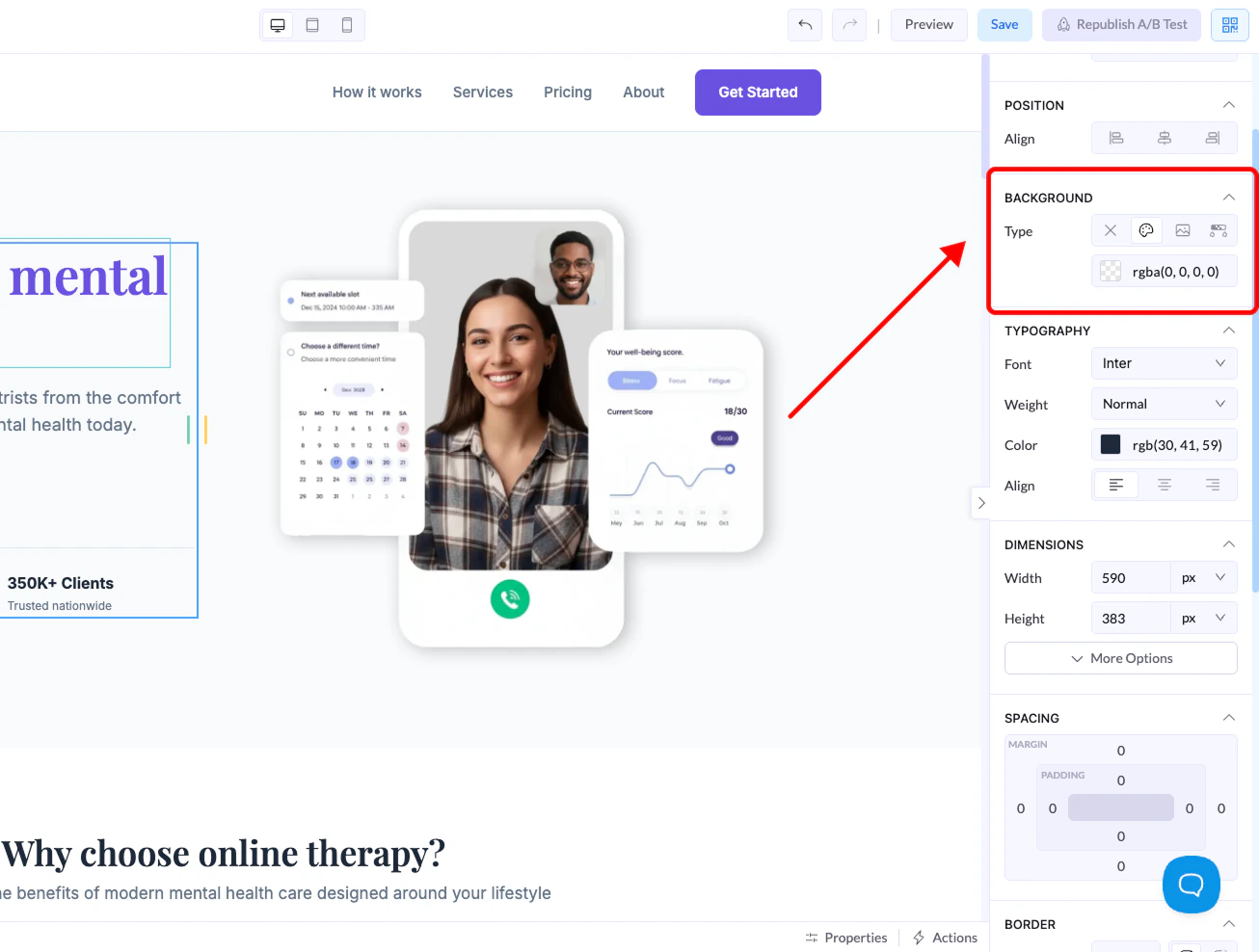
Background 区域控制元素内容后面的视觉效果。根据元素类型不同,你可以应用纯色、图片或渐变。
选中元素后,在**右侧面板**中就能找到这些设置。
## 在哪里找
1. 选中一个元素(section、容器、按钮等)
2. 转到**右侧面板**
3. 展开 **Background** 区域
 ## 背景类型
不同元素支持的背景选项不同。
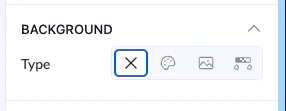
### None(X)
* 移除所有背景
* 元素变为透明
## 背景类型
不同元素支持的背景选项不同。
### None(X)
* 移除所有背景
* 元素变为透明
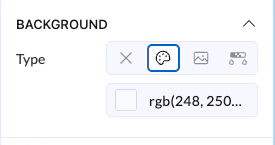
 ### Color
* 应用纯色背景
* 可以使用:
* 取色器
* RGB 数值
👉 按钮、section 和容器最常用这一种
### Color
* 应用纯色背景
* 可以使用:
* 取色器
* RGB 数值
👉 按钮、section 和容器最常用这一种
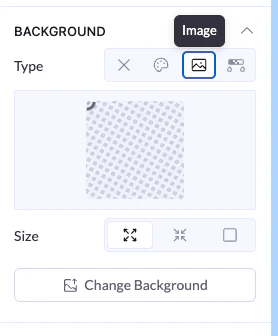
 ### Image
* 把图片设为背景
* 主要适用于 section、容器这类较大的元素
可用选项:
* 上传或更换图片
* 调整尺寸(fit、cover 等)
👉 按钮这类小元素不支持
### Image
* 把图片设为背景
* 主要适用于 section、容器这类较大的元素
可用选项:
* 上传或更换图片
* 调整尺寸(fit、cover 等)
👉 按钮这类小元素不支持
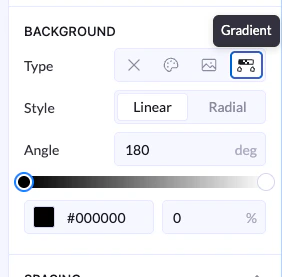
 ### Gradient
* 在多个颜色之间做平滑过渡
可用选项:
* **Linear** 或 **Radial** 样式
* 角度控制
* 多个颜色节点
👉 适合现代感界面和视觉层次
### Gradient
* 在多个颜色之间做平滑过渡
可用选项:
* **Linear** 或 **Radial** 样式
* 角度控制
* 多个颜色节点
👉 适合现代感界面和视觉层次
 This documentation is built and hosted on [Mintlify](https://mintlify.com), a developer documentation platform.