> ## Documentation Index
> Fetch the complete documentation index at: https://docs.landerlab.io/llms.txt
> Use this file to discover all available pages before exploring further.
# 如何在 LanderLab 中保存和复用组件
> 了解如何在 LanderLab 中把区段保存为可复用组件,提升工作效率、保持设计一致,更快搭建落地页。
Save as Component(保存为组件)功能让你保存页面中的某些部分,并在其他落地页中复用。这能帮你更快地搭建页面,并保持设计一致。
## 如何保存组件
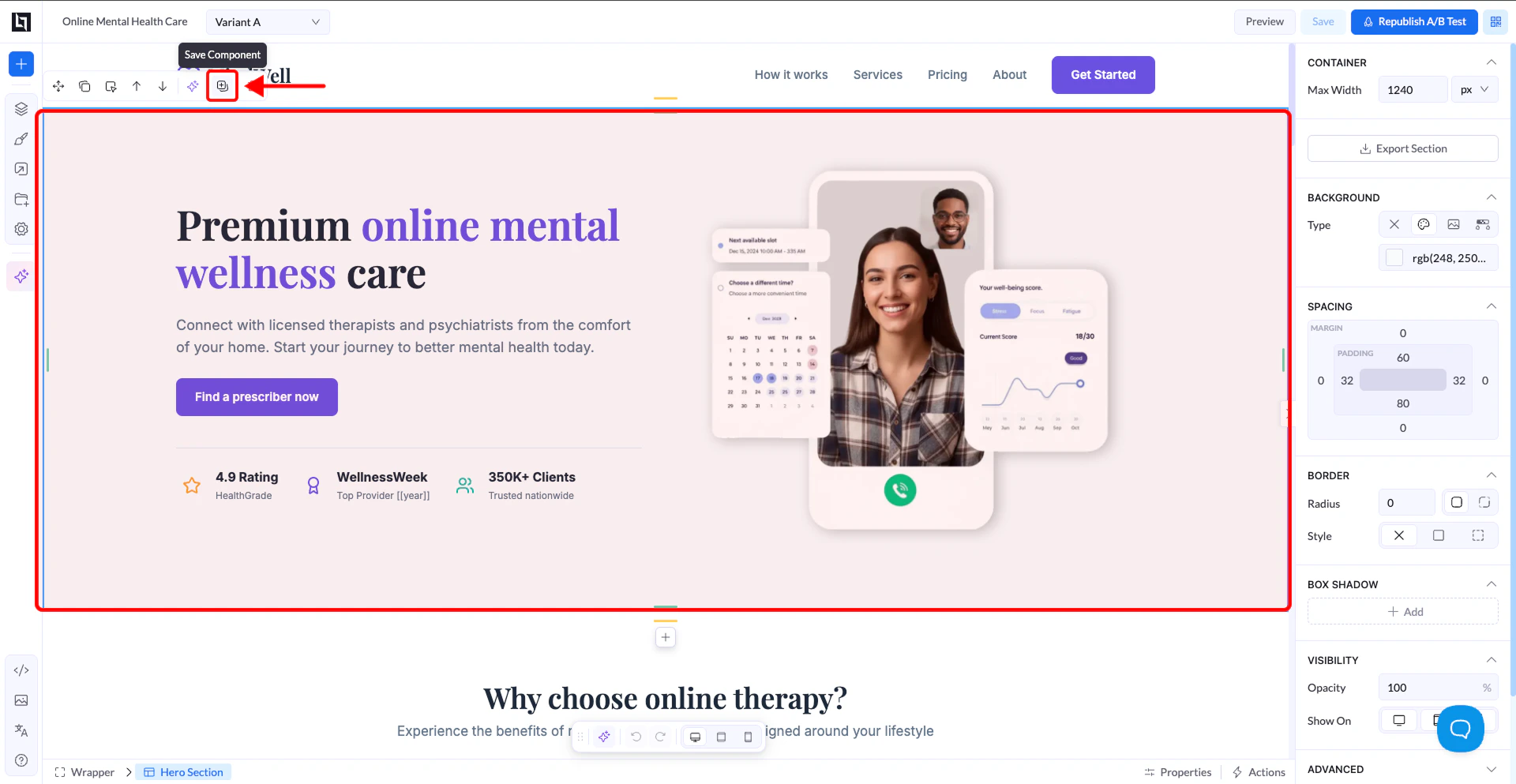
1. 选择你想保存的元素(通常是**区段(Section)或 Box**)
2. 右键点击它,或使用悬停时出现的工具栏
3. 点击 **Save as Component**
4. 输入名称并保存
 ## 在哪里找到已保存的组件
1. 打开左侧栏
2. 点击 **+ (Add Elements)** 按钮
3. 进入 **Sections tab**
4. 进入 **My Sections**
## 在哪里找到已保存的组件
1. 打开左侧栏
2. 点击 **+ (Add Elements)** 按钮
3. 进入 **Sections tab**
4. 进入 **My Sections**
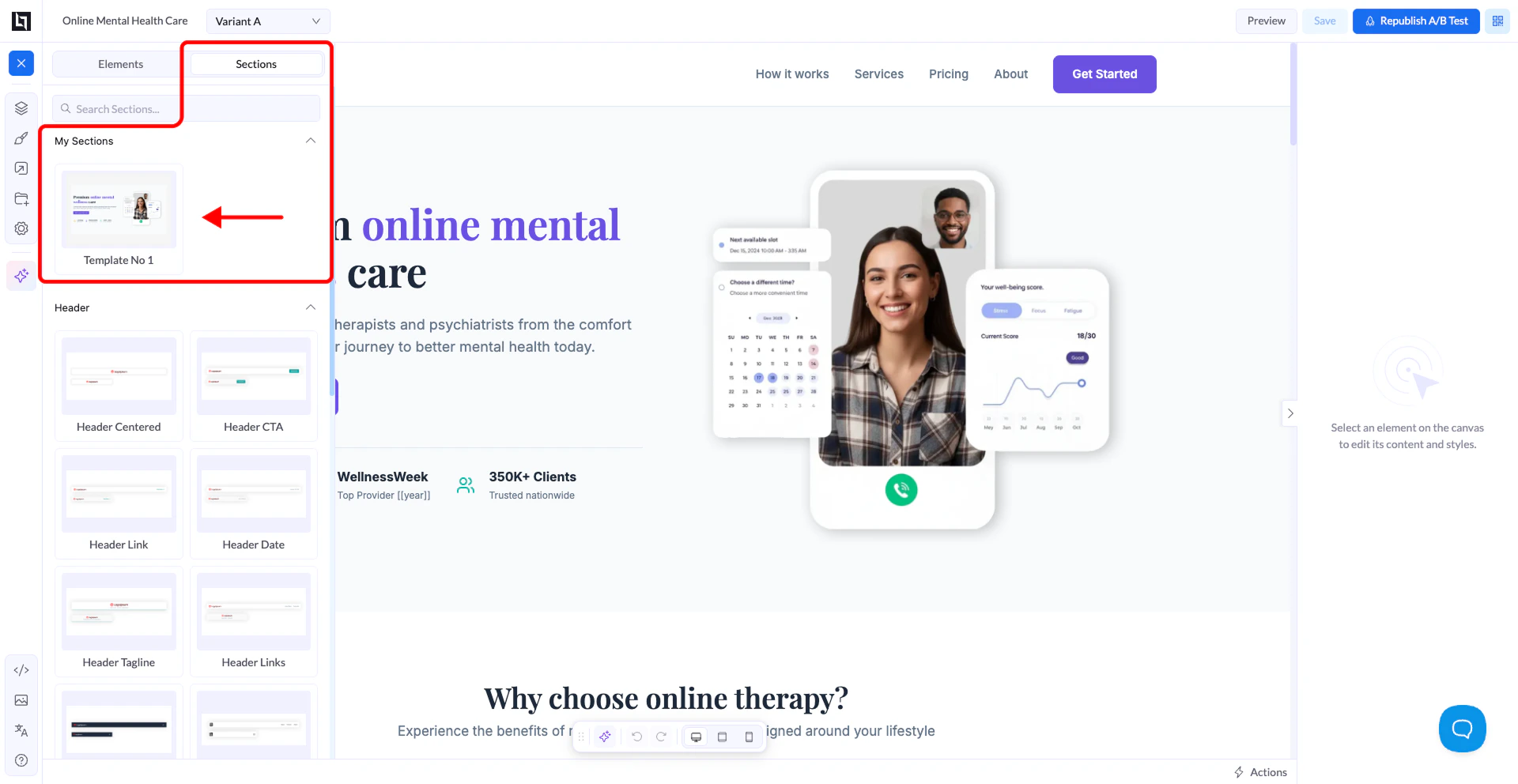 👉 你保存的所有组件都会显示在这里
## 工作原理
已保存的组件包含:
* 布局
* 样式
* 内容
* 链接
你可以把它们拖放到任意页面中。
👉 你保存的所有组件都会显示在这里
## 工作原理
已保存的组件包含:
* 布局
* 样式
* 内容
* 链接
你可以把它们拖放到任意页面中。
它们就像可复用的积木,帮你更快地创建页面。
## 注意事项
对某一个实例所做的修改**不会同步到其他实例**
每个已保存的组件在添加到页面后都是独立的
这个功能主要用于**复用设计**,而不是在页面之间同步内容
## 适用场景
* 复用首屏(Hero)区段
* 复用 CTA 区块
* 在不同广告活动之间复用布局
* 加快页面创建速度
## 警告(导入的页面)
如果你从通过 URL 导入的页面中保存组件:
* 其结构可能不够规整
* 复用时有时可能导致布局问题
👉 保存前,务必检查并整理导入的区段
## 最佳实践
* 保存结构清晰、规整的区段
* 使用清晰的名称,方便复用
* 把已保存的组件当作模板,而不是同步组件
提示:建立你自己的可复用组件库,加快广告活动的上线速度。
This documentation is built and hosted on [Mintlify](https://mintlify.com), a developer documentation platform.