> ## Documentation Index
> Fetch the complete documentation index at: https://docs.landerlab.io/llms.txt
> Use this file to discover all available pages before exploring further.
# 用 Sticky Bar 展示促销和 CTA
> 添加 sticky bar 展示促销、公告或 CTA,让它在用户滚动页面时始终可见。
Sticky Bar 是一个固定元素,在用户滚动页面时始终停留在屏幕上。
常见用途:
* 促销信息
* 公告
* 行动号召文案
## 如何添加 Sticky Bar
* 打开左侧边栏
* 把 **Sticky Bar** 拖到画布上
## Sticky Bar 设置
选中后,所有控件都在右侧面板中。
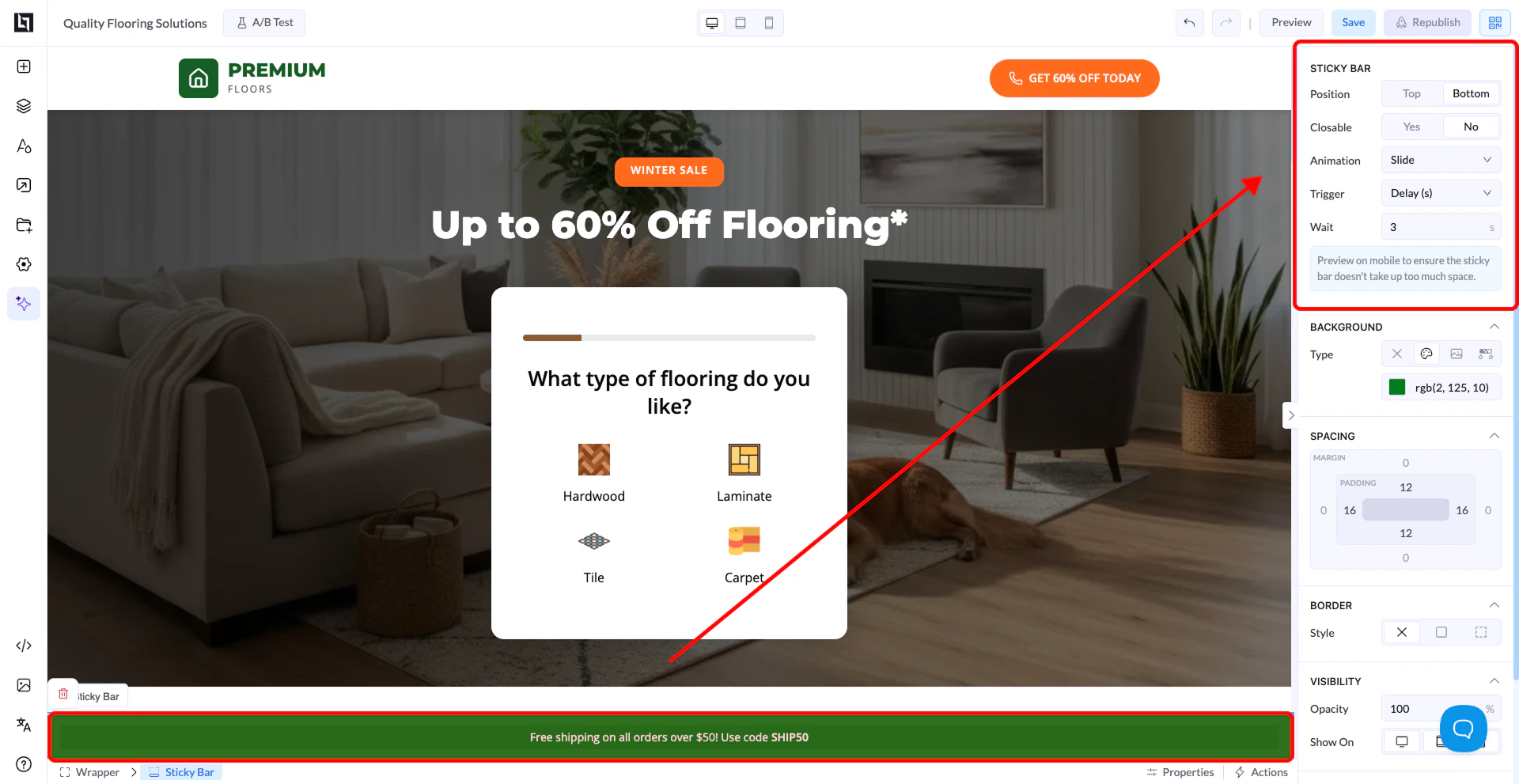 ## Position
决定 sticky bar 出现在屏幕的什么位置:
* **Top**:固定在页面顶部
* **Bottom**:固定在页面底部
## Closable
控制用户能否关闭 sticky bar:
* **Yes**:显示关闭(X)按钮
* **No**:sticky bar 始终显示
## Animation
控制 sticky bar 的出现方式:
* **Slide**:滑入画面
* **Fade**:淡入
* **None**:直接出现
## Trigger
决定 sticky bar 什么时候出现:
* **Load**:页面加载时立即显示
* **Scroll (px)**:滚动指定像素数后显示
* **Scroll (%)**:滚动到页面的指定百分比后显示
* **Delay (s)**:等待指定秒数后显示
## Wait
* 配合 **Delay** 触发方式使用
* 设定显示 sticky bar 前等待的秒数
## 响应式预览提醒
界面上会出现一条提醒,让你在移动端预览。
👉 Sticky bar 会占用屏幕空间,记得检查它在小屏设备上的效果。
## 样式选项
和其他元素一样,你可以自定义:
* 背景(纯色、渐变等)
* 间距(padding 与 margin)
* 边框和圆角
* 字体排版
* 分设备的可见性
## 重要提示
* Sticky bar 在滚动时保持固定
* 它根据你选择的触发方式出现
* 用得过多会影响用户体验
This documentation is built and hosted on [Mintlify](https://mintlify.com), a developer documentation platform.
## Position
决定 sticky bar 出现在屏幕的什么位置:
* **Top**:固定在页面顶部
* **Bottom**:固定在页面底部
## Closable
控制用户能否关闭 sticky bar:
* **Yes**:显示关闭(X)按钮
* **No**:sticky bar 始终显示
## Animation
控制 sticky bar 的出现方式:
* **Slide**:滑入画面
* **Fade**:淡入
* **None**:直接出现
## Trigger
决定 sticky bar 什么时候出现:
* **Load**:页面加载时立即显示
* **Scroll (px)**:滚动指定像素数后显示
* **Scroll (%)**:滚动到页面的指定百分比后显示
* **Delay (s)**:等待指定秒数后显示
## Wait
* 配合 **Delay** 触发方式使用
* 设定显示 sticky bar 前等待的秒数
## 响应式预览提醒
界面上会出现一条提醒,让你在移动端预览。
👉 Sticky bar 会占用屏幕空间,记得检查它在小屏设备上的效果。
## 样式选项
和其他元素一样,你可以自定义:
* 背景(纯色、渐变等)
* 间距(padding 与 margin)
* 边框和圆角
* 字体排版
* 分设备的可见性
## 重要提示
* Sticky bar 在滚动时保持固定
* 它根据你选择的触发方式出现
* 用得过多会影响用户体验
This documentation is built and hosted on [Mintlify](https://mintlify.com), a developer documentation platform.