> ## Documentation Index
> Fetch the complete documentation index at: https://docs.landerlab.io/llms.txt
> Use this file to discover all available pages before exploring further.
# 在 LanderLab 中添加域名
> 在 LanderLab 中添加自定义域名:输入域名并选择可发布的工作区,系统会检查 DNS 并推荐 Cloudflare 或手动 DNS 连接方式。
发布到你自己的域名上,可以强化品牌形象,并提升与广告网络和搜索引擎的兼容性。
添加域名是一个引导式流程:你输入域名,LanderLab 检查其 DNS 由哪里管理,然后推荐连接方式。
## 开始之前
* 你是**管理员**。只有管理员才能添加域名。
* 你拥有该域名,并且可以修改其 DNS 设置。
## 打开 Domains
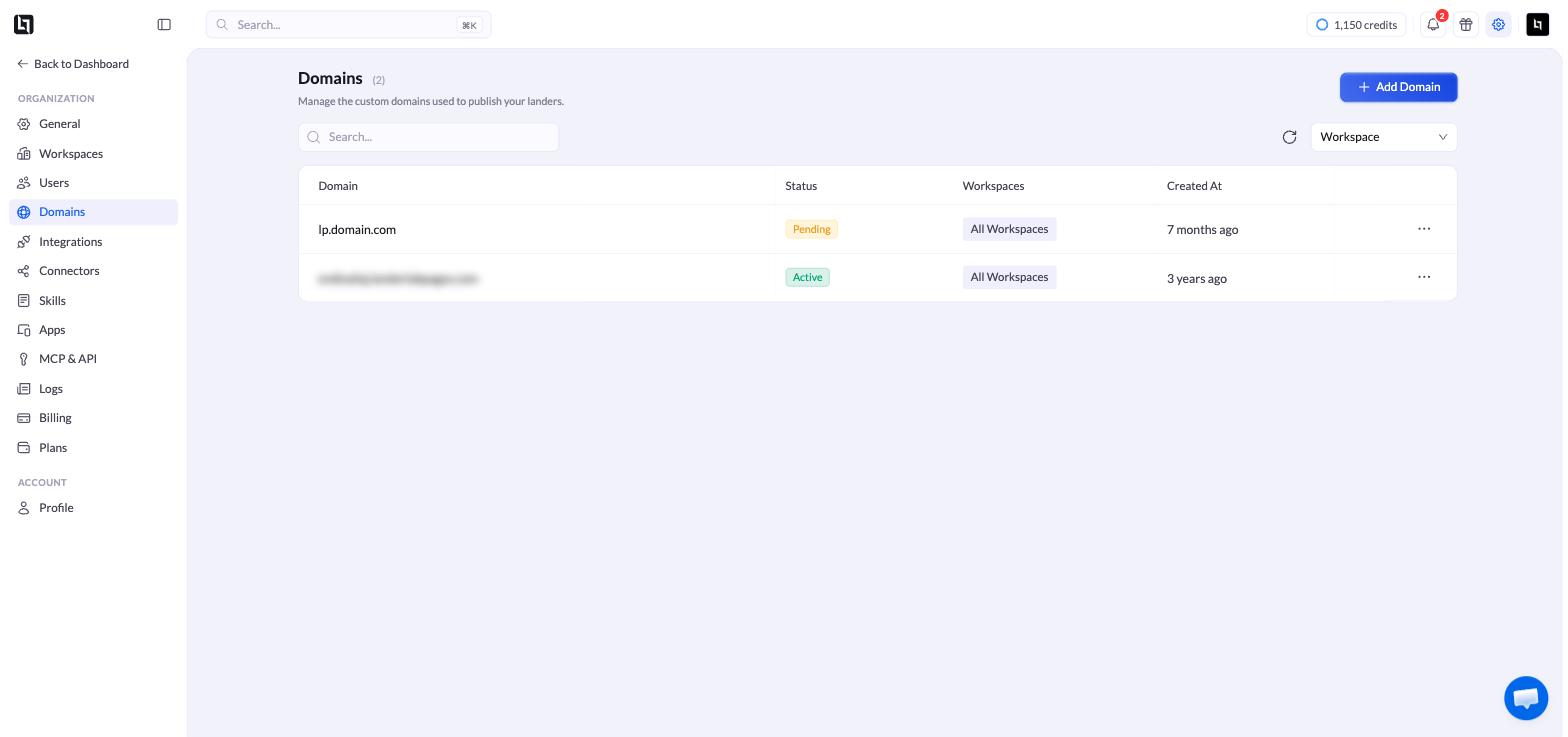
进入 **Settings > Domains**。所有域名都在这里,并显示其状态以及可以发布到该域名的工作区。
 ## 添加你的域名
点击 **Add Domain**,并填写第一步:
| 字段 | 填写内容 |
| :- | :- |
| **Subdomain** | 可选。域名前面的部分,例如 `lp`。留空则使用根域名。 |
| **Domain** | 必填。你的域名,例如 `yourdomain.com`。 |
| **Workspaces** | 哪些工作区可以发布到这里。**All Workspaces** 也包括你以后创建的工作区。 |
## 添加你的域名
点击 **Add Domain**,并填写第一步:
| 字段 | 填写内容 |
| :- | :- |
| **Subdomain** | 可选。域名前面的部分,例如 `lp`。留空则使用根域名。 |
| **Domain** | 必填。你的域名,例如 `yourdomain.com`。 |
| **Workspaces** | 哪些工作区可以发布到这里。**All Workspaces** 也包括你以后创建的工作区。 |
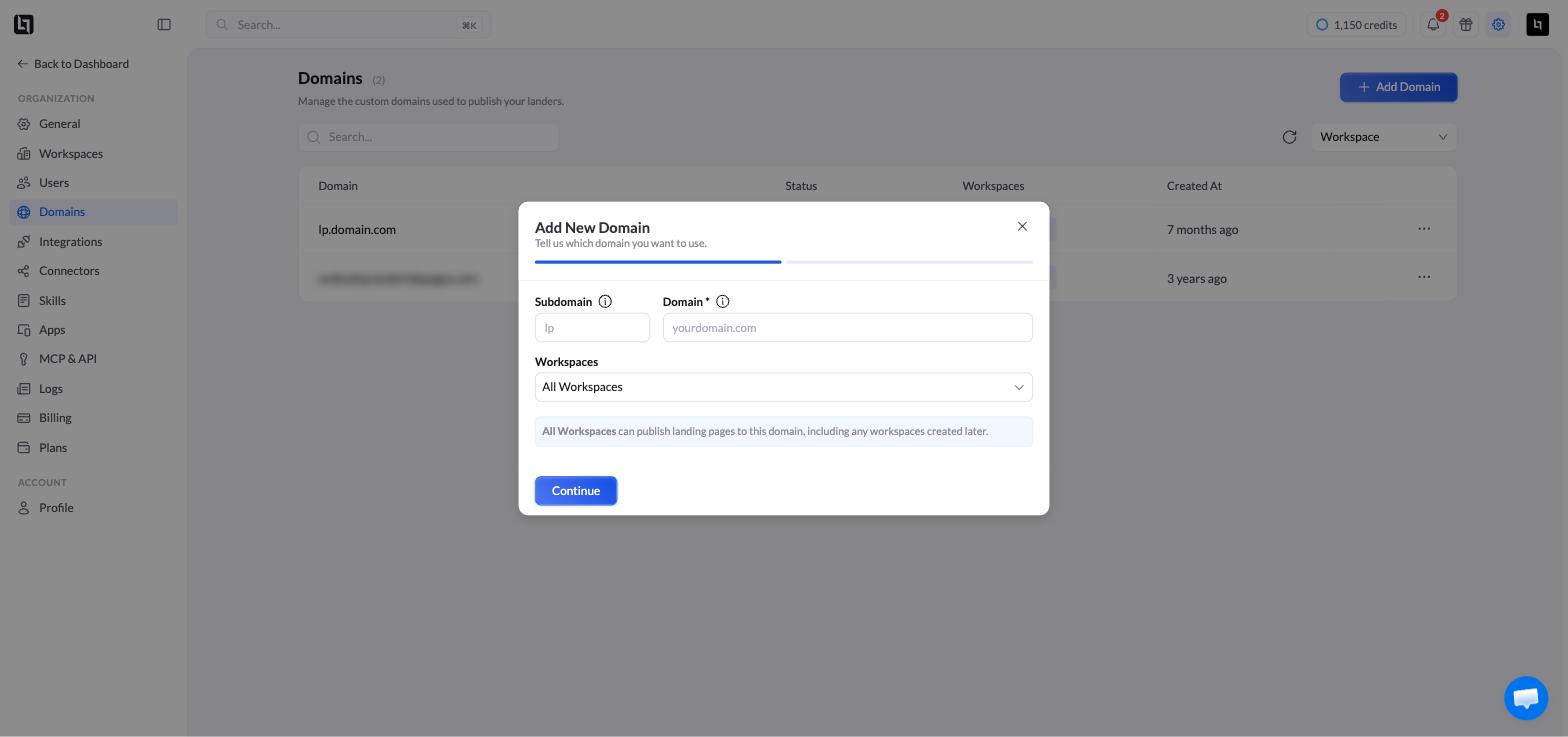 点击 **Continue**。
LanderLab 会检查你的 DNS 由哪里管理,并预先选择一种方式。你可以在两种方式之间切换:
* **Cloudflare** — 通过你的 Cloudflare 账号自动管理 DNS。
* **Manual DNS** — 你在自己的 DNS 服务商处添加一条 DNS 记录。适用于任何域名注册商。
按照你选择的方式操作:
只需登录一次 Cloudflare,就能让 LanderLab 自动创建记录。
添加 LanderLab 显示的那一条记录,然后进行验证。
域名会以 **Pending** 状态出现在列表中,DNS 更改生效后会切换为 **Active**。这通常只需几分钟,但最长可能需要 48 小时。
## 之后管理域名
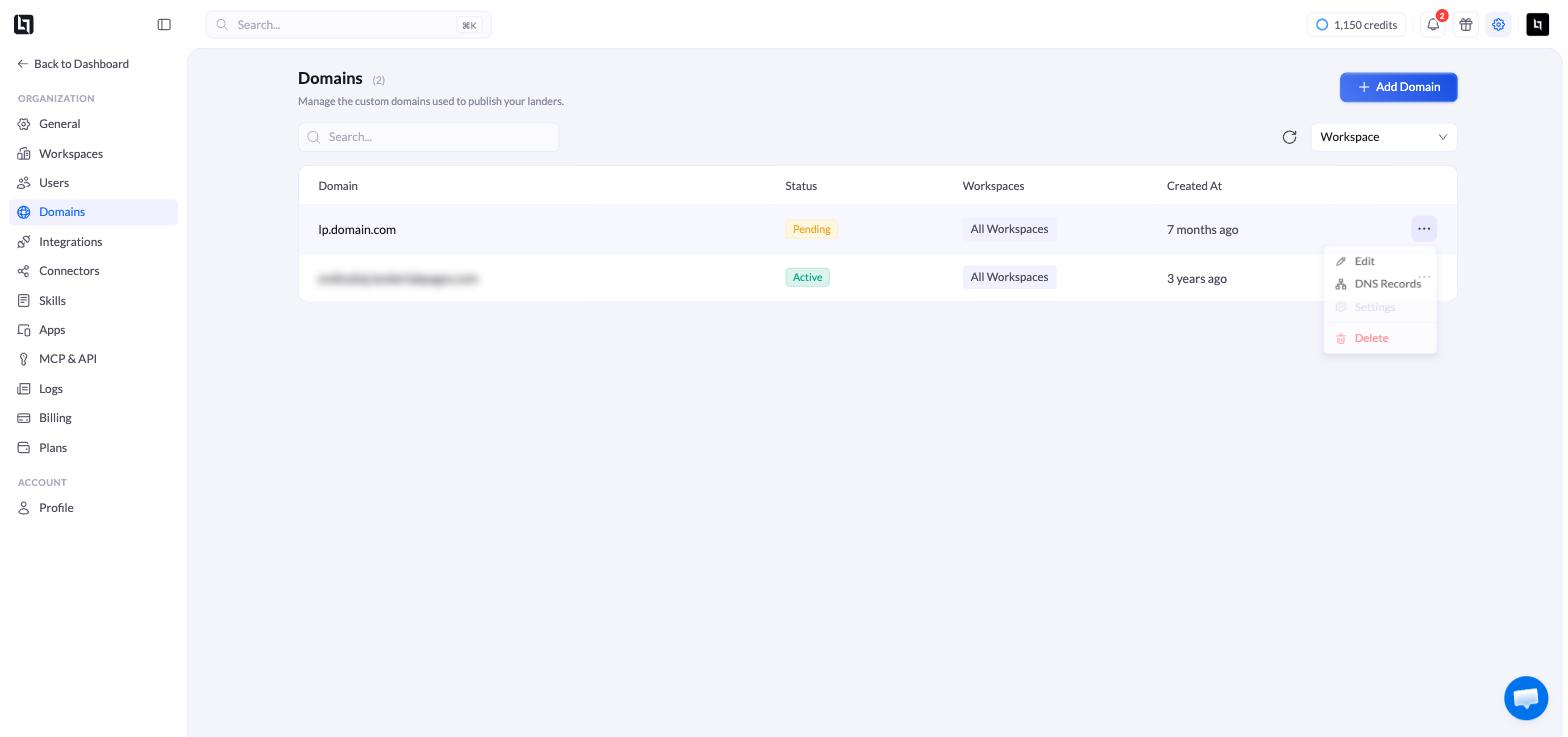
点击任意域名旁边的**三点菜单(...)**。
点击 **Continue**。
LanderLab 会检查你的 DNS 由哪里管理,并预先选择一种方式。你可以在两种方式之间切换:
* **Cloudflare** — 通过你的 Cloudflare 账号自动管理 DNS。
* **Manual DNS** — 你在自己的 DNS 服务商处添加一条 DNS 记录。适用于任何域名注册商。
按照你选择的方式操作:
只需登录一次 Cloudflare,就能让 LanderLab 自动创建记录。
添加 LanderLab 显示的那一条记录,然后进行验证。
域名会以 **Pending** 状态出现在列表中,DNS 更改生效后会切换为 **Active**。这通常只需几分钟,但最长可能需要 48 小时。
## 之后管理域名
点击任意域名旁边的**三点菜单(...)**。
 | 选项 | 作用 |
| :- | :- |
| **Edit** | 更改哪些工作区可以发布到该域名。 |
| **DNS Records** | 重新打开包含待添加记录的验证窗口。在域名处于 **Pending** 状态时很有用。 |
| **Settings** | 索引、备用页面和自定义代码。域名变为 **Active** 后可用。 |
| **Delete** | 从 LanderLab 中移除该域名。 |
## 常见问题
如果想要最快、免手动的设置,请使用 **Cloudflare**。如果你的域名在其他地方管理并且你希望继续保留在那里,请使用 **Manual DNS**。
Cloudflare 同时支持根域名和子域名。Manual DNS 通常需要使用子域名,例如 `lp.yourdomain.com`,因为有些 DNS 服务商不允许在根域名上添加所需的记录。
你很可能不是该组织的管理员。
This documentation is built and hosted on [Mintlify](https://mintlify.com), a developer documentation platform.
| 选项 | 作用 |
| :- | :- |
| **Edit** | 更改哪些工作区可以发布到该域名。 |
| **DNS Records** | 重新打开包含待添加记录的验证窗口。在域名处于 **Pending** 状态时很有用。 |
| **Settings** | 索引、备用页面和自定义代码。域名变为 **Active** 后可用。 |
| **Delete** | 从 LanderLab 中移除该域名。 |
## 常见问题
如果想要最快、免手动的设置,请使用 **Cloudflare**。如果你的域名在其他地方管理并且你希望继续保留在那里,请使用 **Manual DNS**。
Cloudflare 同时支持根域名和子域名。Manual DNS 通常需要使用子域名,例如 `lp.yourdomain.com`,因为有些 DNS 服务商不允许在根域名上添加所需的记录。
你很可能不是该组织的管理员。
This documentation is built and hosted on [Mintlify](https://mintlify.com), a developer documentation platform.