> ## Documentation Index
> Fetch the complete documentation index at: https://docs.landerlab.io/llms.txt
> Use this file to discover all available pages before exploring further.
# LanderLab 中的 AI 连接器:连接应用和 MCP 服务器
> 将 AI 助手连接到 ClickFlare、Firecrawl、AdPlexity、HeyGen 等应用或自定义 MCP 服务器,让它在搭建页面时使用真实数据。
**Connectors**(连接器)让 AI 助手在处理你的页面时,可以使用其他应用和 MCP 服务器中的数据。例如,它可以研究竞品的落地页、拉取你的广告活动数据,或从你的设计和商店工具中引入内容,全部在同一个聊天中完成。
## 在哪里管理连接器
你可以在两个地方管理连接器,两处显示的是相同的连接器。
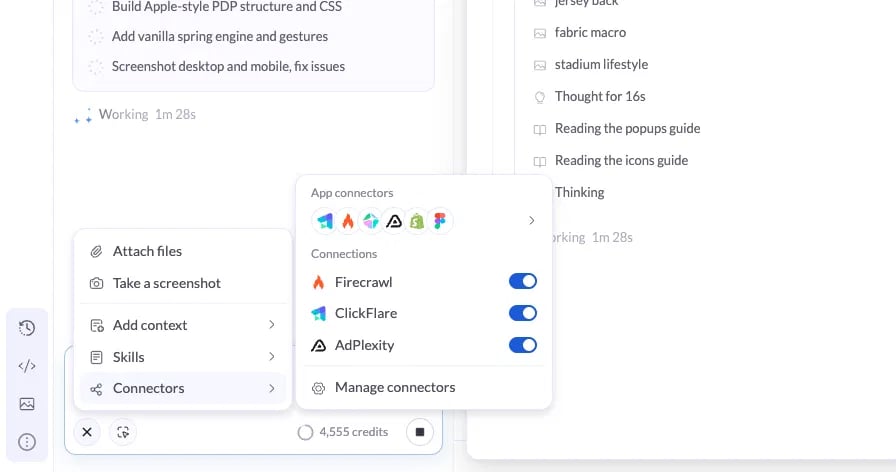
* **从 AI 助手:** 点击输入框中的 **+**,将鼠标悬停在 **Connectors** 上,然后点击 **Manage connectors**。
* **从设置:** 打开 **Settings**,在 **Organization** 下选择 **Connectors**。在这里,你可以查看你的组织添加的所有连接器,并点击 **Add connector** 添加新的连接器。
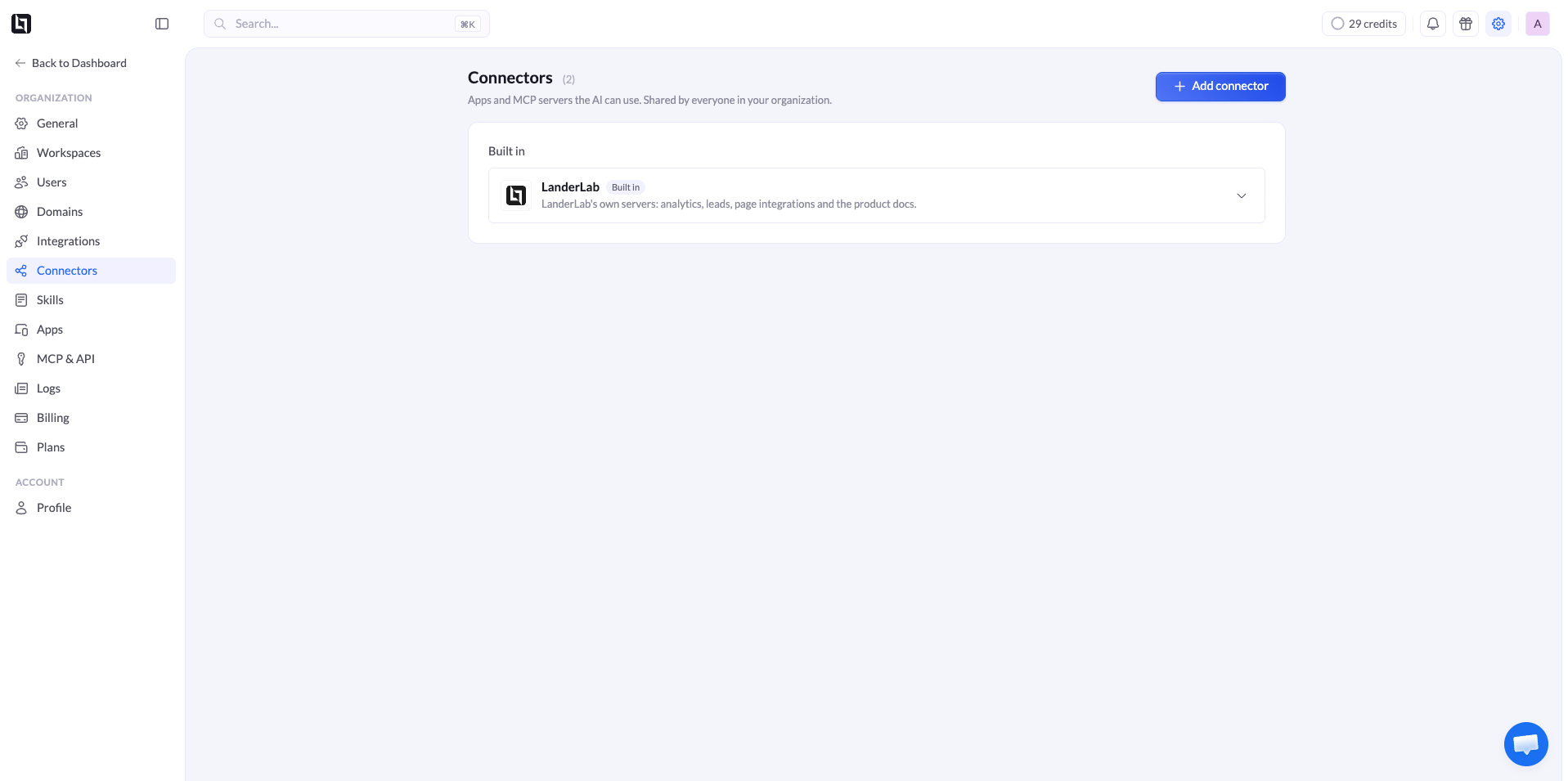 连接器由你组织中的所有人共享。你添加一个连接器后,所有团队成员都可以在 AI 助手中使用它。
### 内置的 LanderLab 连接器
每个组织都内置了 **LanderLab** 连接器。它让 AI 可以访问你的数据分析、线索、页面集成以及 LanderLab 产品文档,无需任何设置。
## 查找可用的连接器
所有可用的连接器都列在 **Add connector** 窗口中。你可以从 AI 助手的 **Manage connectors** 打开它,或在 **Settings** > **Connectors** 中点击 **Add connector**。
连接器按类别分组,如 **Tracking**、**Research**、**Design** 和 **Commerce**,方便你快速找到合适的连接器。每个连接器都会简要说明 AI 可以从中使用哪些内容。我们会定期添加新的连接器,请经常回来看看。
显示为灰色的连接器表示你的账户暂时还不能使用。
## 如何添加连接器
在 AI 助手输入框中点击 **+**,将鼠标悬停在 **Connectors** 上,然后点击 **Manage connectors**。或者进入 **Settings** > **Connectors**,点击 **Add connector**。
连接器由你组织中的所有人共享。你添加一个连接器后,所有团队成员都可以在 AI 助手中使用它。
### 内置的 LanderLab 连接器
每个组织都内置了 **LanderLab** 连接器。它让 AI 可以访问你的数据分析、线索、页面集成以及 LanderLab 产品文档,无需任何设置。
## 查找可用的连接器
所有可用的连接器都列在 **Add connector** 窗口中。你可以从 AI 助手的 **Manage connectors** 打开它,或在 **Settings** > **Connectors** 中点击 **Add connector**。
连接器按类别分组,如 **Tracking**、**Research**、**Design** 和 **Commerce**,方便你快速找到合适的连接器。每个连接器都会简要说明 AI 可以从中使用哪些内容。我们会定期添加新的连接器,请经常回来看看。
显示为灰色的连接器表示你的账户暂时还不能使用。
## 如何添加连接器
在 AI 助手输入框中点击 **+**,将鼠标悬停在 **Connectors** 上,然后点击 **Manage connectors**。或者进入 **Settings** > **Connectors**,点击 **Add connector**。
 在左侧按类别浏览,或按名称或功能搜索。
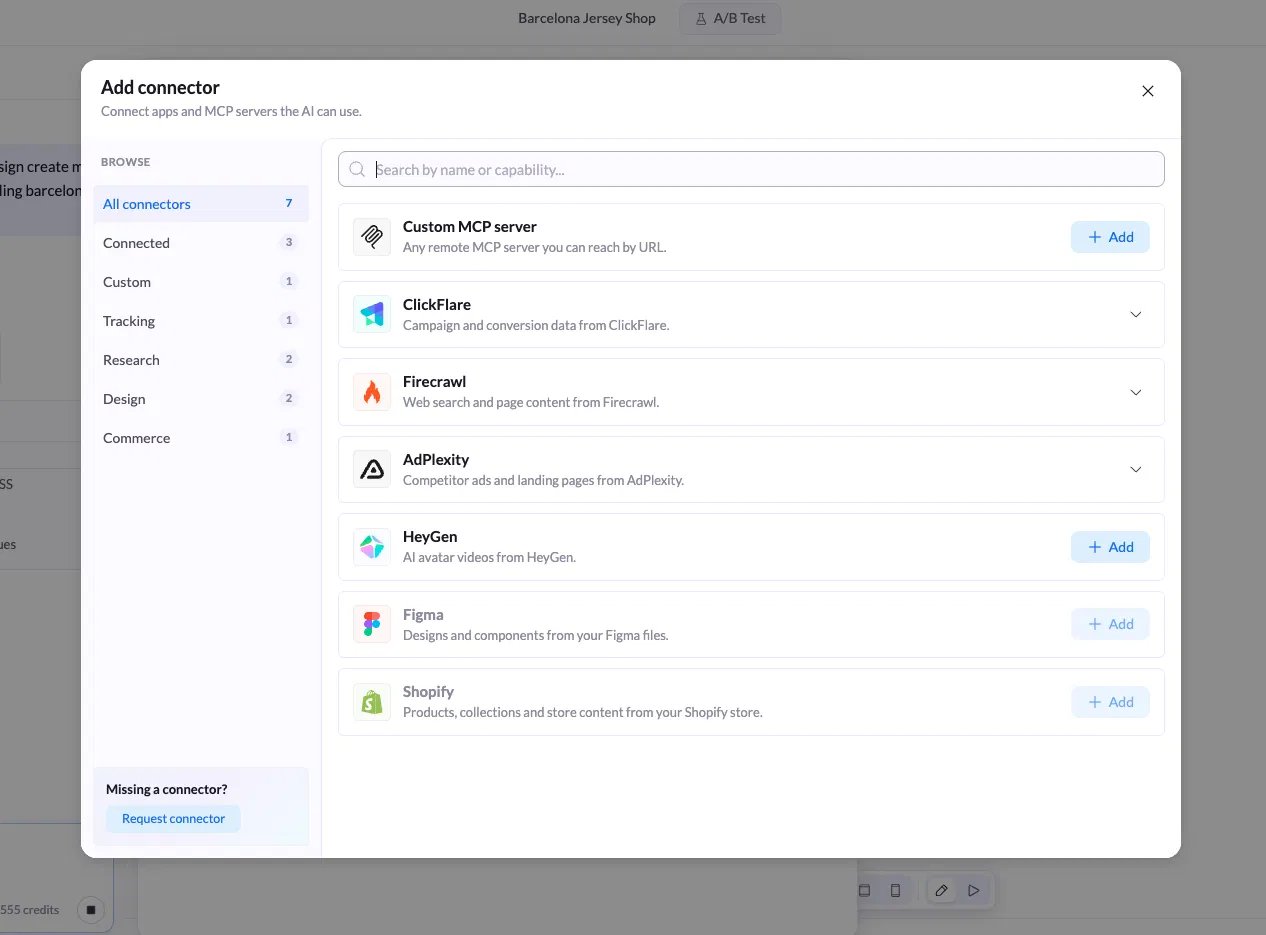 点击连接器旁边的 **Add**,然后按照步骤登录或输入你的凭据。
该连接器现在会出现在 **Connected** 下,以及输入框的 **Connectors** 菜单中。
## 如何添加自定义 MCP 服务器
使用自定义 MCP 服务器,可以连接列表中没有的任何工具。
点击输入框中的 **+**,将鼠标悬停在 **Connectors** 上,然后点击 **Manage connectors**。或者进入 **Settings** > **Connectors**,点击 **Add connector**。
点击 **Custom MCP server** 旁边的 **Add**。
点击连接器旁边的 **Add**,然后按照步骤登录或输入你的凭据。
该连接器现在会出现在 **Connected** 下,以及输入框的 **Connectors** 菜单中。
## 如何添加自定义 MCP 服务器
使用自定义 MCP 服务器,可以连接列表中没有的任何工具。
点击输入框中的 **+**,将鼠标悬停在 **Connectors** 上,然后点击 **Manage connectors**。或者进入 **Settings** > **Connectors**,点击 **Add connector**。
点击 **Custom MCP server** 旁边的 **Add**。
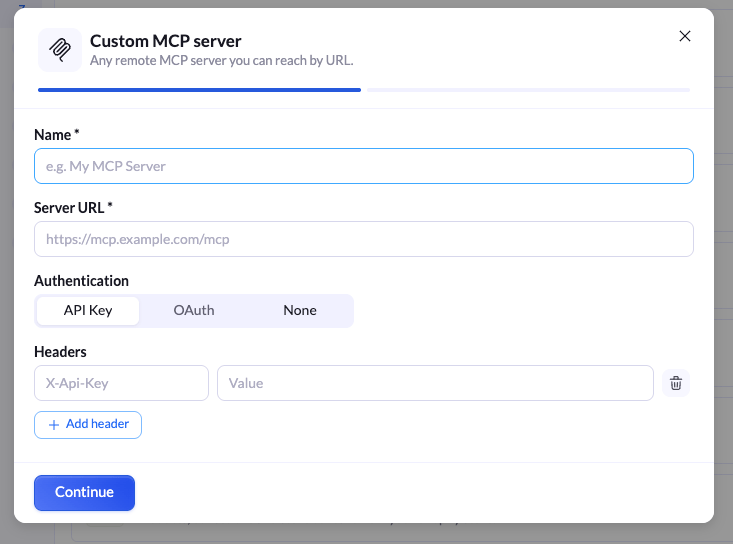 粘贴远程 MCP 服务器的 URL,并完成它要求的登录步骤。
只连接你信任的 MCP 服务器。AI 可以读取你连接的任何服务器中的数据,并将其用在你的页面上。
## 开启或关闭连接器
点击输入框中的 **+**,将鼠标悬停在 **Connectors** 上。在 **Connections** 下,使用每个连接器旁边的开关将其开启或关闭。
关闭当前任务不需要的连接器。这能让 AI 更专注,还可以节省 AI 额度。
## 提示词示例
连接器开启后,只需用自然语言说出你的需求。你可以在提示词中点名连接器,确保 AI 使用它。
```text theme={null}
Read this competitor page and list their main offer, headline, and CTA: https://example.com
```
```text theme={null}
Find 3 top competitor landing pages for keto supplements and suggest what to test on my page.
```
```text theme={null}
Pull last week's conversion data for this lander from my tracker and tell me where visitors drop off.
```
## 缺少某个连接器?
打开 **Manage connectors**,点击左下角的 **Request connector**,告诉我们你想连接哪个应用。
## 相关内容
为重复任务保存可复用的指令。
在 Claude、ChatGPT 和其他 AI 助手中使用 LanderLab。
This documentation is built and hosted on [Mintlify](https://mintlify.com), a developer documentation platform.
粘贴远程 MCP 服务器的 URL,并完成它要求的登录步骤。
只连接你信任的 MCP 服务器。AI 可以读取你连接的任何服务器中的数据,并将其用在你的页面上。
## 开启或关闭连接器
点击输入框中的 **+**,将鼠标悬停在 **Connectors** 上。在 **Connections** 下,使用每个连接器旁边的开关将其开启或关闭。
关闭当前任务不需要的连接器。这能让 AI 更专注,还可以节省 AI 额度。
## 提示词示例
连接器开启后,只需用自然语言说出你的需求。你可以在提示词中点名连接器,确保 AI 使用它。
```text theme={null}
Read this competitor page and list their main offer, headline, and CTA: https://example.com
```
```text theme={null}
Find 3 top competitor landing pages for keto supplements and suggest what to test on my page.
```
```text theme={null}
Pull last week's conversion data for this lander from my tracker and tell me where visitors drop off.
```
## 缺少某个连接器?
打开 **Manage connectors**,点击左下角的 **Request connector**,告诉我们你想连接哪个应用。
## 相关内容
为重复任务保存可复用的指令。
在 Claude、ChatGPT 和其他 AI 助手中使用 LanderLab。
This documentation is built and hosted on [Mintlify](https://mintlify.com), a developer documentation platform.