> ## Documentation Index
> Fetch the complete documentation index at: https://docs.landerlab.io/llms.txt
> Use this file to discover all available pages before exploring further.

# 如何将 LanderLab 测验嵌入到其他页面

> 将 LanderLab 测验嵌入任意落地页或网站：在空白页面上创建测验并发布，然后通过 Custom Code 元素中的 iframe 添加到目标页面。

你可以把 LanderLab 测验显示在另一个落地页中，或任何支持自定义 HTML 的网站上：先在一个单独的空白落地页上创建测验，再通过 iframe 嵌入该页面。

适用于以下场景：

* 在多个落地页中复用同一个测验，无需重新创建
* 为已经上线的落地页添加测验
* 在 LanderLab 之外搭建的网站上显示 LanderLab 测验

### 工作原理

你需要创建一个只包含测验的空白落地页并发布它。然后在希望显示测验的落地页上，使用 [**Custom Code**](/zh/features/editor/elements/custom-code) 元素添加一小段 iframe 代码。访客无需离开该落地页即可查看并完成测验。

## 分步指南

<Steps>
  <Step title="为测验创建空白落地页">
    * 进入 **Landing Pages**，点击 **Create Landing Page**
    * 点击 **Create From Template**
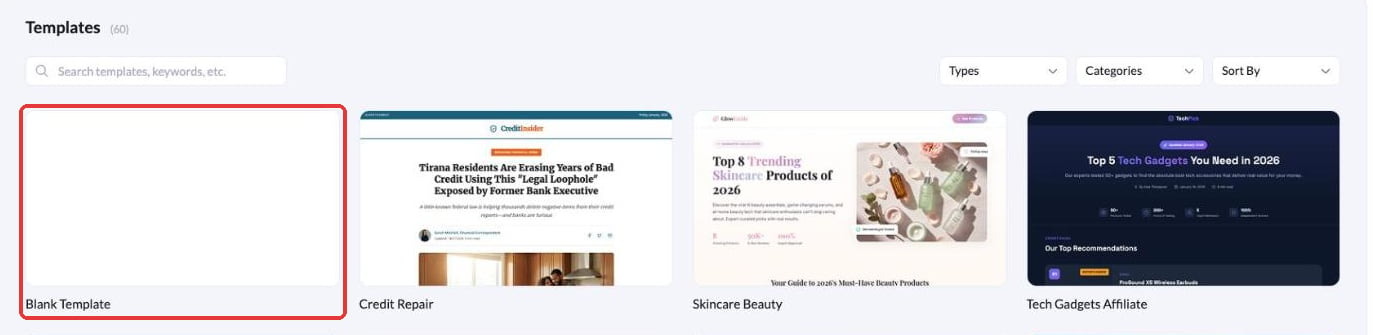
    * 选择 **Blank Template**，然后点击 **Use Template**
    * 为页面起一个清晰的名称（例如 `Quiz - Embed`），然后点击 **Create Landing Page**

    <Frame>
      <img src="https://mintcdn.com/landerlab-babdc23f/FVq4TJBX8YV0ZdgS/images/embed-quiz-blank-template.png?fit=max&auto=format&n=FVq4TJBX8YV0ZdgS&q=85&s=bb127d45a323dea7094702d1427e42e6" alt="在模板库中选择 Blank Template" width="1373" height="335" data-path="images/embed-quiz-blank-template.png" />
    </Frame>

    更多详情请参阅[从零开始创建落地页](/zh/features/landing-pages/create/from-scratch)。
  </Step>

  <Step title="添加 Quiz 元素">
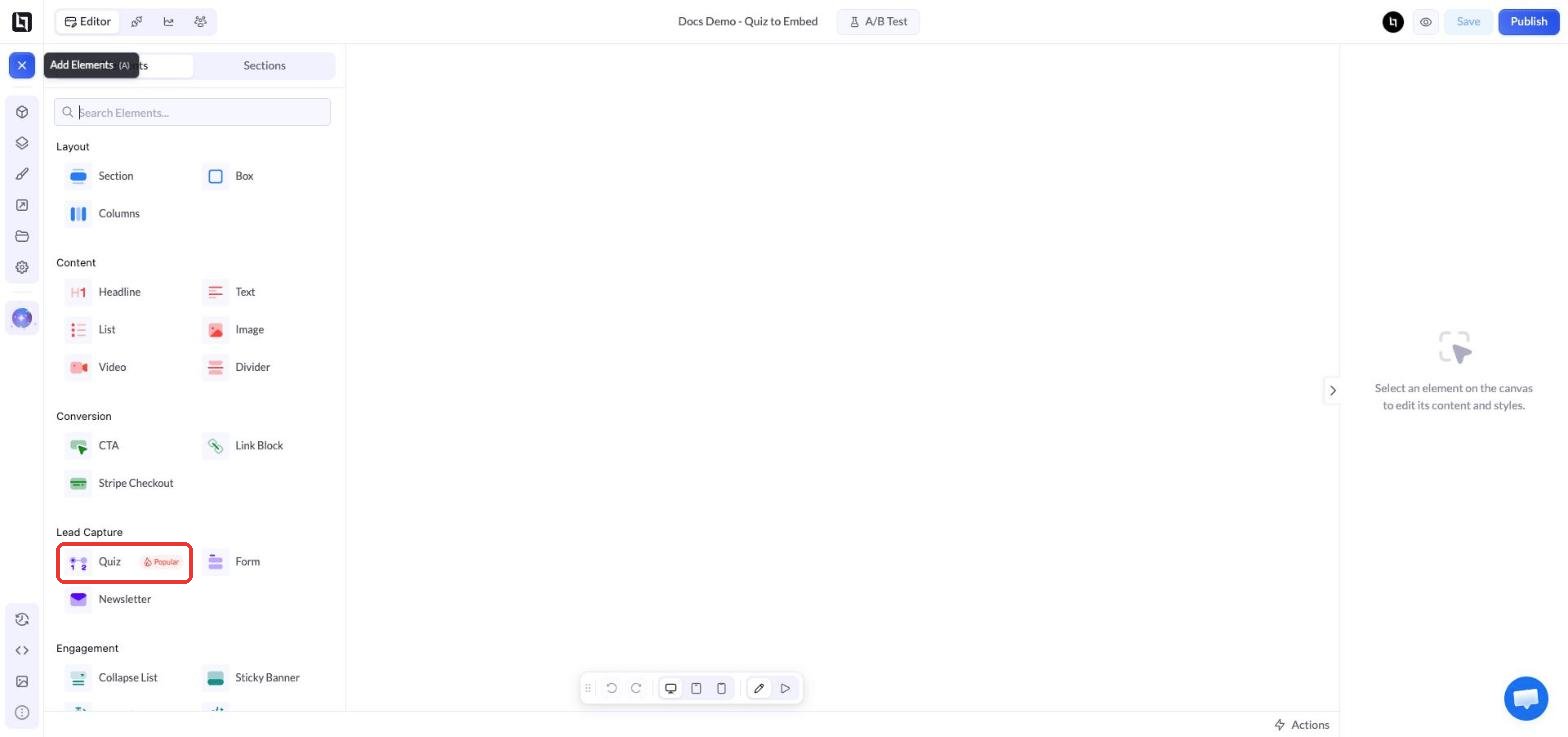
    * 在编辑器中，点击左上角的 **+**（Add Elements）
    * 在 **Lead Capture** 下点击 **Quiz**，将其添加到页面

    <Frame>
      <img src="https://mintcdn.com/landerlab-babdc23f/FVq4TJBX8YV0ZdgS/images/embed-quiz-add-quiz-element.png?fit=max&auto=format&n=FVq4TJBX8YV0ZdgS&q=85&s=52175814bbcfbe6f55b49fd8e6e85aec" alt="Add Elements 面板中 Lead Capture 下的 Quiz 元素" width="1568" height="737" data-path="images/embed-quiz-add-quiz-element.png" />
    </Frame>

    <Tip>
      此页面上只保留测验。你在这里添加的其他内容（如标题、图片或页脚）也会显示在嵌入区域中。
    </Tip>
  </Step>

  <Step title="创建测验">
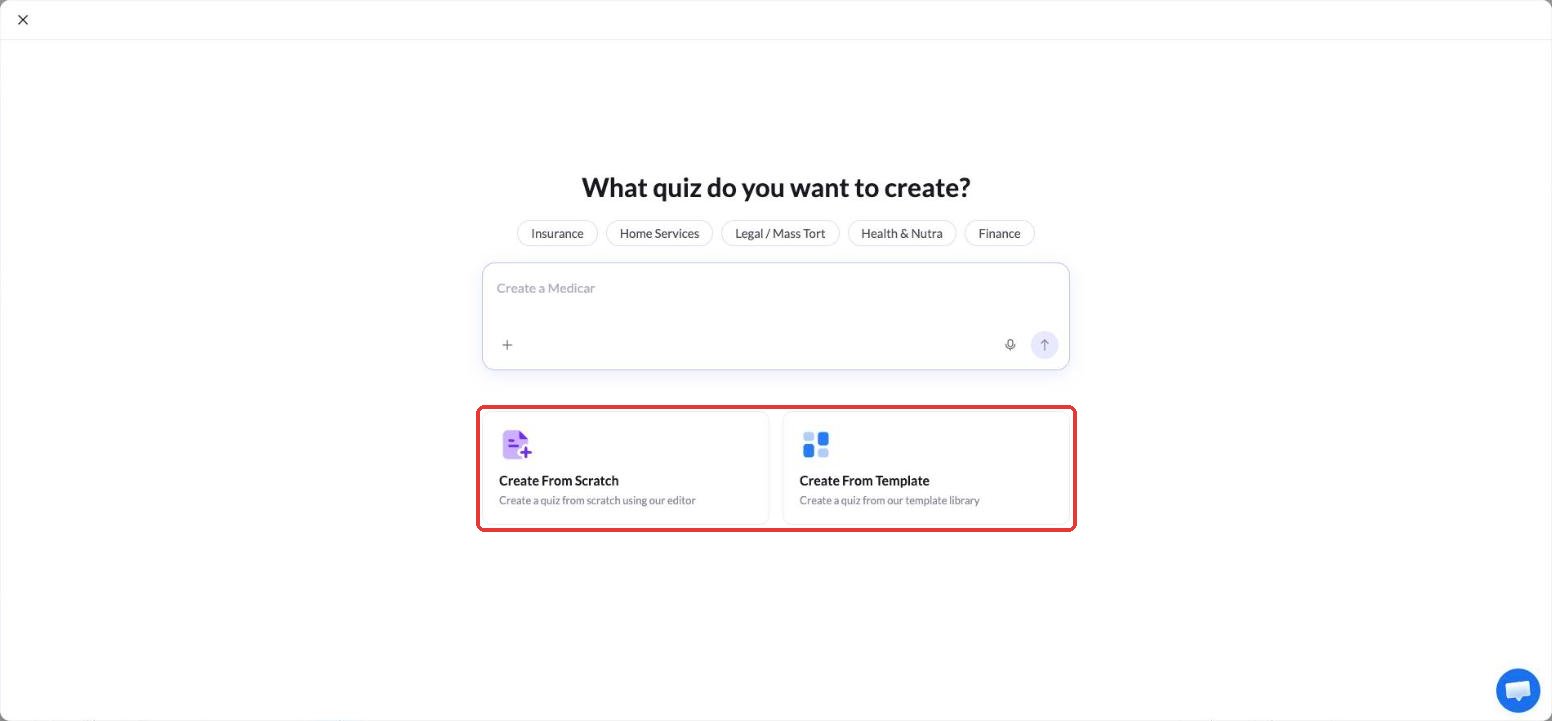
    * 选择 **Create From Scratch** 自行创建测验，或选择 **Create From Template** 从现成的测验开始。你也可以在输入框中描述测验，用 AI 生成。
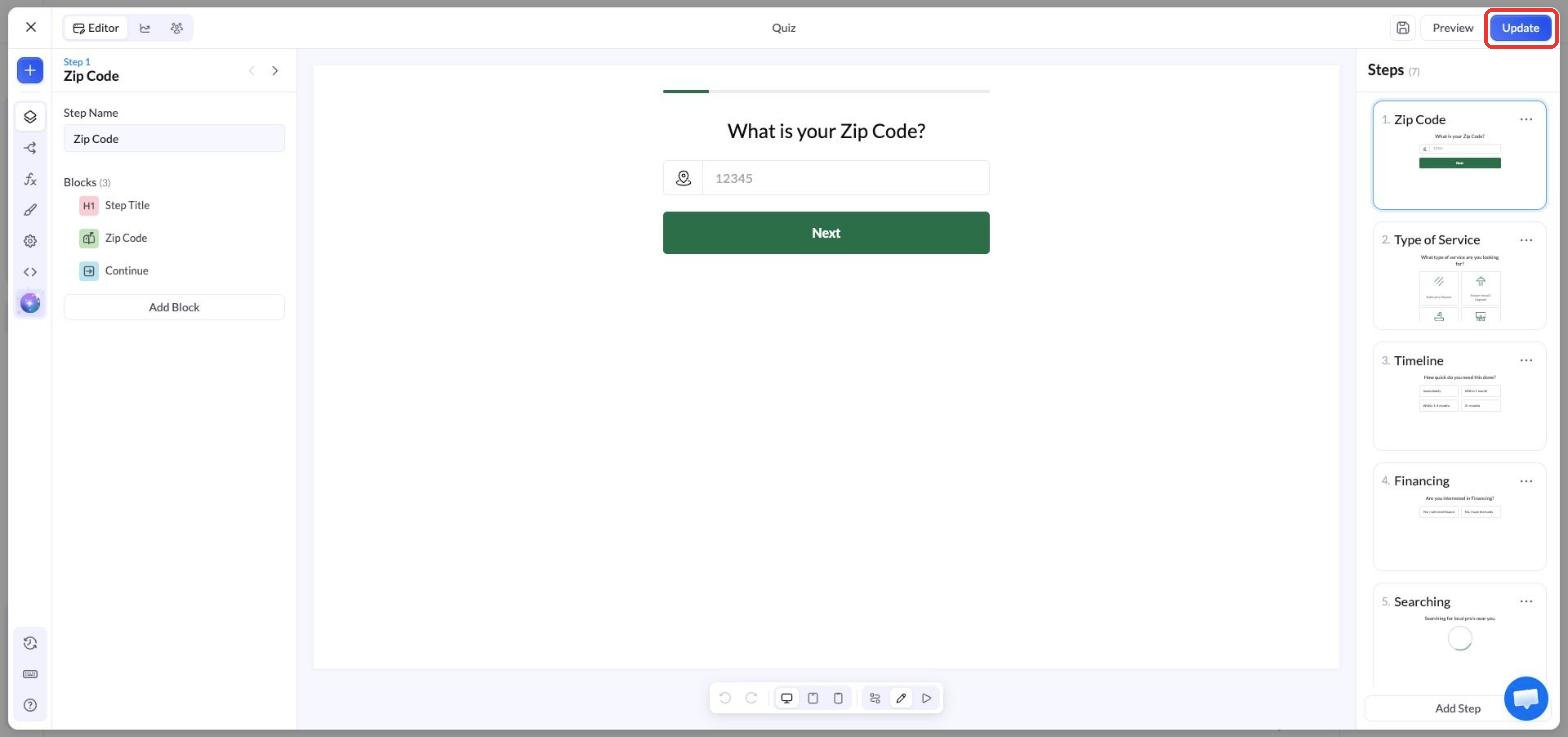
    * 在测验编辑器中添加和编辑步骤
    * 点击 **Update** 保存测验

    <Frame>
      <img src="https://mintcdn.com/landerlab-babdc23f/FVq4TJBX8YV0ZdgS/images/embed-quiz-create-quiz.png?fit=max&auto=format&n=FVq4TJBX8YV0ZdgS&q=85&s=343309f5c8c62a6e953dbca86e089347" alt="新建测验时的 Create From Scratch 和 Create From Template 选项" width="1552" height="721" data-path="images/embed-quiz-create-quiz.png" />
    </Frame>

    <Frame>
      <img src="https://mintcdn.com/landerlab-babdc23f/FVq4TJBX8YV0ZdgS/images/embed-quiz-builder-update.png?fit=max&auto=format&n=FVq4TJBX8YV0ZdgS&q=85&s=5d98c8af438863e2a92761b812fa6652" alt="带有 Update 按钮的测验编辑器" width="1568" height="737" data-path="images/embed-quiz-builder-update.png" />
    </Frame>

    了解更多：[从零开始创建测验漏斗](/zh/features/quizzes/create/from-scratch)。
  </Step>

  <Step title="发布测验页面">
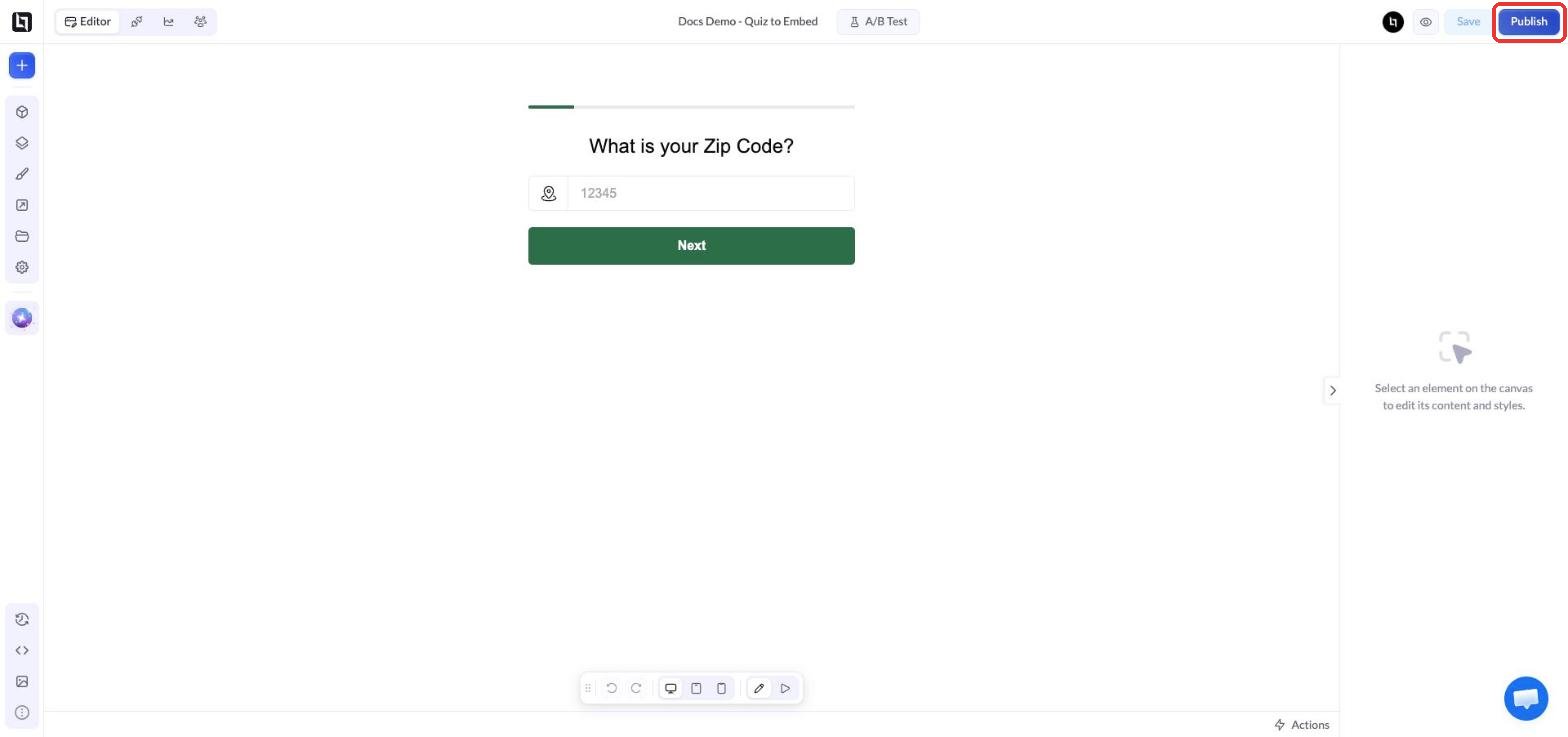
    * 点击编辑器右上角的 **Publish**
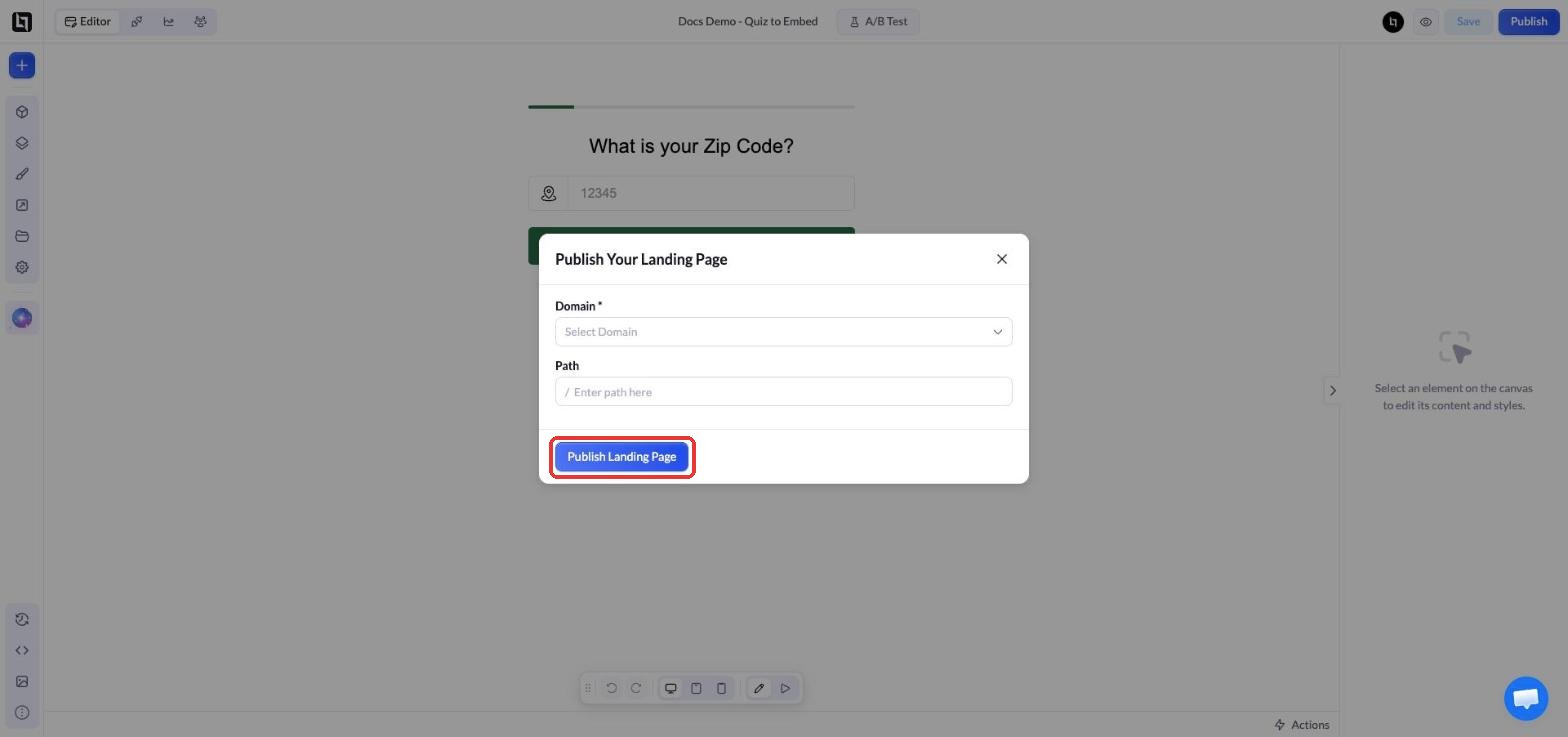
    * 选择 **Domain** 和 **Path**，然后点击 **Publish Landing Page**
    * 复制页面的线上 URL（例如 `https://yourdomain.com/quiz`）。稍后需要将它粘贴到嵌入代码中。

    <Frame>
      <img src="https://mintcdn.com/landerlab-babdc23f/FVq4TJBX8YV0ZdgS/images/embed-quiz-blank-page-with-quiz.png?fit=max&auto=format&n=FVq4TJBX8YV0ZdgS&q=85&s=a4b02687042b9f5d68e548acf0eff779" alt="只包含测验的空白落地页和 Publish 按钮" width="1568" height="737" data-path="images/embed-quiz-blank-page-with-quiz.png" />
    </Frame>

    <Frame>
      <img src="https://mintcdn.com/landerlab-babdc23f/FVq4TJBX8YV0ZdgS/images/embed-quiz-publish.png?fit=max&auto=format&n=FVq4TJBX8YV0ZdgS&q=85&s=f032b59a5b7f9d5f634faaa3abd10e28" alt="包含 Domain 和 Path 的 Publish Your Landing Page 窗口" width="1568" height="737" data-path="images/embed-quiz-publish.png" />
    </Frame>
  </Step>

  <Step title="在落地页中添加 Custom Code 元素">
    * 在编辑器中打开要显示测验的落地页
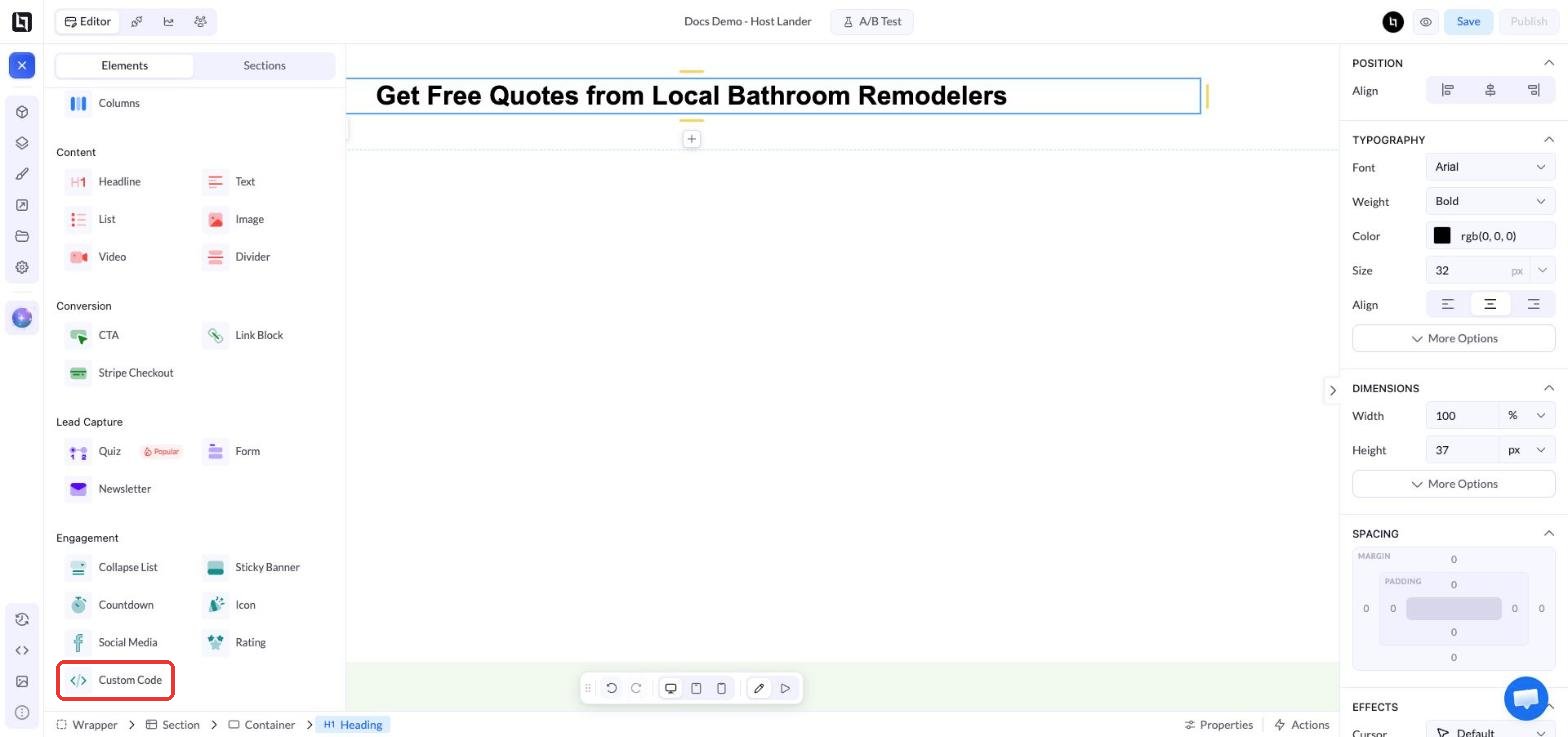
    * 点击 **+**（Add Elements），在 **Engagement** 下点击 **Custom Code**
    * 将该元素移动到测验需要显示的位置
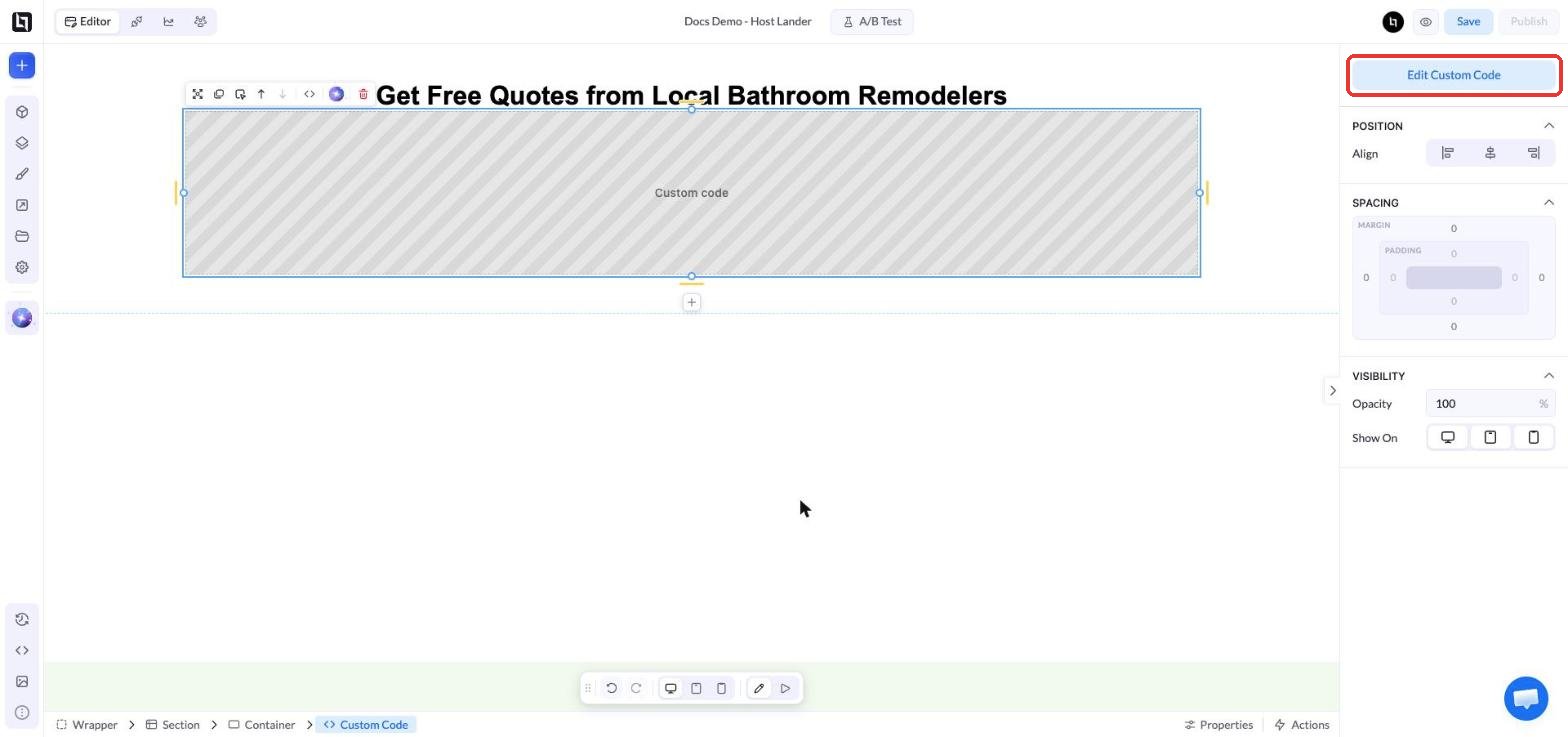
    * 选中该元素后，点击右侧面板中的 **Edit Custom Code**

    <Frame>
      <img src="https://mintcdn.com/landerlab-babdc23f/FVq4TJBX8YV0ZdgS/images/embed-quiz-custom-code-element.png?fit=max&auto=format&n=FVq4TJBX8YV0ZdgS&q=85&s=1b69b72b514cdf07257fcaecc22a444a" alt="Add Elements 面板中 Engagement 下的 Custom Code 元素" width="1568" height="737" data-path="images/embed-quiz-custom-code-element.png" />
    </Frame>

    <Frame>
      <img src="https://mintcdn.com/landerlab-babdc23f/FVq4TJBX8YV0ZdgS/images/embed-quiz-edit-custom-code.png?fit=max&auto=format&n=FVq4TJBX8YV0ZdgS&q=85&s=f44839dff8f85cdfa05cb6f250b73022" alt="落地页上的 Custom Code 元素和 Edit Custom Code 按钮" width="1568" height="737" data-path="images/embed-quiz-edit-custom-code.png" />
    </Frame>
  </Step>

  <Step title="粘贴嵌入代码">
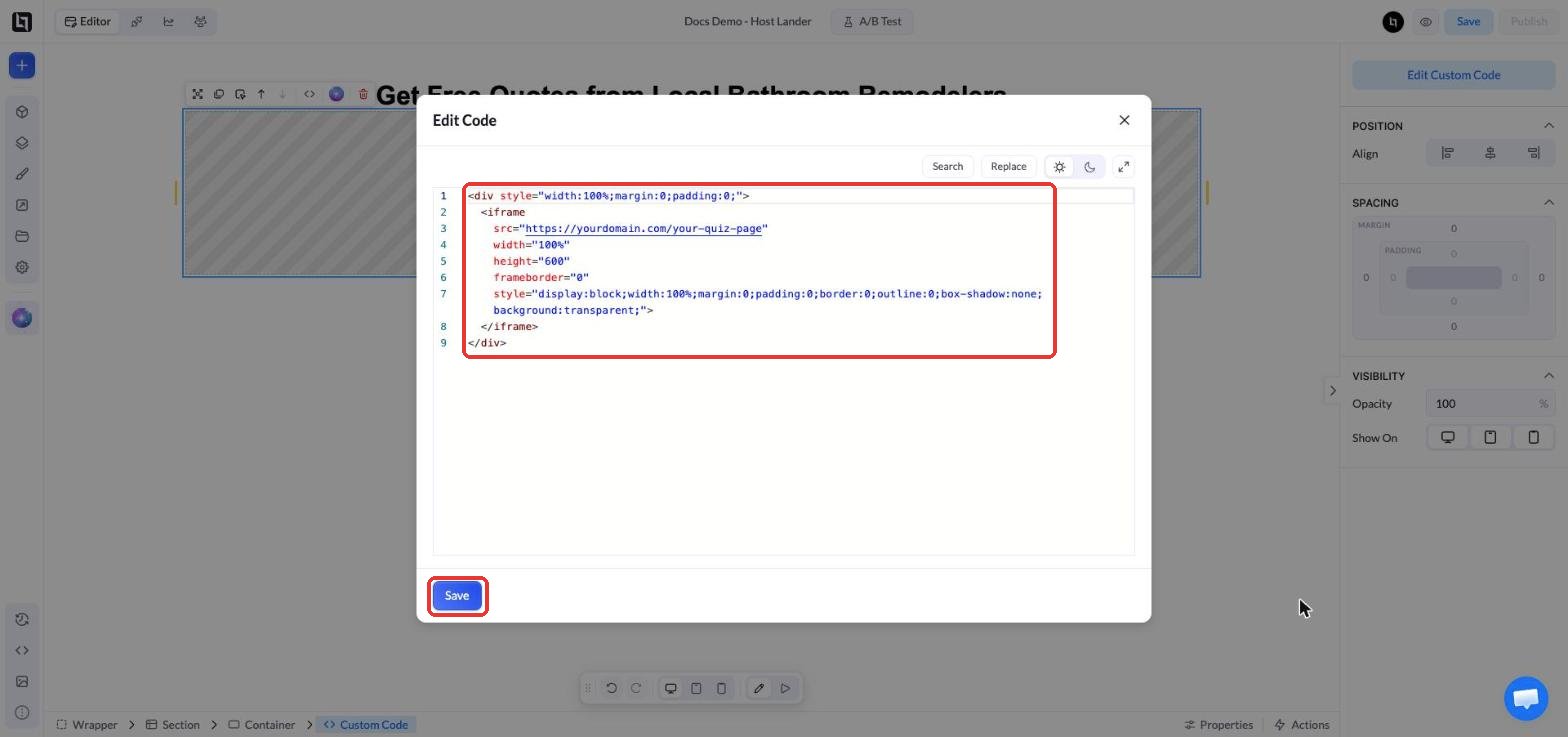
    将以下代码粘贴到 **Edit Code** 窗口中，并把 `src` 的值替换为已发布测验页面的 URL：

    ```html theme={null}
    <div style="width:100%;margin:0;padding:0;">
      <iframe
        src="https://yourdomain.com/your-quiz-page"
        width="100%"
        height="600"
        frameborder="0"
        style="display:block;width:100%;margin:0;padding:0;border:0;outline:0;box-shadow:none;background:transparent;">
      </iframe>
    </div>
    ```

    点击 **Save** 关闭窗口。

    <Frame>
      <img src="https://mintcdn.com/landerlab-babdc23f/FVq4TJBX8YV0ZdgS/images/embed-quiz-iframe-code.png?fit=max&auto=format&n=FVq4TJBX8YV0ZdgS&q=85&s=aad18bd0d32bbbde3785ff62d115b6dc" alt="包含测验 iframe 代码的 Edit Code 窗口" width="1568" height="737" data-path="images/embed-quiz-iframe-code.png" />
    </Frame>
  </Step>

  <Step title="保存、预览并发布落地页">
    * 在编辑器中点击 **Save**
    * 点击 **Preview**（眼睛）图标检查测验。Custom Code 元素不会在编辑器中渲染，因此测验只会在预览和线上页面中显示。
    * [**发布**](/zh/features/landing-pages/operations/publish)或[**重新发布**](/zh/features/landing-pages/operations/republish)落地页，使更改生效
  </Step>
</Steps>

### 最终结果

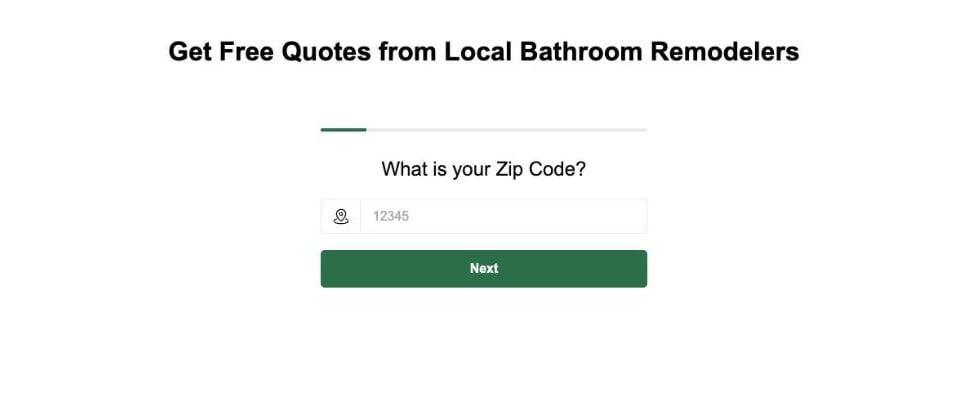
现在测验会无边框地显示在你的落地页中，访客无需离开页面即可完成测验。

<Frame>
  <img src="https://mintcdn.com/landerlab-babdc23f/FVq4TJBX8YV0ZdgS/images/embed-quiz-result.png?fit=max&auto=format&n=FVq4TJBX8YV0ZdgS&q=85&s=7da9c6796ad877510fca732823a80187" alt="嵌入到另一个落地页中的测验（预览）" width="968" height="420" data-path="images/embed-quiz-result.png" />
</Frame>

## 自定义嵌入效果

* **高度：** 根据测验中最高的步骤调整 `height="600"`。如果某个步骤高于框架，访客会在测验内看到滚动条。
* **移动端：** 在手机上检查落地页，测验步骤在移动端通常更高，必要时请增加高度。
* **宽度：** 测验会占满其容器的整个宽度。如需更窄并居中显示，请将外层 `<div>` 的样式改为 `width:100%;max-width:600px;margin:0 auto;padding:0;`。

<Accordion title="替代方案：使用样式块的嵌入代码">
  如果在同一页面中嵌入多个测验，可以把样式放在一个 `<style>` 块中，并复用 `quiz-embed` 类：

  ```html theme={null}
  <style>
    .quiz-embed {
      width: 100%;
      margin: 0;
      padding: 0;
    }

    .quiz-embed iframe {
      display: block;
      width: 100%;
      margin: 0;
      padding: 0;
      border: 0;
      outline: 0;
      box-shadow: none;
      background: transparent;
    }
  </style>

  <div class="quiz-embed">
    <iframe
      src="https://yourdomain.com/your-quiz-page"
      width="100%"
      height="600"
      frameborder="0">
    </iframe>
  </div>
  ```
</Accordion>

## 在 LanderLab 之外嵌入测验

同样的嵌入代码适用于任何允许添加自定义 HTML 的网站或页面搭建工具，例如 WordPress 的 **Custom HTML** 区块或 Webflow 的 **Code Embed** 元素。将代码粘贴到其中，并把 `src` 的值替换为你的测验页面 URL。

## 重要说明

* **线索归属于测验页面。** 测验实际运行在空白测验页面上，因此线索和分析数据都会记录在该页面上，而不是记录在嵌入测验的落地页上。
* **测验更新会同步到所有位置。** 编辑并重新发布测验页面后，所有使用它的落地页中的嵌入测验都会同步更新。只有在更改测验页面的域名或路径时，才需要更新 `src`。
* **跟踪在 iframe 内运行。** 宿主落地页上的像素和 URL 参数不会自动传入嵌入的测验。请直接在测验页面上设置测验跟踪，例如 [Meta Pixel Lead 事件](/zh/community/quiz/fire-meta-pixel)。
* 发布后，务必在线上落地页中测试测验。


This documentation is built and hosted on [Mintlify](https://mintlify.com), a developer documentation platform.