> ## Documentation Index
> Fetch the complete documentation index at: https://docs.landerlab.io/llms.txt
> Use this file to discover all available pages before exploring further.
# 修复 Google 账号连接问题
> 了解如何从你的 Google 账号中移除已关联的应用并重新连接,以修复 LanderLab 中的 Google 身份验证错误。
部分用户可能会看到 Google 集成不安全的警告,或在身份验证过程中遇到错误。这通常是因为 LanderLab 与你的 Google 账号之间的旧连接没有正确完成或已失效。
解决方法是将 LanderLab 从 Google 账号的已关联应用中移除,然后重新从头连接。
前往 [myaccount.google.com](https://myaccount.google.com/),并使用你用于该集成的同一个 Google 账号登录。
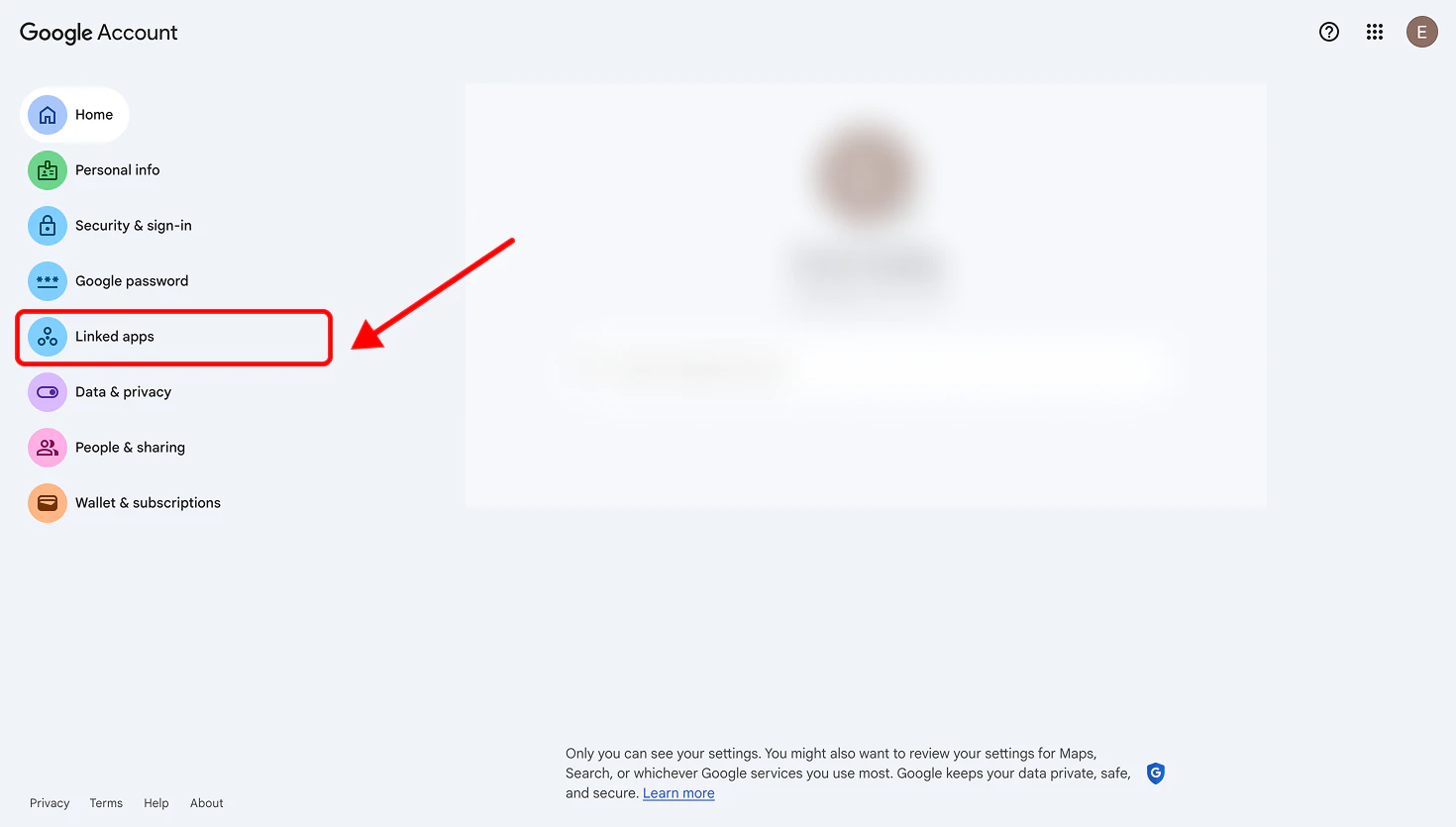
在左侧边栏中,点击 **Linked apps**(已关联的应用)。
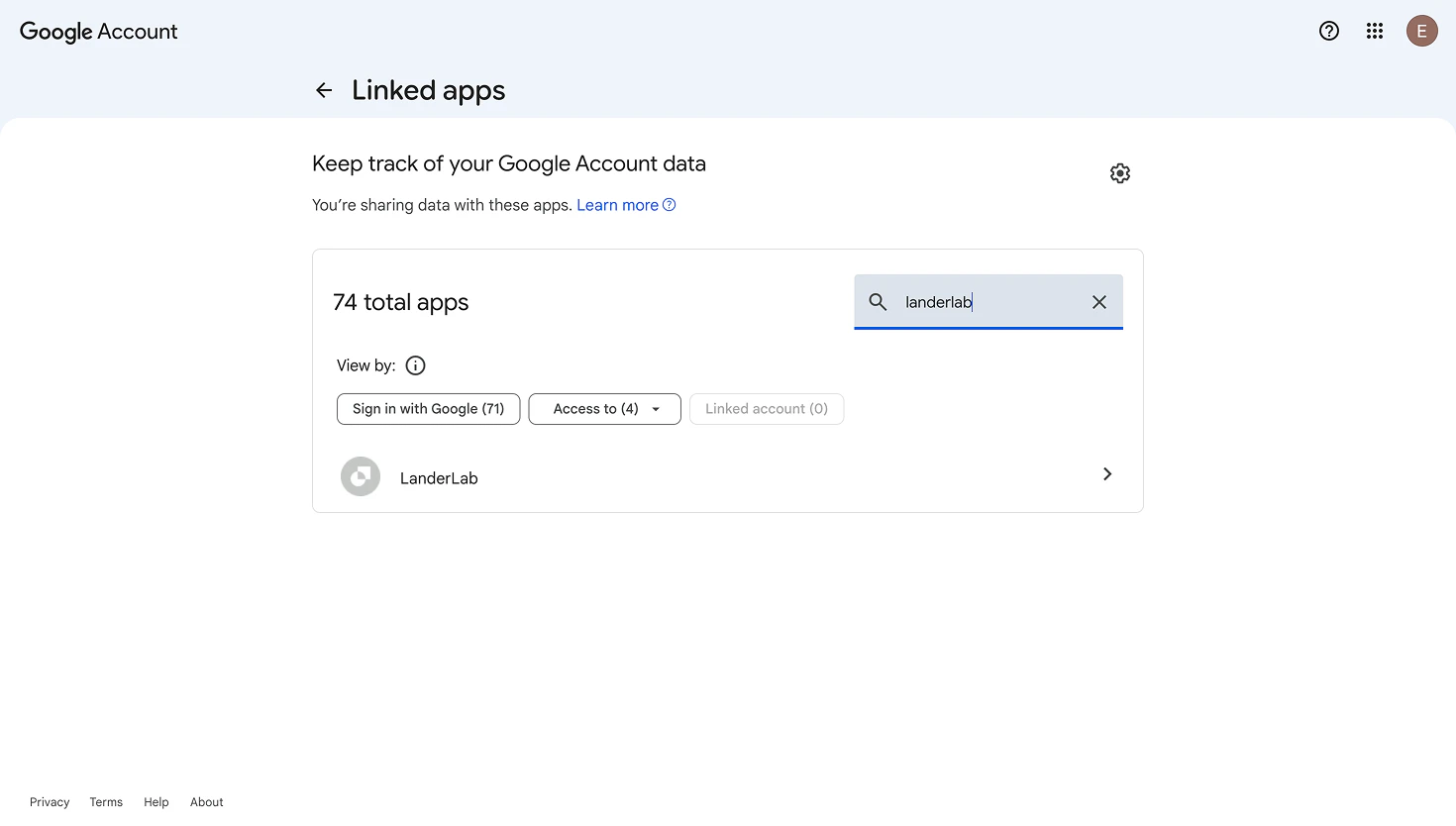
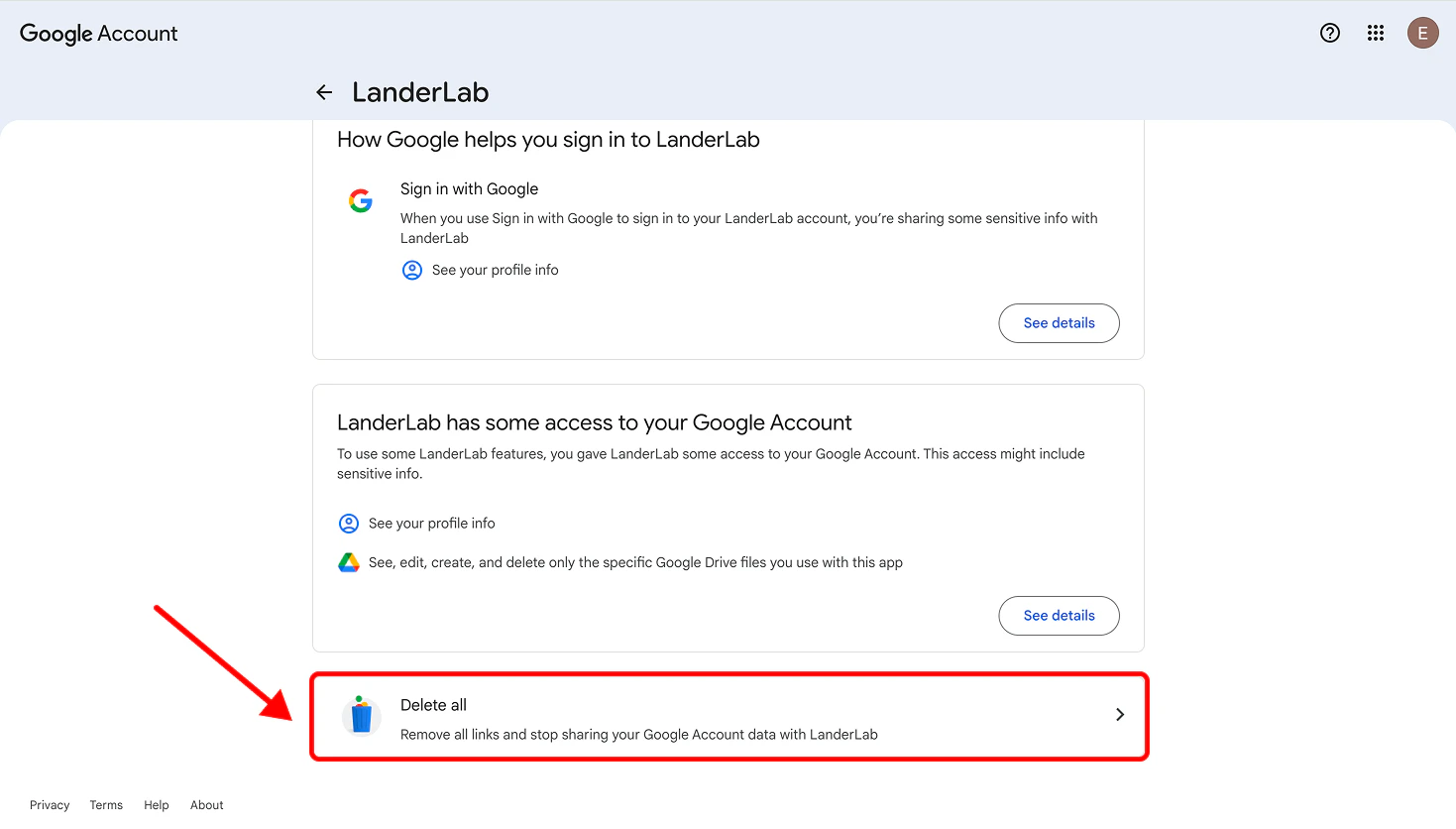
 在列表中搜索 **LanderLab**(或 **landerlab.io**)。点击它,然后点击 **Delete all connections**(删除所有关联)以移除所有权限。在出现提示时确认移除。
 返回 LanderLab,打开集成面板,重新添加你的 Google 集成。你将像首次连接一样完成身份验证和授权流程,从而创建一个全新、干净的连接。
重新连接后,该警告应该不会再出现,集成也将正常工作。
这适用于 LanderLab 中的所有 Google 集成,包括 Google Sheets 和 Google Address Autocomplete。
This documentation is built and hosted on [Mintlify](https://mintlify.com), a developer documentation platform.
返回 LanderLab,打开集成面板,重新添加你的 Google 集成。你将像首次连接一样完成身份验证和授权流程,从而创建一个全新、干净的连接。
重新连接后,该警告应该不会再出现,集成也将正常工作。
这适用于 LanderLab 中的所有 Google 集成,包括 Google Sheets 和 Google Address Autocomplete。
This documentation is built and hosted on [Mintlify](https://mintlify.com), a developer documentation platform.