> ## Documentation Index
> Fetch the complete documentation index at: https://docs.landerlab.io/llms.txt
> Use this file to discover all available pages before exploring further.
# Set Up Two-Factor Authentication (2FA)
> Protect your LanderLab account with two-factor authentication. Connect an authenticator app, confirm the 6-digit code, and save your backup codes in a few minutes.
Two-factor authentication adds a second step to your login. After your password, LanderLab asks for a 6-digit code from an authenticator app on your phone. The code changes every 30 seconds, so even if someone gets your password, they still cannot sign in to your account.
Setup takes about two minutes and only needs to be done once per account.
 ## Before you start
You need two things:
* **An authenticator app** installed on your phone or computer
* **A password on your LanderLab account.** If you signed up with Google or Apple, you can create one during setup
## Choose an authenticator app
Any app that supports time-based one-time passwords (TOTP) works with LanderLab. These are the most common ones:
Free and simple. Available for iOS and Android with optional cloud backup.
Stores your codes next to your passwords and syncs across all your devices.
Multi-device support with encrypted backups, so you keep access if you change phones.
Works well if your team already uses Microsoft 365.
Pick an app that backs up or syncs your codes. If your only copy lives on one phone and that phone is lost, you will need your backup codes to get back in.
## Enable two-factor authentication
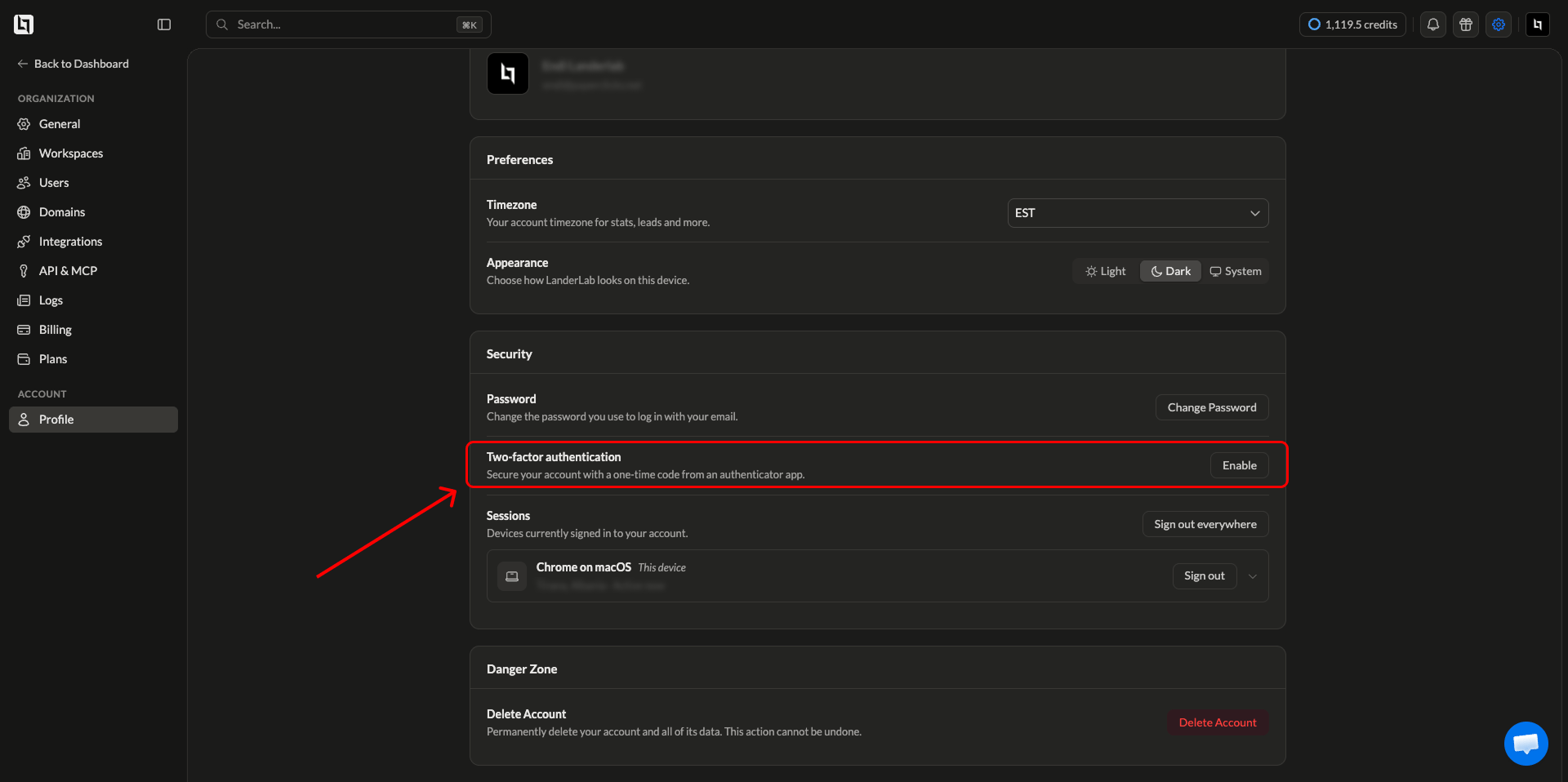
Click the **gear icon** in the top right corner of the dashboard, then click **Profile** in the left sidebar under **Account**. Scroll to the **Security** card.
Next to **Two-factor authentication**, click **Enable**. A setup window opens with three steps.
## Before you start
You need two things:
* **An authenticator app** installed on your phone or computer
* **A password on your LanderLab account.** If you signed up with Google or Apple, you can create one during setup
## Choose an authenticator app
Any app that supports time-based one-time passwords (TOTP) works with LanderLab. These are the most common ones:
Free and simple. Available for iOS and Android with optional cloud backup.
Stores your codes next to your passwords and syncs across all your devices.
Multi-device support with encrypted backups, so you keep access if you change phones.
Works well if your team already uses Microsoft 365.
Pick an app that backs up or syncs your codes. If your only copy lives on one phone and that phone is lost, you will need your backup codes to get back in.
## Enable two-factor authentication
Click the **gear icon** in the top right corner of the dashboard, then click **Profile** in the left sidebar under **Account**. Scroll to the **Security** card.
Next to **Two-factor authentication**, click **Enable**. A setup window opens with three steps.
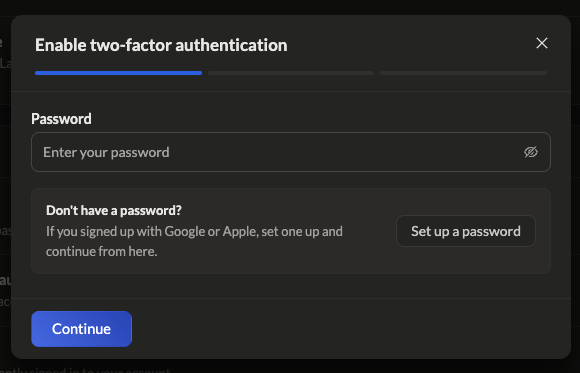 Enter your LanderLab password and click **Continue**.
Signed up with Google or Apple and never set a password? Click **Set up a password** in the same window, create one, then continue from where you left off.
Enter your LanderLab password and click **Continue**.
Signed up with Google or Apple and never set a password? Click **Set up a password** in the same window, create one, then continue from where you left off.
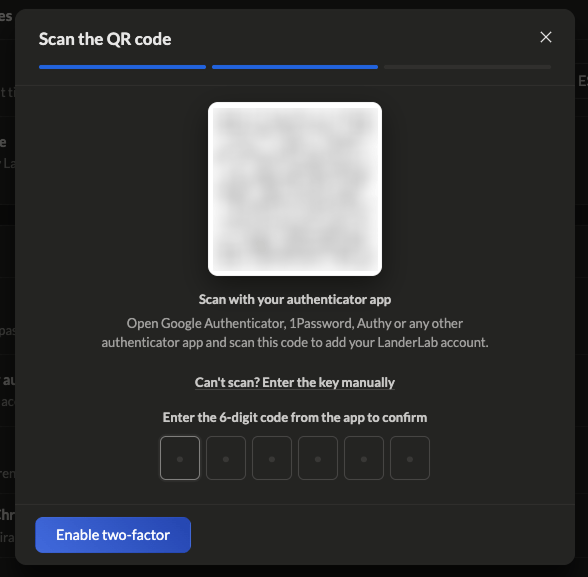 Open your authenticator app, choose the option to add a new account, and point your camera at the QR code on screen.
If you cannot scan it, click **Can't scan? Enter the key manually** and type the key into your app instead.
Your app now shows a 6-digit code for LanderLab. Type it into the six boxes and click **Enable two-factor**.
LanderLab shows ten backup codes. Click **Copy** or **Download** to save them, then click **Done**.
Two-factor authentication is now active. The next time you log in, LanderLab asks for a code after your password.
## How to add the account in each app
The wording changes slightly from app to app, but the flow is the same:
Open the app, tap the **plus** button in the bottom right, choose **Scan a QR code**, and point your camera at the screen.
Create or open the login item for LanderLab, click **Add more** then **One-time password**, and scan the QR code with the camera icon.
Tap **Add Account** at the bottom of the app, choose **Scan QR Code**, and scan the code on screen.
Tap the **plus** icon, choose **Other account (Google, Facebook, etc.)**, and scan the QR code.
## About your backup codes
Each backup code signs you in one time if you cannot reach your authenticator app. They are shown once during setup and never again.
Store your backup codes somewhere safe and separate from your phone, such as a password manager or a printed copy. Without them and without your authenticator app, you will be locked out of your account.
Do not save them in the same place you store your LanderLab password if that place is only protected by that password.
## Logging in with two-factor enabled
Log in as usual.
Find the LanderLab entry and read the current 6-digit code.
Type it in before it refreshes. If the timer is nearly out, wait for the next code and use that one.
## Troubleshooting
Codes are tied to the clock on your device. If your phone's time is off by more than a few seconds, every code fails. Turn on automatic date and time in your phone settings, then try again. In Google Authenticator you can also use **Settings** > **Time correction for codes**.
Click **Can't scan? Enter the key manually** and type the key into your app. Zooming in on the page or increasing your screen brightness also helps.
Use one of your backup codes to log in, then set up two-factor authentication again on your new device. Each backup code works only once.
Contact LanderLab support from the email address on your account so the team can verify your identity and help you regain access.
If you can still log in with a backup code, do that, then turn two-factor authentication off and set it up again to get a fresh QR code.
Open your authenticator app, choose the option to add a new account, and point your camera at the QR code on screen.
If you cannot scan it, click **Can't scan? Enter the key manually** and type the key into your app instead.
Your app now shows a 6-digit code for LanderLab. Type it into the six boxes and click **Enable two-factor**.
LanderLab shows ten backup codes. Click **Copy** or **Download** to save them, then click **Done**.
Two-factor authentication is now active. The next time you log in, LanderLab asks for a code after your password.
## How to add the account in each app
The wording changes slightly from app to app, but the flow is the same:
Open the app, tap the **plus** button in the bottom right, choose **Scan a QR code**, and point your camera at the screen.
Create or open the login item for LanderLab, click **Add more** then **One-time password**, and scan the QR code with the camera icon.
Tap **Add Account** at the bottom of the app, choose **Scan QR Code**, and scan the code on screen.
Tap the **plus** icon, choose **Other account (Google, Facebook, etc.)**, and scan the QR code.
## About your backup codes
Each backup code signs you in one time if you cannot reach your authenticator app. They are shown once during setup and never again.
Store your backup codes somewhere safe and separate from your phone, such as a password manager or a printed copy. Without them and without your authenticator app, you will be locked out of your account.
Do not save them in the same place you store your LanderLab password if that place is only protected by that password.
## Logging in with two-factor enabled
Log in as usual.
Find the LanderLab entry and read the current 6-digit code.
Type it in before it refreshes. If the timer is nearly out, wait for the next code and use that one.
## Troubleshooting
Codes are tied to the clock on your device. If your phone's time is off by more than a few seconds, every code fails. Turn on automatic date and time in your phone settings, then try again. In Google Authenticator you can also use **Settings** > **Time correction for codes**.
Click **Can't scan? Enter the key manually** and type the key into your app. Zooming in on the page or increasing your screen brightness also helps.
Use one of your backup codes to log in, then set up two-factor authentication again on your new device. Each backup code works only once.
Contact LanderLab support from the email address on your account so the team can verify your identity and help you regain access.
If you can still log in with a backup code, do that, then turn two-factor authentication off and set it up again to get a fresh QR code.