> ## Documentation Index
> Fetch the complete documentation index at: https://docs.landerlab.io/llms.txt
> Use this file to discover all available pages before exploring further.
# Manage Active Sessions and Sign Out Devices
> See every device signed in to your LanderLab account, check where and when it was last active, and sign out of any device or all devices at once.
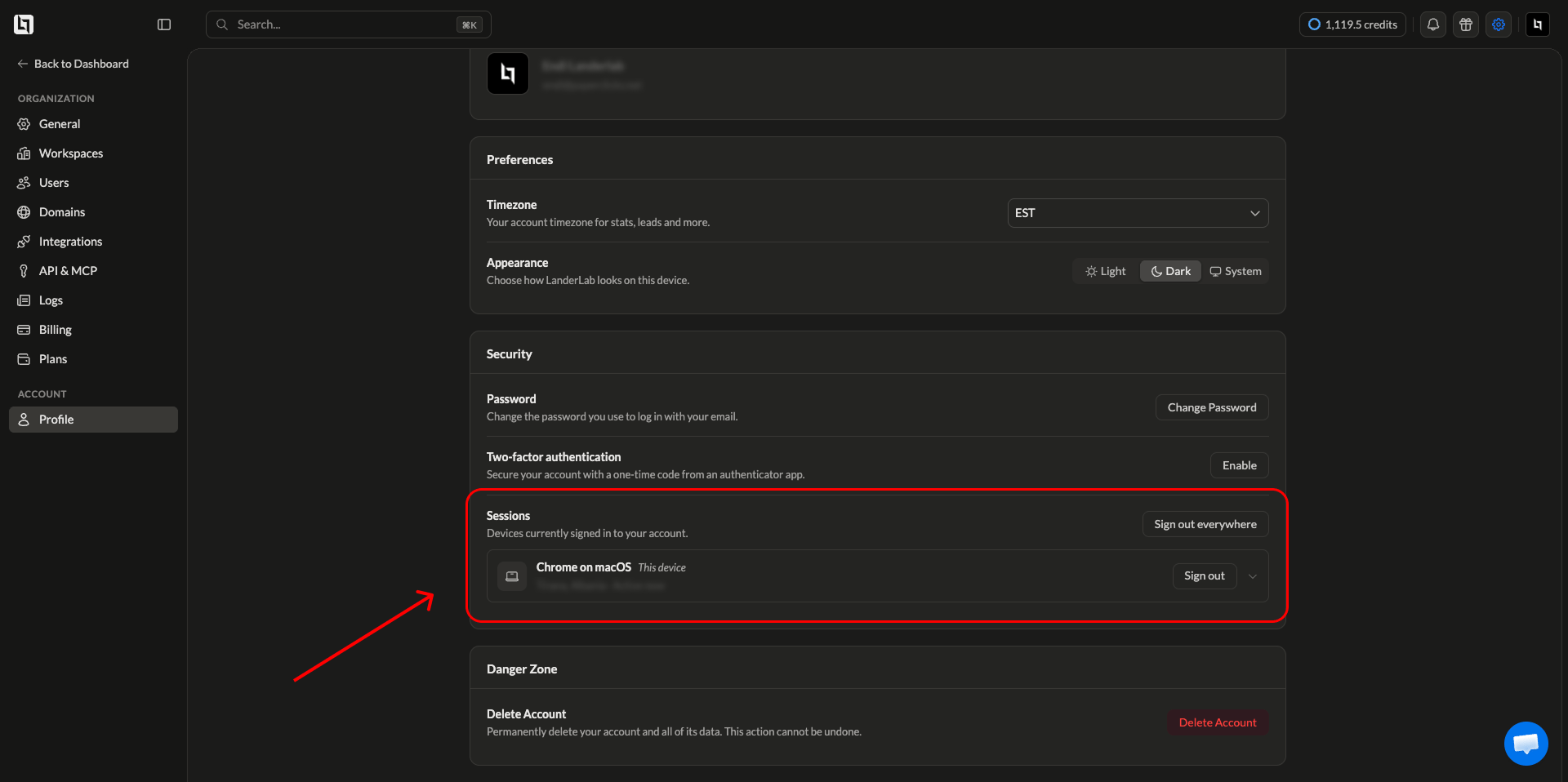
Sessions show you every device that is currently signed in to your LanderLab account. Each session records the browser, operating system, approximate location, and last activity time, so you can spot logins you do not recognize and end them in one click.
This is useful when you log in from a shared computer, lose a device, or want to make sure a former team member no longer has access to your account.
## Where to find Sessions
 Click the **gear icon** in the top right corner of the dashboard.
In the left sidebar, under **Account**, click **Profile**.
Find the **Security** card. Sessions is listed under **Password** and **Two-factor authentication**.
## What each session shows
Every signed in device appears as its own row with:
| Detail | What it means |
| ---------------------------- | ----------------------------------------------------------------------------------------- |
| Browser and operating system | The browser and OS used to sign in, for example Chrome on macOS |
| This device | Marks the session you are using right now |
| Location | The approximate city and country based on the IP address |
| Last active | How recently the session was used, shown as "Active now" or a time such as "20 hours ago" |
Click the **arrow** on the right side of a session row to expand it and see more detail about that device.
Location is estimated from the IP address, so it can show a nearby city instead of your exact one. A VPN or mobile network can also place a session in a different country.
## Sign out of a single device
Look through the list and identify the device you want to remove.
Click **Sign out** on that row. The session ends immediately and the device is asked to log in again the next time it opens LanderLab.
## Sign out of all devices
Click **Sign out everywhere** at the top of the Sessions section to end every active session on your account.
Signing out everywhere also ends your current session. You will be returned to the login screen and need to sign in again.
Use this when you are not sure which device is which, when you have lost a phone or laptop, or right after changing your password.
## When to review your sessions
Check your session list if you notice any of the following:
* A login from a city or country you have not visited
* A browser or operating system you do not use
* Activity on your account at a time you were not working
* A device you no longer own or have given away
If something looks wrong, sign out everywhere first, then change your password.
## Frequently asked questions
Each browser creates its own session. Signing in with Chrome and Safari on the same laptop, or using a private window, creates separate entries. Signing out of one does not affect the others.
No. Signing out only ends access on that device. Your landing pages, leads, and settings are untouched.
A session stays active until you sign out of it, sign out everywhere, or it expires after a long period of inactivity.
No. The Sessions list only covers your own account. To review activity across your whole organization, use the audit log under **Settings** > **Logs**.
Click the **gear icon** in the top right corner of the dashboard.
In the left sidebar, under **Account**, click **Profile**.
Find the **Security** card. Sessions is listed under **Password** and **Two-factor authentication**.
## What each session shows
Every signed in device appears as its own row with:
| Detail | What it means |
| ---------------------------- | ----------------------------------------------------------------------------------------- |
| Browser and operating system | The browser and OS used to sign in, for example Chrome on macOS |
| This device | Marks the session you are using right now |
| Location | The approximate city and country based on the IP address |
| Last active | How recently the session was used, shown as "Active now" or a time such as "20 hours ago" |
Click the **arrow** on the right side of a session row to expand it and see more detail about that device.
Location is estimated from the IP address, so it can show a nearby city instead of your exact one. A VPN or mobile network can also place a session in a different country.
## Sign out of a single device
Look through the list and identify the device you want to remove.
Click **Sign out** on that row. The session ends immediately and the device is asked to log in again the next time it opens LanderLab.
## Sign out of all devices
Click **Sign out everywhere** at the top of the Sessions section to end every active session on your account.
Signing out everywhere also ends your current session. You will be returned to the login screen and need to sign in again.
Use this when you are not sure which device is which, when you have lost a phone or laptop, or right after changing your password.
## When to review your sessions
Check your session list if you notice any of the following:
* A login from a city or country you have not visited
* A browser or operating system you do not use
* Activity on your account at a time you were not working
* A device you no longer own or have given away
If something looks wrong, sign out everywhere first, then change your password.
## Frequently asked questions
Each browser creates its own session. Signing in with Chrome and Safari on the same laptop, or using a private window, creates separate entries. Signing out of one does not affect the others.
No. Signing out only ends access on that device. Your landing pages, leads, and settings are untouched.
A session stays active until you sign out of it, sign out everywhere, or it expires after a long period of inactivity.
No. The Sessions list only covers your own account. To review activity across your whole organization, use the audit log under **Settings** > **Logs**.