> ## Documentation Index
> Fetch the complete documentation index at: https://docs.landerlab.io/llms.txt
> Use this file to discover all available pages before exploring further.
# Enable Jornaya for Lead Certification
> Enable Jornaya to certify leads, verify lead authenticity, and meet compliance requirements in your lead generation campaigns.
> Add Jornaya to your landing pages in LanderLab to automatically generate a lead certification record for every form submission. Use these records to verify lead origin, prove consent, and meet buyer compliance requirements.
## What is Jornaya?
Jornaya (by Verisk) is a lead intelligence and certification platform. When enabled on a landing page, it generates a unique **LeadiD token** for every visitor session. This token acts as an independent, third-party record of when and where the lead was generated, what the visitor was shown, and that the necessary consent language was present on the page.
LeadiD tokens are widely required by lead buyers in regulated industries like insurance, mortgage, home services, and solar, where proof of lead origin and consent is a legal and contractual requirement.
LanderLab handles the Jornaya script installation for you. Once the integration is added, the Jornaya script is automatically injected into your landing page and the LeadiD token is captured with every lead submission.
Once you add a Jornaya integration, it is saved **globally** in your account. You can reuse it across multiple landing pages without entering the details again.
***
## How to Add Jornaya
Navigate to **Landing Pages** and click the **name of the landing page** where you want to enable Jornaya certification.
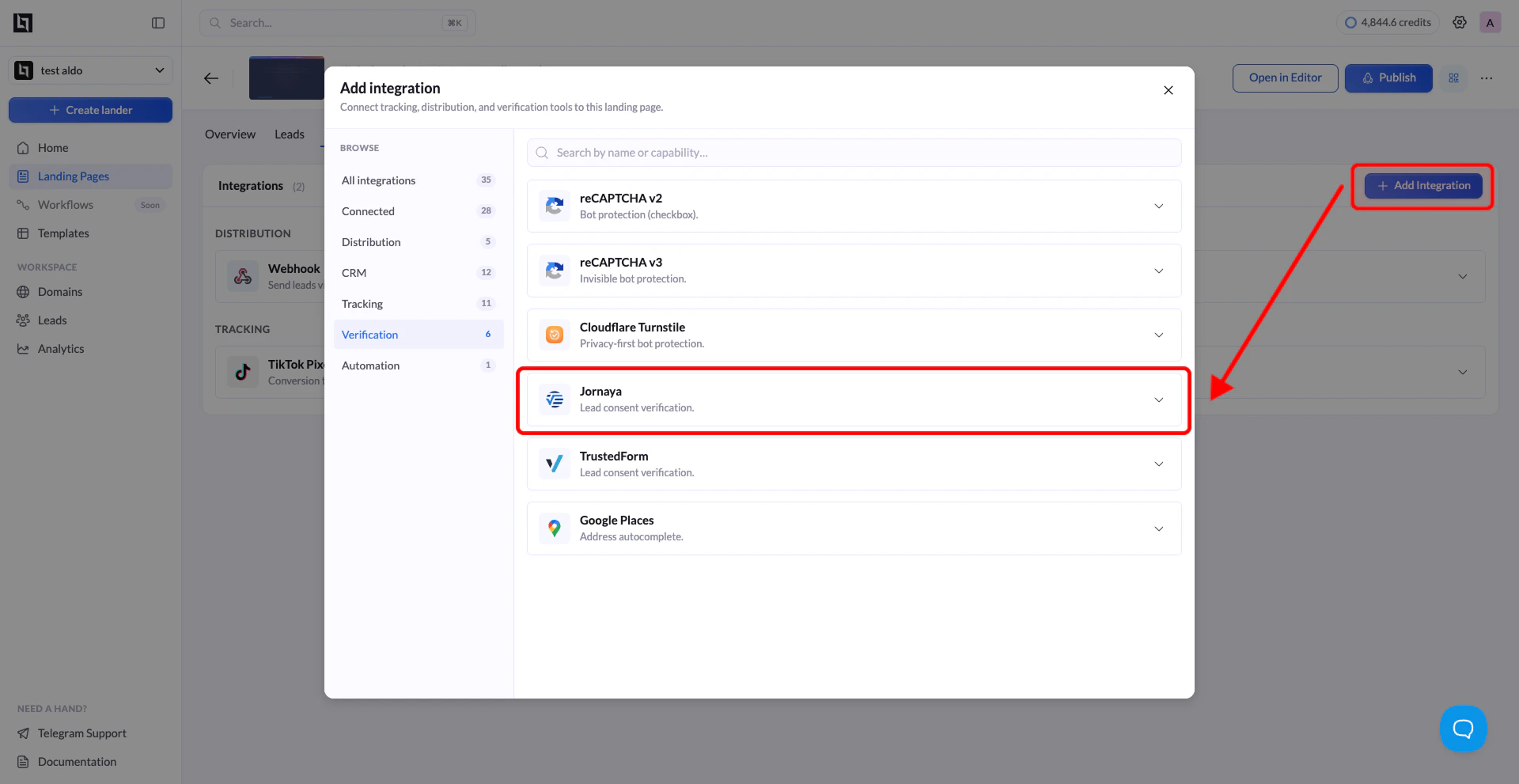
Click **Add Integration** to open the integrations panel.
From the list of available integrations, find **Jornaya** (labeled as "Verify lead consent with Jornaya") and click on it. A configuration form will appear.
Enter the following details:
| Field | Description |
| :--------------- | :----------------------------------------------------------------------------------------------------------------- |
| **Name** | A label to identify this integration (e.g. "Jornaya"). Helps you recognize it when reusing across pages. |
| **Account Code** | Your Jornaya Account Code (e.g. `ABC1234`). This is the unique identifier for your organization in Jornaya. |
| **Campaign Key** | Your Jornaya Campaign Key (e.g. `ABC123XYZ`). This is tied to the specific campaign you want to certify leads for. |
To find your **Account Code** and **Campaign Key**, log in to your [Jornaya account](https://app.jornaya.com), go to **Campaigns**, and open the campaign you want to use. Both values are available in the campaign settings or in the JavaScript snippet Jornaya provides for that campaign.
Click the **Add Jornaya** button to save the integration. LanderLab stores this globally, so you can connect it to other landing pages later without re-entering the details.
 ***
## Connect Jornaya to Another Landing Page
Since Jornaya integrations are saved globally, you do not need to create a new one for every landing page. You can reuse any previously saved integration across multiple pages.
Go to **Landing Pages** and click the name of the landing page where you want to use the same Jornaya integration.
Click **Add Integration**. You will see your previously saved Jornaya configurations listed. Select the one you want to connect.
If your landing page has multiple **A/B test variants**, a modal will appear asking you to choose which variants should use this integration. Select the variants you want and confirm.
The variant selection modal only appears when your landing page has more than one active variant. If there is only one variant, the integration is applied automatically.
Click **Save**, then **Publish** or **Republish** your landing page to activate Jornaya on the selected variants.
***
## How Jornaya Works
Once the integration is active on your landing page, here is what happens for every visitor:
1. When the page loads, the Jornaya script starts running silently in the background and begins recording the visitor session.
2. Jornaya captures metadata about the session, including the visitor's IP address, browser, timestamp, and the consent language present on the page.
3. When the visitor submits the form, Jornaya generates a unique **LeadiD token** for that session.
4. This token is automatically captured and stored alongside the lead data in LanderLab.
5. The LeadiD token is then passed with the lead to your CRM, lead distribution platform, or buyer so they can verify the lead's origin and consent record.
If you are sending leads to a platform like LeadsPedia, LeadProsper, or Phonexa, make sure you are passing the Jornaya LeadiD token through your webhook or lead distribution integration. Many buyers in regulated verticals require this token before accepting a lead.
***
## Why Use Jornaya
* **Verify lead origin** - Every LeadiD token is a time-stamped, independently stored record of when and where the lead was generated, tied to a specific visitor session.
* **Meet buyer requirements** - Lead buyers in insurance, mortgage, solar, and home services routinely require a Jornaya LeadiD alongside each lead as a condition of purchase.
* **Support TCPA compliance** - Jornaya captures the consent language shown to the visitor at submission time, giving you a defensible record in the event of a complaint or audit.
* **Improve lead quality signals** - Buyers who can verify the LeadiD token have more confidence in your leads, which can improve acceptance rates and payouts.
You can enable **Jornaya and TrustedForm simultaneously** on the same landing page to provide multiple layers of lead certification and compliance documentation. Many buyers accept or require both.
***
## Connect Jornaya to Another Landing Page
Since Jornaya integrations are saved globally, you do not need to create a new one for every landing page. You can reuse any previously saved integration across multiple pages.
Go to **Landing Pages** and click the name of the landing page where you want to use the same Jornaya integration.
Click **Add Integration**. You will see your previously saved Jornaya configurations listed. Select the one you want to connect.
If your landing page has multiple **A/B test variants**, a modal will appear asking you to choose which variants should use this integration. Select the variants you want and confirm.
The variant selection modal only appears when your landing page has more than one active variant. If there is only one variant, the integration is applied automatically.
Click **Save**, then **Publish** or **Republish** your landing page to activate Jornaya on the selected variants.
***
## How Jornaya Works
Once the integration is active on your landing page, here is what happens for every visitor:
1. When the page loads, the Jornaya script starts running silently in the background and begins recording the visitor session.
2. Jornaya captures metadata about the session, including the visitor's IP address, browser, timestamp, and the consent language present on the page.
3. When the visitor submits the form, Jornaya generates a unique **LeadiD token** for that session.
4. This token is automatically captured and stored alongside the lead data in LanderLab.
5. The LeadiD token is then passed with the lead to your CRM, lead distribution platform, or buyer so they can verify the lead's origin and consent record.
If you are sending leads to a platform like LeadsPedia, LeadProsper, or Phonexa, make sure you are passing the Jornaya LeadiD token through your webhook or lead distribution integration. Many buyers in regulated verticals require this token before accepting a lead.
***
## Why Use Jornaya
* **Verify lead origin** - Every LeadiD token is a time-stamped, independently stored record of when and where the lead was generated, tied to a specific visitor session.
* **Meet buyer requirements** - Lead buyers in insurance, mortgage, solar, and home services routinely require a Jornaya LeadiD alongside each lead as a condition of purchase.
* **Support TCPA compliance** - Jornaya captures the consent language shown to the visitor at submission time, giving you a defensible record in the event of a complaint or audit.
* **Improve lead quality signals** - Buyers who can verify the LeadiD token have more confidence in your leads, which can improve acceptance rates and payouts.
You can enable **Jornaya and TrustedForm simultaneously** on the same landing page to provide multiple layers of lead certification and compliance documentation. Many buyers accept or require both.