> ## Documentation Index
> Fetch the complete documentation index at: https://docs.landerlab.io/llms.txt
> Use this file to discover all available pages before exploring further.
# Set Up Telegram Integration
> Learn how to connect Telegram to your landing pages in LanderLab and send instant lead notifications to a Telegram chat, group, or channel in real time.
Connect Telegram to your landing pages in LanderLab to get an instant notification every time a new lead comes in. Instead of checking your dashboard, your team sees each lead the moment it is submitted, right inside a Telegram chat, group, or channel.
## What is the Telegram integration?
The Telegram integration uses a Telegram bot to send a message to your chosen chat whenever a lead is collected on your landing page. Every field from the lead is included automatically, so you get the full submission without any setup beyond connecting the integration.
It is a great fit for real-time alerts: notify your sales team in a shared group, send leads to a private channel, or get a personal ping for every new submission.
## Before you start
You need two things to connect Telegram:
1. **A bot token**, created with Telegram's BotFather.
2. **A Chat ID**, which tells the bot where to send notifications (a personal chat, a group, or a channel).
You only create the bot once. After that, you can reuse the same bot to send notifications from as many landing pages as you want.
## Step 1: Create a Telegram bot and get your bot token
Your bot is the account that delivers notifications. You create it through BotFather, Telegram's official bot for managing bots.
In the Telegram search bar, type `BotFather` and open the verified account (the one with the blue checkmark and the username `@BotFather`).
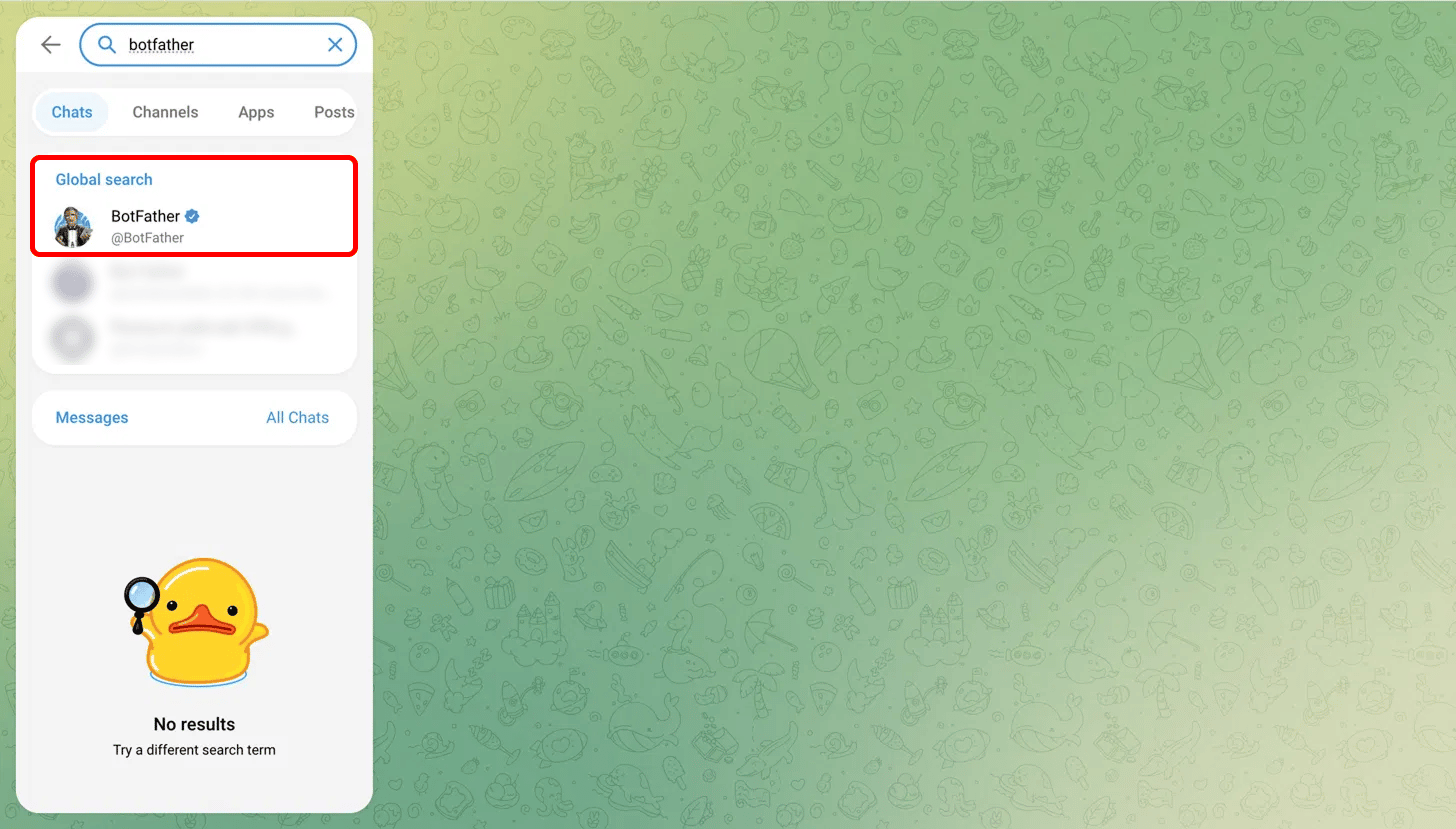 Click **Start**, then send the command `/newbot`.
BotFather will ask for a **name** (the display name, anything you like), then a **username**. The username must be unique and end in `bot` (for example, `LanderLabdoc_Bot`).
Once the username is accepted, BotFather replies with a confirmation message containing your bot token. It looks like `8911506141:AAHubwnzfc6sa0rVPcMxFr9OIiYmcWcyE54`. Copy it and keep it somewhere safe.
Click **Start**, then send the command `/newbot`.
BotFather will ask for a **name** (the display name, anything you like), then a **username**. The username must be unique and end in `bot` (for example, `LanderLabdoc_Bot`).
Once the username is accepted, BotFather replies with a confirmation message containing your bot token. It looks like `8911506141:AAHubwnzfc6sa0rVPcMxFr9OIiYmcWcyE54`. Copy it and keep it somewhere safe.
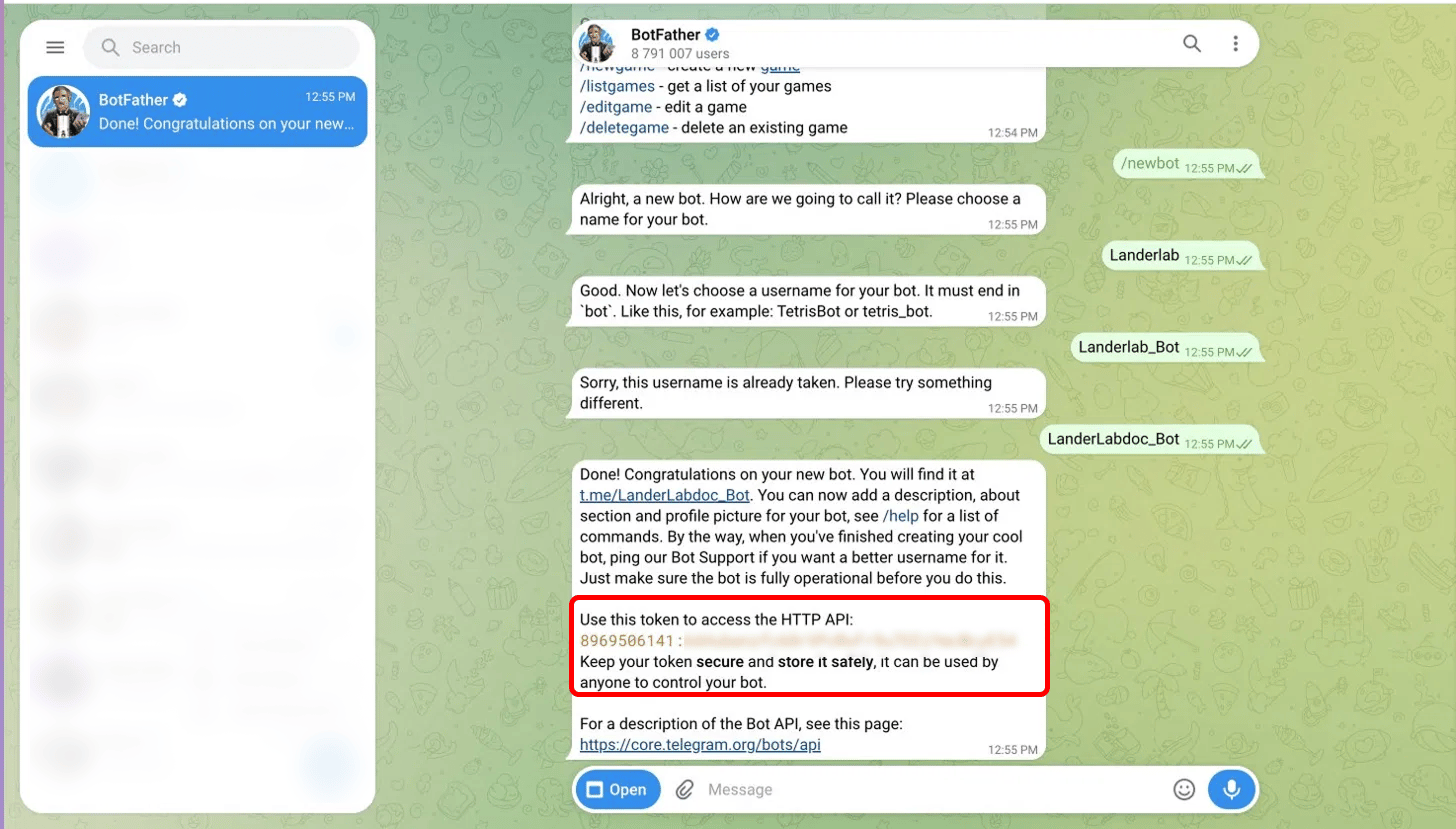 Treat your bot token like a password. Anyone who has it can control your bot. Never post it publicly or share it with people you do not trust.
## Step 2: Get your Chat ID
The Chat ID tells the bot exactly where to send notifications. How you find it depends on where you want your leads to go. Pick the option that matches your setup below.
The easiest way to get a group Chat ID is from the Telegram desktop app.
Create a Telegram group (or open an existing one), then add your bot to it as a member.
Treat your bot token like a password. Anyone who has it can control your bot. Never post it publicly or share it with people you do not trust.
## Step 2: Get your Chat ID
The Chat ID tells the bot exactly where to send notifications. How you find it depends on where you want your leads to go. Pick the option that matches your setup below.
The easiest way to get a group Chat ID is from the Telegram desktop app.
Create a Telegram group (or open an existing one), then add your bot to it as a member.
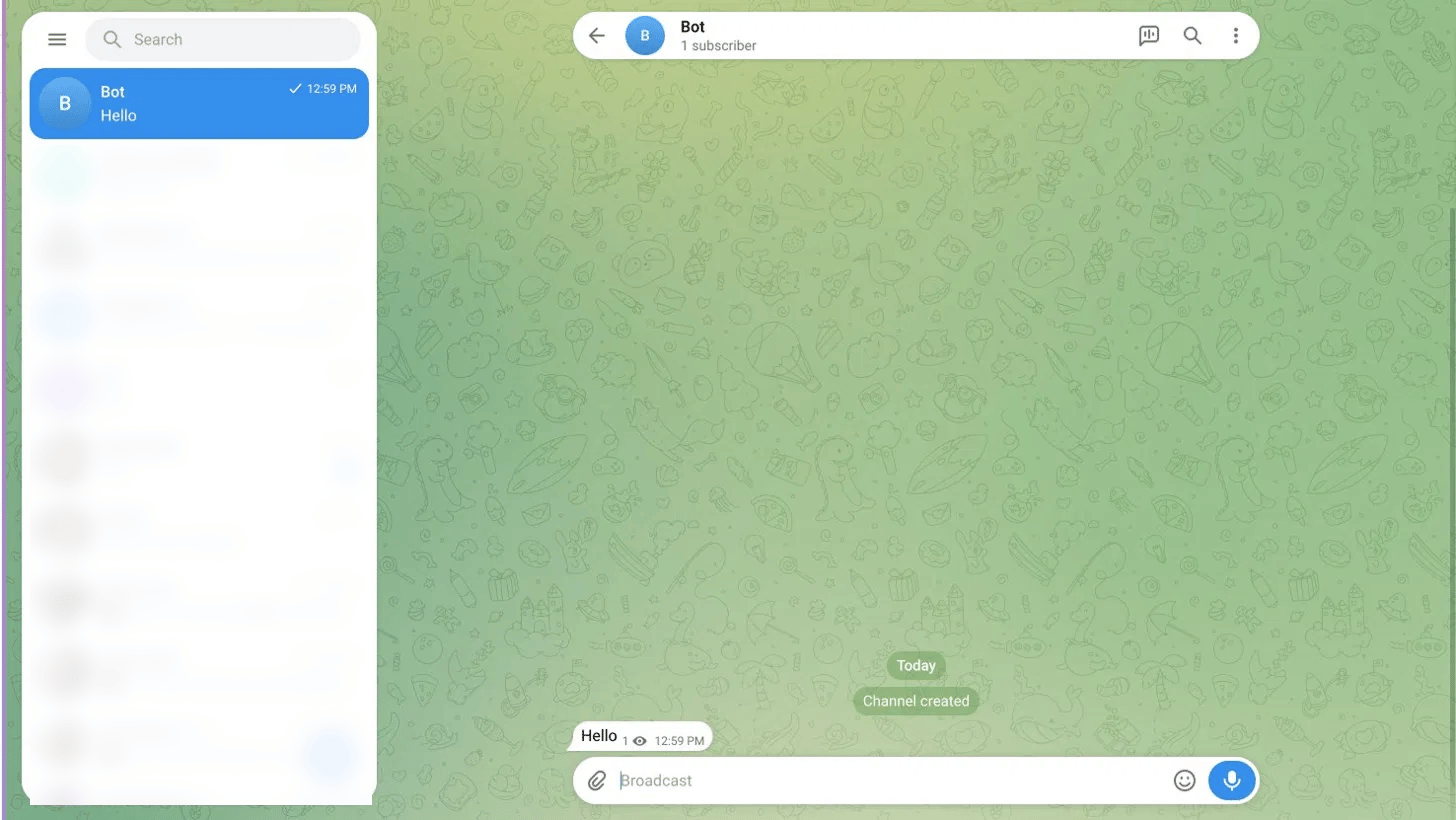 Send any message in the group. Then right-click the message (or long-press on mobile) and choose **Copy Message Link**.
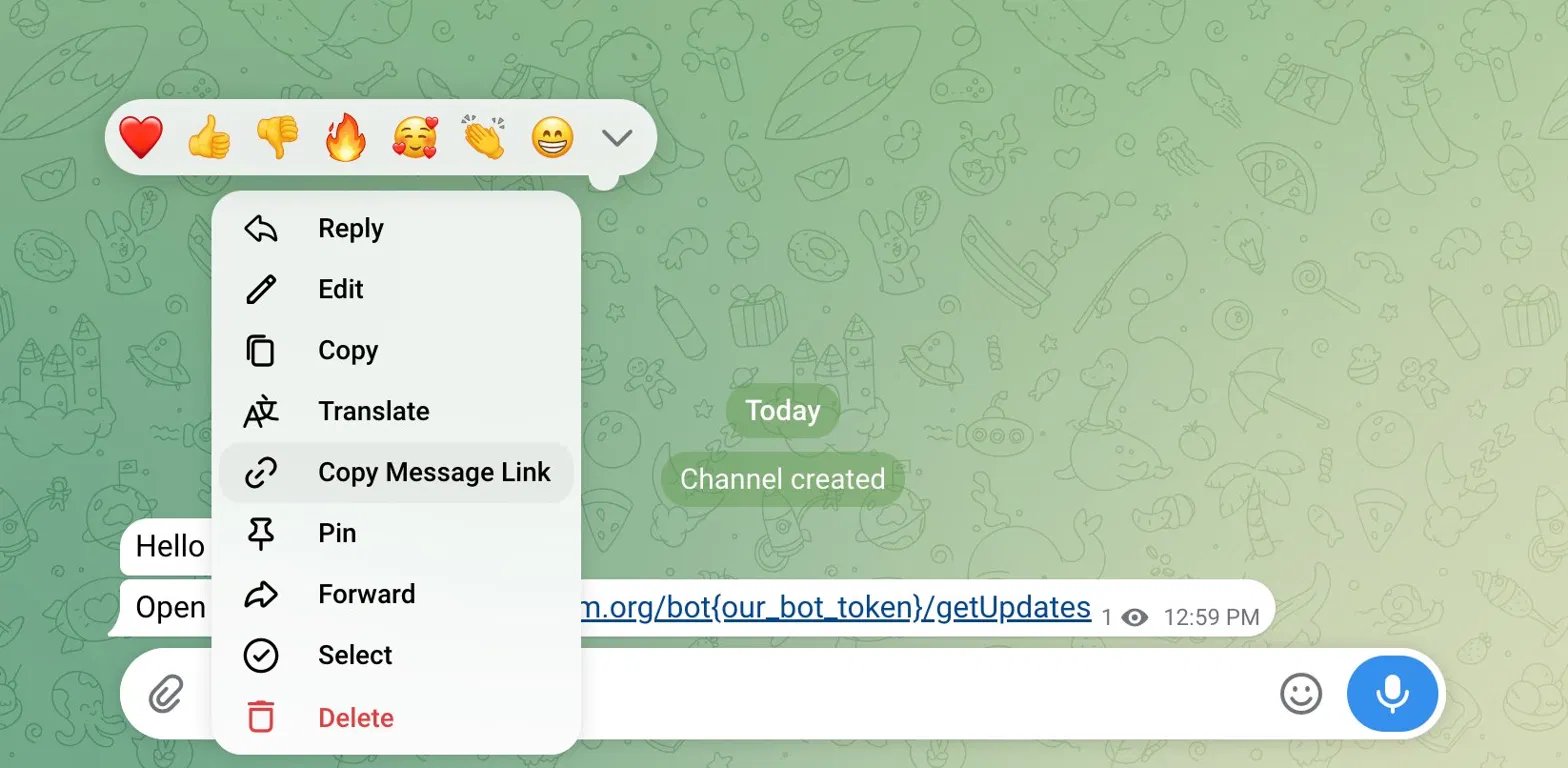 The copied link looks like `https://t.me/c/4302014071/2`. The number right after `/c/` is your group ID. In this example, the Chat ID is `4302014071`.
 If notifications do not arrive with the plain number, prefix the group ID with `-100`. For example, `4302014071` becomes `-1004302014071`. This is the format the Telegram Bot API uses for groups and channels.
Use this when you want personal notifications sent straight to your own Telegram.
Open your new bot and click **Start**, or send it any message.
In a browser, open the URL below, replacing `` with your token. Keep the word `bot` directly in front of the token.
```text theme={null}
https://api.telegram.org/bot/getUpdates
```
The page returns a block of JSON. Look for the `chat` object and copy the value of `id`. That number is your Chat ID.
```json theme={null}
"chat": {
"id": 21xxxxx38,
"type": "private"
}
```
Use this to broadcast leads to a Telegram channel.
Add your bot to the channel and give it admin rights, then post any message in the channel.
In a browser, open the URL below, replacing `` with your token.
```text theme={null}
https://api.telegram.org/bot/getUpdates
```
Look for the `chat` object under `channel_post` and copy the value of `id`. Channel IDs start with `-100`.
```json theme={null}
"chat": {
"id": -1001xxxxxx062,
"type": "channel"
}
```
Seeing an empty result at the `getUpdates` URL? Make sure you have sent at least one message to your bot, group, or channel first. Telegram only returns recent activity.
## Step 3: Connect Telegram in LanderLab
With your bot token and Chat ID ready, you can connect the integration.
### Add the integration
Go to **Landing Pages** and click the **name of the landing page** where you want lead notifications.
Click **Add Integration** to open the integrations panel, then search for **Telegram** and select it.
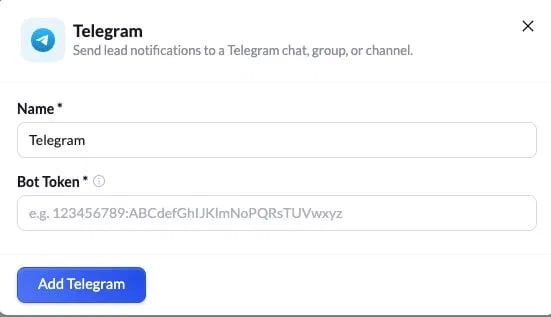
Give the integration a **Name** to identify it, then paste your **Bot Token** from Step 1. Click **Add Telegram**.
If notifications do not arrive with the plain number, prefix the group ID with `-100`. For example, `4302014071` becomes `-1004302014071`. This is the format the Telegram Bot API uses for groups and channels.
Use this when you want personal notifications sent straight to your own Telegram.
Open your new bot and click **Start**, or send it any message.
In a browser, open the URL below, replacing `` with your token. Keep the word `bot` directly in front of the token.
```text theme={null}
https://api.telegram.org/bot/getUpdates
```
The page returns a block of JSON. Look for the `chat` object and copy the value of `id`. That number is your Chat ID.
```json theme={null}
"chat": {
"id": 21xxxxx38,
"type": "private"
}
```
Use this to broadcast leads to a Telegram channel.
Add your bot to the channel and give it admin rights, then post any message in the channel.
In a browser, open the URL below, replacing `` with your token.
```text theme={null}
https://api.telegram.org/bot/getUpdates
```
Look for the `chat` object under `channel_post` and copy the value of `id`. Channel IDs start with `-100`.
```json theme={null}
"chat": {
"id": -1001xxxxxx062,
"type": "channel"
}
```
Seeing an empty result at the `getUpdates` URL? Make sure you have sent at least one message to your bot, group, or channel first. Telegram only returns recent activity.
## Step 3: Connect Telegram in LanderLab
With your bot token and Chat ID ready, you can connect the integration.
### Add the integration
Go to **Landing Pages** and click the **name of the landing page** where you want lead notifications.
Click **Add Integration** to open the integrations panel, then search for **Telegram** and select it.
Give the integration a **Name** to identify it, then paste your **Bot Token** from Step 1. Click **Add Telegram**.
 ### Configure the notification
After adding the bot, a short setup wizard opens so you can choose where notifications go and how they look.
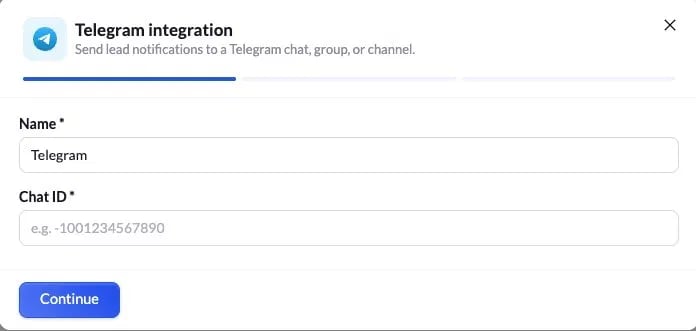
Paste the **Chat ID** you found in Step 2 (for example, `-1004309994071`). Click **Continue**.
### Configure the notification
After adding the bot, a short setup wizard opens so you can choose where notifications go and how they look.
Paste the **Chat ID** you found in Step 2 (for example, `-1004309994071`). Click **Continue**.
 Pick how each notification is written:
| Format | What it does |
| :--------- | :---------------------------------------------------------------------------------------------------------------- |
| **List** | LanderLab formats every lead field automatically. You only add an **Intro text** shown at the top of the message. |
| **Custom** | Write your own message template and control exactly what each notification says. |
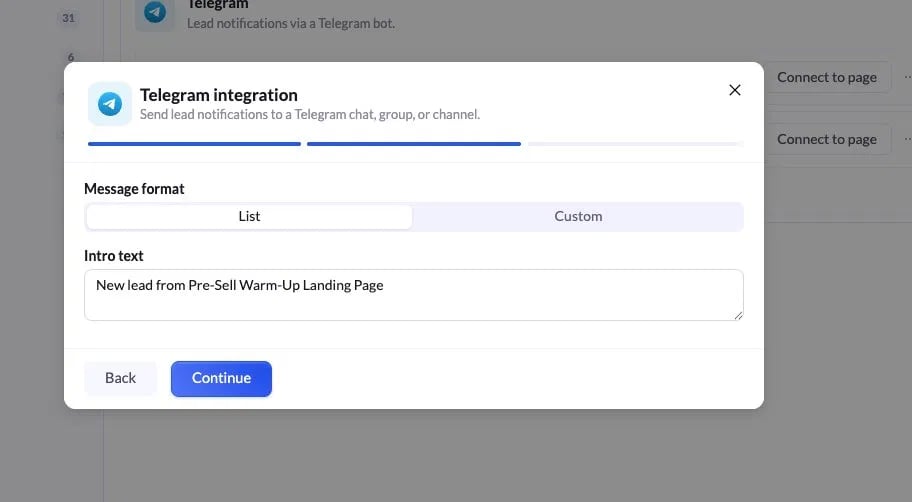
For most cases, **List** is the quickest option. Add an intro like `New lead from Pre-Sell Warm-Up Landing Page`, then click **Continue**.
Pick how each notification is written:
| Format | What it does |
| :--------- | :---------------------------------------------------------------------------------------------------------------- |
| **List** | LanderLab formats every lead field automatically. You only add an **Intro text** shown at the top of the message. |
| **Custom** | Write your own message template and control exactly what each notification says. |
For most cases, **List** is the quickest option. Add an intro like `New lead from Pre-Sell Warm-Up Landing Page`, then click **Continue**.
 The final step shows a preview of the destination, message format, and intro text. Every lead field is included automatically. If everything looks correct, click **Connect Telegram**.
If your landing page has multiple A/B test variants, you will be asked to choose which variant or variants this integration applies to before it is added.
## Test the integration
Submit a test lead through your landing page form or quiz, then check your Telegram chat. The bot should deliver a message with the lead details within a few seconds.
## Troubleshooting
Confirm three things: your bot token is correct, your bot is a member (or admin) of the group or channel, and your Chat ID is entered correctly. For groups and channels, try adding the `-100` prefix to the ID.
Double-check the Chat ID. It is easy to mix up a group, channel, or personal chat. Repeat Step 2 for the exact destination you want.
Make sure you clicked **Start** in the bot chat, or sent at least one message to the group or channel. Telegram will not return any chat data until there is activity.
The final step shows a preview of the destination, message format, and intro text. Every lead field is included automatically. If everything looks correct, click **Connect Telegram**.
If your landing page has multiple A/B test variants, you will be asked to choose which variant or variants this integration applies to before it is added.
## Test the integration
Submit a test lead through your landing page form or quiz, then check your Telegram chat. The bot should deliver a message with the lead details within a few seconds.
## Troubleshooting
Confirm three things: your bot token is correct, your bot is a member (or admin) of the group or channel, and your Chat ID is entered correctly. For groups and channels, try adding the `-100` prefix to the ID.
Double-check the Chat ID. It is easy to mix up a group, channel, or personal chat. Repeat Step 2 for the exact destination you want.
Make sure you clicked **Start** in the bot chat, or sent at least one message to the group or channel. Telegram will not return any chat data until there is activity.