> ## Documentation Index
> Fetch the complete documentation index at: https://docs.landerlab.io/llms.txt
> Use this file to discover all available pages before exploring further.
# Set Up Slack Integration
> Learn how to connect Slack to your landing pages in LanderLab and send instant lead notifications to a Slack channel in real time using an incoming webhook.
Connect Slack to your landing pages in LanderLab to get an instant message in your team's Slack channel every time a new lead comes in. Your team sees each lead the moment it is submitted, without leaving Slack or opening your dashboard.
## What is the Slack integration?
The Slack integration uses a Slack **incoming webhook** to post a message to a channel of your choice whenever a lead is collected on your landing page. You create the webhook once inside Slack, copy its URL, and paste it into LanderLab.
It is a great fit for real-time alerts: notify your sales team in a shared channel or send leads to a private channel only your team can see.
## Before you start
You need one thing to connect Slack: an **incoming webhook URL**. You create it through Slack's developer site by making a small Slack app. The steps below walk you through it.
## Step 1: Create a Slack app
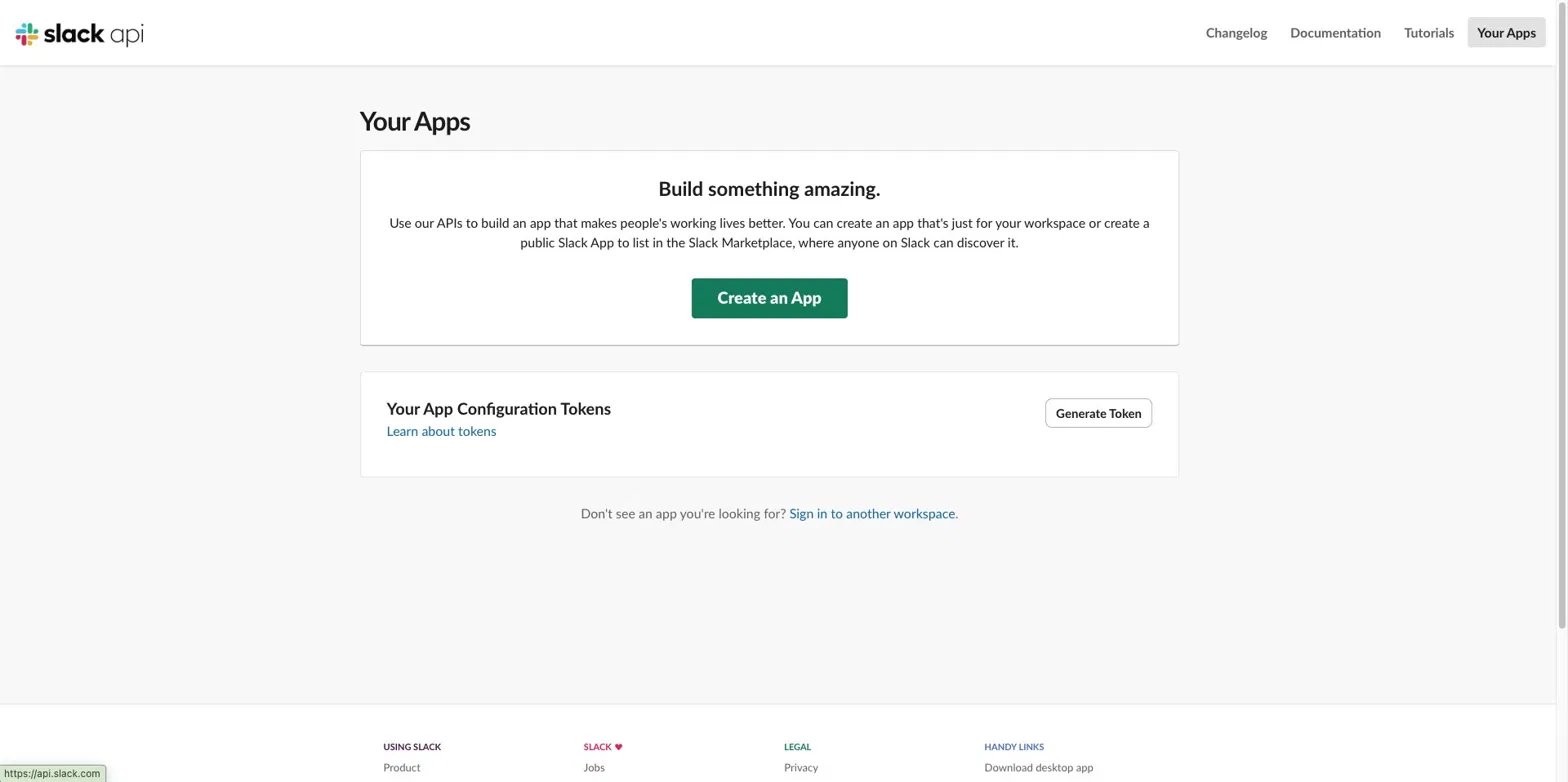
Go to [https://api.slack.com/apps](https://api.slack.com/apps) and sign in to your Slack account. Click **Create an App**.
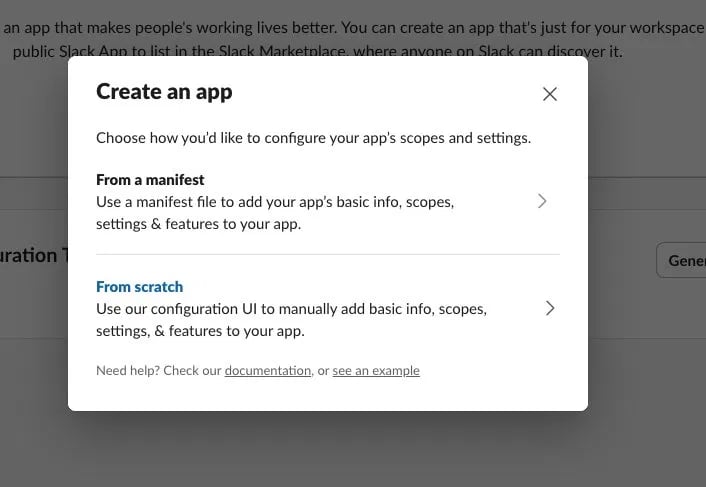
 In the popup, select **From scratch**.
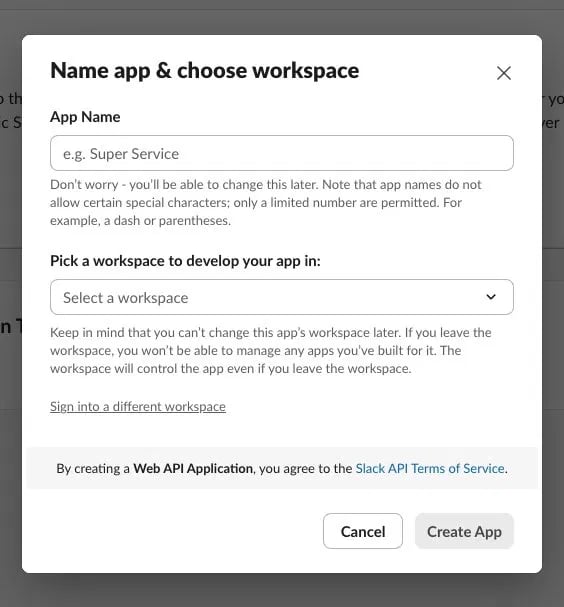
 Enter an **App Name** (for example, `LanderLab`) and select the **workspace** where you want lead notifications to appear. Click **Create App**.
 ## Step 2: Activate Incoming Webhooks and get your URL
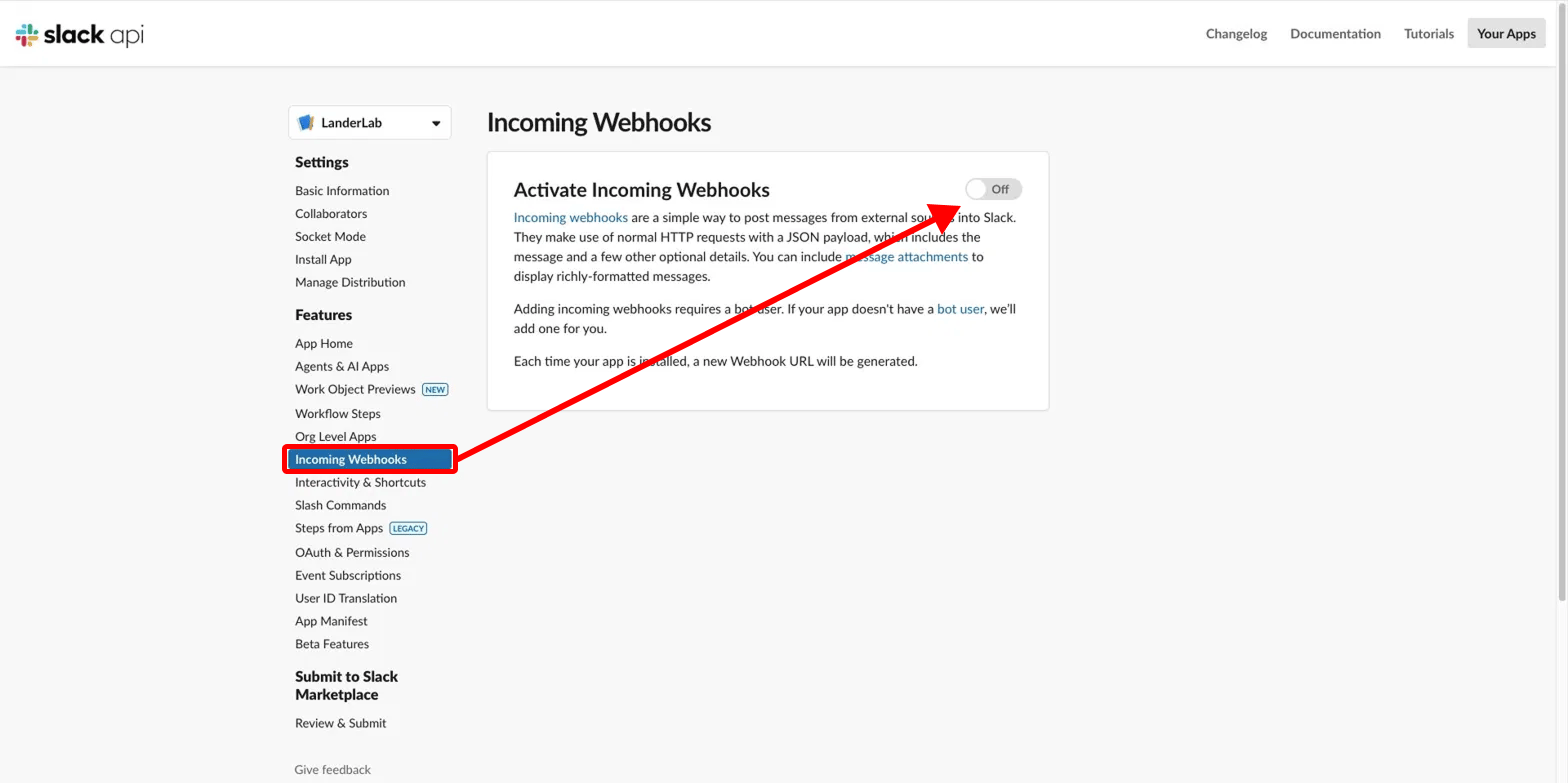
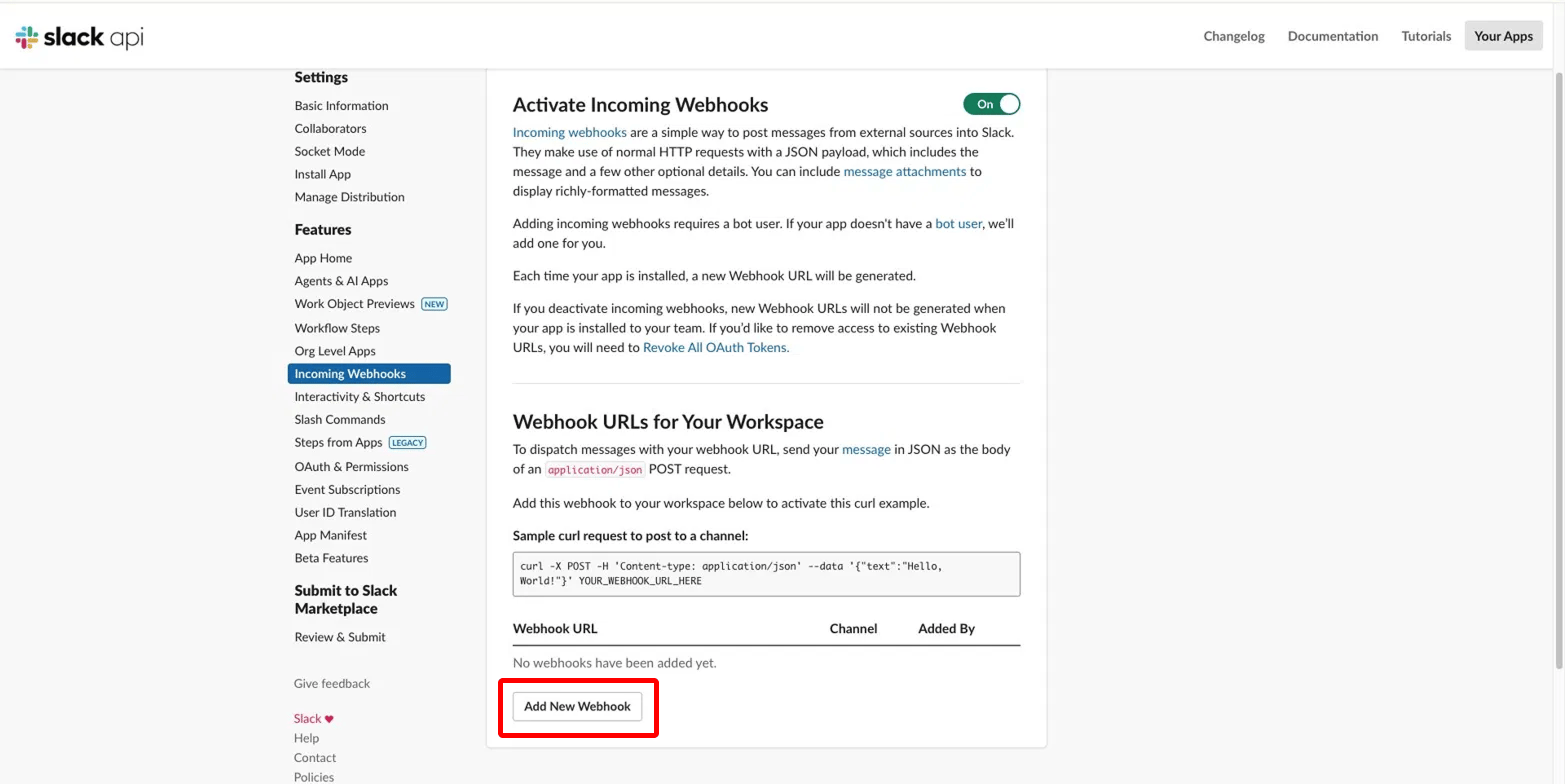
In the app settings sidebar, under **Features**, click **Incoming Webhooks**. Toggle **Activate Incoming Webhooks** to **On**.
## Step 2: Activate Incoming Webhooks and get your URL
In the app settings sidebar, under **Features**, click **Incoming Webhooks**. Toggle **Activate Incoming Webhooks** to **On**.
 Scroll to the bottom of the page and click **Add New Webhook to Workspace**.
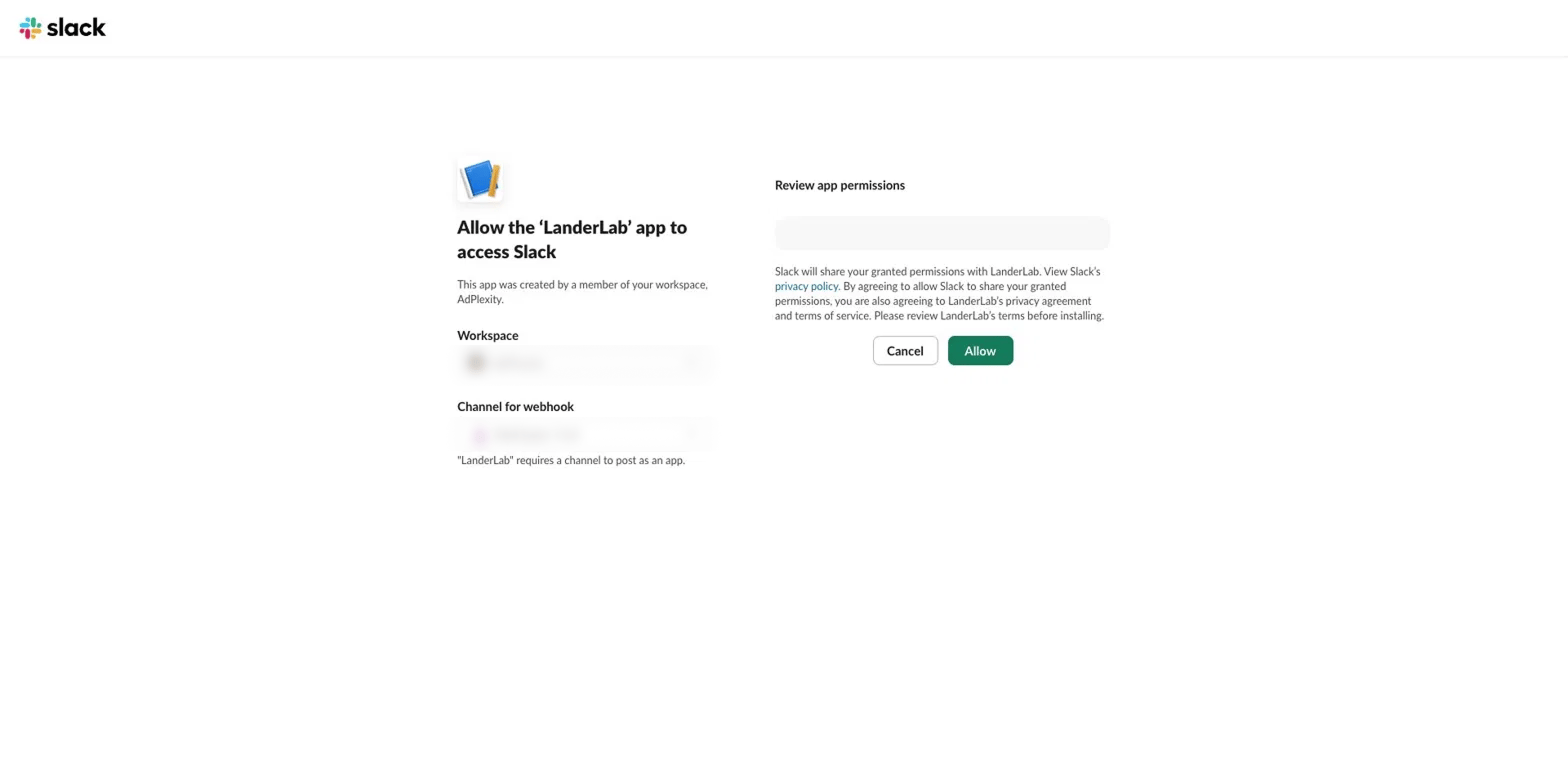
 Select the **channel** where you want leads posted, then click **Allow**.
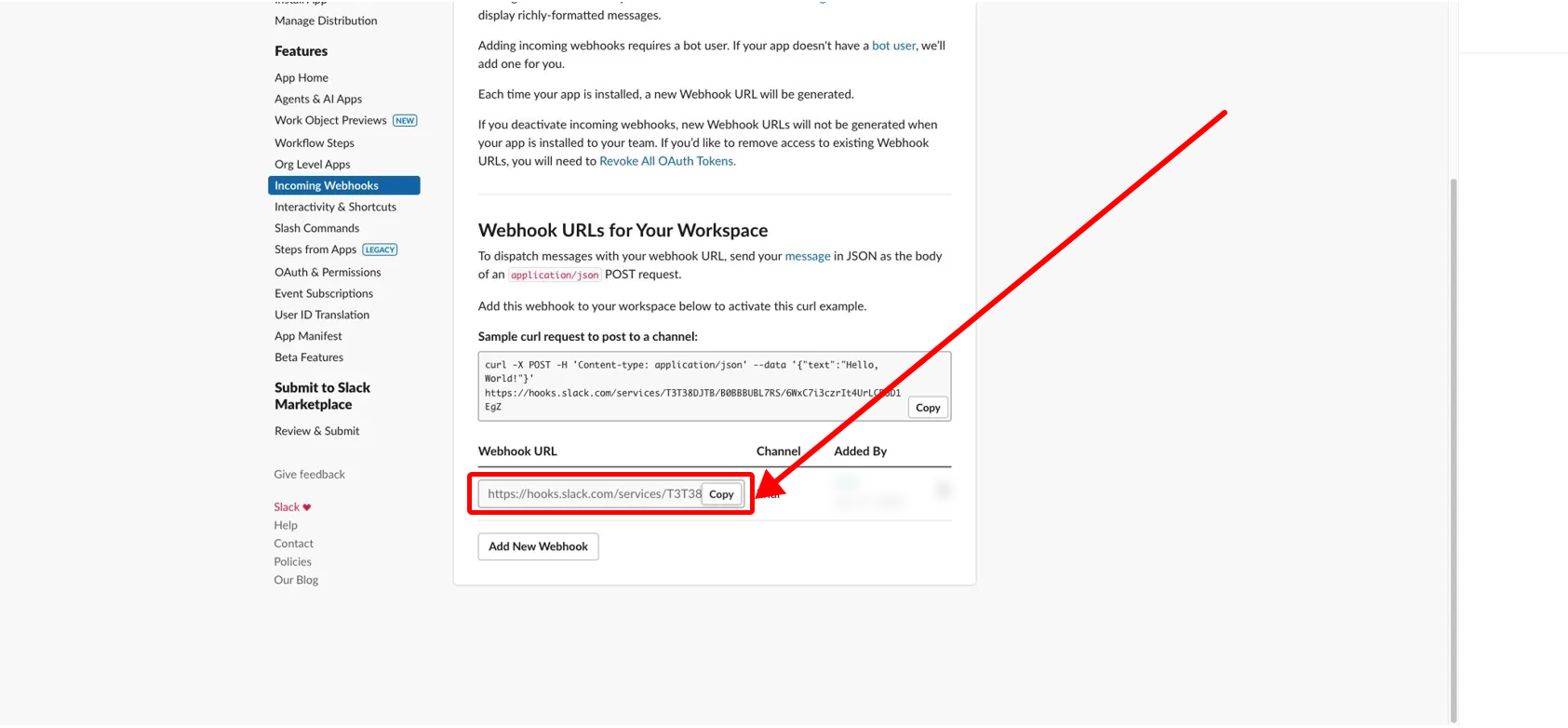
 Back on the Incoming Webhooks page, your new webhook appears in the list. Click **Copy** to copy the URL. It looks like this:
```text theme={null}
https://hooks.slack.com/services/T00000000/B00000000/XXXXXXXXXXXXXXXXXXXX
```
Back on the Incoming Webhooks page, your new webhook appears in the list. Click **Copy** to copy the URL. It looks like this:
```text theme={null}
https://hooks.slack.com/services/T00000000/B00000000/XXXXXXXXXXXXXXXXXXXX
```
 Treat your webhook URL like a password. Anyone who has it can post messages to your Slack channel. Never share it publicly.
## Step 3: Connect Slack in LanderLab
With your webhook URL copied, you can connect the integration.
Go to **Landing Pages** and click the **name of the landing page** where you want lead notifications.
Click **Add Integration** to open the integrations panel, then search for **Slack** and select it.
Give the integration a **Name** to identify it, then paste the **Webhook URL** you copied from Slack. Click **Continue**.
Pick how each notification is written. **List** formats every lead field automatically and only asks for an intro text, while **Custom** lets you write your own message template. Click **Continue**.
Check the destination channel, message format, and intro text. Every lead field is included automatically. If everything looks correct, click **Connect Slack**.
If your landing page has multiple A/B test variants, you will be asked to choose which variant or variants this integration applies to before it is added.
## Test the integration
Submit a test lead through your landing page form or quiz, then check your Slack channel. The app should post a message with the lead details within a few seconds.
## Troubleshooting
Confirm the webhook URL was pasted correctly with no extra spaces. Also make sure Incoming Webhooks is still toggled **On** in your Slack app settings.
Each webhook URL is tied to the channel you chose when creating it. To post to a different channel, create a new webhook in Slack (Step 2), copy that URL, and update the integration in LanderLab.
If the app was reinstalled or its tokens were revoked, the old webhook URL becomes invalid. Generate a new webhook in Slack and paste the new URL into LanderLab.
Treat your webhook URL like a password. Anyone who has it can post messages to your Slack channel. Never share it publicly.
## Step 3: Connect Slack in LanderLab
With your webhook URL copied, you can connect the integration.
Go to **Landing Pages** and click the **name of the landing page** where you want lead notifications.
Click **Add Integration** to open the integrations panel, then search for **Slack** and select it.
Give the integration a **Name** to identify it, then paste the **Webhook URL** you copied from Slack. Click **Continue**.
Pick how each notification is written. **List** formats every lead field automatically and only asks for an intro text, while **Custom** lets you write your own message template. Click **Continue**.
Check the destination channel, message format, and intro text. Every lead field is included automatically. If everything looks correct, click **Connect Slack**.
If your landing page has multiple A/B test variants, you will be asked to choose which variant or variants this integration applies to before it is added.
## Test the integration
Submit a test lead through your landing page form or quiz, then check your Slack channel. The app should post a message with the lead details within a few seconds.
## Troubleshooting
Confirm the webhook URL was pasted correctly with no extra spaces. Also make sure Incoming Webhooks is still toggled **On** in your Slack app settings.
Each webhook URL is tied to the channel you chose when creating it. To post to a different channel, create a new webhook in Slack (Step 2), copy that URL, and update the integration in LanderLab.
If the app was reinstalled or its tokens were revoked, the old webhook URL becomes invalid. Generate a new webhook in Slack and paste the new URL into LanderLab.