> ## Documentation Index
> Fetch the complete documentation index at: https://docs.landerlab.io/llms.txt
> Use this file to discover all available pages before exploring further.
# Set Up Campaign Monitor Integration
> Learn how to connect Campaign Monitor to LanderLab and send every landing page lead to your Campaign Monitor list in real time. No code required.
 Connect Campaign Monitor to LanderLab to automatically send every new lead to your Campaign Monitor account the moment someone submits a form. No manual exports, no delays.
## What is Campaign Monitor and Why Use This Integration?
Campaign Monitor is an email marketing platform used to manage subscribers, send campaigns, and run automations. When you connect Campaign Monitor to a LanderLab landing page, every lead that submits your form is sent straight to Campaign Monitor in real time, with the form fields you choose mapped to the matching subscriber fields.
Campaign Monitor connects with an **API Key**. You copy the key from your Campaign Monitor account and paste it into LanderLab once.
Campaign Monitor integrations **are saved globally in your account**. Once you add your API key, you can reuse the same account across multiple landing pages without entering it again.
## Prerequisites
Before you start, make sure you have:
* A LanderLab account with at least one landing page that has an email field
* A Campaign Monitor account
* Your Campaign Monitor **API Key**
## Step 1: Get Your Campaign Monitor API Key
Log in to Campaign Monitor, click your **account name** in the top right, then select **Account settings**.
In the left sidebar, click **API & integrations**.
Find the **API Key** section. Click **Generate API Key**, then copy the key. Keep it somewhere safe for the next step.
Connect Campaign Monitor to LanderLab to automatically send every new lead to your Campaign Monitor account the moment someone submits a form. No manual exports, no delays.
## What is Campaign Monitor and Why Use This Integration?
Campaign Monitor is an email marketing platform used to manage subscribers, send campaigns, and run automations. When you connect Campaign Monitor to a LanderLab landing page, every lead that submits your form is sent straight to Campaign Monitor in real time, with the form fields you choose mapped to the matching subscriber fields.
Campaign Monitor connects with an **API Key**. You copy the key from your Campaign Monitor account and paste it into LanderLab once.
Campaign Monitor integrations **are saved globally in your account**. Once you add your API key, you can reuse the same account across multiple landing pages without entering it again.
## Prerequisites
Before you start, make sure you have:
* A LanderLab account with at least one landing page that has an email field
* A Campaign Monitor account
* Your Campaign Monitor **API Key**
## Step 1: Get Your Campaign Monitor API Key
Log in to Campaign Monitor, click your **account name** in the top right, then select **Account settings**.
In the left sidebar, click **API & integrations**.
Find the **API Key** section. Click **Generate API Key**, then copy the key. Keep it somewhere safe for the next step.
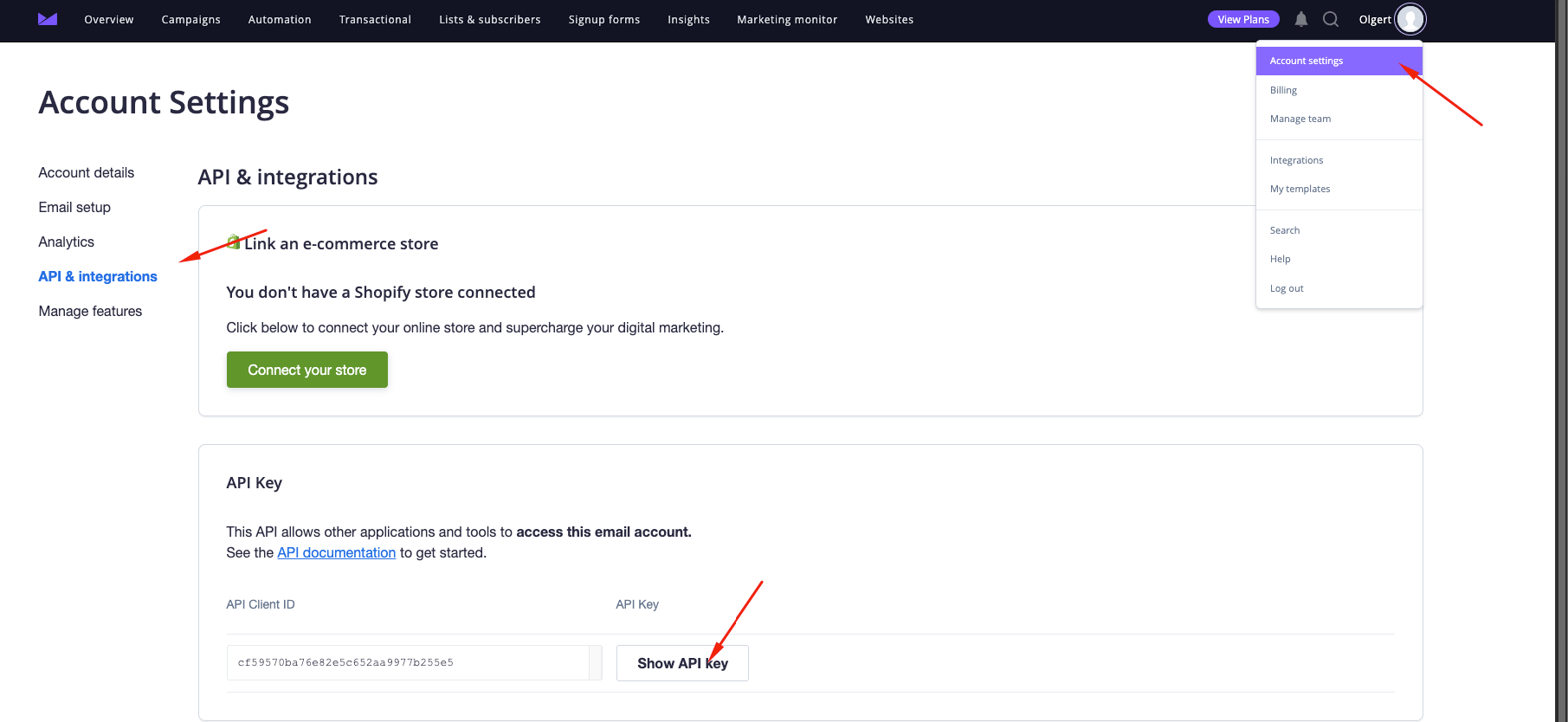 The **Generate API Key** option only appears after your Campaign Monitor account has been verified. If you do not see it, confirm your account from the verification email Campaign Monitor sent you.
## Step 2: Add Campaign Monitor to LanderLab
In LanderLab, go to **Landing Pages** and open the landing page where you want to add Campaign Monitor.
Click **Add Integration** to open the integrations panel.
Search for **Campaign Monitor** or open the **CRM** category, then click **Campaign Monitor**.
Fill in the following fields:
* **Name** - A label for this account (e.g. "Campaign Monitor"). This is only used to identify the account inside LanderLab.
* **API Key** - Paste the API key you copied from Campaign Monitor.
Click **Add Campaign Monitor** to save the account and move to the next step.
## Step 3: Map Your Fields
LanderLab shows your form fields on the left and a dropdown to pick the matching **Campaign Monitor field** on the right.
Map your form's **email** field to the Campaign Monitor email field. Campaign Monitor uses email to add or update a subscriber, so this mapping is required.
Map any other fields you want to send. LanderLab also includes tracking fields you can pass along:
* LL Lander URL
* LL Visitor IP
* LL Visitor User Agent
* LL Submission Time UTC
* LL Session Time
* LL Variant ID
Fields you leave unmapped are not sent to Campaign Monitor.
Click **Continue** to move to the review step.
## Step 4: Review and Connect
The final step shows everything that will be sent to Campaign Monitor for every lead, including each mapped field. Review it carefully. If anything looks off, click **Back** to make changes.
Click **Connect Campaign Monitor** to save and activate the integration. From now on, every lead submitted on this landing page is sent to Campaign Monitor in real time.
## Tips for Campaign Monitor Integration
* **Always map Email** - Email is what Campaign Monitor uses to identify each subscriber, so this field must be mapped.
* **Reuse your account** - Because Campaign Monitor is saved globally, you only enter the API key once, then connect it to other landing pages in a few clicks.
* **Pass tracking data** - Map fields like LL Lander URL and LL Variant ID to see which page and variant each lead came from.
* **Test with a real submission** - After connecting, submit a test lead and confirm the subscriber appears in Campaign Monitor within a few seconds.
## Troubleshooting
Make sure you copied the full key after clicking **Show API key** in **Account settings > API & integrations**. If you regenerated the key in Campaign Monitor, update it in LanderLab to match.
The API key only appears after your Campaign Monitor account is verified. Open the verification email from Campaign Monitor and confirm your account, then try again.
Confirm the integration is active on your landing page and that the email field is mapped. Then submit a test lead and check your subscriber list in Campaign Monitor.
The **Generate API Key** option only appears after your Campaign Monitor account has been verified. If you do not see it, confirm your account from the verification email Campaign Monitor sent you.
## Step 2: Add Campaign Monitor to LanderLab
In LanderLab, go to **Landing Pages** and open the landing page where you want to add Campaign Monitor.
Click **Add Integration** to open the integrations panel.
Search for **Campaign Monitor** or open the **CRM** category, then click **Campaign Monitor**.
Fill in the following fields:
* **Name** - A label for this account (e.g. "Campaign Monitor"). This is only used to identify the account inside LanderLab.
* **API Key** - Paste the API key you copied from Campaign Monitor.
Click **Add Campaign Monitor** to save the account and move to the next step.
## Step 3: Map Your Fields
LanderLab shows your form fields on the left and a dropdown to pick the matching **Campaign Monitor field** on the right.
Map your form's **email** field to the Campaign Monitor email field. Campaign Monitor uses email to add or update a subscriber, so this mapping is required.
Map any other fields you want to send. LanderLab also includes tracking fields you can pass along:
* LL Lander URL
* LL Visitor IP
* LL Visitor User Agent
* LL Submission Time UTC
* LL Session Time
* LL Variant ID
Fields you leave unmapped are not sent to Campaign Monitor.
Click **Continue** to move to the review step.
## Step 4: Review and Connect
The final step shows everything that will be sent to Campaign Monitor for every lead, including each mapped field. Review it carefully. If anything looks off, click **Back** to make changes.
Click **Connect Campaign Monitor** to save and activate the integration. From now on, every lead submitted on this landing page is sent to Campaign Monitor in real time.
## Tips for Campaign Monitor Integration
* **Always map Email** - Email is what Campaign Monitor uses to identify each subscriber, so this field must be mapped.
* **Reuse your account** - Because Campaign Monitor is saved globally, you only enter the API key once, then connect it to other landing pages in a few clicks.
* **Pass tracking data** - Map fields like LL Lander URL and LL Variant ID to see which page and variant each lead came from.
* **Test with a real submission** - After connecting, submit a test lead and confirm the subscriber appears in Campaign Monitor within a few seconds.
## Troubleshooting
Make sure you copied the full key after clicking **Show API key** in **Account settings > API & integrations**. If you regenerated the key in Campaign Monitor, update it in LanderLab to match.
The API key only appears after your Campaign Monitor account is verified. Open the verification email from Campaign Monitor and confirm your account, then try again.
Confirm the integration is active on your landing page and that the email field is mapped. Then submit a test lead and check your subscriber list in Campaign Monitor.