> ## Documentation Index
> Fetch the complete documentation index at: https://docs.landerlab.io/llms.txt
> Use this file to discover all available pages before exploring further.
# Set Up Google Analytics Integration
> Learn how to add Google Analytics to your landing pages in LanderLab to track visitor behavior, measure conversions, and analyze campaign performance.
 > Add Google Analytics to your landing pages in LanderLab to track visitor behavior, measure conversions, and get detailed data on how your traffic interacts with your pages.
## What is Google Analytics?
Google Analytics (GA4) is Google's free web analytics platform. When added to your landing page, it tracks visitor sessions, traffic sources, page views, engagement events, and conversions. This gives you detailed insight into how visitors arrive on your page, how they behave, and whether they take the actions you want them to take.
LanderLab handles the Google Analytics script installation for you. Instead of manually adding the GA4 tracking code to your page, you simply enter your Measurement ID and LanderLab takes care of the rest.
Once you add a Google Analytics integration, it is saved **globally** in your account. You can reuse it across multiple landing pages without entering the details again.
***
## How to Add Google Analytics
Navigate to **Landing Pages** and click the **name of the landing page** where you want to add Google Analytics tracking.
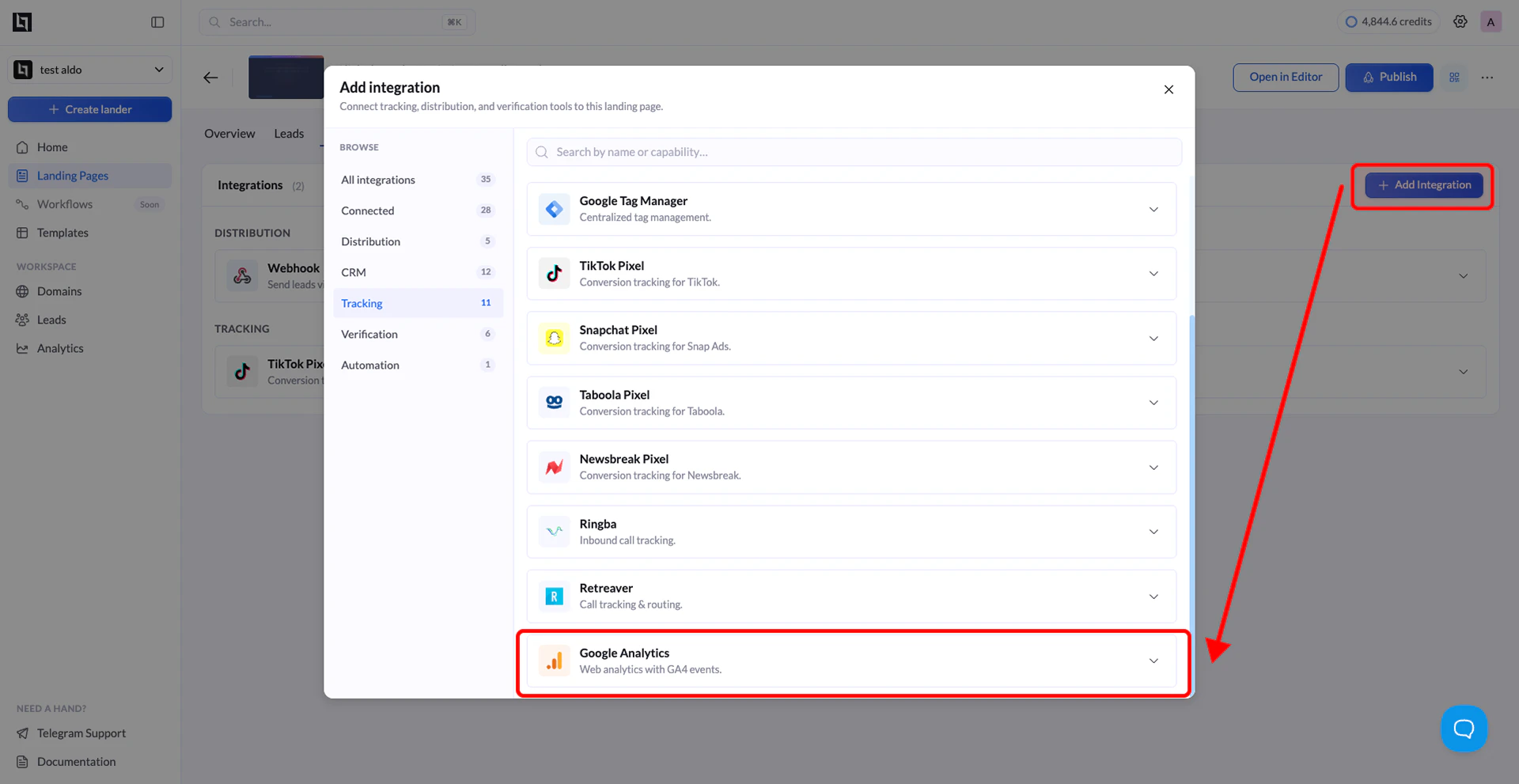
Click **Add Integration** to open the integrations panel.
From the list of available integrations, find **Google Analytics** (labeled as "Track conversions on your pages with Google Analytics") and click on it. A configuration form will appear.
Enter the following details:
| Field | Description |
| :----------------- | :-------------------------------------------------------------------------------------------------------------------- |
| **Name** | A label to identify this integration (e.g. "Google Analytics"). Helps you recognize it when reusing across pages. |
| **Measurement ID** | Your GA4 Measurement ID (format `G-XXXXXXXXXX`). Found in your Google Analytics property settings under Data Streams. |
To find your **Measurement ID**, log in to [Google Analytics](https://analytics.google.com), go to **Admin** (bottom left gear icon), select your property, click **Data Streams** under the Data Collection section, and open your web data stream. Your Measurement ID is displayed at the top right of the stream details panel and follows the format `G-XXXXXXXXXX`.
Click the **Add Google Analytics** button to save the integration. LanderLab stores this globally, so you can connect it to other landing pages later without re-entering the details.
> Add Google Analytics to your landing pages in LanderLab to track visitor behavior, measure conversions, and get detailed data on how your traffic interacts with your pages.
## What is Google Analytics?
Google Analytics (GA4) is Google's free web analytics platform. When added to your landing page, it tracks visitor sessions, traffic sources, page views, engagement events, and conversions. This gives you detailed insight into how visitors arrive on your page, how they behave, and whether they take the actions you want them to take.
LanderLab handles the Google Analytics script installation for you. Instead of manually adding the GA4 tracking code to your page, you simply enter your Measurement ID and LanderLab takes care of the rest.
Once you add a Google Analytics integration, it is saved **globally** in your account. You can reuse it across multiple landing pages without entering the details again.
***
## How to Add Google Analytics
Navigate to **Landing Pages** and click the **name of the landing page** where you want to add Google Analytics tracking.
Click **Add Integration** to open the integrations panel.
From the list of available integrations, find **Google Analytics** (labeled as "Track conversions on your pages with Google Analytics") and click on it. A configuration form will appear.
Enter the following details:
| Field | Description |
| :----------------- | :-------------------------------------------------------------------------------------------------------------------- |
| **Name** | A label to identify this integration (e.g. "Google Analytics"). Helps you recognize it when reusing across pages. |
| **Measurement ID** | Your GA4 Measurement ID (format `G-XXXXXXXXXX`). Found in your Google Analytics property settings under Data Streams. |
To find your **Measurement ID**, log in to [Google Analytics](https://analytics.google.com), go to **Admin** (bottom left gear icon), select your property, click **Data Streams** under the Data Collection section, and open your web data stream. Your Measurement ID is displayed at the top right of the stream details panel and follows the format `G-XXXXXXXXXX`.
Click the **Add Google Analytics** button to save the integration. LanderLab stores this globally, so you can connect it to other landing pages later without re-entering the details.
 ***
## Connect Google Analytics to Another Landing Page
Since Google Analytics integrations are saved globally, you do not need to create a new one for every landing page. You can reuse any previously saved integration across multiple pages.
Go to **Landing Pages** and click the name of the landing page where you want to use the same Google Analytics integration.
Click **Add Integration**. You will see your previously saved Google Analytics configurations listed. Select the one you want to connect.
If your landing page has multiple **A/B test variants**, a modal will appear asking you to choose which variants should use this integration. Select the variants you want and confirm.
The variant selection modal only appears when your landing page has more than one active variant. If there is only one variant, the integration is applied automatically.
Click **Save**, then **Publish** or **Republish** your landing page to activate Google Analytics tracking on the selected variants.
***
## Where to Find Your Measurement ID
If you are not sure where to find your Measurement ID, follow these steps:
1. Log in to [Google Analytics](https://analytics.google.com).
2. Click the **Admin** gear icon in the bottom left corner.
3. Make sure the correct **Account** and **Property** are selected at the top of the Admin panel.
4. Under the **Data Collection and modification** section, click **Data Streams**.
5. Click on your **web data stream** (the one with your domain).
6. Your **Measurement ID** is displayed in the top right corner of the stream details panel. It follows the format `G-XXXXXXXXXX`.
Copy this ID and paste it into the **Measurement ID** field in LanderLab.
If you do not have a Google Analytics property yet, go to [analytics.google.com](https://analytics.google.com), click **Start measuring**, and follow the steps to create a new GA4 property and web data stream. Your Measurement ID will be generated at the end of the setup.
***
## Why Use Google Analytics
Adding Google Analytics to your landing pages allows you to:
* **Track traffic sources** - See exactly which campaigns, channels, and platforms are driving visitors to your landing pages, including paid traffic, organic search, and direct visits.
* **Measure engagement** - Understand how visitors interact with your page, including time on page, scroll depth, and click events.
* **Track conversions** - Set up conversion events in GA4 to measure form submissions, button clicks, and other key actions on your landing pages.
* **Connect to Google Ads** - Link your GA4 property to Google Ads to get richer conversion data and enable smarter bidding based on real user behavior.
* **A/B test analysis** - With Google Analytics tracking on each variant, you can compare traffic and behavior across your A/B test variants in addition to LanderLab's built-in reporting.
***
## Connect Google Analytics to Another Landing Page
Since Google Analytics integrations are saved globally, you do not need to create a new one for every landing page. You can reuse any previously saved integration across multiple pages.
Go to **Landing Pages** and click the name of the landing page where you want to use the same Google Analytics integration.
Click **Add Integration**. You will see your previously saved Google Analytics configurations listed. Select the one you want to connect.
If your landing page has multiple **A/B test variants**, a modal will appear asking you to choose which variants should use this integration. Select the variants you want and confirm.
The variant selection modal only appears when your landing page has more than one active variant. If there is only one variant, the integration is applied automatically.
Click **Save**, then **Publish** or **Republish** your landing page to activate Google Analytics tracking on the selected variants.
***
## Where to Find Your Measurement ID
If you are not sure where to find your Measurement ID, follow these steps:
1. Log in to [Google Analytics](https://analytics.google.com).
2. Click the **Admin** gear icon in the bottom left corner.
3. Make sure the correct **Account** and **Property** are selected at the top of the Admin panel.
4. Under the **Data Collection and modification** section, click **Data Streams**.
5. Click on your **web data stream** (the one with your domain).
6. Your **Measurement ID** is displayed in the top right corner of the stream details panel. It follows the format `G-XXXXXXXXXX`.
Copy this ID and paste it into the **Measurement ID** field in LanderLab.
If you do not have a Google Analytics property yet, go to [analytics.google.com](https://analytics.google.com), click **Start measuring**, and follow the steps to create a new GA4 property and web data stream. Your Measurement ID will be generated at the end of the setup.
***
## Why Use Google Analytics
Adding Google Analytics to your landing pages allows you to:
* **Track traffic sources** - See exactly which campaigns, channels, and platforms are driving visitors to your landing pages, including paid traffic, organic search, and direct visits.
* **Measure engagement** - Understand how visitors interact with your page, including time on page, scroll depth, and click events.
* **Track conversions** - Set up conversion events in GA4 to measure form submissions, button clicks, and other key actions on your landing pages.
* **Connect to Google Ads** - Link your GA4 property to Google Ads to get richer conversion data and enable smarter bidding based on real user behavior.
* **A/B test analysis** - With Google Analytics tracking on each variant, you can compare traffic and behavior across your A/B test variants in addition to LanderLab's built-in reporting.