> ## Documentation Index
> Fetch the complete documentation index at: https://docs.landerlab.io/llms.txt
> Use this file to discover all available pages before exploring further.
# Use Validation for Accurate Data Collection
> Use validation to ensure accurate input, prevent errors, and improve data quality in your forms and quiz funnels.
Validation ensures that users enter the correct type of information before they can continue in your flow. It helps improve **data quality**, prevent errors, and make sure the data you collect is usable.
For example, you can require a field to be filled in or ensure an email is properly formatted.
***
## Where to Find Validation
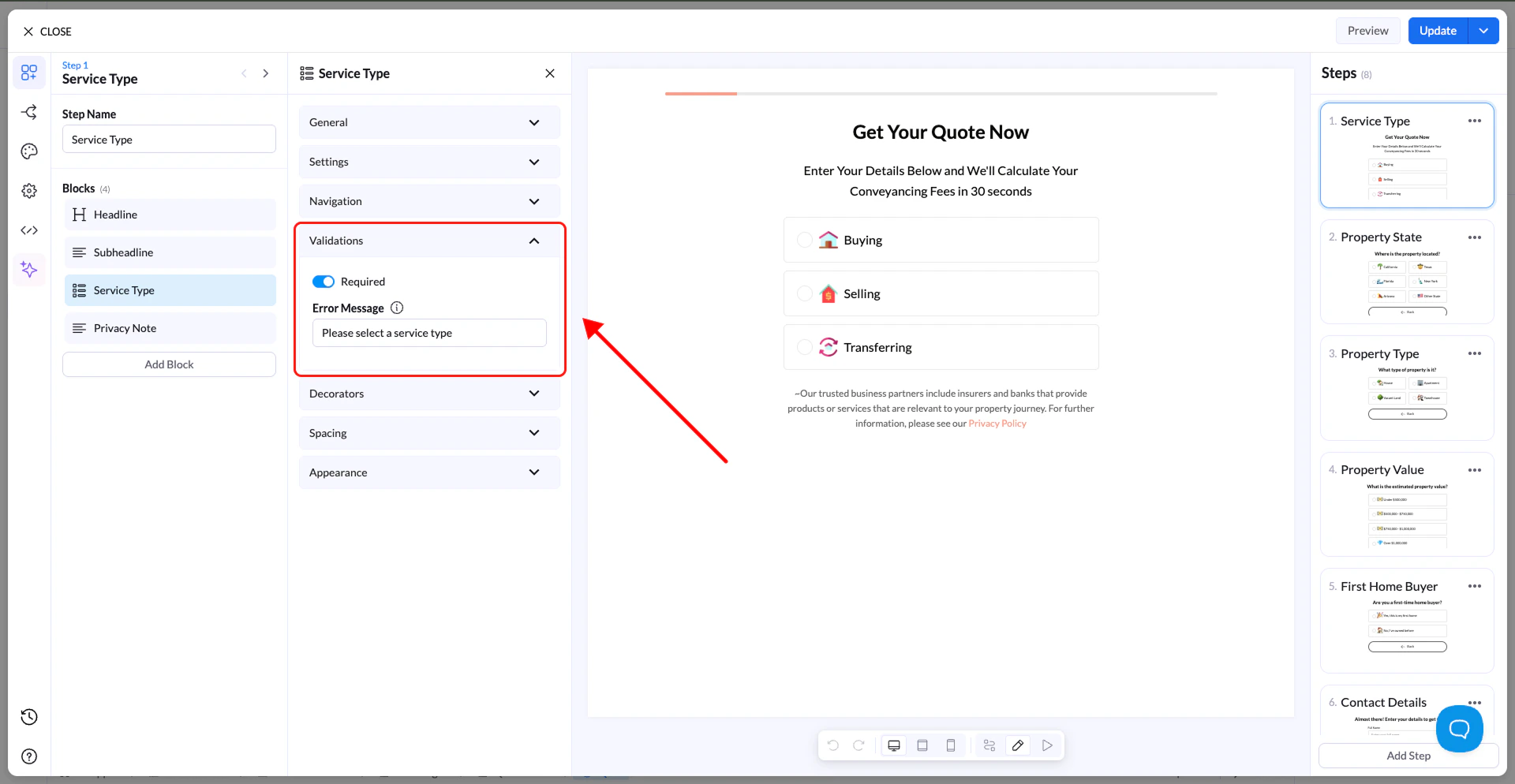 * Select the block you want to apply validation to
* Open the block settings panel
* Locate the **Validation** section
💡 All **Input** and **Choice** blocks support validation.
## How to Use Validation
* Turn validation **ON** in the block settings
* Add a custom **Error Message** (optional)
If no custom message is added, the default message will be shown:
**“This field is required.”**
## Error Messages
You can define your own message that appears when validation fails.
Examples:
* “Enter a valid email address”
* “Please select an option”
* “Phone number is required”
***
## Best Practices
* Keep messages **short and clear**
* Tell users exactly what needs to be fixed
* Use validation on all important fields to avoid incomplete or incorrect data
**Tip:** Proper validation improves completion rates by guiding users instead of confusing them.
* Select the block you want to apply validation to
* Open the block settings panel
* Locate the **Validation** section
💡 All **Input** and **Choice** blocks support validation.
## How to Use Validation
* Turn validation **ON** in the block settings
* Add a custom **Error Message** (optional)
If no custom message is added, the default message will be shown:
**“This field is required.”**
## Error Messages
You can define your own message that appears when validation fails.
Examples:
* “Enter a valid email address”
* “Please select an option”
* “Phone number is required”
***
## Best Practices
* Keep messages **short and clear**
* Tell users exactly what needs to be fixed
* Use validation on all important fields to avoid incomplete or incorrect data
**Tip:** Proper validation improves completion rates by guiding users instead of confusing them.