> ## Documentation Index
> Fetch the complete documentation index at: https://docs.landerlab.io/llms.txt
> Use this file to discover all available pages before exploring further.
# Wait for API Response for Reliable Submissions
> Enable wait for API response to ensure submissions are processed before continuing, improving data reliability and integration accuracy.
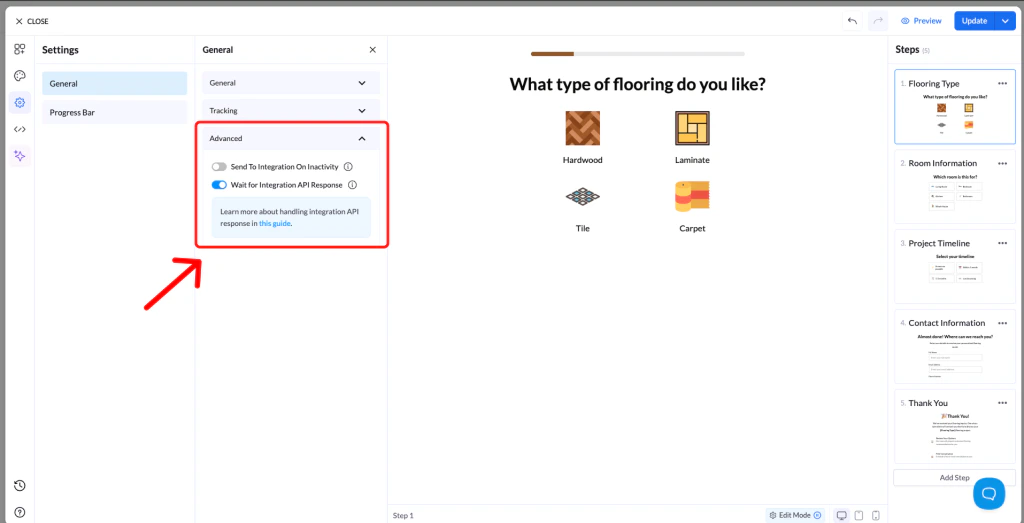
The **Wait for API Response** setting ensures that your form waits for confirmation from your integration before allowing the user to proceed.
This guarantees that data is successfully received and processed before moving to the next step or showing a success message.
 ## How It Works
When enabled, the form will:
* Pause after submission
* Wait for a response from your integration (API)
* Only continue once the response is received
This helps prevent data loss or incomplete submissions.
***
## How to Enable Wait for API Response
### 1. Open Your Form
* Go to your landing page
* Open the form or quiz you want to configure
### 2. Go to Settings
* Click the **Settings** tab inside the builder
### 3. Open Advanced Settings
* In the left menu, click **Advanced**
### 4. Enable the Feature
* Find **Wait for Integration API Response**
* Toggle it **ON**
### 5. Save Changes
* Click **Save**
* **Publish or Republish** your page
***
## Why Use This Feature
* Ensures data is successfully received by your integration
* Prevents users from continuing before submission is complete
* Improves reliability for CRM and webhook integrations
## How It Works
When enabled, the form will:
* Pause after submission
* Wait for a response from your integration (API)
* Only continue once the response is received
This helps prevent data loss or incomplete submissions.
***
## How to Enable Wait for API Response
### 1. Open Your Form
* Go to your landing page
* Open the form or quiz you want to configure
### 2. Go to Settings
* Click the **Settings** tab inside the builder
### 3. Open Advanced Settings
* In the left menu, click **Advanced**
### 4. Enable the Feature
* Find **Wait for Integration API Response**
* Toggle it **ON**
### 5. Save Changes
* Click **Save**
* **Publish or Republish** your page
***
## Why Use This Feature
* Ensures data is successfully received by your integration
* Prevents users from continuing before submission is complete
* Improves reliability for CRM and webhook integrations