> ## Documentation Index
> Fetch the complete documentation index at: https://docs.landerlab.io/llms.txt
> Use this file to discover all available pages before exploring further.
# Use Inactivity Auto-Submit for Lead Capture
> Use inactivity auto-submit to capture partial leads, prevent data loss, and improve funnel performance from incomplete submissions.
Inactivity Auto-Submit allows you to automatically send user data when they stop interacting with a multi-step form.
This helps prevent data loss by capturing **partial leads** even if the user doesn’t complete the full flow.
## How It Works
If a user becomes inactive for a defined period of time, the system will:
* Capture data from the **current step**
* Include data from **previous steps**
* Send it to your configured **integration (CRM, webhook, etc.)**
***
## How to Enable Inactivity Auto-Submit
### 1. Open Your Form
* Go to your landing page
* Open the form or quiz you want to configure
### 2. Access Settings
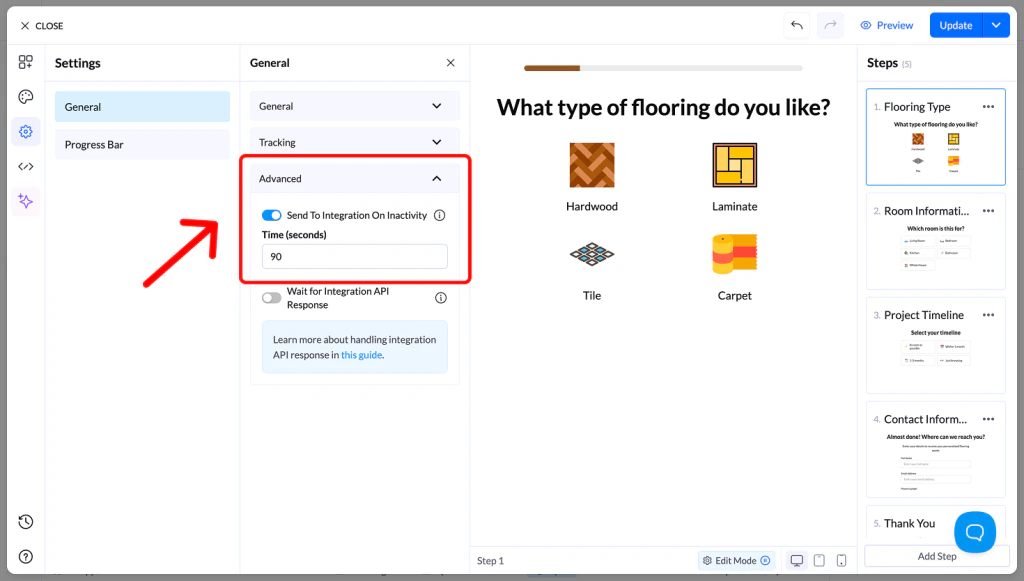
* Go to the **Settings** tab inside the builder
* Locate the **Advanced** section
### 3. Enable the Feature
* Find **Inactivity Submission**
* Toggle it **ON**
### 4. Set the Timer
* Enter the inactivity time (in seconds)
* This defines how long the system waits before submitting data
### 5. Save Changes
* Click **Save**
* **Publish or Republish** your page
 ***
## Why Use Inactivity Auto-Submit
* Capture leads that don’t finish the flow
* Improve visibility into drop-off points
* Ensure data is still sent to your CRM
***
## Recommended Settings
We recommend setting the timer to **at least 90 seconds** to avoid triggering submissions while users are still actively completing the form.
***
## Why Use Inactivity Auto-Submit
* Capture leads that don’t finish the flow
* Improve visibility into drop-off points
* Ensure data is still sent to your CRM
***
## Recommended Settings
We recommend setting the timer to **at least 90 seconds** to avoid triggering submissions while users are still actively completing the form.