> ## Documentation Index
> Fetch the complete documentation index at: https://docs.landerlab.io/llms.txt
> Use this file to discover all available pages before exploring further.
# Use Variables for Personalization
> Use variables to personalize funnels by storing user inputs and displaying dynamic content across your landing pages and quizzes.
Variables allow you to store user input and reuse it later in your flow. This makes your quiz or form more dynamic and personalized.
For example, you can show a user’s name on the next step after they enter it.
***
## How Variables Work
Variables are created automatically when a user interacts with certain blocks.
Supported blocks include:
* **Choices** → Multiple Choice, Image Choice
* **Inputs** → Text, Email, Phone, Long Text, Select, Checkbox, Number, Date, Zip Code, Range Slider, Hidden Field
Each input stores its value as a variable.
***
## Variable Naming
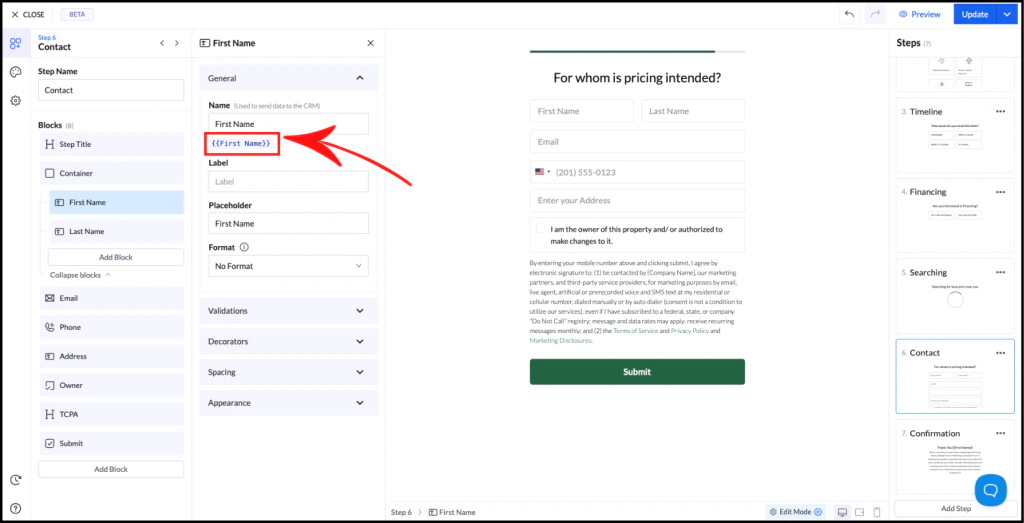 * The **field name = variable name**
* Variables are written like this:
```text theme={null}
{{Variable Name}}
```
Example:\
\
If your field is named **First Name**, the variable becomes:
```text theme={null}
{{First Name}}
```
If you rename the field, the variable updates automatically.
***
## Using Variables
* The **field name = variable name**
* Variables are written like this:
```text theme={null}
{{Variable Name}}
```
Example:\
\
If your field is named **First Name**, the variable becomes:
```text theme={null}
{{First Name}}
```
If you rename the field, the variable updates automatically.
***
## Using Variables
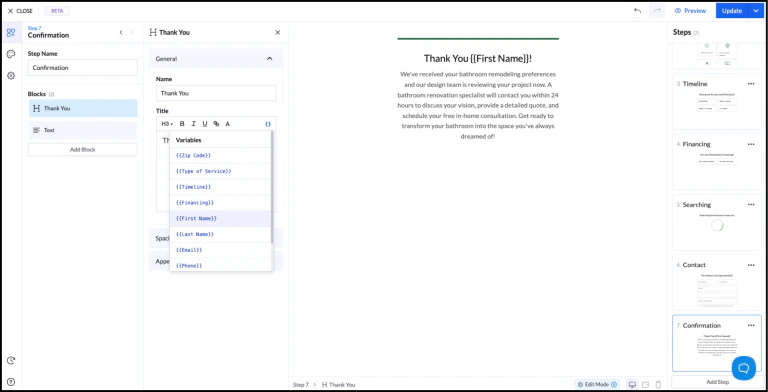 You can insert variables into text in two ways:
### 1. Manual input
Type the variable directly:
```text theme={null}
Thank you {{First Name}}!
```
### 2. Variable picker
Use the { }\*\* icon\*\* in the text editor to insert variables.
## Example
Step 1: User enters their name\
\
Step 2: Show personalized message
Output:
```text theme={null}
Thank you {{First Name}}!
```
***
## Important Rules
* Variables can only be used in **later steps**, not the same step
* Variable names must be **unique**
* Values are stored as **text**
***
## Best Practices
* Use clear and consistent field names
* Avoid duplicate names across fields
* Plan your step order to use variables effectively
Tip: Personalization using variables increases engagement and can improve conversion rates.
You can insert variables into text in two ways:
### 1. Manual input
Type the variable directly:
```text theme={null}
Thank you {{First Name}}!
```
### 2. Variable picker
Use the { }\*\* icon\*\* in the text editor to insert variables.
## Example
Step 1: User enters their name\
\
Step 2: Show personalized message
Output:
```text theme={null}
Thank you {{First Name}}!
```
***
## Important Rules
* Variables can only be used in **later steps**, not the same step
* Variable names must be **unique**
* Values are stored as **text**
***
## Best Practices
* Use clear and consistent field names
* Avoid duplicate names across fields
* Plan your step order to use variables effectively
Tip: Personalization using variables increases engagement and can improve conversion rates.