> ## Documentation Index
> Fetch the complete documentation index at: https://docs.landerlab.io/llms.txt
> Use this file to discover all available pages before exploring further.
# Quiz Formulas: Calculate Results from Answers
> Build formulas in LanderLab quiz funnels to calculate values from quiz answers and show personalized results in any step. Name, reuse, and test each formula with live values.
Formulas let you turn quiz answers into a calculated value. You combine one or more answers with math, then show the result inside any step or use it in your rules. A common use is a live estimate, like a savings figure or a running total, that updates based on what each visitor selects.
## Where to find formulas
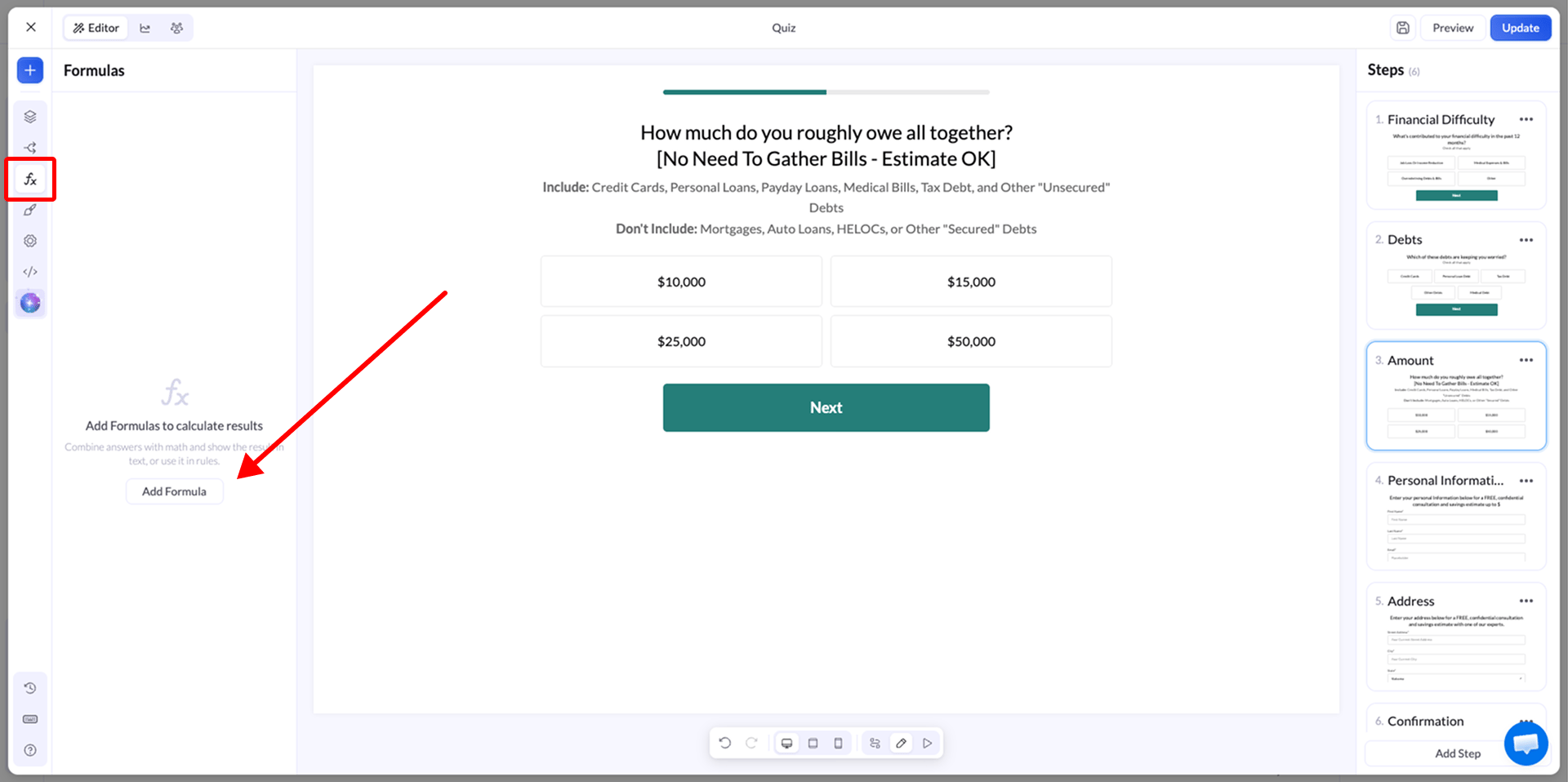
Open your quiz in the editor and click the **Formulas** icon in the left sidebar. The panel starts empty. Click **Add Formula** to open the formula editor.
 ## Build a formula
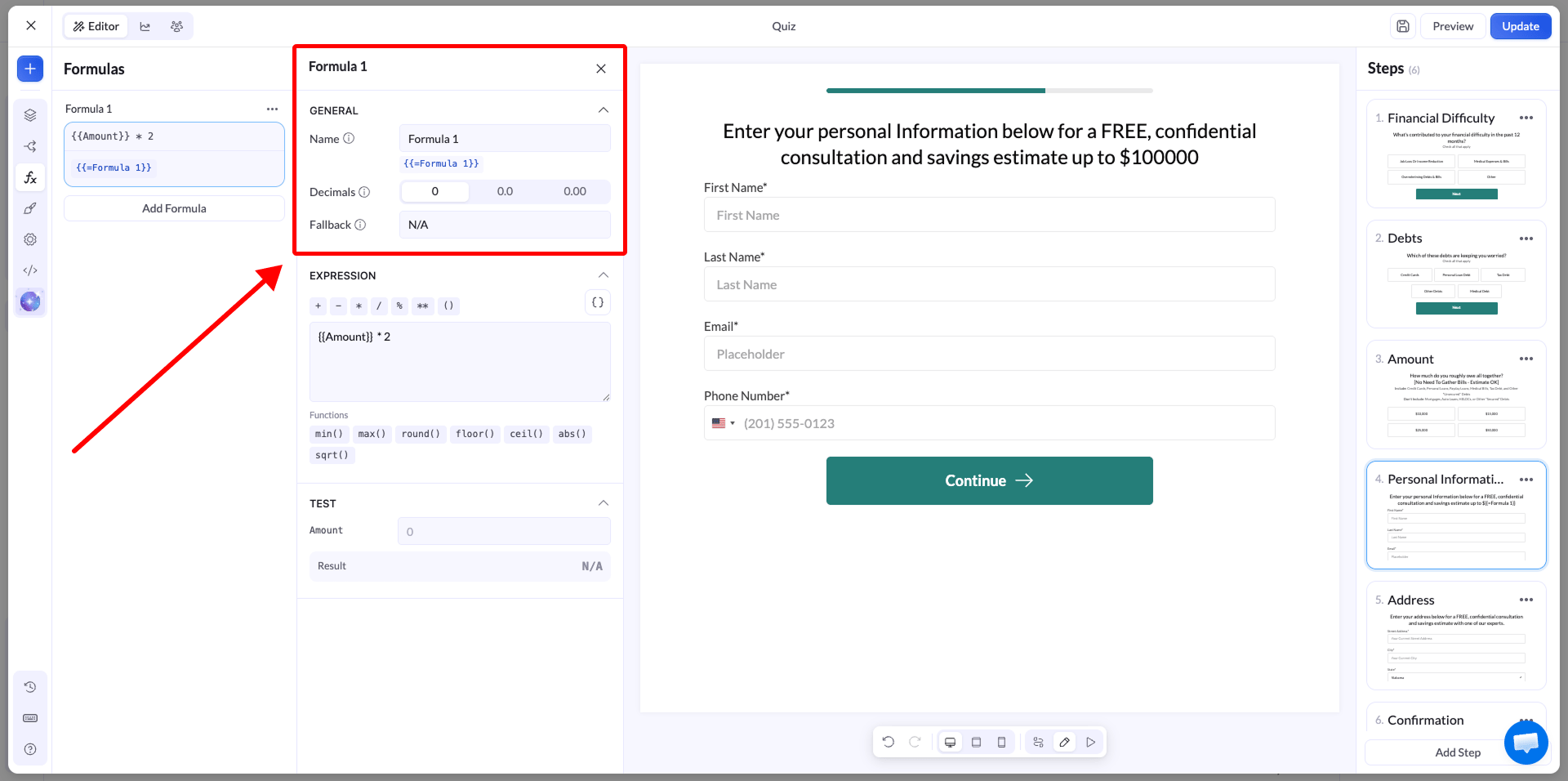
The formula editor has three parts: general settings, the expression, and a live test.
## Build a formula
The formula editor has three parts: general settings, the expression, and a live test.
 ### Name
Give the formula a clear name. The name is how you reference the formula later, so a descriptive one makes it easy to reuse across steps. For example, name a formula `Estimated Savings` instead of leaving it as `Formula 1`.
### Decimals
Choose how many decimal places the result shows. Use `0` for whole numbers like a dollar total, or `2` for values that need cents.
### Fallback
Set a value to show when the formula cannot return a valid result, for example when a number field is empty or an answer is missing. The fallback keeps a blank or broken value from ever reaching the visitor.
***
### Expression
The expression is where you build the calculation. Type it directly or use the buttons above the field.
### Name
Give the formula a clear name. The name is how you reference the formula later, so a descriptive one makes it easy to reuse across steps. For example, name a formula `Estimated Savings` instead of leaving it as `Formula 1`.
### Decimals
Choose how many decimal places the result shows. Use `0` for whole numbers like a dollar total, or `2` for values that need cents.
### Fallback
Set a value to show when the formula cannot return a valid result, for example when a number field is empty or an answer is missing. The fallback keeps a blank or broken value from ever reaching the visitor.
***
### Expression
The expression is where you build the calculation. Type it directly or use the buttons above the field.
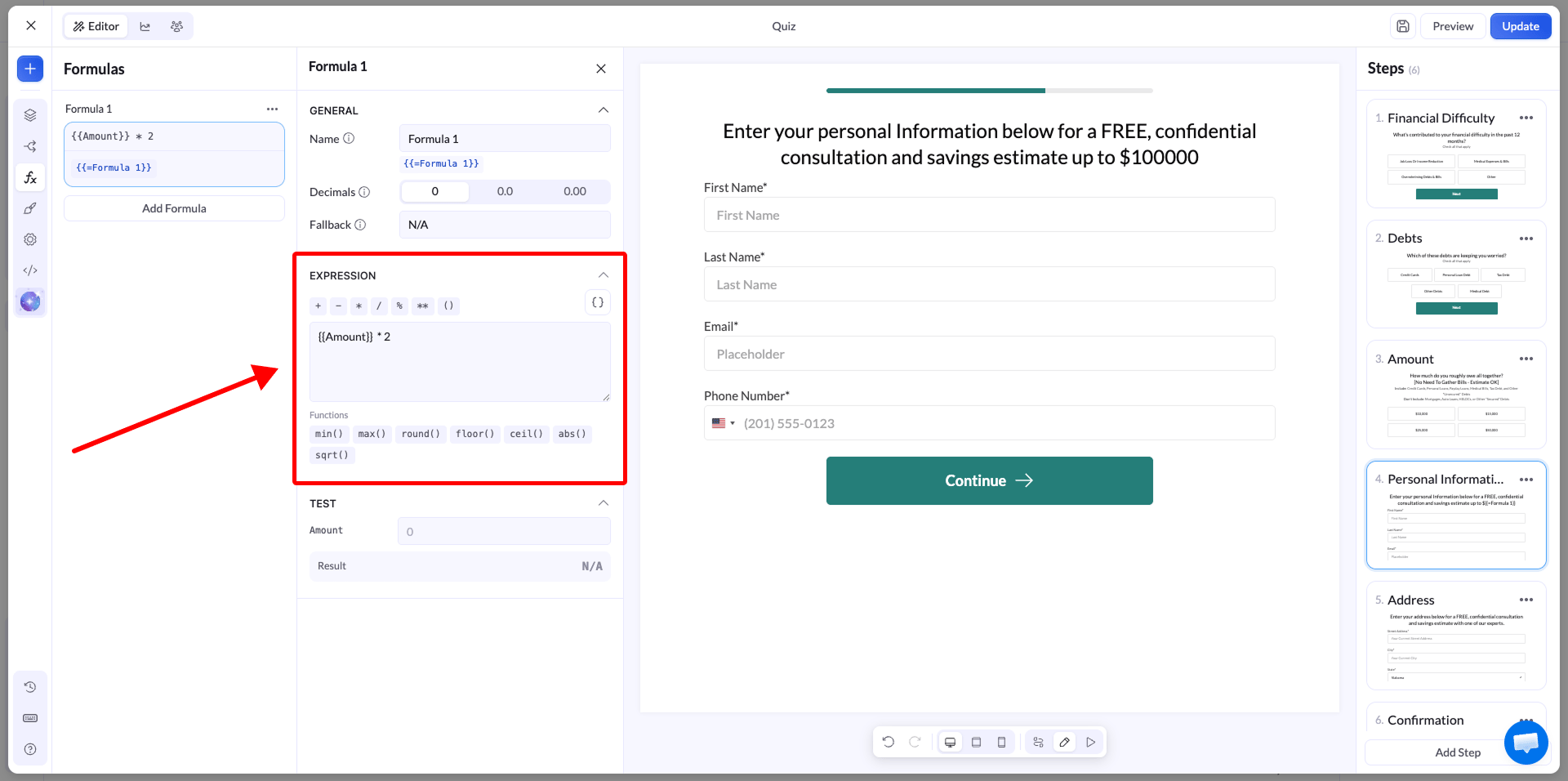 * Operators: `+`, `-`, `*`, `/`, `%` (remainder), `**` (power), and `( )` to group parts of the calculation
* Functions: `min()`, `max()`, `round()`, `floor()`, `ceil()`, `abs()`, `sqrt()`
To add an answer to the calculation, click the **variable** button (the `{ }` icon) and pick a field. The list shows every field you have created in the quiz, and the one you choose is inserted as a variable, like `{{Amount}}`.
* Operators: `+`, `-`, `*`, `/`, `%` (remainder), `**` (power), and `( )` to group parts of the calculation
* Functions: `min()`, `max()`, `round()`, `floor()`, `ceil()`, `abs()`, `sqrt()`
To add an answer to the calculation, click the **variable** button (the `{ }` icon) and pick a field. The list shows every field you have created in the quiz, and the one you choose is inserted as a variable, like `{{Amount}}`.
 The field you insert must hold a **number** for the math to work. A choice or input that stores a number, such as a price or an amount, calculates correctly. A plain text answer does not.
For example, to double the amount a visitor entered, insert the **Amount** field and multiply it:
```text theme={null}
{{Amount}} * 2
```
***
### Test
The **Test** section previews the result with sample values before you publish. Enter a value for each variable in your expression and LanderLab shows the calculated **Result** right away. Using the expression above, an `Amount` of `2000` returns a result of `4000`.
***
## Use a formula in a step
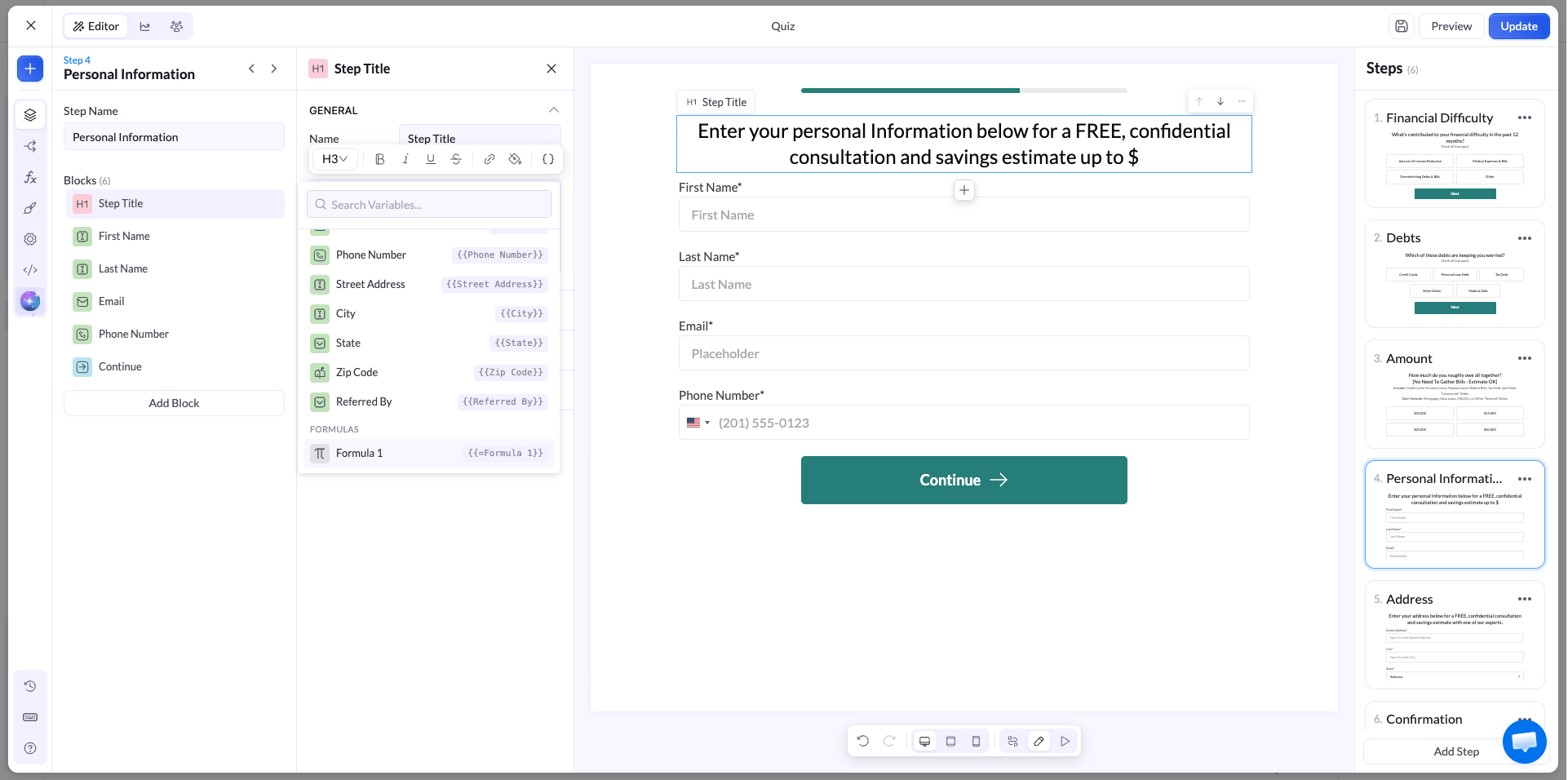
Once saved, a formula can go into any text field in your quiz, such as a step title, a paragraph, or a button.
The field you insert must hold a **number** for the math to work. A choice or input that stores a number, such as a price or an amount, calculates correctly. A plain text answer does not.
For example, to double the amount a visitor entered, insert the **Amount** field and multiply it:
```text theme={null}
{{Amount}} * 2
```
***
### Test
The **Test** section previews the result with sample values before you publish. Enter a value for each variable in your expression and LanderLab shows the calculated **Result** right away. Using the expression above, an `Amount` of `2000` returns a result of `4000`.
***
## Use a formula in a step
Once saved, a formula can go into any text field in your quiz, such as a step title, a paragraph, or a button.
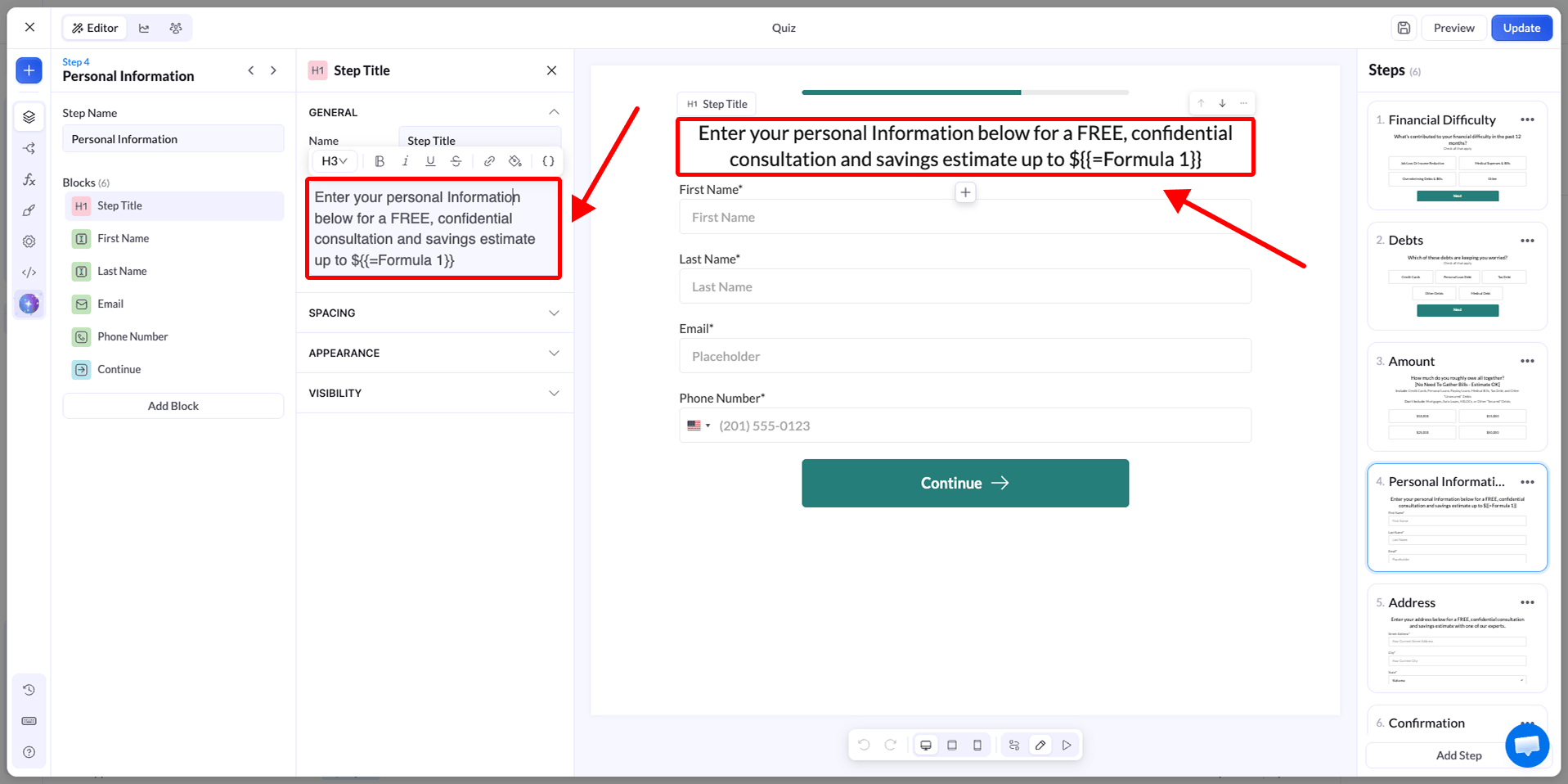 You have two ways to insert it:
* **Type it.** Reference the formula by name with the `{{= }}` syntax, for example `{{=Formula 1}}`
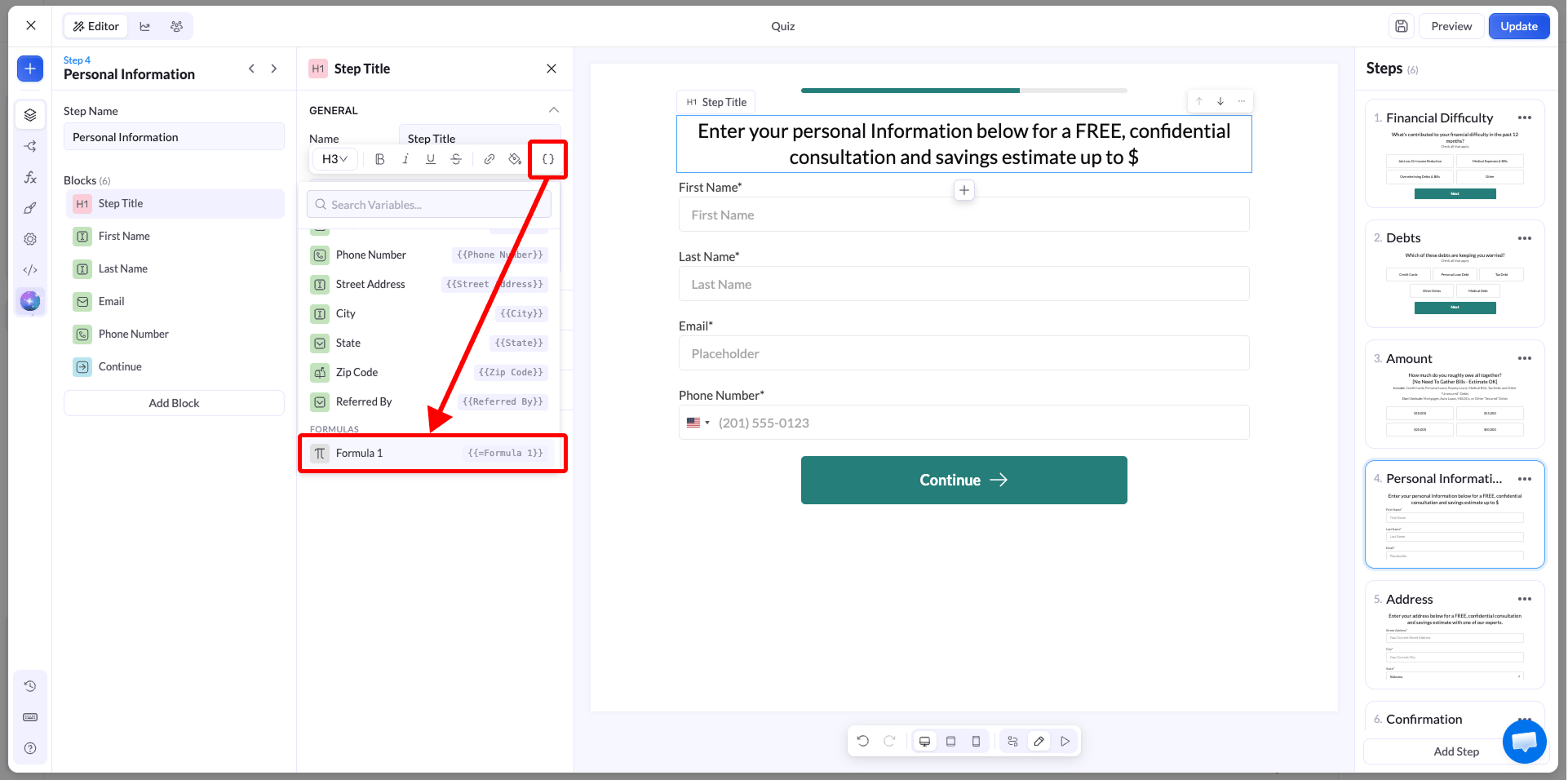
* **Pick it.** Click the **variable** button in the text field, scroll to the **Formulas** section, and select your formula
You have two ways to insert it:
* **Type it.** Reference the formula by name with the `{{= }}` syntax, for example `{{=Formula 1}}`
* **Pick it.** Click the **variable** button in the text field, scroll to the **Formulas** section, and select your formula
 The result is calculated live as the visitor moves through the quiz, so the value always reflects the answers they gave. A step title might read:
```text theme={null}
Your estimated savings: ${{=Formula 1}}
```
## Preview and test
To see the formula working, click **Preview** and complete the quiz as a visitor would. The result appears in the step where you placed it, using the answers you selected along the way.
## Tips
* Name every formula clearly so it is easy to find and reuse
* Set a fallback so visitors never see a blank or broken value
* Only reference fields that store numbers
* Test with realistic values before you publish
The result is calculated live as the visitor moves through the quiz, so the value always reflects the answers they gave. A step title might read:
```text theme={null}
Your estimated savings: ${{=Formula 1}}
```
## Preview and test
To see the formula working, click **Preview** and complete the quiz as a visitor would. The result appears in the step where you placed it, using the answers you selected along the way.
## Tips
* Name every formula clearly so it is easy to find and reuse
* Set a fallback so visitors never see a blank or broken value
* Only reference fields that store numbers
* Test with realistic values before you publish