> ## Documentation Index
> Fetch the complete documentation index at: https://docs.landerlab.io/llms.txt
> Use this file to discover all available pages before exploring further.
# Create Quiz Funnels from Templates
> Create quiz funnels from templates to launch faster, customize flows, and capture leads with proven high-converting structures.
Creating a quiz from a template allows you to **quickly launch a proven flow** without building everything from scratch. You can use LanderLab’s pre-designed templates or your own saved templates to speed up your workflow.
 ## How to Create a Quiz from Template
### 1. Open the Landing Page Editor
* Go to **Landing Pages**
* Open an existing page or create a new one
* Click **Open in Editor**
### 2. Locate the Quiz Element
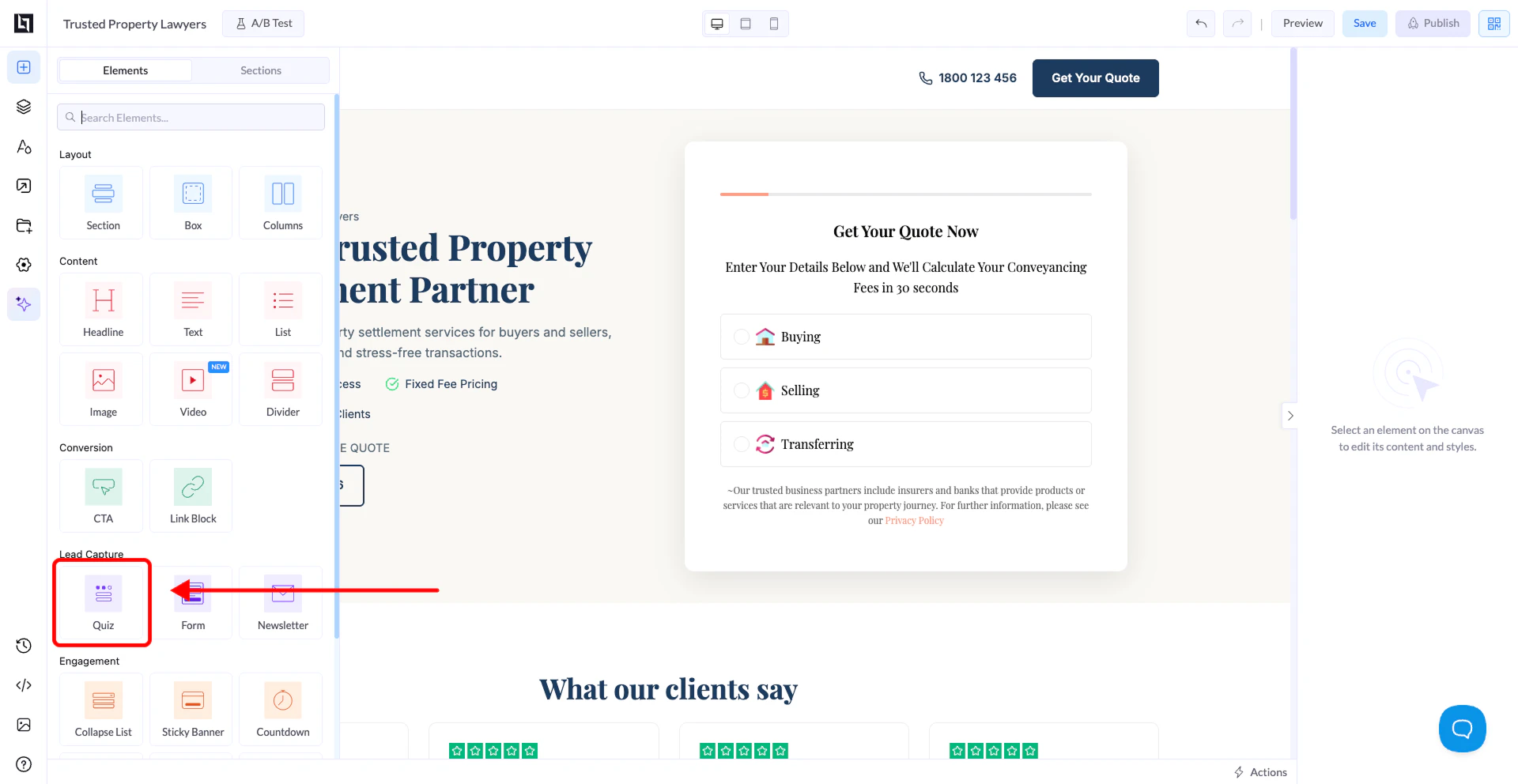
* In the editor, go to the **Elements panel** on the left
* Scroll to find the **Quiz** element
### 3. Drag and Drop the Quiz
* Drag the **Quiz element** onto your landing page canvas
* Place it where you want the quiz to appear
### 4. Select “Start from Template”
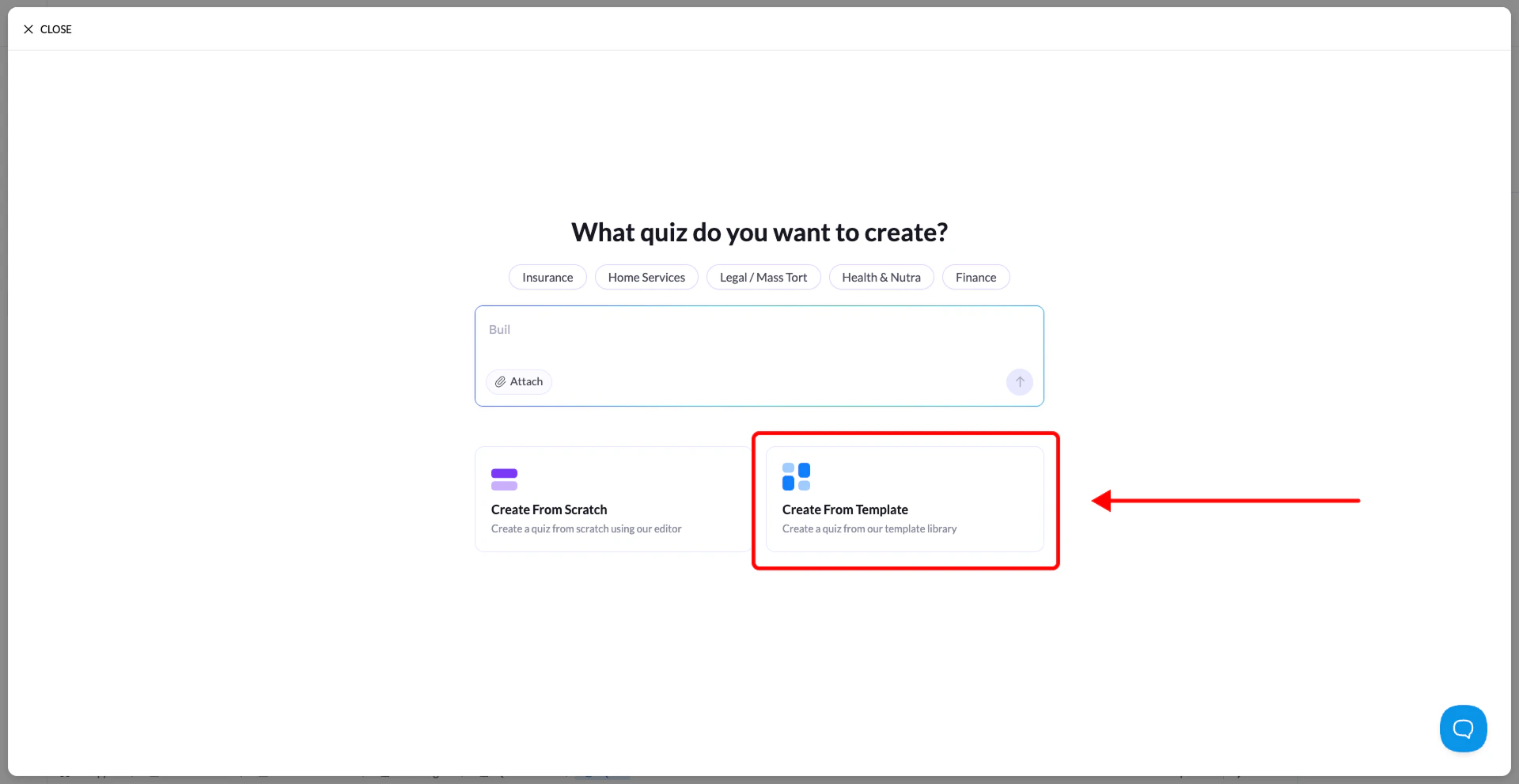
* After placing the element, a configuration modal will appear
* Select **Start from Template**
* Choose a template from:
* LanderLab’s template library
* Your saved templates
### 5. Customize Your Quiz
The quiz will open in the **Quiz Builder interface**, already populated with steps and questions.
You can now:
* Edit questions and answers
* Modify the flow and steps
* Adjust design and layout
* Tailor the quiz to your campaign
## How to Create a Quiz from Template
### 1. Open the Landing Page Editor
* Go to **Landing Pages**
* Open an existing page or create a new one
* Click **Open in Editor**
### 2. Locate the Quiz Element
* In the editor, go to the **Elements panel** on the left
* Scroll to find the **Quiz** element
### 3. Drag and Drop the Quiz
* Drag the **Quiz element** onto your landing page canvas
* Place it where you want the quiz to appear
### 4. Select “Start from Template”
* After placing the element, a configuration modal will appear
* Select **Start from Template**
* Choose a template from:
* LanderLab’s template library
* Your saved templates
### 5. Customize Your Quiz
The quiz will open in the **Quiz Builder interface**, already populated with steps and questions.
You can now:
* Edit questions and answers
* Modify the flow and steps
* Adjust design and layout
* Tailor the quiz to your campaign