> ## Documentation Index
> Fetch the complete documentation index at: https://docs.landerlab.io/llms.txt
> Use this file to discover all available pages before exploring further.
# Use Visibility Conditions for Dynamic Content
> Use visibility conditions to show or hide elements based on user inputs and create more personalized landing page experiences.
Visibility Conditions allow you to **show or hide blocks dynamically** based on answers users gave earlier in the flow.
Instead of displaying the same content to everyone, you can control exactly **when a block appears**, making your flow more personalized and relevant.
 ***
## What It Does
When Visibility Conditions are enabled:
* A block will **only appear if the condition is met**
* If the condition is **not met**, the block stays hidden
* You can base conditions on **previous answers in the quiz**
This works for any block, including:
* Text
* Multiple Choice
* Inputs
* Buttons
***
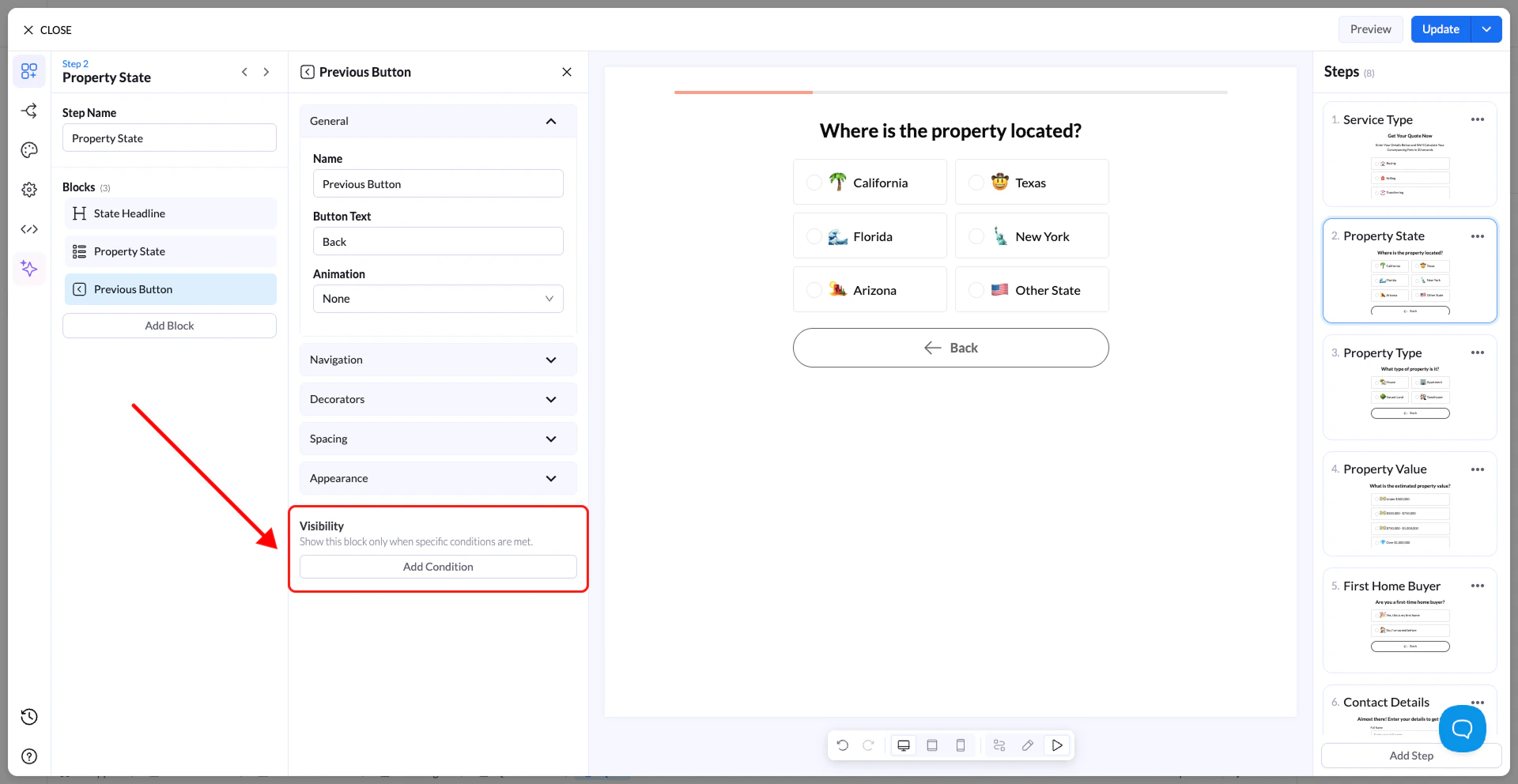
## How to Add a Visibility Condition
1. Select the block you want to control
2. Open the **Visibility** section in the settings panel
3. Click **Add Condition**
4. Choose:
* The **field/block** you want to check
* The **operator** (rule type)
* The **value**
***
## What It Does
When Visibility Conditions are enabled:
* A block will **only appear if the condition is met**
* If the condition is **not met**, the block stays hidden
* You can base conditions on **previous answers in the quiz**
This works for any block, including:
* Text
* Multiple Choice
* Inputs
* Buttons
***
## How to Add a Visibility Condition
1. Select the block you want to control
2. Open the **Visibility** section in the settings panel
3. Click **Add Condition**
4. Choose:
* The **field/block** you want to check
* The **operator** (rule type)
* The **value**
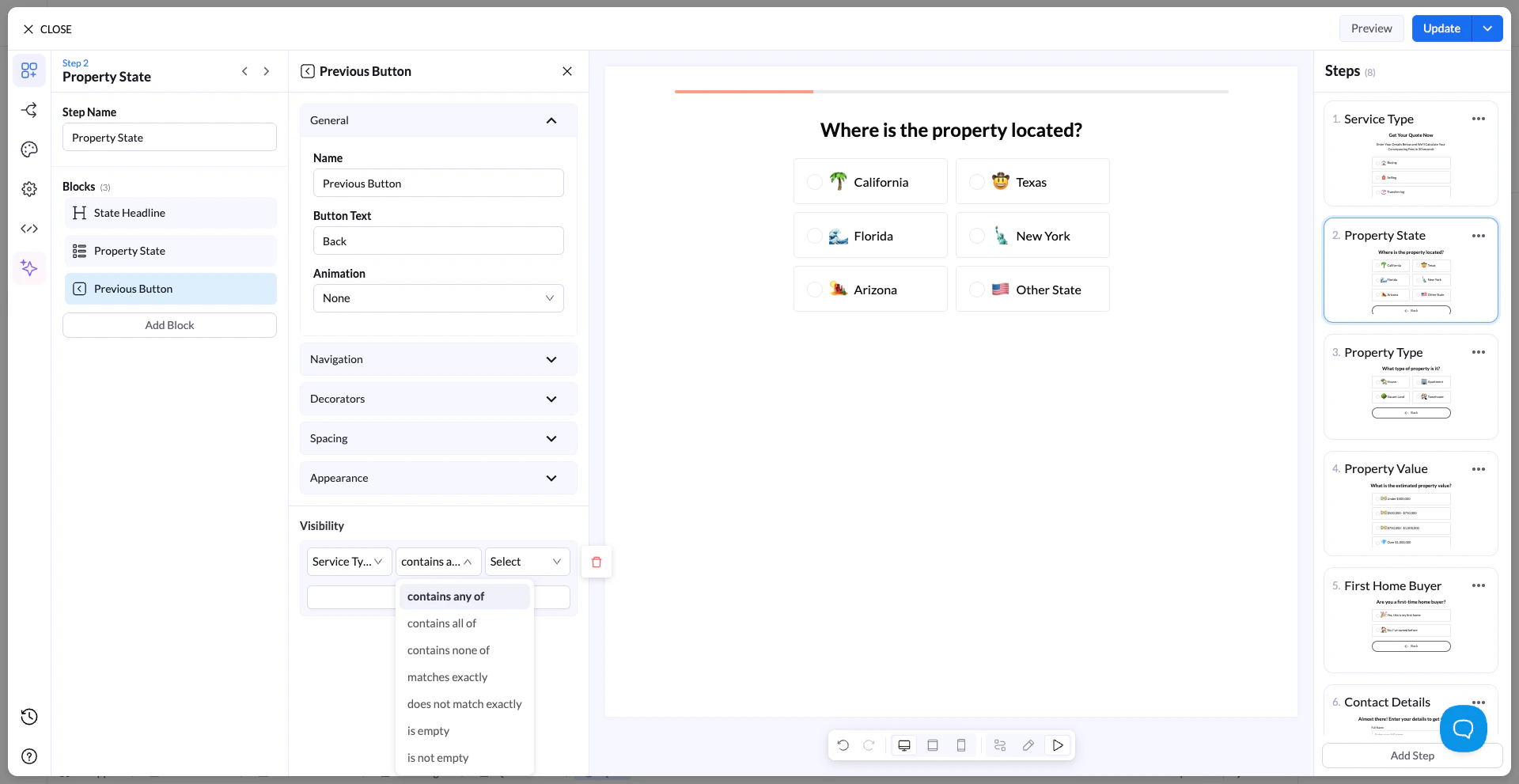 ***
## Available Operators
You can define conditions using:
* contains any of
* contains all of
* contains none of
* matches exactly
* does not match exactly
* is empty
* is not empty
***
## How It Works (Example)
### Scenario
You ask:
**“What service are you looking for?”**
Options:
* Buying
* Selling
### Goal
Only show a follow-up question if the user selects **Buying**
### Setup
Visibility condition:
* Field → Service Type
* Operator → matches exactly
* Value → Buying
### Result
* If user selects **Buying** → the next block appears
* If user selects **Selling** → the block stays hidden
***
## Real Use Case Example
You’re building a real estate flow:
Step 1:\
**“Do you own a property?”**
* Yes
* No
Step 2 (Conditional):\
**“What is your property value?”**
👉 Apply visibility condition:
* Field → Own Property
* Operator → matches exactly
* Value → Yes
### Outcome
* Users who select **Yes** → see the property value question
* Users who select **No** → skip it completely
***
## Important Notes
* Conditions only work with **previous steps**
* If multiple conditions are added, they must all be met
* Hidden blocks are **not shown and not required**
* Helps reduce friction and improve completion rates
***
## Best Practices
* Use conditions to remove irrelevant questions
* Keep logic simple and easy to follow
* Always test different user paths
* Combine with conditional navigation for advanced flows
***
## Available Operators
You can define conditions using:
* contains any of
* contains all of
* contains none of
* matches exactly
* does not match exactly
* is empty
* is not empty
***
## How It Works (Example)
### Scenario
You ask:
**“What service are you looking for?”**
Options:
* Buying
* Selling
### Goal
Only show a follow-up question if the user selects **Buying**
### Setup
Visibility condition:
* Field → Service Type
* Operator → matches exactly
* Value → Buying
### Result
* If user selects **Buying** → the next block appears
* If user selects **Selling** → the block stays hidden
***
## Real Use Case Example
You’re building a real estate flow:
Step 1:\
**“Do you own a property?”**
* Yes
* No
Step 2 (Conditional):\
**“What is your property value?”**
👉 Apply visibility condition:
* Field → Own Property
* Operator → matches exactly
* Value → Yes
### Outcome
* Users who select **Yes** → see the property value question
* Users who select **No** → skip it completely
***
## Important Notes
* Conditions only work with **previous steps**
* If multiple conditions are added, they must all be met
* Hidden blocks are **not shown and not required**
* Helps reduce friction and improve completion rates
***
## Best Practices
* Use conditions to remove irrelevant questions
* Keep logic simple and easy to follow
* Always test different user paths
* Combine with conditional navigation for advanced flows