> ## Documentation Index
> Fetch the complete documentation index at: https://docs.landerlab.io/llms.txt
> Use this file to discover all available pages before exploring further.
# Use Conditional Navigation in Quiz Funnels
> Use conditional navigation to create dynamic quiz flows that adapt to user answers and guide visitors through personalized paths.
Conditional Navigation allows your quiz to adapt based on user answers. Instead of following a fixed path, users can be directed to different steps depending on what they select.
This helps you create **dynamic flows**, better qualification, and more personalized experiences.
***
## How It Works
You can define different paths in your flow based on user choices.
For example:
* If a user selects **Yes**, send them to a qualified step
* If a user selects **No**, send them to a different step
***
## Where to Use It
Conditional Navigation is available only on:
* **Multiple Choice blocks**
* **Image Choice blocks**
***
## How to Add Conditional Navigation
 ### 1. Add a Choice Block
* Add a **Multiple Choice** or **Image Choice** block
* Create your answer options
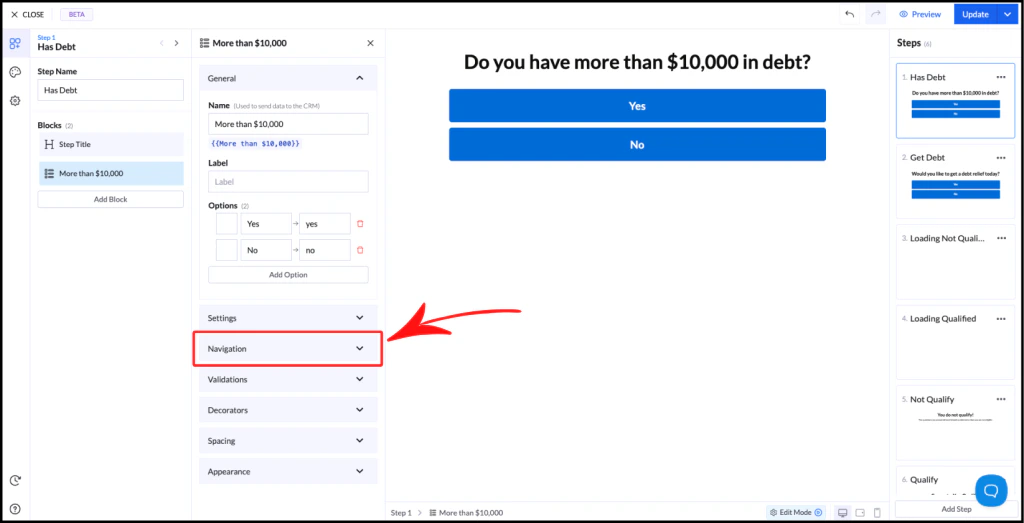
### 2. Open Navigation Settings
* Select the block
* Scroll to the **Navigation** section
* Click to open it
***
## Navigation Options
### Next Step (Default)
* Sends users to the next step in the flow
* Applies to all answers equally
### 1. Add a Choice Block
* Add a **Multiple Choice** or **Image Choice** block
* Create your answer options
### 2. Open Navigation Settings
* Select the block
* Scroll to the **Navigation** section
* Click to open it
***
## Navigation Options
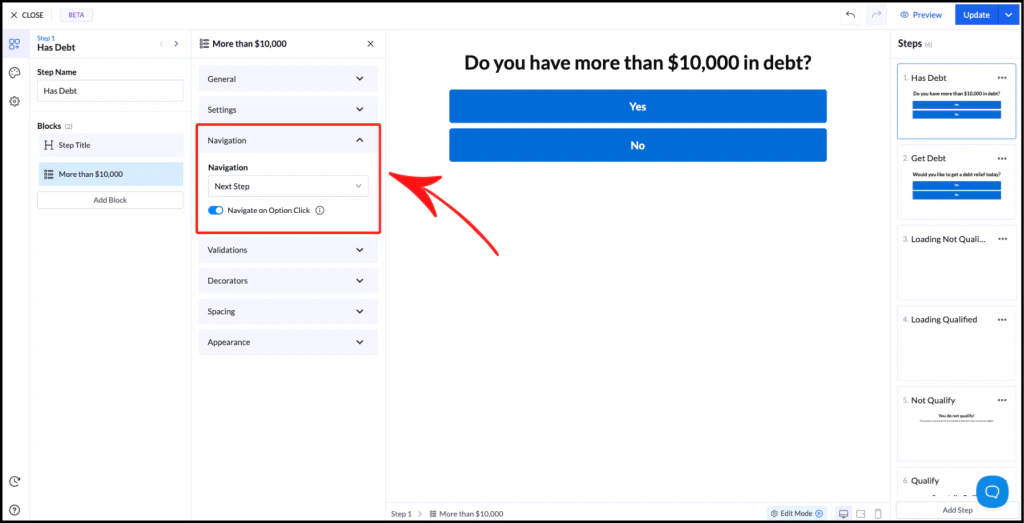
### Next Step (Default)
* Sends users to the next step in the flow
* Applies to all answers equally
 ***
### Go to Step
* Sends users to a specific step
* Ignores the default step order
***
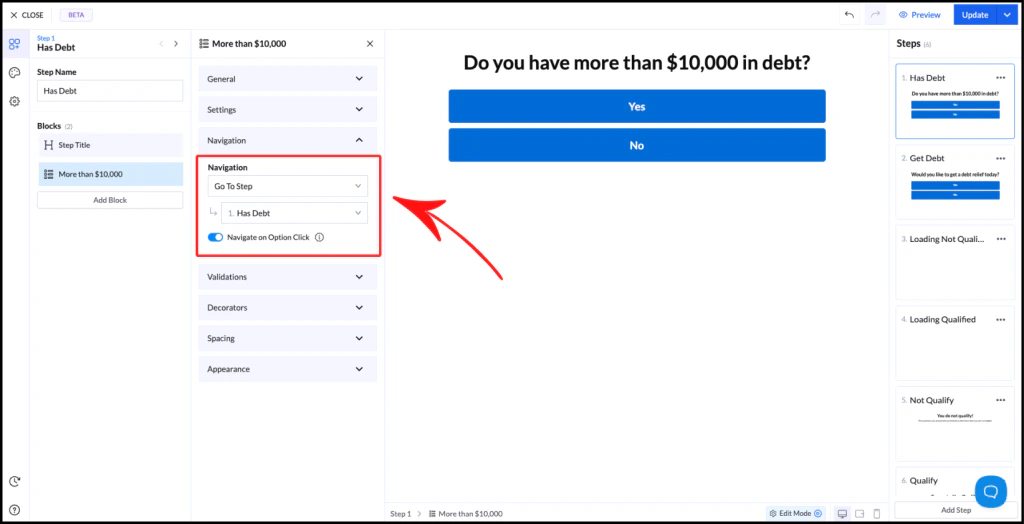
### Go to Step
* Sends users to a specific step
* Ignores the default step order
 ***
### Conditional Navigation
* Allows different paths for each answer
When enabled:
* Each option will have its own **step selector**
* You can define where each answer leads
Example:
* **Yes** → Step: Qualified
* **No** → Step: Not Qualified
***
### Custom URL
* Redirects users to an external page
* Applies regardless of which option is selected
Use cases:
* External thank-you page
* Offer page
* Different funnel
⚠️ Make sure the URL starts with `https://`
***
### Conditional Navigation
* Allows different paths for each answer
When enabled:
* Each option will have its own **step selector**
* You can define where each answer leads
Example:
* **Yes** → Step: Qualified
* **No** → Step: Not Qualified
***
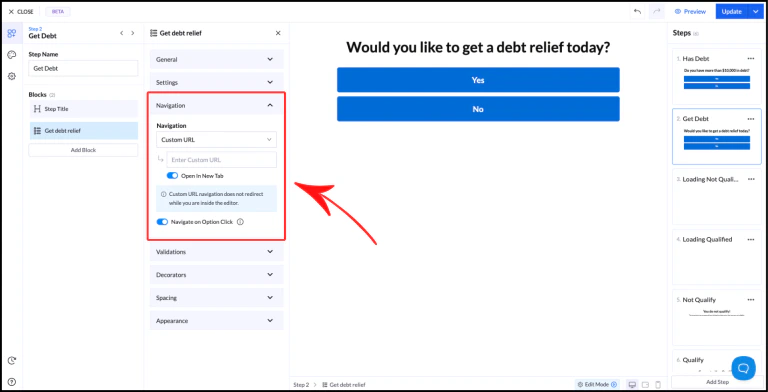
### Custom URL
* Redirects users to an external page
* Applies regardless of which option is selected
Use cases:
* External thank-you page
* Offer page
* Different funnel
⚠️ Make sure the URL starts with `https://`
 ***
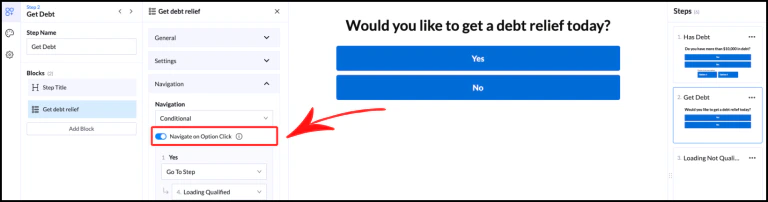
## Navigate on Option Click
This setting controls how users move forward:
* **Enabled** → Automatically continues when an option is clicked
* **Disabled** → Requires user to click a button to continue
***
## Navigate on Option Click
This setting controls how users move forward:
* **Enabled** → Automatically continues when an option is clicked
* **Disabled** → Requires user to click a button to continue
 ***
## Best Practices
* Keep your logic simple and easy to follow
* Use clear step names to avoid confusion
* Test all branches to ensure correct navigation
***
## Best Practices
* Keep your logic simple and easy to follow
* Use clear step names to avoid confusion
* Test all branches to ensure correct navigation