> ## Documentation Index
> Fetch the complete documentation index at: https://docs.landerlab.io/llms.txt
> Use this file to discover all available pages before exploring further.
# Advanced Conditional Logic for Dynamic Funnels
> Use advanced conditional logic to create dynamic funnels that adapt to user inputs and deliver personalized user journeys.
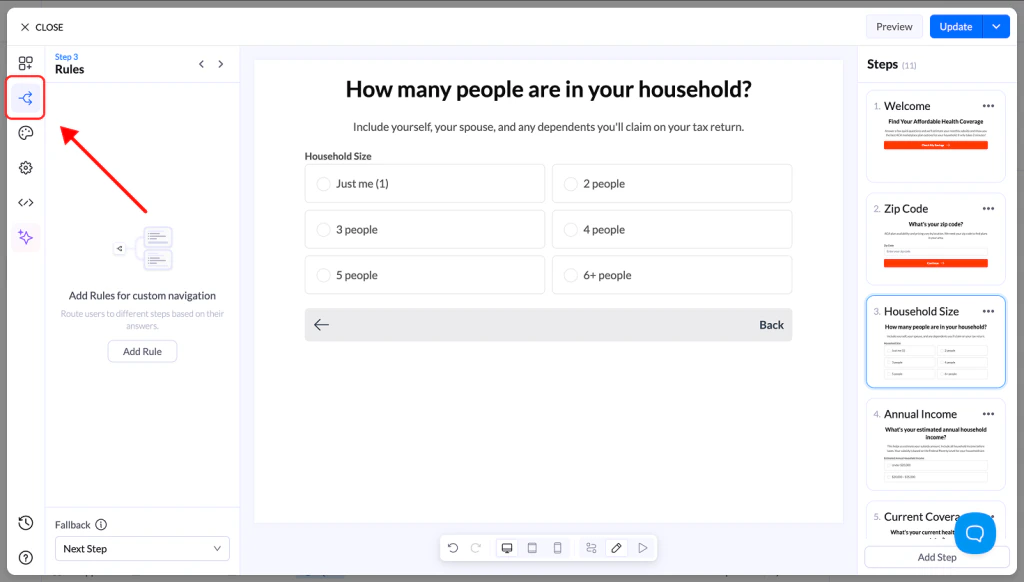
Advanced Conditional Navigation allows you to create **dynamic flows based on user behavior and inputs**. Instead of sending every user through the same path, you can guide them to different steps, pages, or outcomes depending on their responses.
This helps you build smarter funnels that are more relevant and conversion-focused.
 ***
## What You Can Do with Rules
Using Advanced Conditional Logic, you can:
* Personalize the experience for each visitor
* Show only relevant questions
* Build flexible, dynamic funnels
* Improve lead quality and conversions
***
## Supported Blocks
Advanced Conditional Navigation is available on:
* Multiple Choice
* Image Choice
* Buttons
* Loader blocks
***
## How to Set Up Advanced Rules
### Step 1: Enable Advanced Navigation
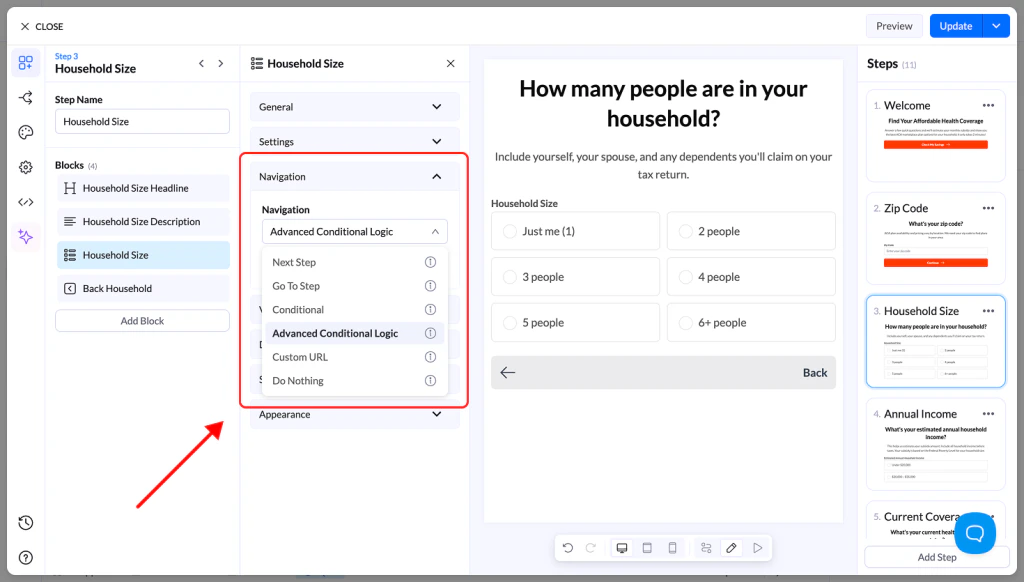
* Select a supported block
* Go to the **Navigation** section
* Change navigation type to **Advanced Conditional Logic**
You will now be able to create and manage rules.
***
## What You Can Do with Rules
Using Advanced Conditional Logic, you can:
* Personalize the experience for each visitor
* Show only relevant questions
* Build flexible, dynamic funnels
* Improve lead quality and conversions
***
## Supported Blocks
Advanced Conditional Navigation is available on:
* Multiple Choice
* Image Choice
* Buttons
* Loader blocks
***
## How to Set Up Advanced Rules
### Step 1: Enable Advanced Navigation
* Select a supported block
* Go to the **Navigation** section
* Change navigation type to **Advanced Conditional Logic**
You will now be able to create and manage rules.
 ### Step 2: Create Rules
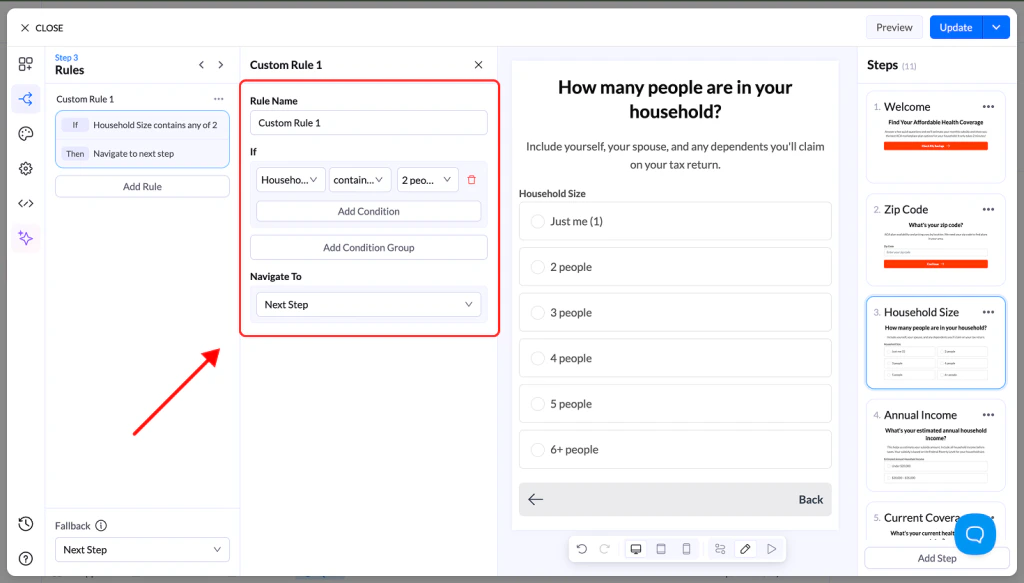
Choose which block the rule will use as input.
Supported sources include:
* Multiple Choice
* Image Choice
* Input fields
* Select
* Slider / Range
* Rating blocks
### Define Conditions
Choose an operator:
* contains any of
* contains all of
* contains none of
* matches exactly
* does not match exactly
* is empty
* is not empty
Then define the value (if required).
### Combine Conditions
You can create multiple conditions and group them.
Use:
* **AND** → all conditions must be true
* **OR** → at least one condition must be true
### Set the Outcome
Define what happens when the rule is met:
* **Page** → go to a specific step
* **Next Page** → continue normally
* **URL** → redirect to an external page
### Step 2: Create Rules
Choose which block the rule will use as input.
Supported sources include:
* Multiple Choice
* Image Choice
* Input fields
* Select
* Slider / Range
* Rating blocks
### Define Conditions
Choose an operator:
* contains any of
* contains all of
* contains none of
* matches exactly
* does not match exactly
* is empty
* is not empty
Then define the value (if required).
### Combine Conditions
You can create multiple conditions and group them.
Use:
* **AND** → all conditions must be true
* **OR** → at least one condition must be true
### Set the Outcome
Define what happens when the rule is met:
* **Page** → go to a specific step
* **Next Page** → continue normally
* **URL** → redirect to an external page
 ### Manage Rules
You can:
* Add multiple rules
* Duplicate rules
* Disable or delete rules
* Organize conditions into groups
### Step 3: Set a Fallback Path
Define what happens if no rules match.
This ensures users are always guided forward and never get stuck.
### Step 4: Test Your Flow
* Preview your funnel
* Test different inputs
* Verify that all rules and paths work correctly
***
## Common Use Cases
Advanced Conditional Navigation is ideal for:
* **Insurance** → Show plans based on profile
* **Recruiting** → Route candidates to relevant roles
* **Real Estate** → Filter by budget and preferences
* **Financial Services** → Match users with offers
* **Legal Services** → Direct based on case type
* **Solar / Energy** → Recommend solutions based on inputs
***
## Best Practices
* Keep logic simple and organized
* Use clear naming for blocks and steps
* Always define a fallback path
* Test every possible path before publishing
### Manage Rules
You can:
* Add multiple rules
* Duplicate rules
* Disable or delete rules
* Organize conditions into groups
### Step 3: Set a Fallback Path
Define what happens if no rules match.
This ensures users are always guided forward and never get stuck.
### Step 4: Test Your Flow
* Preview your funnel
* Test different inputs
* Verify that all rules and paths work correctly
***
## Common Use Cases
Advanced Conditional Navigation is ideal for:
* **Insurance** → Show plans based on profile
* **Recruiting** → Route candidates to relevant roles
* **Real Estate** → Filter by budget and preferences
* **Financial Services** → Match users with offers
* **Legal Services** → Direct based on case type
* **Solar / Energy** → Recommend solutions based on inputs
***
## Best Practices
* Keep logic simple and organized
* Use clear naming for blocks and steps
* Always define a fallback path
* Test every possible path before publishing