> ## Documentation Index
> Fetch the complete documentation index at: https://docs.landerlab.io/llms.txt
> Use this file to discover all available pages before exploring further.
# Use Headline and Text Blocks
> Use headline and text blocks to add, format, and control content layout with responsive settings for better readability.
Both **Headline** and **Text blocks** share the same core settings and controls. They allow you to add and format content while controlling how it appears across devices.
There are two types of text blocks in LanderLab:
| Type | Use Case |
| :----------- | :---------------------------------- |
| **Headline** | Titles, questions, and key messages |
| **Text** | Descriptions |
***
## Content & Formatting
* **Headline Block** → Used for titles and questions (H1 by default)
* **Text Block** → Used for longer descriptions and supporting content
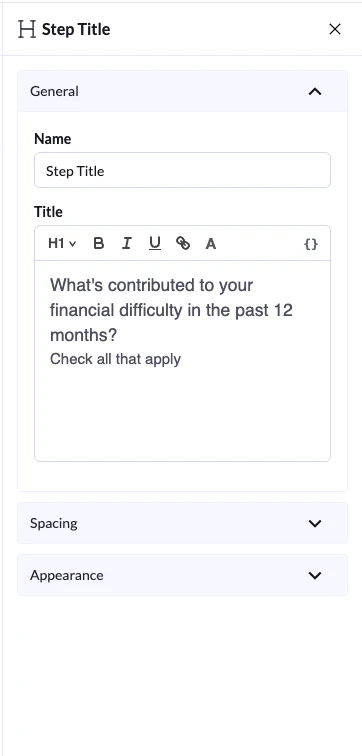
You can format both using the toolbar:
* Switch between **H1, H2, H3, H4, H5, H6 and paragraph**
* Apply **bold, italic, underline**
* Change **text color**
* Add **links**
 ## Appearance Settings
Under **Appearance**, you can control how the block is displayed.
### Text Align
Choose how your text is aligned:
* Left
* Center
* Right
### Visibility (Device Control)
You can control where the block appears:
* **Show on Desktop**
* **Show on Mobile**
Both options are enabled by default.
* If you disable one, the block will be **hidden on that device**
* If both are disabled, the block will be **hidden everywhere**
This allows you to create **device-specific layouts**.
## Spacing Settings
Under **Spacing**, you can control layout and positioning:
* **Size** → Small (S), Medium (M), Large (L), or Full width
* **Margin** → Adjust spacing around the block (top, bottom, left, right)
## Appearance Settings
Under **Appearance**, you can control how the block is displayed.
### Text Align
Choose how your text is aligned:
* Left
* Center
* Right
### Visibility (Device Control)
You can control where the block appears:
* **Show on Desktop**
* **Show on Mobile**
Both options are enabled by default.
* If you disable one, the block will be **hidden on that device**
* If both are disabled, the block will be **hidden everywhere**
This allows you to create **device-specific layouts**.
## Spacing Settings
Under **Spacing**, you can control layout and positioning:
* **Size** → Small (S), Medium (M), Large (L), or Full width
* **Margin** → Adjust spacing around the block (top, bottom, left, right)