> ## Documentation Index
> Fetch the complete documentation index at: https://docs.landerlab.io/llms.txt
> Use this file to discover all available pages before exploring further.
# Use Multiple Choice Blocks for User Input
> Use multiple choice blocks to capture user selections, qualify leads, and create interactive quiz and funnel experiences.
The **Multiple Choice Block** lets users pick from predefined text options. It is ideal for surveys, lead qualification, and branching logic.
***
## General Settings
When you add a Multiple Choice block, the **General tab** opens by default.
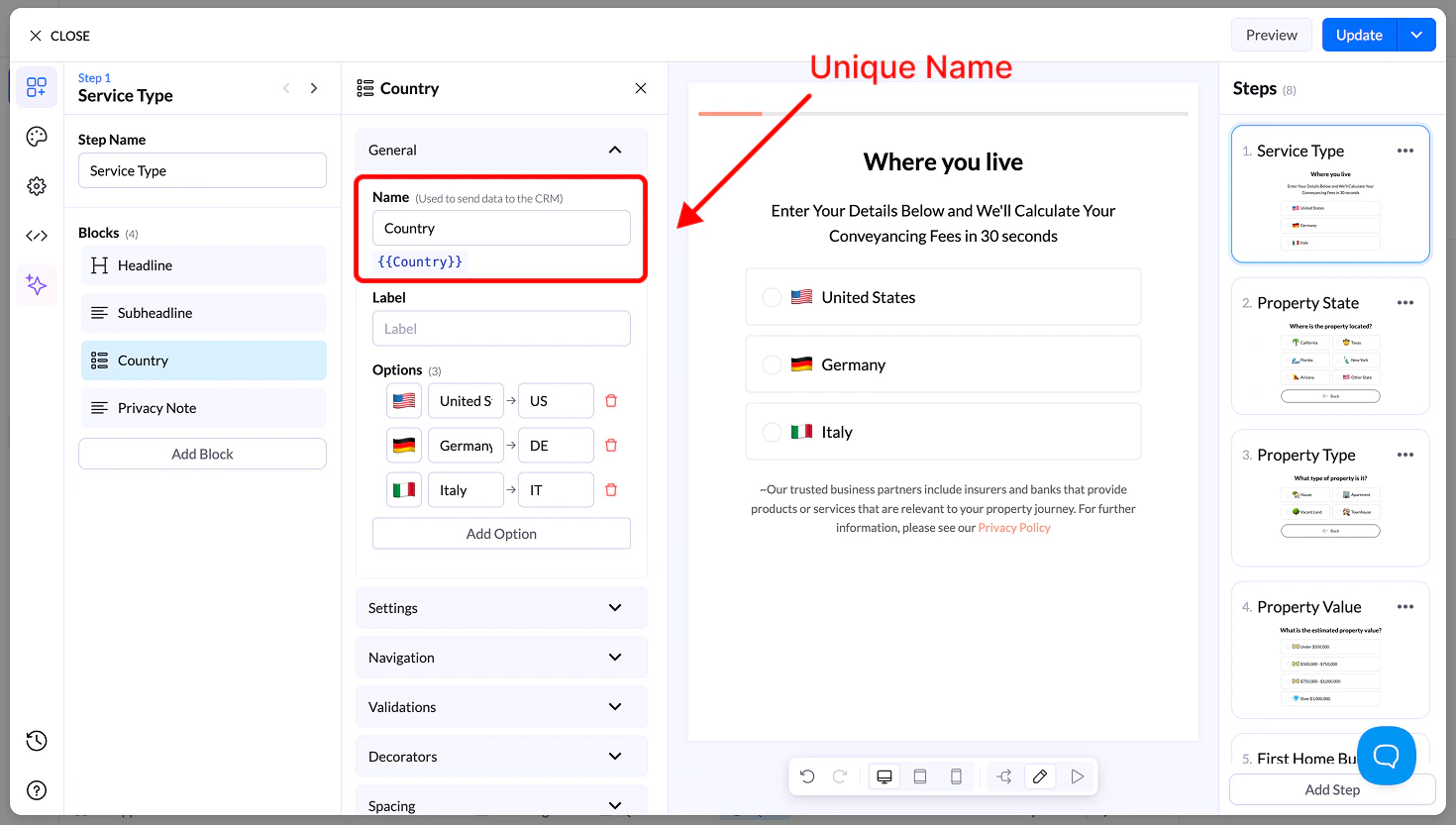
### Name
* Unique field name used to store the answer in LanderLab
* Name you sent to your CRM
* Can be reused as a variable (e.g., `{{financing}}`)
 ### Label
* Optional text shown above the choices
* Used for extra context
### Options
Each option includes:
* **Icon (optional)** → Emoji or small icon
* **Display Name** → What the user sees
* **Value** → What is sent to your CRM
### Label
* Optional text shown above the choices
* Used for extra context
### Options
Each option includes:
* **Icon (optional)** → Emoji or small icon
* **Display Name** → What the user sees
* **Value** → What is sent to your CRM
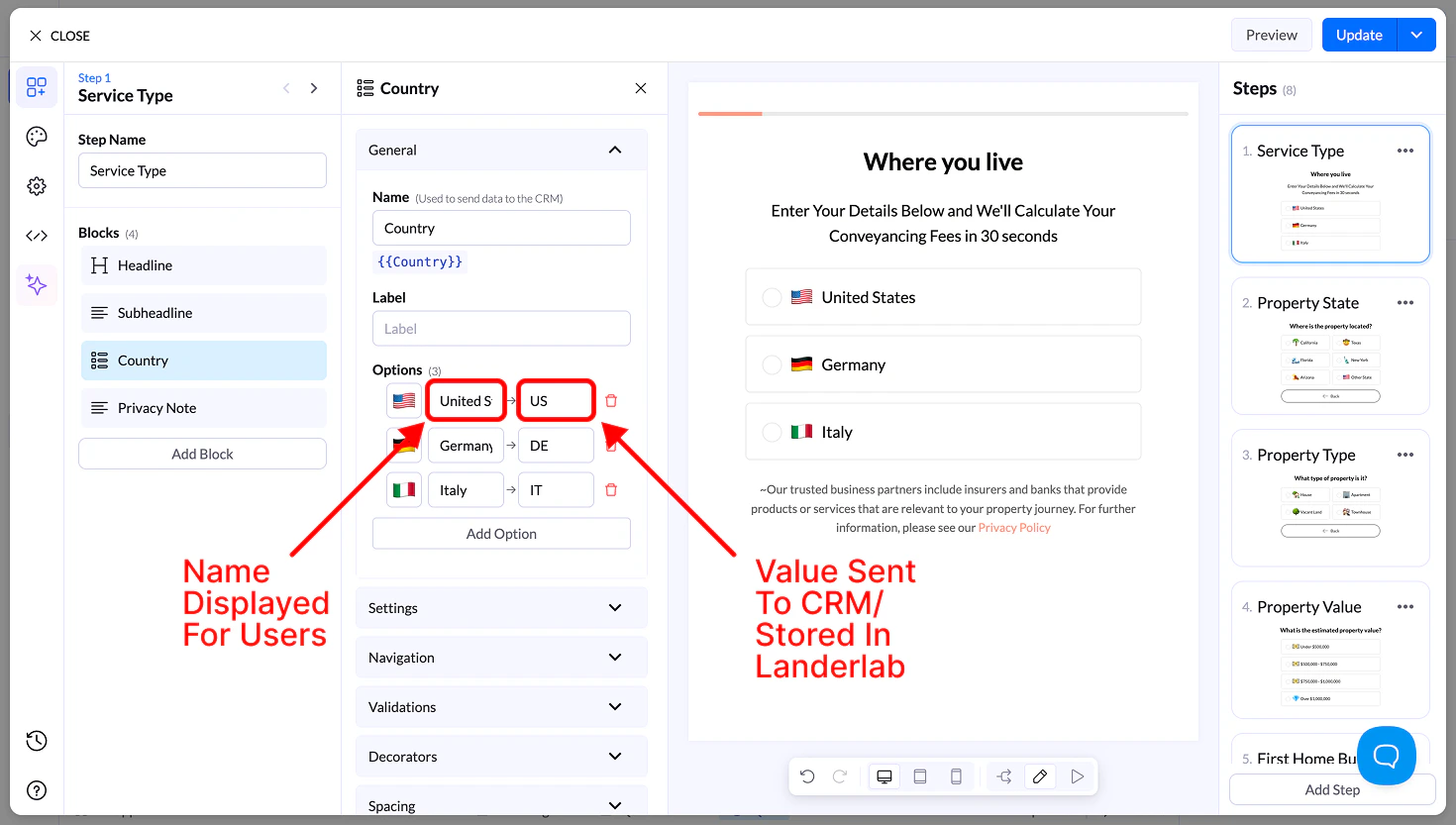 Example:\
Display → *United States of America*\
Value in CRM → *USA*
You can:
* Drag to reorder options
* Add or remove options freely
## Settings
* **Allow Multiple Selection** → Users can select more than one option
* Requires a button to continue
* **Sort Alphabetically** → Orders options A–Z
* **Reverse Order** → Flips option order
* **Randomize** → Shuffles options on each load
## Navigation & Validation
* **Navigation** → Control what happens after selection
* **Validation** → Require at least one selection before continuing
## Decorators
* **Multiple Selection Separator** → Defines how values are stored (e.g., `, ; /`)
* **Help Text** → Small helper text below the block
## Spacing
* **Size** → S, M, L, Full width
* **Margin** → Control spacing around the block
## Appearance
* **Layout Type** → Grid or List
* **Items per Row (Desktop & Mobile)** → 1–6
* **Align Options** → Left, center, right
* **Text Align** → Alignment inside buttons
* **Visibility** → Show on Desktop, Mobile, or both
## Design
You can customize styles using:
* **Presets** → Ready-made designs
* **Advanced Settings**:
* Base styles
* Default state
* Hover state
* Selected state
Example:\
Display → *United States of America*\
Value in CRM → *USA*
You can:
* Drag to reorder options
* Add or remove options freely
## Settings
* **Allow Multiple Selection** → Users can select more than one option
* Requires a button to continue
* **Sort Alphabetically** → Orders options A–Z
* **Reverse Order** → Flips option order
* **Randomize** → Shuffles options on each load
## Navigation & Validation
* **Navigation** → Control what happens after selection
* **Validation** → Require at least one selection before continuing
## Decorators
* **Multiple Selection Separator** → Defines how values are stored (e.g., `, ; /`)
* **Help Text** → Small helper text below the block
## Spacing
* **Size** → S, M, L, Full width
* **Margin** → Control spacing around the block
## Appearance
* **Layout Type** → Grid or List
* **Items per Row (Desktop & Mobile)** → 1–6
* **Align Options** → Left, center, right
* **Text Align** → Alignment inside buttons
* **Visibility** → Show on Desktop, Mobile, or both
## Design
You can customize styles using:
* **Presets** → Ready-made designs
* **Advanced Settings**:
* Base styles
* Default state
* Hover state
* Selected state