> ## Documentation Index
> Fetch the complete documentation index at: https://docs.landerlab.io/llms.txt
> Use this file to discover all available pages before exploring further.
# Use Image Library to Manage Assets
> Manage and reuse images across landing pages and funnels to speed up workflows and keep assets organized.
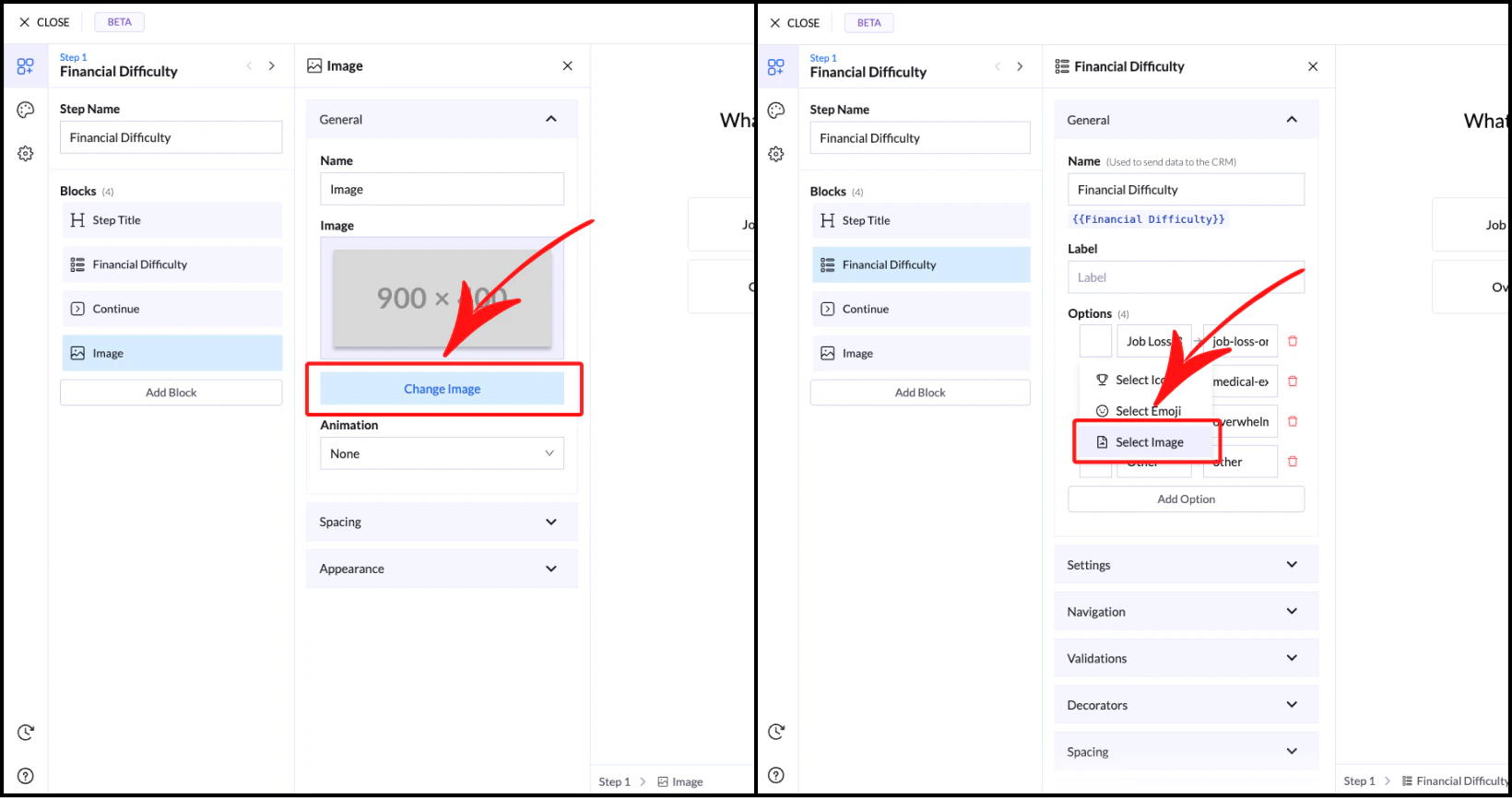
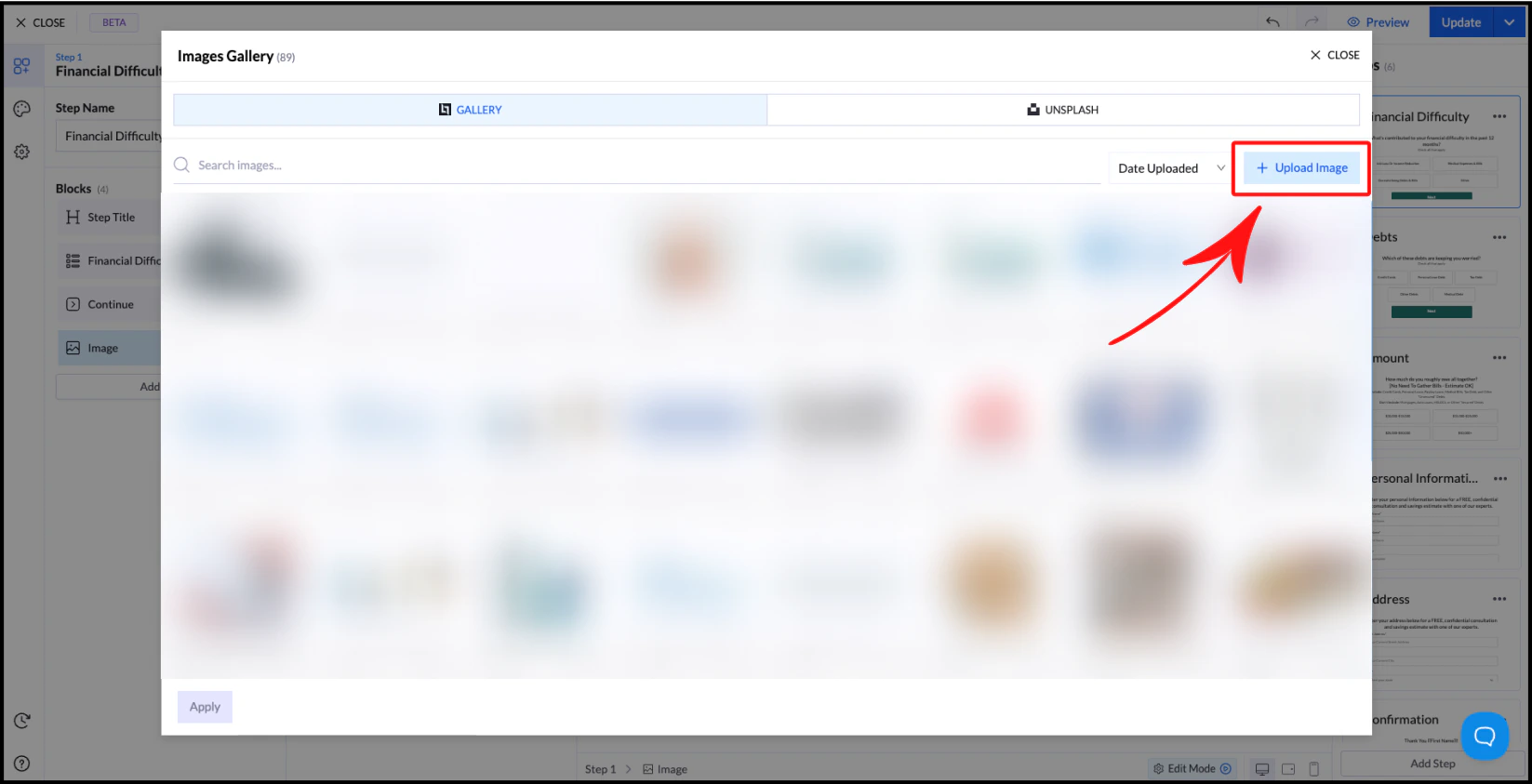
The **Image Library** allows you to store and reuse images across your landing pages and quiz flows. Once an image is uploaded, it becomes available globally, so you don’t need to upload it again for each project.
This helps you build faster and keep your assets organized.
 ***
## Where You Can Use Images
Images from the library can be used in multiple blocks, including:
* Image Block
* Picture Choice
* Multiple Choice
* List Block
## Managing Images
Inside the Image Library, you can preview and edit your images.
When you hover over an image, you will see two options:
**View**\
Opens a larger preview so you can inspect the image in detail.
**Crop**\
Allows you to crop the image using preset aspect ratios, including:
* Free
* 1:1
* 4:3
* 16:9
* 3:4
* 9:16
***
## Best Practices
Use consistent image ratios across your flow to maintain a clean layout.
For most use cases, **1:1 (square)** works best, especially for choice-based elements like Image Choice or Multiple Choice with images.
***
## Where You Can Use Images
Images from the library can be used in multiple blocks, including:
* Image Block
* Picture Choice
* Multiple Choice
* List Block
## Managing Images
Inside the Image Library, you can preview and edit your images.
When you hover over an image, you will see two options:
**View**\
Opens a larger preview so you can inspect the image in detail.
**Crop**\
Allows you to crop the image using preset aspect ratios, including:
* Free
* 1:1
* 4:3
* 16:9
* 3:4
* 9:16
***
## Best Practices
Use consistent image ratios across your flow to maintain a clean layout.
For most use cases, **1:1 (square)** works best, especially for choice-based elements like Image Choice or Multiple Choice with images.