> ## Documentation Index
> Fetch the complete documentation index at: https://docs.landerlab.io/llms.txt
> Use this file to discover all available pages before exploring further.
# Create and Manage Workspaces
> Create and manage workspaces to organize campaigns, teams, and landing pages with better structure and access control.
Workspaces help you **organize projects, campaigns, and teams** inside your LanderLab organization. Each workspace can have its own landing pages, domains, users, and integrations.
You can create a new workspace either from the **sidebar workspace selector** or from the **Settings → Workspaces section**.
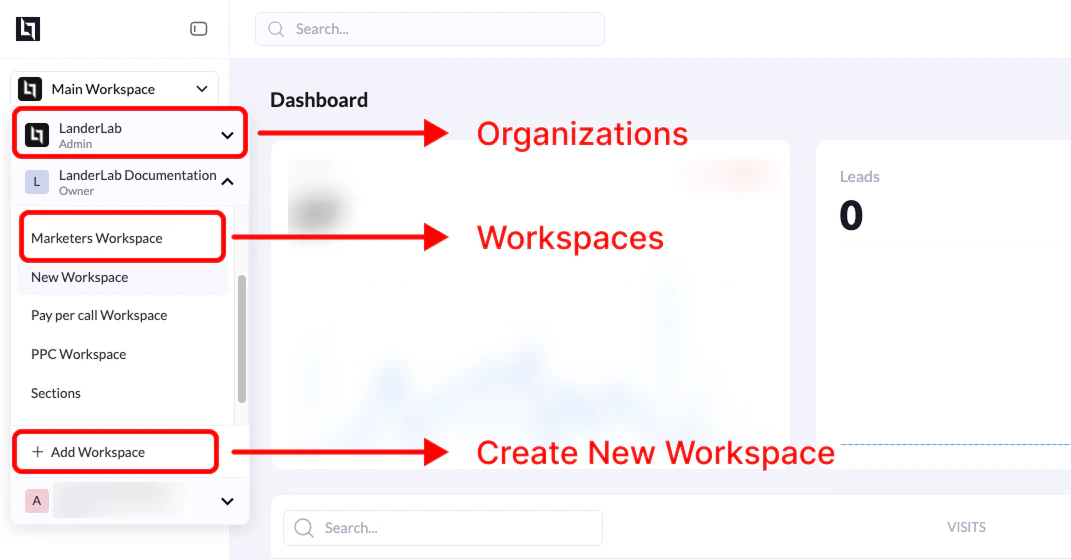 ## Create a Workspace from the Sidebar
### Steps
1. From your **LanderLab dashboard**, locate the **workspace selector** in the top-left sidebar.
2. Click the **workspace dropdown** to open the list of available workspaces.
3. Scroll to the bottom of the list.
4. Click **+ Add Workspace**.
5. Enter a **name for the new workspace**.
6. Confirm the creation.
After the workspace is created, it will appear in the **workspace list**, and you can switch to it anytime using the sidebar selector.
***
## Create a Workspace from Settings
### Steps
1. Go to **Settings**.
2. Click the **Workspaces** tab.
3. You will see a table listing your existing workspaces.
4. Click **Add Workspace**.
5. Enter a **name for the new workspace**.
6. Confirm the creation.
The new workspace will appear in the workspace list.
***
## What Happens After Creating a Workspace
Once the workspace is created:
* It becomes available in the **workspace selector in the sidebar**
* You can create **landing pages, domains, and campaigns** inside that workspace
* Users can be assigned specific **roles and permissions** per workspace
## Permissions
Only **Organization Admins** can create new workspaces.
Users with the following roles **cannot create workspaces**:
* **Workers**
* **Viewers**
If you do not see the **Add Workspace** option, contact your **organization administrator**.
**Tip:** Many teams create separate workspaces for different purposes, such as:
```text theme={null}
Lead Gen Campaigns
Affiliate Offers
Client Projects
Testing / Experiments
```
## Create a Workspace from the Sidebar
### Steps
1. From your **LanderLab dashboard**, locate the **workspace selector** in the top-left sidebar.
2. Click the **workspace dropdown** to open the list of available workspaces.
3. Scroll to the bottom of the list.
4. Click **+ Add Workspace**.
5. Enter a **name for the new workspace**.
6. Confirm the creation.
After the workspace is created, it will appear in the **workspace list**, and you can switch to it anytime using the sidebar selector.
***
## Create a Workspace from Settings
### Steps
1. Go to **Settings**.
2. Click the **Workspaces** tab.
3. You will see a table listing your existing workspaces.
4. Click **Add Workspace**.
5. Enter a **name for the new workspace**.
6. Confirm the creation.
The new workspace will appear in the workspace list.
***
## What Happens After Creating a Workspace
Once the workspace is created:
* It becomes available in the **workspace selector in the sidebar**
* You can create **landing pages, domains, and campaigns** inside that workspace
* Users can be assigned specific **roles and permissions** per workspace
## Permissions
Only **Organization Admins** can create new workspaces.
Users with the following roles **cannot create workspaces**:
* **Workers**
* **Viewers**
If you do not see the **Add Workspace** option, contact your **organization administrator**.
**Tip:** Many teams create separate workspaces for different purposes, such as:
```text theme={null}
Lead Gen Campaigns
Affiliate Offers
Client Projects
Testing / Experiments
```