> ## Documentation Index
> Fetch the complete documentation index at: https://docs.landerlab.io/llms.txt
> Use this file to discover all available pages before exploring further.
# Add Users and Manage Roles
> Add users to your organization, assign roles, and manage workspace access to collaborate and control permissions efficiently.
You can invite team members to your **organization** by adding them as users. Each user can be assigned a role and access to specific workspaces depending on their responsibilities.
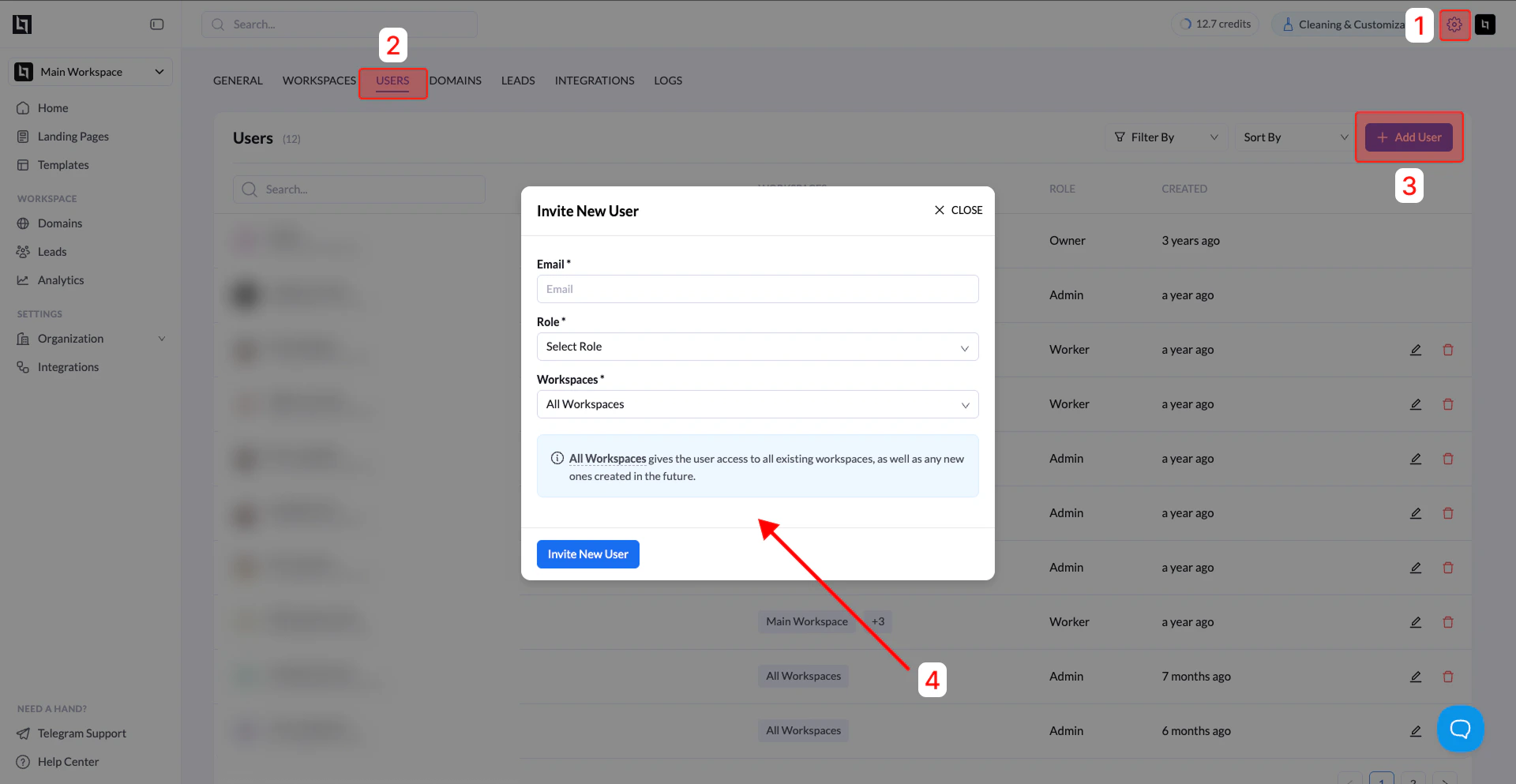 ## How to Add a User
Follow the steps below to invite a new user.
### 1. Open Settings
Go to **Settings** from your dashboard.
### 2. Navigate to the Users section
Click the **Users** tab.
You will see a table listing all current users in your organization.
### 3. Click Add User
Click the **Add User** button.
A pop-up window will appear where you can configure the user’s access.
### 4. Enter user details
Fill in the required fields:
| Field | Description |
| :------------- | :------------------------------------------------------- |
| **Email** | Enter the email address of the person you want to invite |
| **Role** | Choose a role (Admin, Worker, or Viewer) |
| **Workspaces** | Assign the user to specific workspaces if needed |
### 5. Send the invitation
Confirm the details and send the invitation.
The user will receive an **email invitation** to join your organization.
***
## User Roles Explained
| Role | Permissions |
| :--------- | :---------------------------------------------------------------------------------- |
| **Admin** | Full access to the organization, including managing users, workspaces, and settings |
| **Worker** | Can create and manage landing pages but has limited administrative permissions |
| **Viewer** | Read-only access to landing pages and reports |
## Workspace Access
* **Admins** automatically have access to **all workspaces**.
* **Workers and Viewers** can be assigned to **specific workspaces**.
If no workspace is selected for Workers or Viewers, they will **automatically receive access to all workspaces**.
## How to Add a User
Follow the steps below to invite a new user.
### 1. Open Settings
Go to **Settings** from your dashboard.
### 2. Navigate to the Users section
Click the **Users** tab.
You will see a table listing all current users in your organization.
### 3. Click Add User
Click the **Add User** button.
A pop-up window will appear where you can configure the user’s access.
### 4. Enter user details
Fill in the required fields:
| Field | Description |
| :------------- | :------------------------------------------------------- |
| **Email** | Enter the email address of the person you want to invite |
| **Role** | Choose a role (Admin, Worker, or Viewer) |
| **Workspaces** | Assign the user to specific workspaces if needed |
### 5. Send the invitation
Confirm the details and send the invitation.
The user will receive an **email invitation** to join your organization.
***
## User Roles Explained
| Role | Permissions |
| :--------- | :---------------------------------------------------------------------------------- |
| **Admin** | Full access to the organization, including managing users, workspaces, and settings |
| **Worker** | Can create and manage landing pages but has limited administrative permissions |
| **Viewer** | Read-only access to landing pages and reports |
## Workspace Access
* **Admins** automatically have access to **all workspaces**.
* **Workers and Viewers** can be assigned to **specific workspaces**.
If no workspace is selected for Workers or Viewers, they will **automatically receive access to all workspaces**.