> ## Documentation Index
> Fetch the complete documentation index at: https://docs.landerlab.io/llms.txt
> Use this file to discover all available pages before exploring further.
# Manage and Export Landing Page Leads
> Manage leads by viewing, filtering, exporting, and deleting data to track performance and optimize your campaigns
Managing leads effectively is essential for **nurturing potential customers and improving conversions**. LanderLab allows you to view, filter, export, and manage leads collected through your landing pages.
In this guide, you’ll learn how to **access, export, and delete lead data** from your landing pages.
***
## View Landing Page Leads
Follow the steps below to view leads collected from a specific landing page.
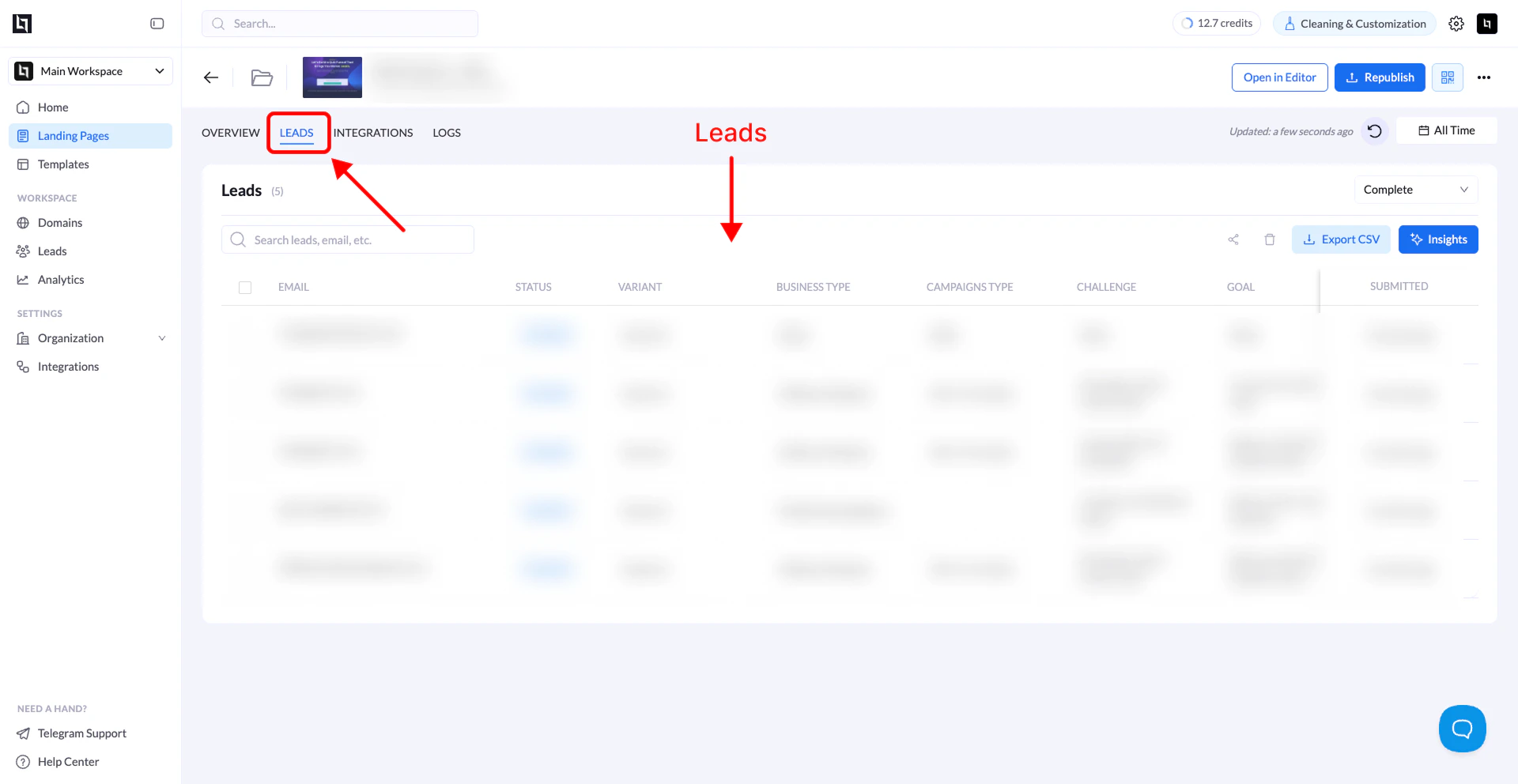 ### 1. Go to Landing Pages
Open the **Landing Pages** section from your dashboard.
### 2. Select the landing page
Locate the landing page that collects leads and click its **name**.
### 3. Open the Leads tab
Click the **Leads** tab.
You will now see a table containing all leads collected from that landing page.
### Filter leads
Inside the leads reporting page, you can filter results by:
* **Lead opt-in date**
* **Landing page variant**
This helps you analyze leads from **specific time periods or A/B test variants**.
***
## Export Landing Page Leads
You can export your leads for use in **CRM systems, email marketing platforms, or further analysis**.
### 1. Go to Landing Pages
Open the **Landing Pages** section from your dashboard.
### 2. Select the landing page
Locate the landing page that collects leads and click its **name**.
### 3. Open the Leads tab
Click the **Leads** tab.
You will now see a table containing all leads collected from that landing page.
### Filter leads
Inside the leads reporting page, you can filter results by:
* **Lead opt-in date**
* **Landing page variant**
This helps you analyze leads from **specific time periods or A/B test variants**.
***
## Export Landing Page Leads
You can export your leads for use in **CRM systems, email marketing platforms, or further analysis**.
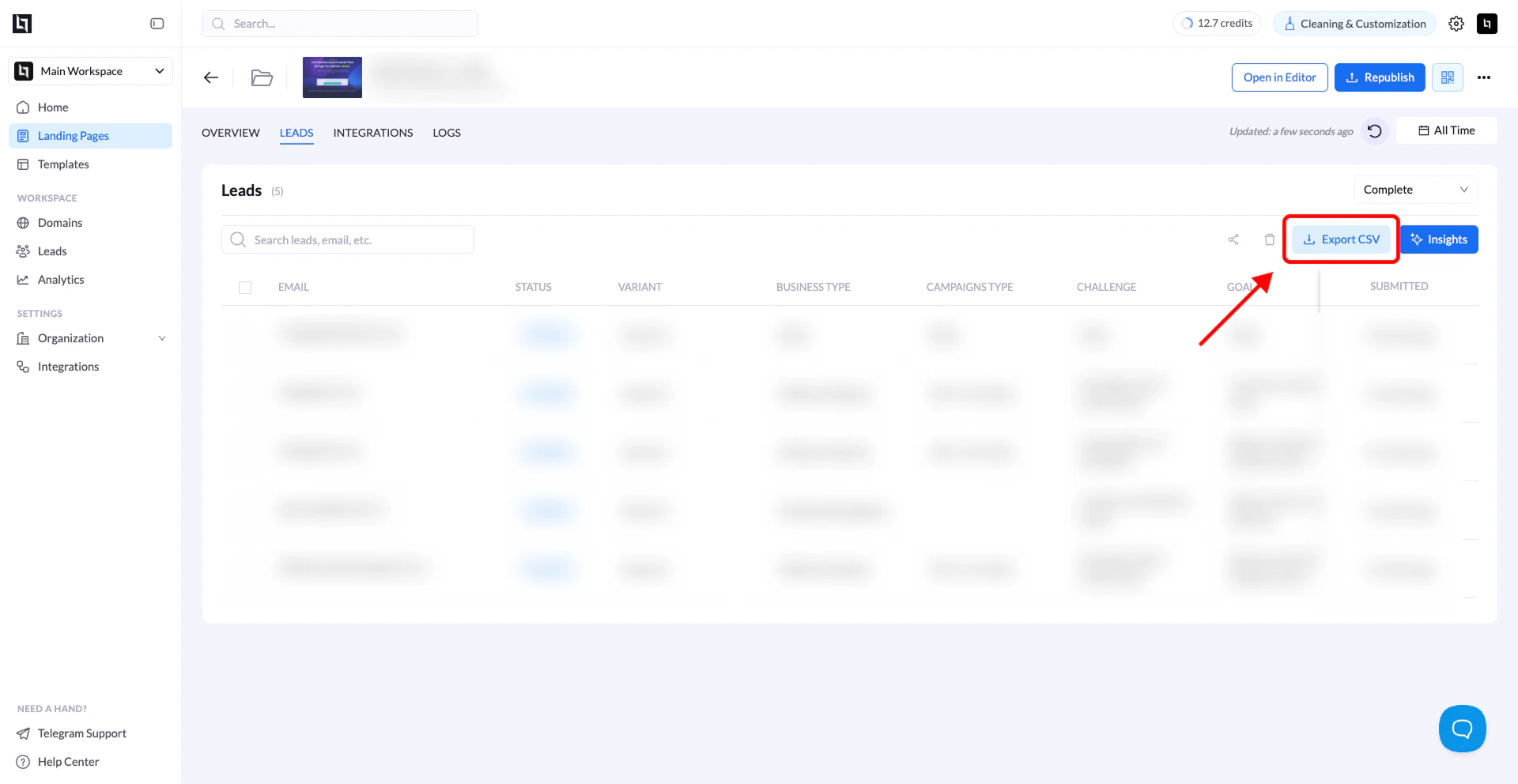 ### Steps
1. Go to **Landing Pages**
2. Click the **name of the landing page** collecting leads
3. Open the **Leads** tab
4. Select the **variant** (optional)
5. Choose a **date range**
6. Click **Export**
A **CSV file** containing your lead data will automatically download.
***
## Delete a Lead
If needed, you can remove individual leads from your records.
### Steps
1. Go to **Landing Pages**
2. Click the **name of the landing page** collecting leads
3. Open the **Leads** tab
4. Select the **variant** (optional)
5. Choose a **date range**
6. Click **Export**
A **CSV file** containing your lead data will automatically download.
***
## Delete a Lead
If needed, you can remove individual leads from your records.
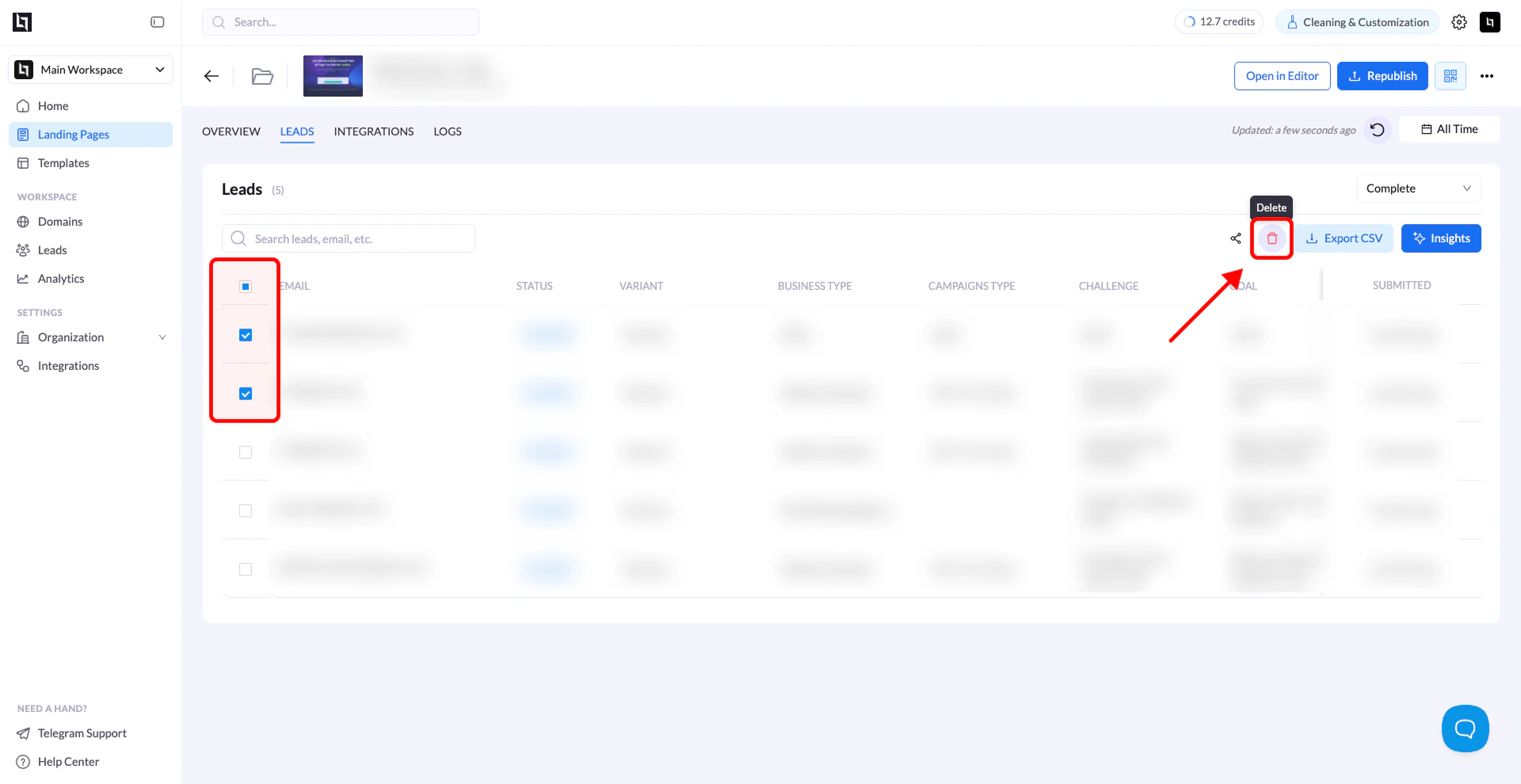 ### Steps
1. Go to **Landing Pages**
2. Click the **name of the landing page**
3. Open the **Leads** tab
4. Select the **lead(s)** you want to remove
5. Click the **Delete** button in the top-right corner of the leads table
6. Confirm the deletion
**Important:**\
Deleting a lead is **permanent and cannot be undone**.
The selected lead(s) will be permanently removed from your lead list.
### Steps
1. Go to **Landing Pages**
2. Click the **name of the landing page**
3. Open the **Leads** tab
4. Select the **lead(s)** you want to remove
5. Click the **Delete** button in the top-right corner of the leads table
6. Confirm the deletion
**Important:**\
Deleting a lead is **permanent and cannot be undone**.
The selected lead(s) will be permanently removed from your lead list.