> ## Documentation Index
> Fetch the complete documentation index at: https://docs.landerlab.io/llms.txt
> Use this file to discover all available pages before exploring further.
# Add Custom Code to Landing Pages
> Add custom code to landing pages to integrate tracking scripts, analytics tools, and third-party widgets for enhanced functionality.
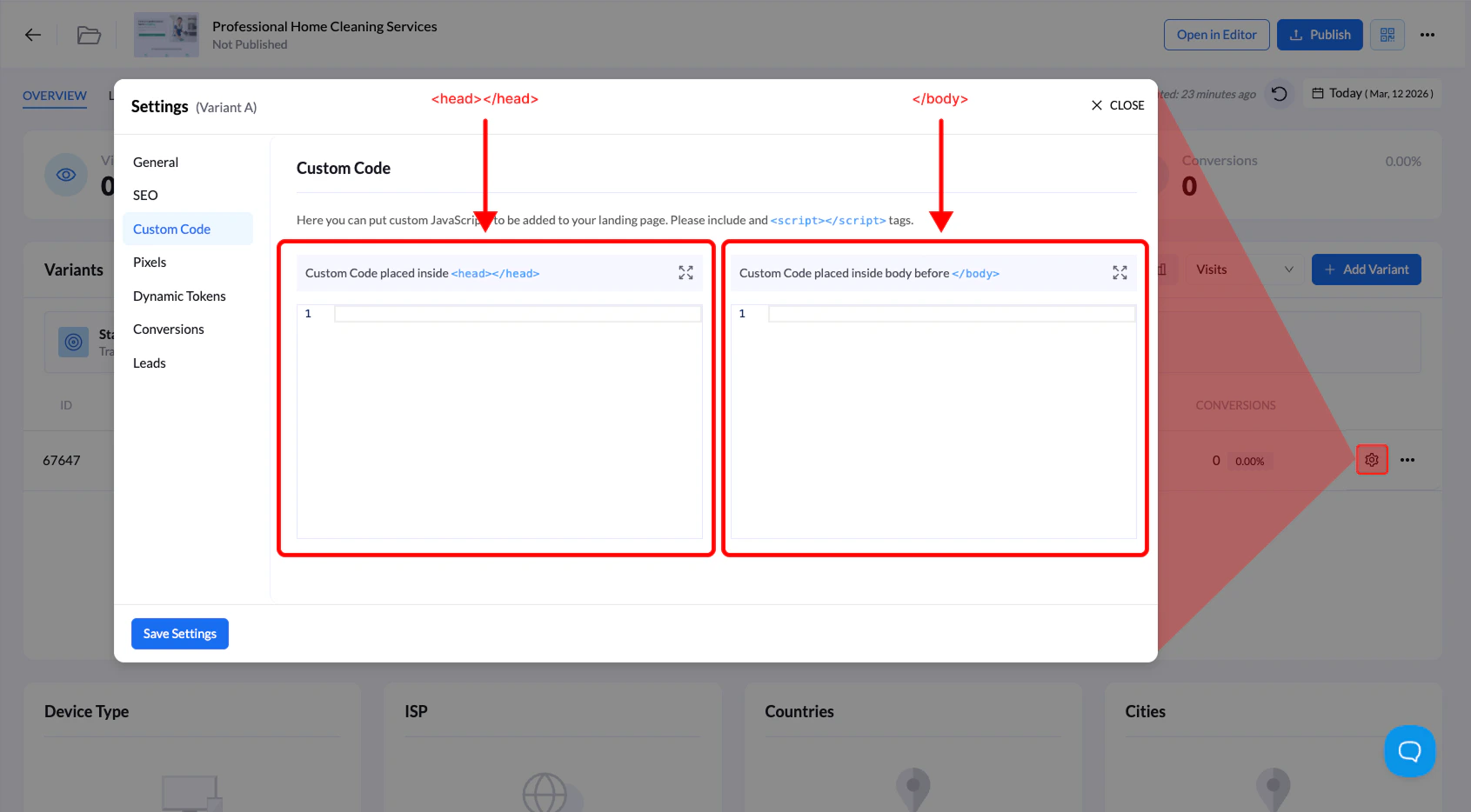
The **Custom Code** section allows you to add custom JavaScript to your landing page. This is useful when integrating external tools such as **tracking scripts, analytics platforms, or third-party widgets**.
You can add scripts that run either in the **page header** or **before the closing body tag**, depending on how the script needs to load.
## Where Custom Code Can Be Added
Inside the **Custom Code** settings you will find two script placement areas:
| Location | Description |
| :------------------ | :----------------------------------------------------------------------------------------------------------------------------------------------------------------------- |
| **Inside**`` | Scripts placed here load early when the page loads. This is commonly used for analytics tools, tracking pixels, or scripts that must initialize before the page renders. |
| **Before**`` | Scripts placed here load after the page content. This is ideal for trackers, widgets, and scripts that should run after the page has finished loading. |
## How to Add Custom Code
Follow the steps below to add custom JavaScript to your landing page.
### 1. Open your landing page
Go to **Landing Pages** and click the **name of the landing page** you want to edit.
### 2. Open the Settings panel
Click the **Settings** tab on the landing page overview screen.
### 3. Go to Custom Code
From the settings menu on the left side, select **Custom Code**.
### 4. Add your script
Paste your JavaScript code into one of the available fields:
* **Custom Code inside** ``
* **Custom Code before** ``
Make sure your code includes the proper `` **tags**.
### 5. Save your changes
Click **Save Settings** to apply the custom code.
 ## When to Use Custom Code
Custom code is commonly used for:
* **Click tracking scripts**
* **Analytics tools (Google Analytics, etc.)**
* **Third-party widgets**
* **Conversion tracking scripts**
* **Custom JavaScript functionality**
**Tip:** If you're adding **tracker scripts (like ClickFlare or Voluum)**, they are usually placed **before the closing** `` **tag**, so they load after the page content.
## When to Use Custom Code
Custom code is commonly used for:
* **Click tracking scripts**
* **Analytics tools (Google Analytics, etc.)**
* **Third-party widgets**
* **Conversion tracking scripts**
* **Custom JavaScript functionality**
**Tip:** If you're adding **tracker scripts (like ClickFlare or Voluum)**, they are usually placed **before the closing** `` **tag**, so they load after the page content.