> ## Documentation Index
> Fetch the complete documentation index at: https://docs.landerlab.io/llms.txt
> Use this file to discover all available pages before exploring further.
# Publish a Landing Page
> Publish landing pages with a custom URL and make them live instantly to share, track, and launch your campaigns.
Publishing a landing page makes it **live and accessible to visitors** through a unique, shareable URL. Once published, anyone with the link can view your page.
 ## Step-by-Step Guide
### 1. Open the landing page overview
From the **Landing Pages** list, click the **title of the landing page** you want to publish.
### 2. Click “Publish”
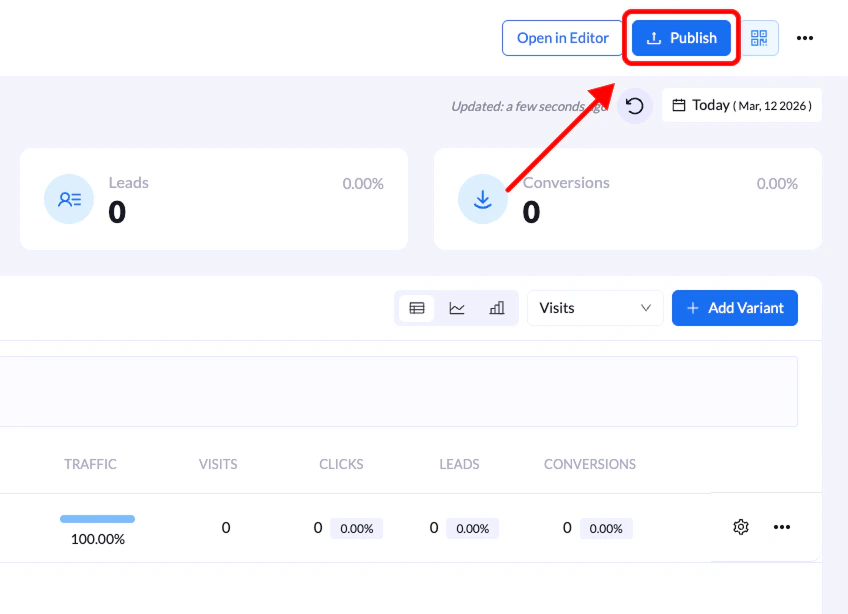
On the overview screen, click the **Publish** button located in the **top-right corner**.
### 3. Choose your domain and URL path
In the **Publish Your Landing Page** modal, select:
* The **domain** where the page will be hosted
* The **URL path** for the page
### 4. Confirm publishing
Click **Publish Landing Page** to finalize the process.
After publishing, a confirmation message will appear and you will see the **live URL** for your landing page. You can copy and share this link immediately.
**Tip:** You can republish your page after making changes. The URL will remain the same unless you change the **domain or path**.
## Step-by-Step Guide
### 1. Open the landing page overview
From the **Landing Pages** list, click the **title of the landing page** you want to publish.
### 2. Click “Publish”
On the overview screen, click the **Publish** button located in the **top-right corner**.
### 3. Choose your domain and URL path
In the **Publish Your Landing Page** modal, select:
* The **domain** where the page will be hosted
* The **URL path** for the page
### 4. Confirm publishing
Click **Publish Landing Page** to finalize the process.
After publishing, a confirmation message will appear and you will see the **live URL** for your landing page. You can copy and share this link immediately.
**Tip:** You can republish your page after making changes. The URL will remain the same unless you change the **domain or path**.