> ## Documentation Index
> Fetch the complete documentation index at: https://docs.landerlab.io/llms.txt
> Use this file to discover all available pages before exploring further.
# Move Landing Pages Between Workspaces
> Move landing pages between workspaces to organize projects, manage team access, and keep campaigns structured across accounts.
You can move landing pages between different **workspaces** within your LanderLab organization. This helps keep projects organized and ensures the right teams have access to the pages they need.
 ## Step-by-Step Guide
Follow the steps below to move a landing page to another workspace.
### 1. Go to Landing Pages
From your **LanderLab dashboard**, navigate to the **Landing Pages** section.
### 2. Find the landing page
Locate the landing page you want to move.
### 3. Open the page menu
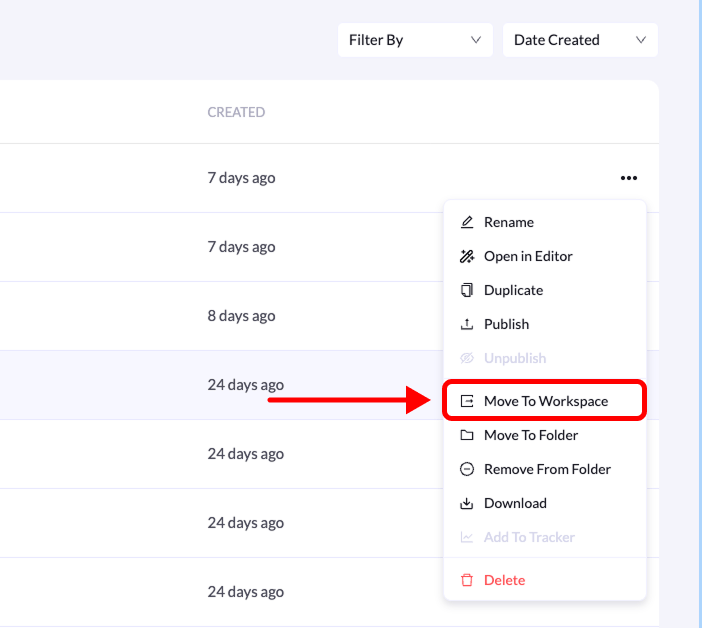
Click the **three-dot menu (•••)** on the right side of the landing page.
### 4. Select “Move To Workspace”
From the dropdown menu, click **Move To Workspace**.
### 5. Choose the destination workspace
In the modal window that appears, select the **workspace** where you want to move the landing page.
### 6. Confirm the action
Click **Move Landing Page** to complete the process.
After confirming, you will see a **success message**. The landing page will be removed from the current workspace and will appear in the **destination workspace’s landing pages list**.
**Tip:** You must have **access to both workspaces** in order to move landing pages between them.
## Step-by-Step Guide
Follow the steps below to move a landing page to another workspace.
### 1. Go to Landing Pages
From your **LanderLab dashboard**, navigate to the **Landing Pages** section.
### 2. Find the landing page
Locate the landing page you want to move.
### 3. Open the page menu
Click the **three-dot menu (•••)** on the right side of the landing page.
### 4. Select “Move To Workspace”
From the dropdown menu, click **Move To Workspace**.
### 5. Choose the destination workspace
In the modal window that appears, select the **workspace** where you want to move the landing page.
### 6. Confirm the action
Click **Move Landing Page** to complete the process.
After confirming, you will see a **success message**. The landing page will be removed from the current workspace and will appear in the **destination workspace’s landing pages list**.
**Tip:** You must have **access to both workspaces** in order to move landing pages between them.