> ## Documentation Index
> Fetch the complete documentation index at: https://docs.landerlab.io/llms.txt
> Use this file to discover all available pages before exploring further.
# Move Landing Pages to Folders
> Move landing pages into folders to better organize campaigns, group related pages, and manage your workspace more efficiently.
You can move existing landing pages into folders to keep your projects organized. This helps when restructuring campaigns or grouping related pages together.
Follow the steps below to move a landing page to a specific folder.
 ## Step-by-Step Guide
### 1. Go to Landing Pages
From the **left-side menu**, click **Landing Pages**.
### 2. Find the landing page
Locate the landing page you want to move.
### 3. Open the page menu
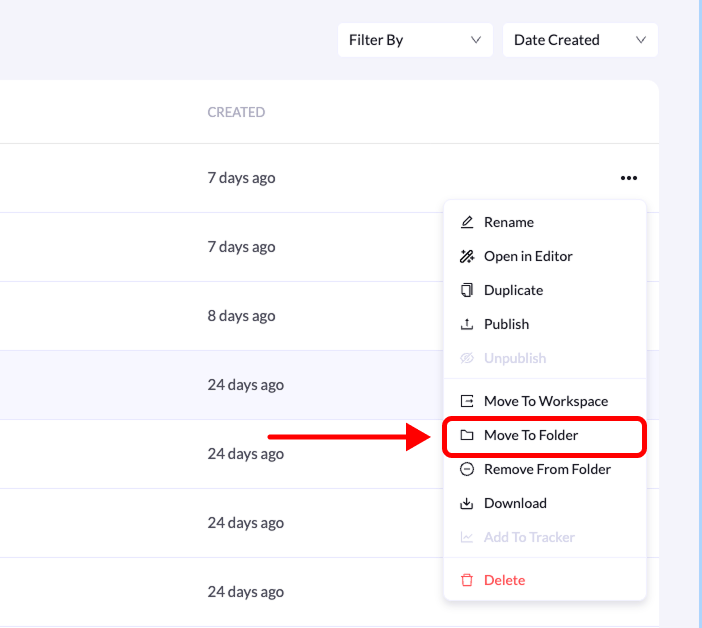
Click the **three-dot menu (•••)** on the right side of the landing page.
### 4. Select “Move to Folder”
From the list of available options, click **Move to Folder**.
### 5. Choose the folder
Select the folder where you want the landing page to be moved.
### 6. Confirm the action
Click **Move Landing Page** to complete the process.
Your landing page will now appear inside the selected folder.
## Step-by-Step Guide
### 1. Go to Landing Pages
From the **left-side menu**, click **Landing Pages**.
### 2. Find the landing page
Locate the landing page you want to move.
### 3. Open the page menu
Click the **three-dot menu (•••)** on the right side of the landing page.
### 4. Select “Move to Folder”
From the list of available options, click **Move to Folder**.
### 5. Choose the folder
Select the folder where you want the landing page to be moved.
### 6. Confirm the action
Click **Move Landing Page** to complete the process.
Your landing page will now appear inside the selected folder.