> ## Documentation Index
> Fetch the complete documentation index at: https://docs.landerlab.io/llms.txt
> Use this file to discover all available pages before exploring further.
# Import Landing Page from URL in LanderLab
> Import landing pages from a URL in LanderLab and customize them to quickly create and launch your own pages
Found a landing page online that caught your eye? Landerlab lets you import it directly from its URL and use it as a starting point for your own design. It's a quick way to get inspired and build something similar without starting from scratch.
 Important: This feature works best with clean HTML landing pages. Pages built with WordPress or other CMS platforms may not import correctly or display properly in the editor.
Here's how to import a landing page from a URL:
1. Log in to Landerlab and go to **Landing Pages**.
2. Click **Add Landing Page** in the top-right corner.
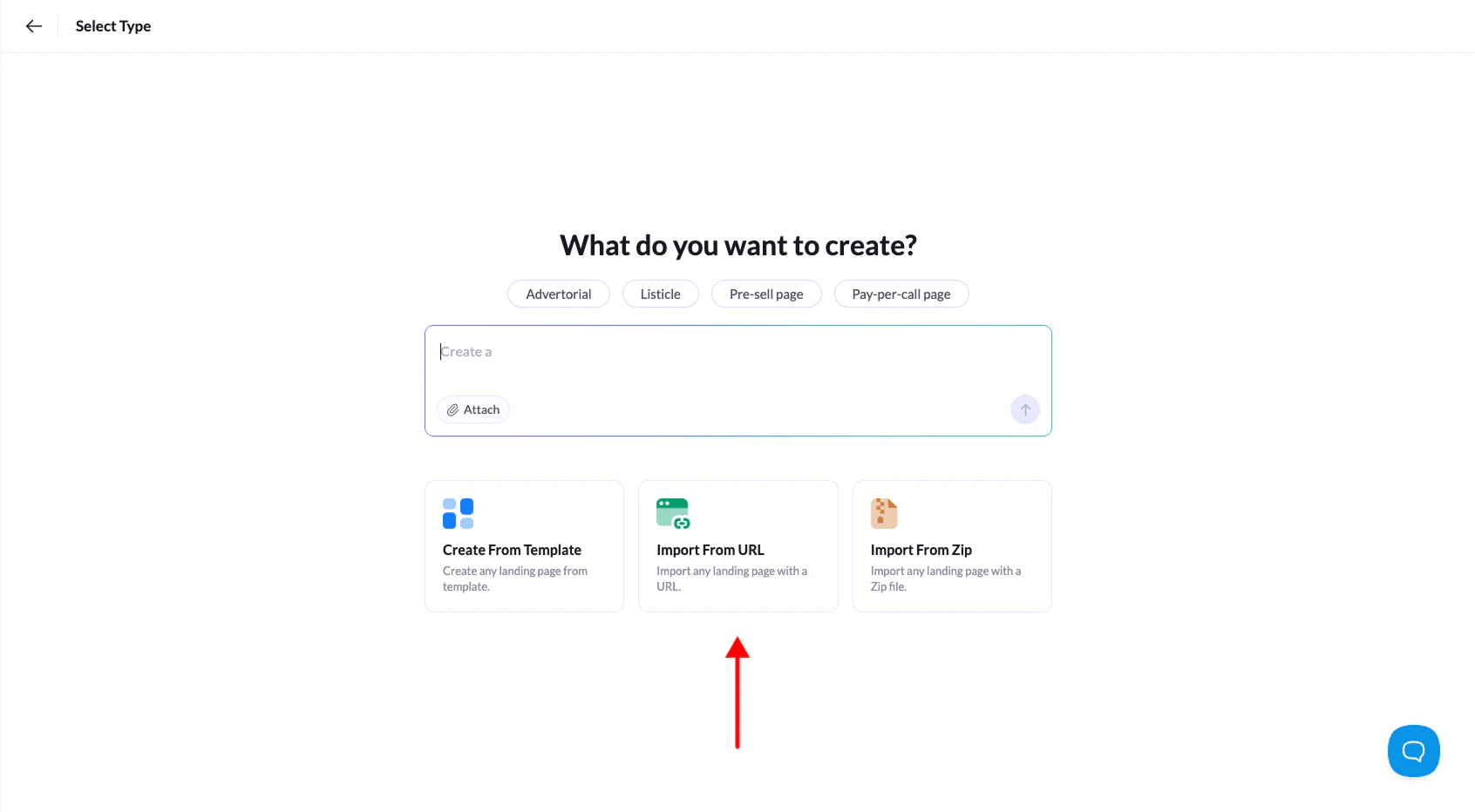
3. Select **Import from URL** from the options.
4. Paste the public URL of the landing page you want to import, then click **Continue**.
5. Give your landing page a name and click **Create Landing Page**.
Done! Landerlab will take a few seconds to import the page, then it'll open automatically in the editor where you can customize it however you want.
Important: This feature works best with clean HTML landing pages. Pages built with WordPress or other CMS platforms may not import correctly or display properly in the editor.
Here's how to import a landing page from a URL:
1. Log in to Landerlab and go to **Landing Pages**.
2. Click **Add Landing Page** in the top-right corner.
3. Select **Import from URL** from the options.
4. Paste the public URL of the landing page you want to import, then click **Continue**.
5. Give your landing page a name and click **Create Landing Page**.
Done! Landerlab will take a few seconds to import the page, then it'll open automatically in the editor where you can customize it however you want.