> ## Documentation Index
> Fetch the complete documentation index at: https://docs.landerlab.io/llms.txt
> Use this file to discover all available pages before exploring further.
# How to Use a Global Block on a Landing Page in LanderLab
> Learn how to add a global block to a landing page in LanderLab, edit it from the page, and detach it. Global blocks work like sections and stay in sync across every page.
Once you have created a global block, you add it to a landing page the same way you would add a section. This guide covers dropping a global block onto a page, editing it in place, and detaching it when you need a one-off version.
A global block stays connected to its source. Editing it updates every page where it appears. If you want a change that only affects one page, detach the block first (see [How to detach a global block](#how-to-detach-a-global-block)).
## How to add a global block to a landing page
Open the landing page you want to add the global block to in the editor.
In the left toolbar, click the **Global Blocks** icon, just below the blue **+** button. The panel lists every global block you have created, with a search bar to find one quickly.
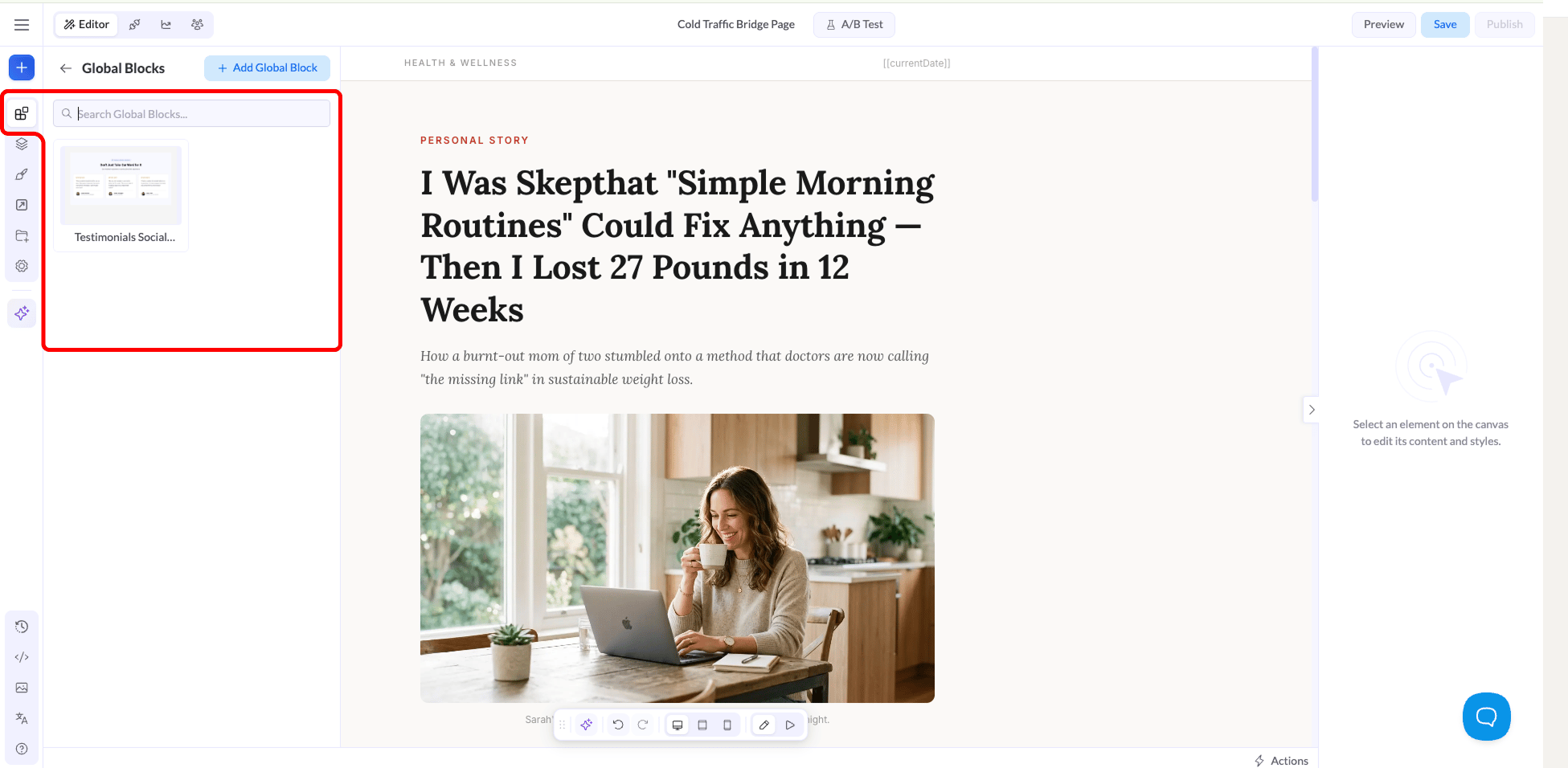 Global blocks work just like sections. Drag the block from the panel onto the canvas where you want it, then position it like any other section on the page.
## How to edit a global block from the page
Select the block on the canvas. In the right sidebar you will see the **Global Block** panel, which reminds you that the block's content is edited in the Global Block Editor and applies to every page using it.
Global blocks work just like sections. Drag the block from the panel onto the canvas where you want it, then position it like any other section on the page.
## How to edit a global block from the page
Select the block on the canvas. In the right sidebar you will see the **Global Block** panel, which reminds you that the block's content is edited in the Global Block Editor and applies to every page using it.
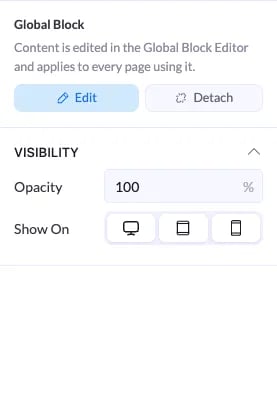 Click **Edit** to open the Global Block Editor in a new tab. Make your changes by hand or with the AI Assistant, then click **Save & Publish**. The update goes live on the page, and on every other page that uses the block.
You can also **double-click** the block on the canvas to open the Global Block Editor in a new tab.
From the same right sidebar you can adjust this placement's **Opacity** and use **Show On** to control which devices the block appears on (desktop, tablet, or mobile).
## How to detach a global block
Detaching disconnects the block on this page from its global source. Click **Detach** in the right sidebar and the block becomes a regular, standalone block on this page.
After detaching, updates to the global block no longer reach this page, and any changes you make here do not affect the global block or any other page that uses it.
Detach when you need a one-off version for a single page. Once a block is detached, it stops receiving updates from the global block, so you will have to edit it manually from then on.
Click **Edit** to open the Global Block Editor in a new tab. Make your changes by hand or with the AI Assistant, then click **Save & Publish**. The update goes live on the page, and on every other page that uses the block.
You can also **double-click** the block on the canvas to open the Global Block Editor in a new tab.
From the same right sidebar you can adjust this placement's **Opacity** and use **Show On** to control which devices the block appears on (desktop, tablet, or mobile).
## How to detach a global block
Detaching disconnects the block on this page from its global source. Click **Detach** in the right sidebar and the block becomes a regular, standalone block on this page.
After detaching, updates to the global block no longer reach this page, and any changes you make here do not affect the global block or any other page that uses it.
Detach when you need a one-off version for a single page. Once a block is detached, it stops receiving updates from the global block, so you will have to edit it manually from then on.