> ## Documentation Index
> Fetch the complete documentation index at: https://docs.landerlab.io/llms.txt
> Use this file to discover all available pages before exploring further.
# Control Spacing with Margin and Padding
> Adjust margin and padding to control spacing, improve readability, and create clean, well-structured landing page layouts.
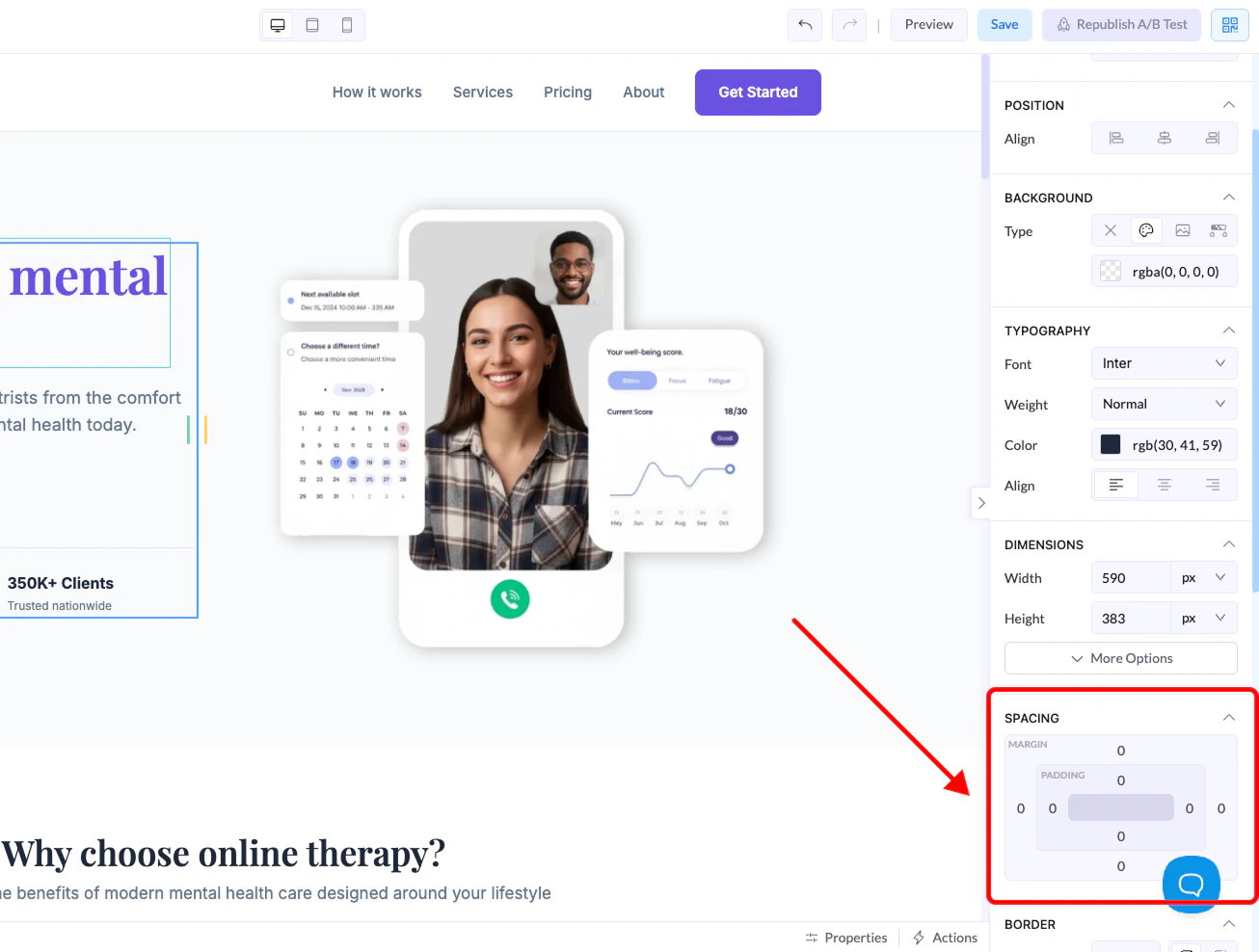
The Spacing section controls the **space around and inside elements**. This helps you create clean layouts and proper separation between content.
You can find it in the **right-side panel** when selecting any element.
***
## Where to Find It
1. Select an element on the canvas
2. Open the **right panel**
3. Scroll to the **Spacing** section
 ***
## Margin vs Padding
### Margin (Outer Space)
* Controls space **outside** the element
* Pushes the element away from other elements
### Padding (Inner Space)
* Controls space **inside** the element
* Adds space between the content and the element’s edges
***
## How to Adjust Spacing
You can control spacing for each side:
* Top
* Bottom
* Left
* Right
Each side can be adjusted independently.
***
## Quick Controls
### + / – Buttons
* Increase or decrease spacing by **5px steps**
* Fast way to fine-tune layout
### Manual Input
* Click on a value to type a custom number
* You can also choose from quick presets like:
* 0
* 10
* 20
* 40
* 60
* 100
* 140
### Auto Option
* Lets the system automatically manage spacing (mainly used for alignment
***
## Margin vs Padding
### Margin (Outer Space)
* Controls space **outside** the element
* Pushes the element away from other elements
### Padding (Inner Space)
* Controls space **inside** the element
* Adds space between the content and the element’s edges
***
## How to Adjust Spacing
You can control spacing for each side:
* Top
* Bottom
* Left
* Right
Each side can be adjusted independently.
***
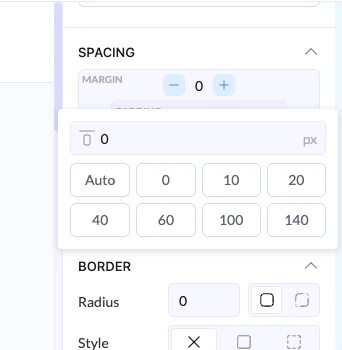
## Quick Controls
### + / – Buttons
* Increase or decrease spacing by **5px steps**
* Fast way to fine-tune layout
### Manual Input
* Click on a value to type a custom number
* You can also choose from quick presets like:
* 0
* 10
* 20
* 40
* 60
* 100
* 140
### Auto Option
* Lets the system automatically manage spacing (mainly used for alignment
 ***
## How It Works (Example)
* Margin Top → `20px`\
👉 Adds space above the element
* Padding Left → `10px`\
👉 Pushes content inside away from the left edge
***
## Best Practices
* Use **margin** to separate elements
* Use **padding** to improve readability inside elements
* Avoid too much spacing — keep layouts balanced
* Use + / – for quick adjustments instead of guessing values
***
## How It Works (Example)
* Margin Top → `20px`\
👉 Adds space above the element
* Padding Left → `10px`\
👉 Pushes content inside away from the left edge
***
## Best Practices
* Use **margin** to separate elements
* Use **padding** to improve readability inside elements
* Avoid too much spacing — keep layouts balanced
* Use + / – for quick adjustments instead of guessing values