> ## Documentation Index
> Fetch the complete documentation index at: https://docs.landerlab.io/llms.txt
> Use this file to discover all available pages before exploring further.
# Link Settings for Navigation and Actions
> Configure link actions to control navigation, track clicks, and manage user interactions across your landing pages.
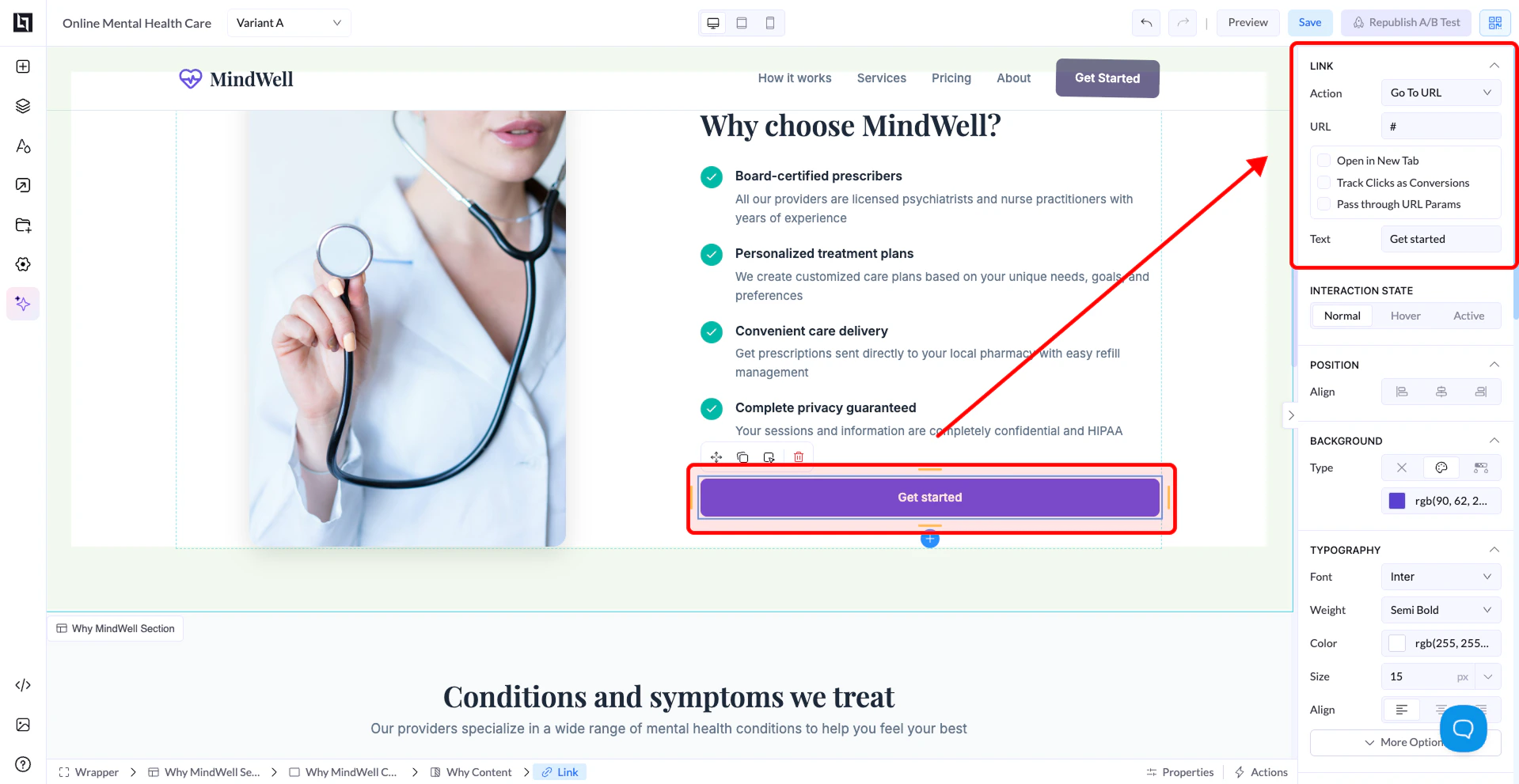
The Link settings define **what happens when a user clicks a button or link**.\
This is how you control navigation, actions, and interactions inside your page.
 ***
## Action Types
### Go To URL
* Redirects the user to another page
👉 Example:
* External website
* Thank you page
***
### Go To Element
* Scrolls the user to a specific section on the page
👉 Useful for:
* One-page websites
* “Scroll to form” buttons
***
### Email To
* Opens the user’s email client
👉 Example:
* [contact@yourdomain.com](mailto:contact@yourdomain.com)
***
### Phone To
* Starts a phone call (mainly on mobile)
👉 Example:
* Click to call support
***
### PopUp / Modal
* Opens a popup window
👉 Useful for:
* Forms
* Offers
* Extra information
***
## Additional Options
### Open in New Tab
* Opens the link in a new browser tab
***
### Track Clicks as Conversions
* Tracks button clicks as conversions
* Useful for analytics and ads
***
### Pass Through URL Params
* Passes URL parameters (like tracking data) to the next page
👉 Example:
* UTM parameters
* Affiliate tracking
***
## URL Field
* Enter the destination URL or action target
* Example:
* `https://yourwebsite.com`
* `#section-id` (for internal scroll)
***
## Text
* Controls the button text displayed to users
***
## Best Practices
* Always double-check your URL
* Use “Go To Element” for smooth on-page navigation
* Enable tracking for important buttons
* Use clear button text (e.g., “Get Started”, “Submit”)
***
## Action Types
### Go To URL
* Redirects the user to another page
👉 Example:
* External website
* Thank you page
***
### Go To Element
* Scrolls the user to a specific section on the page
👉 Useful for:
* One-page websites
* “Scroll to form” buttons
***
### Email To
* Opens the user’s email client
👉 Example:
* [contact@yourdomain.com](mailto:contact@yourdomain.com)
***
### Phone To
* Starts a phone call (mainly on mobile)
👉 Example:
* Click to call support
***
### PopUp / Modal
* Opens a popup window
👉 Useful for:
* Forms
* Offers
* Extra information
***
## Additional Options
### Open in New Tab
* Opens the link in a new browser tab
***
### Track Clicks as Conversions
* Tracks button clicks as conversions
* Useful for analytics and ads
***
### Pass Through URL Params
* Passes URL parameters (like tracking data) to the next page
👉 Example:
* UTM parameters
* Affiliate tracking
***
## URL Field
* Enter the destination URL or action target
* Example:
* `https://yourwebsite.com`
* `#section-id` (for internal scroll)
***
## Text
* Controls the button text displayed to users
***
## Best Practices
* Always double-check your URL
* Use “Go To Element” for smooth on-page navigation
* Enable tracking for important buttons
* Use clear button text (e.g., “Get Started”, “Submit”)