> ## Documentation Index
> Fetch the complete documentation index at: https://docs.landerlab.io/llms.txt
> Use this file to discover all available pages before exploring further.
# Use Box Shadow for Depth and Styling
> Add box shadows to create depth, highlight elements, and enhance the visual hierarchy of your landing page design
Box Shadow adds depth to your elements by creating a shadow effect around them. It helps elements stand out and gives your design a more modern, layered look.
### How It Works
A shadow is made up of multiple settings that control how it looks and behaves.
***
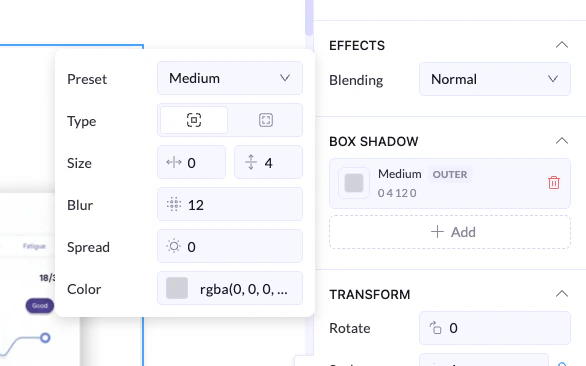 ## Shadow Settings
### Preset
* Quickly apply a ready-made shadow style (e.g., Small, Medium, Large)
* Best for fast and consistent design
***
### Type
* **Outer Shadow** → appears outside the element (most common)
* **Inner Shadow** → appears inside the element
***
### Size (X & Y)
* Controls the shadow position
* **X (horizontal)** → moves left or right
* **Y (vertical)** → moves up or down
👉 Example:
* X: 0, Y: 4 → shadow goes slightly below the element
***
### Blur
* Controls how soft the shadow is
👉 Higher value = softer shadow\
👉 Lower value = sharper shadow
***
### Spread
* Controls how wide the shadow spreads
👉 Positive = bigger shadow\
👉 Negative = tighter shadow
***
### Color
* Sets the shadow color (usually black or gray with transparency)
👉 Common: `rgba(0, 0, 0, 0.1–0.3)` for soft shadows
***
## Multiple Shadows
* You can click **+ Add** to stack multiple shadows
* Useful for more advanced or layered effects
## Shadow Settings
### Preset
* Quickly apply a ready-made shadow style (e.g., Small, Medium, Large)
* Best for fast and consistent design
***
### Type
* **Outer Shadow** → appears outside the element (most common)
* **Inner Shadow** → appears inside the element
***
### Size (X & Y)
* Controls the shadow position
* **X (horizontal)** → moves left or right
* **Y (vertical)** → moves up or down
👉 Example:
* X: 0, Y: 4 → shadow goes slightly below the element
***
### Blur
* Controls how soft the shadow is
👉 Higher value = softer shadow\
👉 Lower value = sharper shadow
***
### Spread
* Controls how wide the shadow spreads
👉 Positive = bigger shadow\
👉 Negative = tighter shadow
***
### Color
* Sets the shadow color (usually black or gray with transparency)
👉 Common: `rgba(0, 0, 0, 0.1–0.3)` for soft shadows
***
## Multiple Shadows
* You can click **+ Add** to stack multiple shadows
* Useful for more advanced or layered effects