> ## Documentation Index
> Fetch the complete documentation index at: https://docs.landerlab.io/llms.txt
> Use this file to discover all available pages before exploring further.
# Replace Text Across Landing Pages
> Replace text across your landing page instantly to update messaging, CTAs, and content without manual editing.
The Replace Text feature allows you to **quickly update text across your entire page** without editing each element one by one.
This is especially useful when you need to change repeated words, phrases, or labels.
## Where to Find It
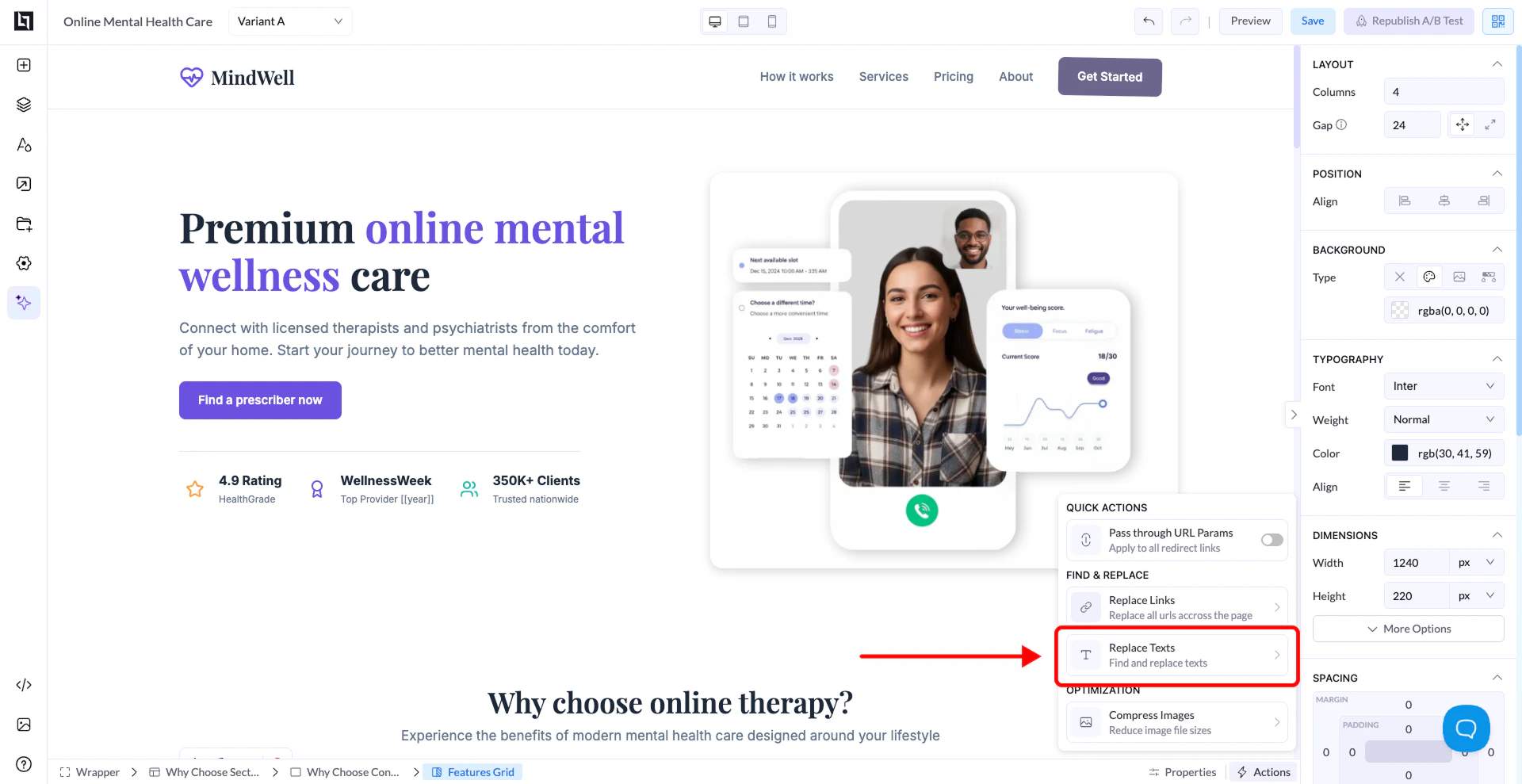
1. Open your page in the editor
2. Click on the **Actions / Quick Actions panel**
3. Select **Replace Texts**
 ***
## How It Works
A popup will appear with two fields:
* **Find Text** → the text you want to replace
* **Replace With** → the new text you want to use
Click **Replace Texts** to apply the changes across the page.
***
## When to Use It
* Updating CTA text across multiple sections
* Changing product or service names
* Fixing repeated wording mistakes
* Adjusting messaging quickly
***
## Important Notes
* It replaces **all matching text occurrences** on the page
* Make sure your “Find Text” is exact
* It won’t partially match words (only exact matches)
***
## How It Works
A popup will appear with two fields:
* **Find Text** → the text you want to replace
* **Replace With** → the new text you want to use
Click **Replace Texts** to apply the changes across the page.
***
## When to Use It
* Updating CTA text across multiple sections
* Changing product or service names
* Fixing repeated wording mistakes
* Adjusting messaging quickly
***
## Important Notes
* It replaces **all matching text occurrences** on the page
* Make sure your “Find Text” is exact
* It won’t partially match words (only exact matches)