> ## Documentation Index
> Fetch the complete documentation index at: https://docs.landerlab.io/llms.txt
> Use this file to discover all available pages before exploring further.
# Compress Images for Better Performance
> Compress images to reduce file size, improve page speed, and enhance performance across your landing pages.
The Compress Images feature helps you **reduce image file sizes** across your page.\
This improves loading speed, performance, and overall user experience.
## When to Use It
LanderLab already optimizes images by default (converting them to efficient formats like WebP). However, you should use this feature when:
* You **import a page via URL**
* You **upload a ZIP file**
* Your images are **not optimized** (e.g., PNG, JPG with large sizes)
***
## Where to Find It
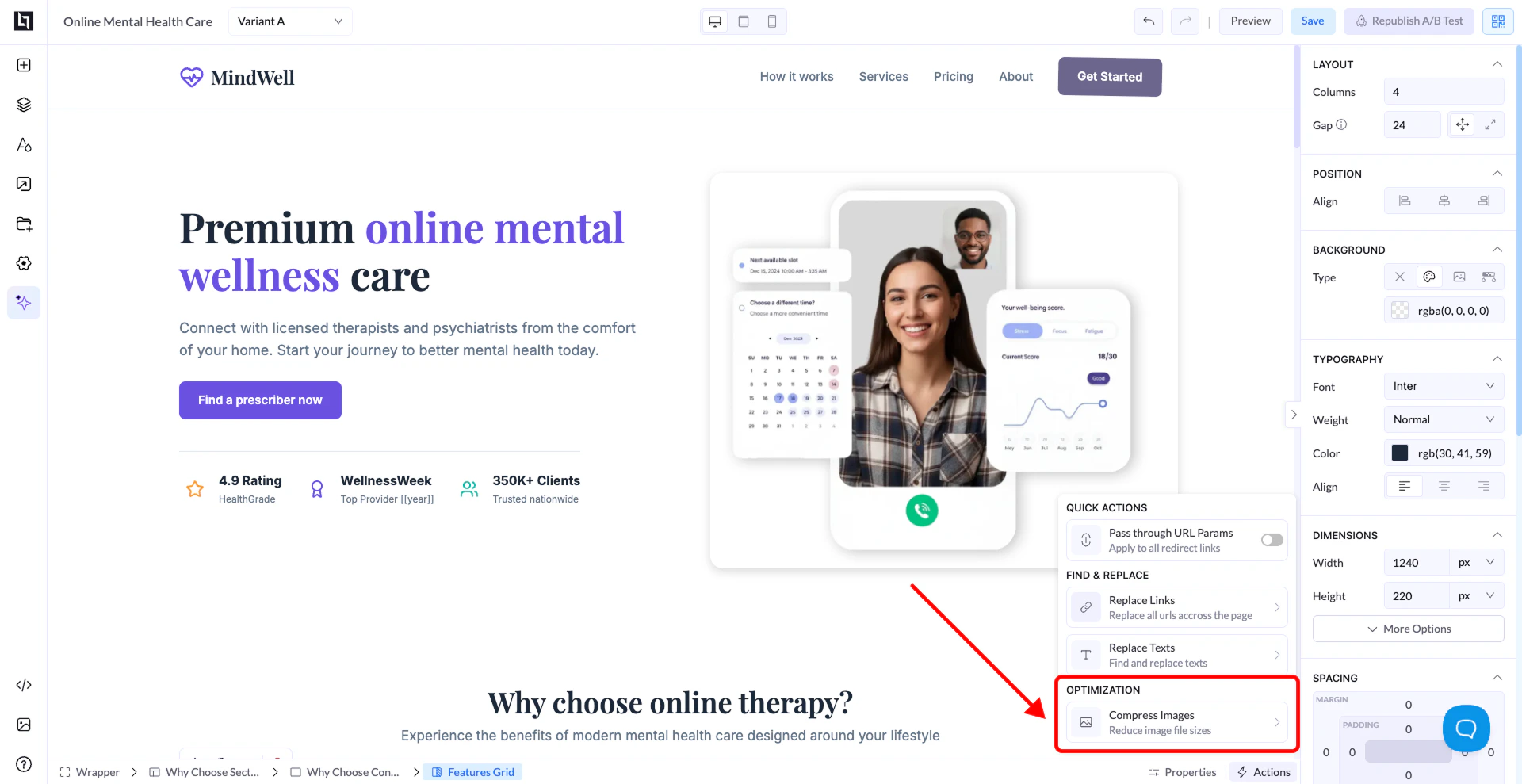
1. Open your page in the editor
2. Click the **Actions / Quick Actions panel**
3. Go to **Optimization**
4. Select **Compress Images**
 ***
## Compression Options
### Standard
* Strong compression
* Significantly reduces file size
* Best for performance
### High Quality
* Lighter compression
* Keeps more image quality
* Slightly larger file size
***
## How to Use It
1. Choose your compression type (Standard or High Quality)
2. Click **Compress**
3. All images on the page will be optimized automatically
***
## Important Notes
* You must **save your page first** before compressing
* Compression applies to **all images on the page**
* This action helps improve page speed and loading times
***
## Why It Matters
* Faster pages = better conversions
* Improved mobile performance
* Better experience for users with slow connections
***
## Compression Options
### Standard
* Strong compression
* Significantly reduces file size
* Best for performance
### High Quality
* Lighter compression
* Keeps more image quality
* Slightly larger file size
***
## How to Use It
1. Choose your compression type (Standard or High Quality)
2. Click **Compress**
3. All images on the page will be optimized automatically
***
## Important Notes
* You must **save your page first** before compressing
* Compression applies to **all images on the page**
* This action helps improve page speed and loading times
***
## Why It Matters
* Faster pages = better conversions
* Improved mobile performance
* Better experience for users with slow connections