> ## Documentation Index
> Fetch the complete documentation index at: https://docs.landerlab.io/llms.txt
> Use this file to discover all available pages before exploring further.
# Use Sticky Bars for Promotions and CTAs
> Add sticky bars to display promotions, announcements, or CTAs that stay visible while users scroll your landing page.
The Sticky Bar is a fixed element that stays visible on the screen while users scroll your page.
It’s commonly used for:
* Promotions
* Announcements
* Call-to-action messages
## How to Add a Sticky Bar
* Open the left sidebar
* Drag **Sticky Bar** onto the canvas
***
## Sticky Bar Settings
Once selected, you’ll see all controls in the right panel.
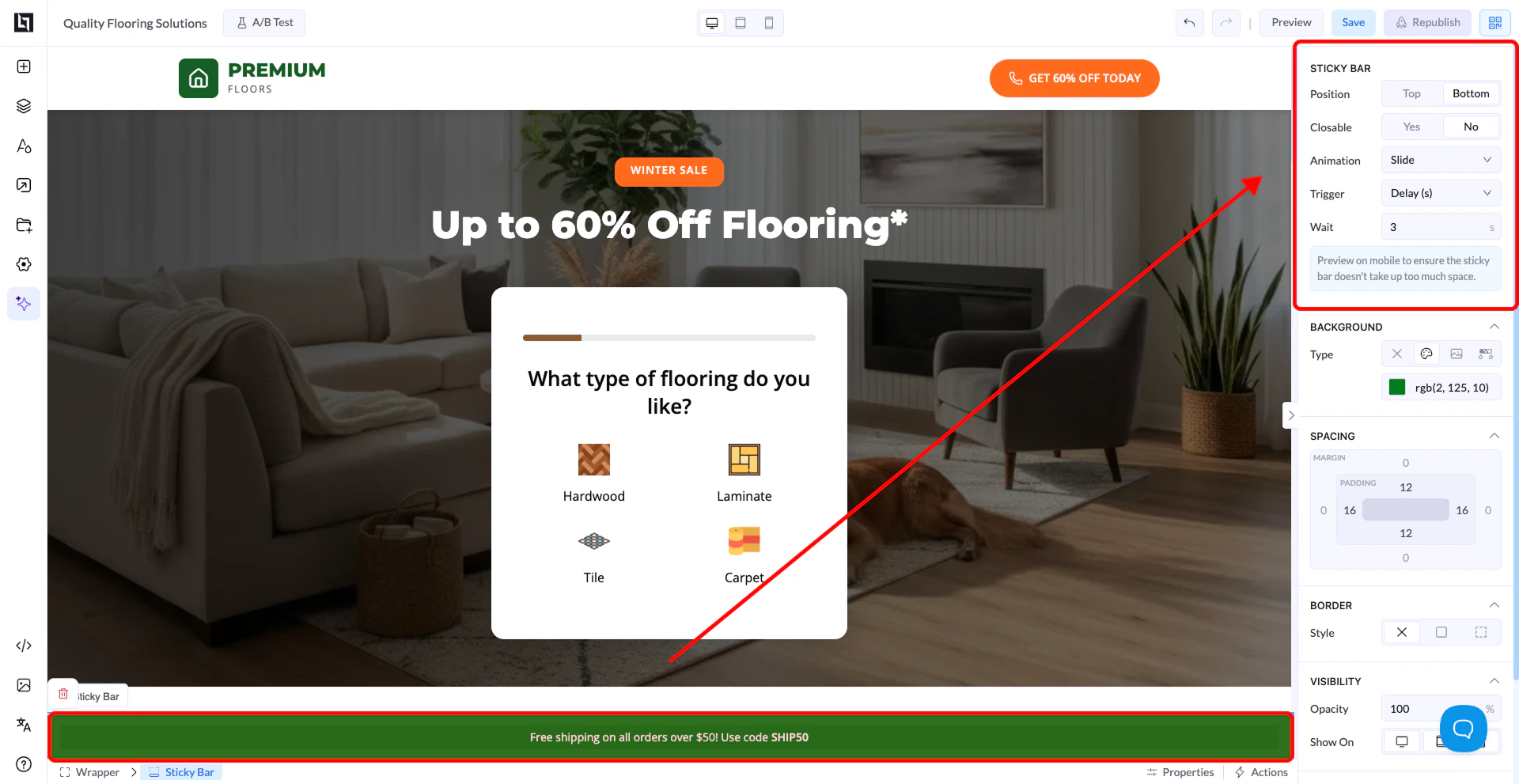 ## Position
Defines where the sticky bar appears on the screen:
* **Top** → Sticks to the top of the page
* **Bottom** → Sticks to the bottom of the page
## Closable
Controls whether users can close the sticky bar:
* **Yes** → Adds a close (X) button
* **No** → Sticky bar stays visible at all times
## Animation
Controls how the sticky bar appears:
* **Slide** → Slides into view
* **Fade** → Fades in smoothly
* **None** → Appears instantly
## Trigger
Defines when the sticky bar appears:
* **Load** → Shows immediately when the page loads
* **Scroll (px)** → Shows after scrolling a specific number of pixels
* **Scroll (%)** → Shows after scrolling a percentage of the page
* **Delay (s)** → Shows after a set number of seconds
## Wait
* Used with **Delay trigger**
* Defines how many seconds to wait before showing the sticky bar
***
## Responsive Preview Note
You’ll see a note reminding you to preview on mobile.
👉 Sticky bars take screen space, so always check how they look on smaller devices.
***
## Styling Options
Like other elements, you can customize:
* Background (color, gradient, etc.)
* Spacing (padding & margin)
* Borders and radius
* Typography
* Visibility per device
***
## Important Notes
* Sticky bars stay fixed while scrolling
* They appear based on the trigger you choose
* They can impact user experience if overused
## Position
Defines where the sticky bar appears on the screen:
* **Top** → Sticks to the top of the page
* **Bottom** → Sticks to the bottom of the page
## Closable
Controls whether users can close the sticky bar:
* **Yes** → Adds a close (X) button
* **No** → Sticky bar stays visible at all times
## Animation
Controls how the sticky bar appears:
* **Slide** → Slides into view
* **Fade** → Fades in smoothly
* **None** → Appears instantly
## Trigger
Defines when the sticky bar appears:
* **Load** → Shows immediately when the page loads
* **Scroll (px)** → Shows after scrolling a specific number of pixels
* **Scroll (%)** → Shows after scrolling a percentage of the page
* **Delay (s)** → Shows after a set number of seconds
## Wait
* Used with **Delay trigger**
* Defines how many seconds to wait before showing the sticky bar
***
## Responsive Preview Note
You’ll see a note reminding you to preview on mobile.
👉 Sticky bars take screen space, so always check how they look on smaller devices.
***
## Styling Options
Like other elements, you can customize:
* Background (color, gradient, etc.)
* Spacing (padding & margin)
* Borders and radius
* Typography
* Visibility per device
***
## Important Notes
* Sticky bars stay fixed while scrolling
* They appear based on the trigger you choose
* They can impact user experience if overused