> ## Documentation Index
> Fetch the complete documentation index at: https://docs.landerlab.io/llms.txt
> Use this file to discover all available pages before exploring further.
# Use Lists to Organize Content
> Use lists to organize content, highlight key points, and present features or benefits in a clear and structured way.
The List element helps you display multiple points in a clean, structured way.\
It’s perfect for features, benefits, or key highlights.
## How to Add a List
* Open the left sidebar
* Go to **Elements → Content**
* Drag **List** onto the canvas
***
## Adding Items
* Click on the list
* Use **+ Add List Item** to create new entries
* Edit each item directly by clicking on the text
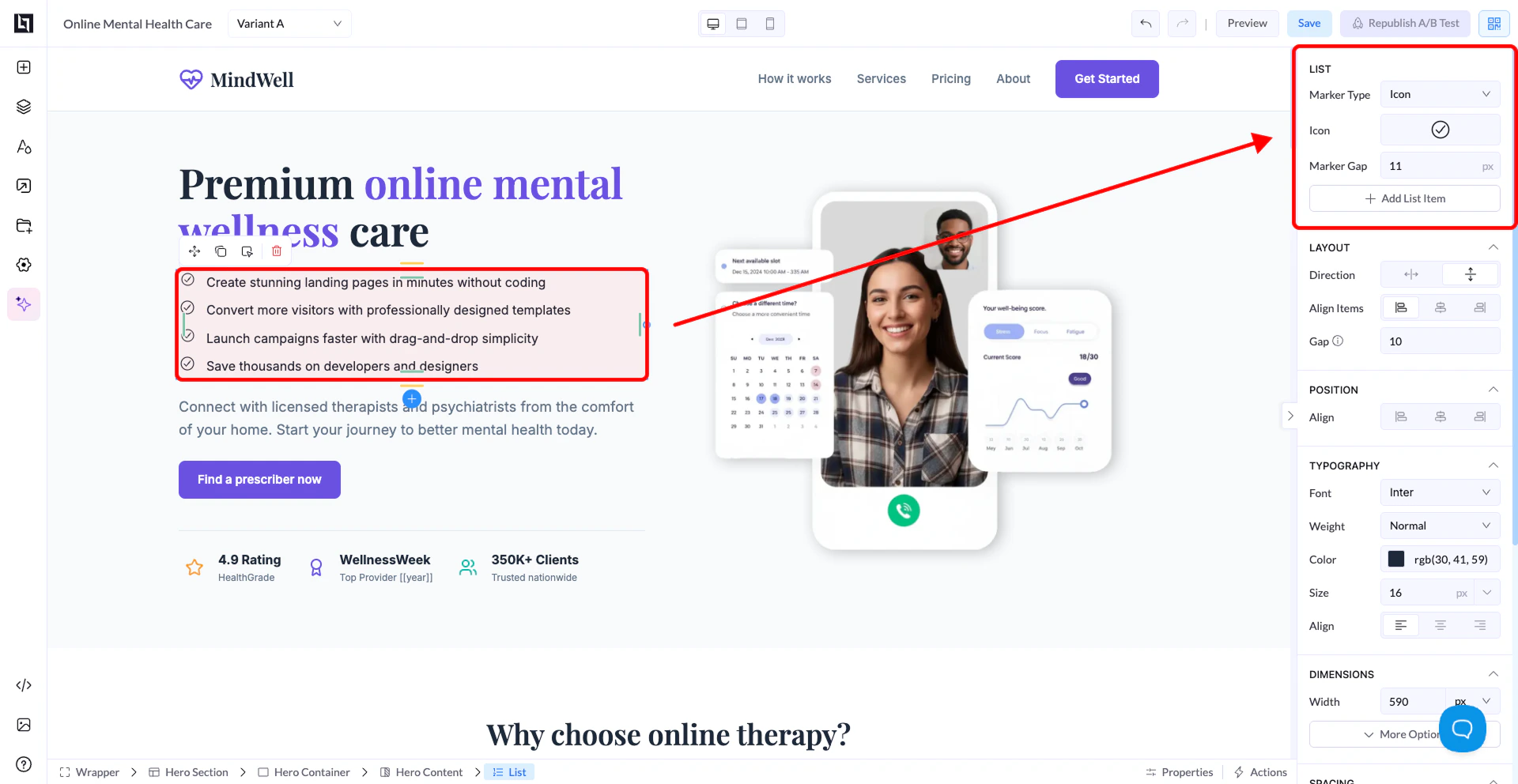 ## Marker Types
You can control how each list item is displayed using **Marker Type**:
### Standard
Classic list styles:
* Bullet
* Empty circle
* Numbers (1, 2, 3)
* Letters (A, B, C or a, b, c)
### Emoji
* Use emojis as markers
* Choose any emoji (e.g. ✅ ⭐ 🔥)
### Icon
* Use icons as markers
* Great for more polished or branded designs
## Marker Style & Spacing
* **Marker Style** → Changes the visual style (for Standard lists)
* **Marker Gap** → Controls space between the marker and the text
***
## Styling the List
From the right panel, you can also adjust:
* Font
* Size
* Color
* Alignment
* Spacing
***
## Important Note
* You can still edit each item’s text individually
## Marker Types
You can control how each list item is displayed using **Marker Type**:
### Standard
Classic list styles:
* Bullet
* Empty circle
* Numbers (1, 2, 3)
* Letters (A, B, C or a, b, c)
### Emoji
* Use emojis as markers
* Choose any emoji (e.g. ✅ ⭐ 🔥)
### Icon
* Use icons as markers
* Great for more polished or branded designs
## Marker Style & Spacing
* **Marker Style** → Changes the visual style (for Standard lists)
* **Marker Gap** → Controls space between the marker and the text
***
## Styling the List
From the right panel, you can also adjust:
* Font
* Size
* Color
* Alignment
* Spacing
***
## Important Note
* You can still edit each item’s text individually