> ## Documentation Index
> Fetch the complete documentation index at: https://docs.landerlab.io/llms.txt
> Use this file to discover all available pages before exploring further.
# Use Countdown Timers to Boost Conversions
> Add countdown timers to create urgency, highlight deadlines, and increase conversions on your landing pages.
The Countdown element lets you create urgency on your page by showing a timer.\
It’s commonly used for offers, deadlines, or limited-time actions.
You can add it from the left sidebar and fully customize its behavior and design.
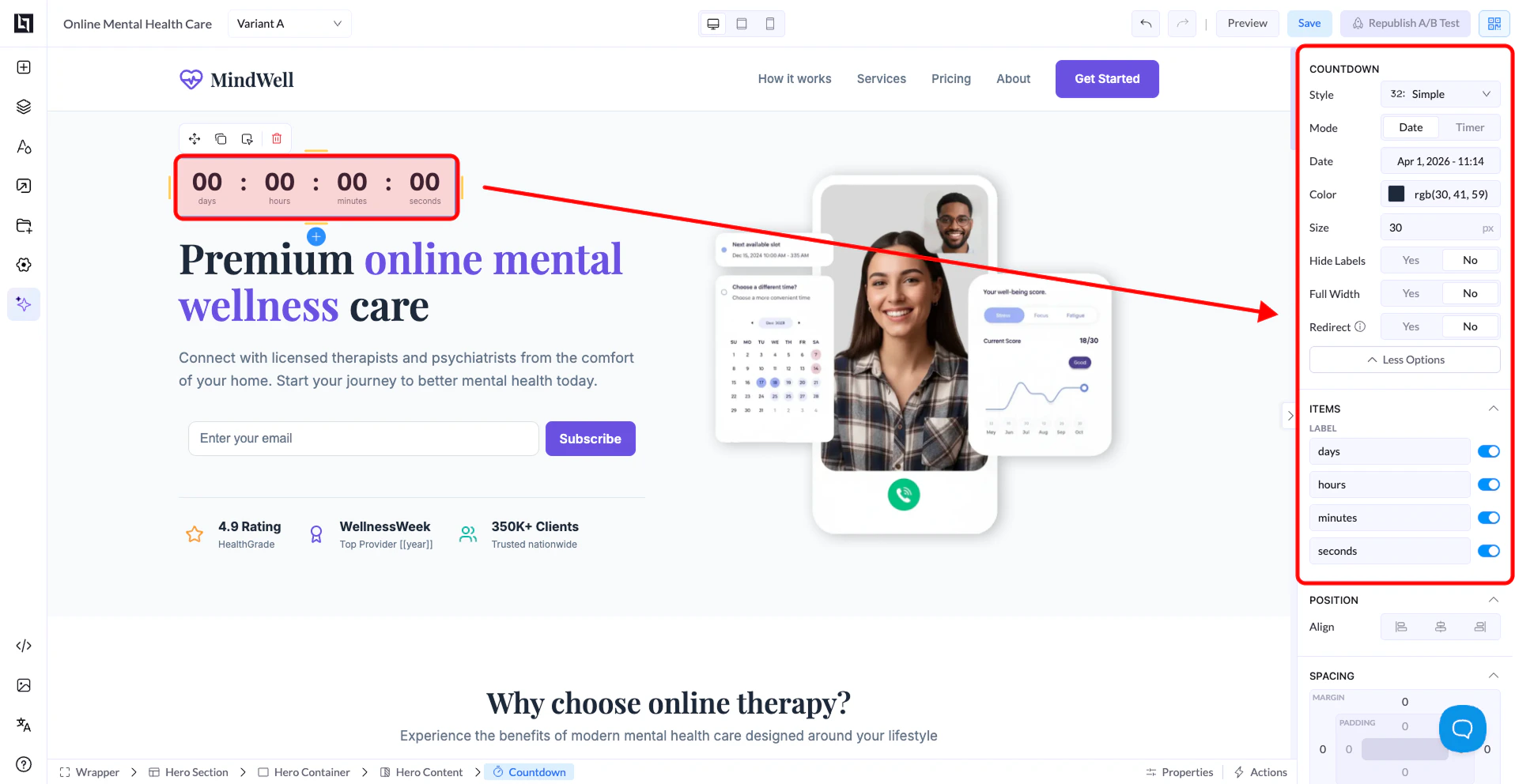 ## Countdown Settings
### Style
* Choose the visual appearance of the countdown
* Different styles change how numbers and labels are displayed
### Mode
There are two modes:
* **Date** → Counts down to a specific date and time
* **Timer** → Starts a countdown (e.g. 10 minutes) when the page loads
### Date
* Available when using **Date mode**
* Select the exact date and time using the picker
### Color
* Controls the color of the numbers and labels
### Size
* Adjusts the size of the countdown text
### Hide Labels
* **Yes** → Hides labels like days, hours, minutes
* **No** → Shows them
### Full Width
* **Yes** → Expands the countdown across the container
* **No** → Keeps it compact
### Redirect
* **Yes** → Redirects users when the countdown ends
* **No** → No action after it finishes
***
## Items (Time Units)
You can control which time units are shown:
* Days
* Hours
* Minutes
* Seconds
Each can be enabled or disabled individually.
***
## Position & Spacing
Like other elements, you can adjust:
* Alignment
* Spacing (margin & padding)
***
## How It Works
* In **Date mode**, the countdown is fixed to a specific deadline
* In **Timer mode**, it starts fresh for each visitor
## Countdown Settings
### Style
* Choose the visual appearance of the countdown
* Different styles change how numbers and labels are displayed
### Mode
There are two modes:
* **Date** → Counts down to a specific date and time
* **Timer** → Starts a countdown (e.g. 10 minutes) when the page loads
### Date
* Available when using **Date mode**
* Select the exact date and time using the picker
### Color
* Controls the color of the numbers and labels
### Size
* Adjusts the size of the countdown text
### Hide Labels
* **Yes** → Hides labels like days, hours, minutes
* **No** → Shows them
### Full Width
* **Yes** → Expands the countdown across the container
* **No** → Keeps it compact
### Redirect
* **Yes** → Redirects users when the countdown ends
* **No** → No action after it finishes
***
## Items (Time Units)
You can control which time units are shown:
* Days
* Hours
* Minutes
* Seconds
Each can be enabled or disabled individually.
***
## Position & Spacing
Like other elements, you can adjust:
* Alignment
* Spacing (margin & padding)
***
## How It Works
* In **Date mode**, the countdown is fixed to a specific deadline
* In **Timer mode**, it starts fresh for each visitor