> ## Documentation Index
> Fetch the complete documentation index at: https://docs.landerlab.io/llms.txt
> Use this file to discover all available pages before exploring further.
# Connect Cloudflare for Automatic Domain Setup
> Connect Cloudflare to automatically manage DNS, simplify domain setup, and publish landing pages faster with full control.
Connecting your **Cloudflare account** to LanderLab allows you to **automatically manage DNS records and connect domains faster**. Once connected, LanderLab can configure DNS settings for your domains directly through Cloudflare.
 ## Step-by-Step Guide
### 1. Open Domain Settings
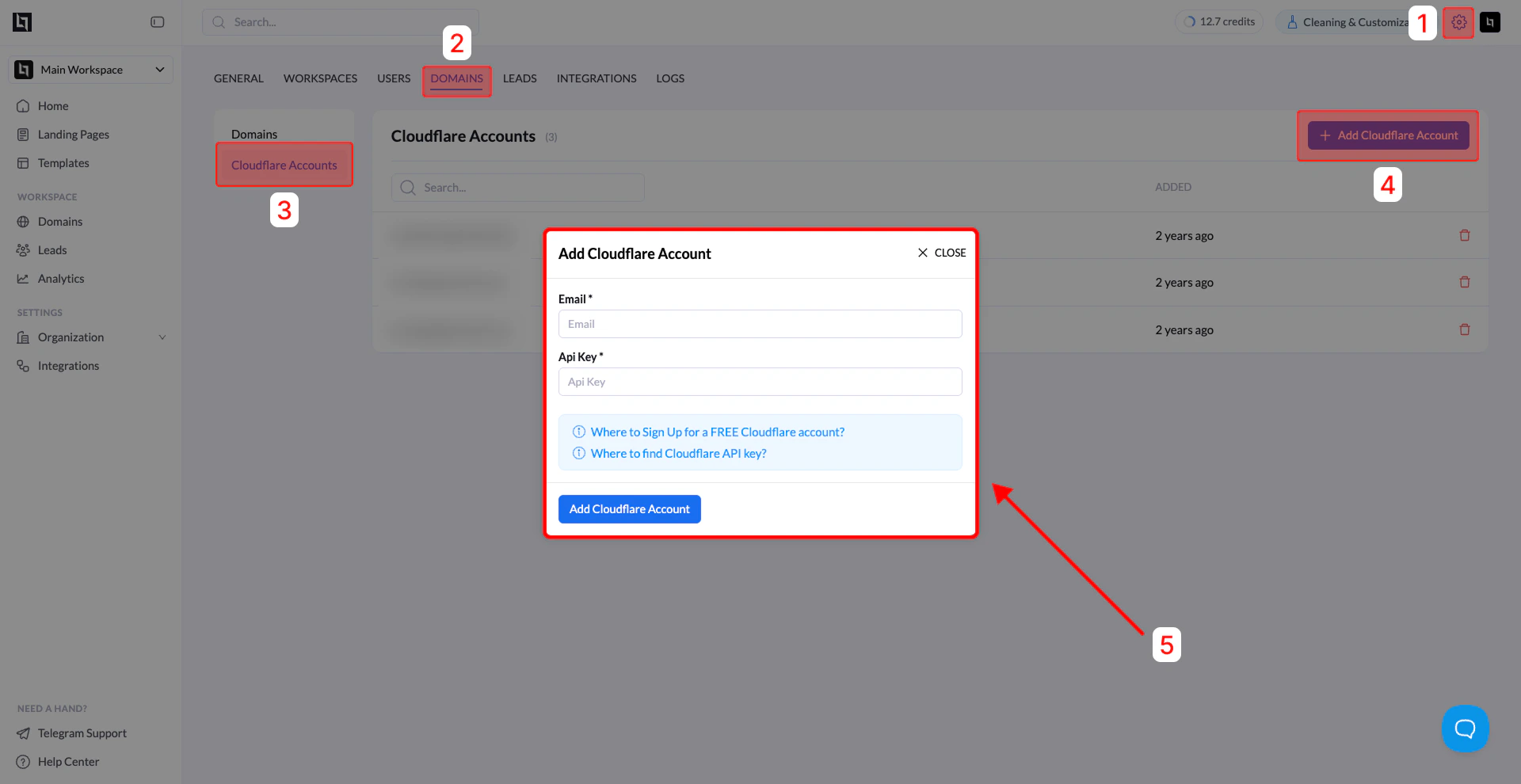
1. From your **LanderLab dashboard**, go to **Settings**.
2. Click **Domains**.
3. Click **Manage Domains** in the top-right corner.
### 2. Navigate to Cloudflare Accounts
Inside the **Domains** section:
1. Click **Cloudflare Accounts** in the left sidebar.
### 3. Add a Cloudflare Account
1. Click **+ Add Cloudflare Account**.
2. A modal window titled **Add Cloudflare Account** will appear.
### 4: Get Your Cloudflare API Key
You will need two pieces of information from your Cloudflare account:
* Your **Cloudflare account email**
* Your **Global API Key**
### How to find the Global API Key
1. Log in to your **Cloudflare dashboard**.
2. Click your **profile icon** in the top-right corner.
3. Select **My Profile** or **Settings**.
4. Navigate to the **API Tokens / API Keys** section.
5. Locate **Global API Key**.
6. Click **View** to reveal the key.
7. You may need to enter your **password or verification code**.
Copy the **Global API Key**.
### 5: Enter Your Credentials in LanderLab
Return to the **Add Cloudflare Account** modal in LanderLab.
Enter:
| Field | Description |
| :---------- | :------------------------------------------------ |
| **Email** | The email associated with your Cloudflare account |
| **API Key** | Your Cloudflare Global API Key |
### 6: Complete the Connection
Click **Add Cloudflare Account**.
If the credentials are correct, you will see a **success message**, and your Cloudflare account will appear in the list of connected accounts.
## Why Connect Cloudflare?
Connecting Cloudflare allows LanderLab to:
* Automatically **configure DNS records**
* Simplify **domain connection**
* Enable **faster domain verification**
* Support **root domain connections**
**Tip:** Using Cloudflare integration is the **recommended method for connecting domains**, as it removes the need to manually configure DNS records.
## Step-by-Step Guide
### 1. Open Domain Settings
1. From your **LanderLab dashboard**, go to **Settings**.
2. Click **Domains**.
3. Click **Manage Domains** in the top-right corner.
### 2. Navigate to Cloudflare Accounts
Inside the **Domains** section:
1. Click **Cloudflare Accounts** in the left sidebar.
### 3. Add a Cloudflare Account
1. Click **+ Add Cloudflare Account**.
2. A modal window titled **Add Cloudflare Account** will appear.
### 4: Get Your Cloudflare API Key
You will need two pieces of information from your Cloudflare account:
* Your **Cloudflare account email**
* Your **Global API Key**
### How to find the Global API Key
1. Log in to your **Cloudflare dashboard**.
2. Click your **profile icon** in the top-right corner.
3. Select **My Profile** or **Settings**.
4. Navigate to the **API Tokens / API Keys** section.
5. Locate **Global API Key**.
6. Click **View** to reveal the key.
7. You may need to enter your **password or verification code**.
Copy the **Global API Key**.
### 5: Enter Your Credentials in LanderLab
Return to the **Add Cloudflare Account** modal in LanderLab.
Enter:
| Field | Description |
| :---------- | :------------------------------------------------ |
| **Email** | The email associated with your Cloudflare account |
| **API Key** | Your Cloudflare Global API Key |
### 6: Complete the Connection
Click **Add Cloudflare Account**.
If the credentials are correct, you will see a **success message**, and your Cloudflare account will appear in the list of connected accounts.
## Why Connect Cloudflare?
Connecting Cloudflare allows LanderLab to:
* Automatically **configure DNS records**
* Simplify **domain connection**
* Enable **faster domain verification**
* Support **root domain connections**
**Tip:** Using Cloudflare integration is the **recommended method for connecting domains**, as it removes the need to manually configure DNS records.