> ## Documentation Index
> Fetch the complete documentation index at: https://docs.landerlab.io/llms.txt
> Use this file to discover all available pages before exploring further.
# Use A/B Testing to Optimize Conversions
> Use A/B testing to compare landing page variants, optimize conversions, and identify top-performing designs and campaigns.
A/B Testing allows you to **compare multiple versions (variants)** of a landing page by splitting traffic between them. This helps you identify which version performs best based on your conversion goals.
You can test elements like:
* Headlines
* Layouts
* Images
* Call-to-action buttons
Entire page designs
## How A/B Testing Works
When A/B Testing is enabled:
* Visitors are **distributed across different variants**
* Each variant collects its own **performance data**
* You can compare results to determine the **best-performing version**
For accurate results, make sure **conversion tracking is enabled**.
***
## How to Activate A/B Testing
 **Before you begin:**\
Make sure your landing page is **published**. A/B testing requires a live page to properly distribute traffic and collect data.
### Steps
1. Go to **Landing Pages**.
2. Click the landing page you want to test.
3. Make sure you are on the **Overview** tab.
4. Locate the **Variants section**.
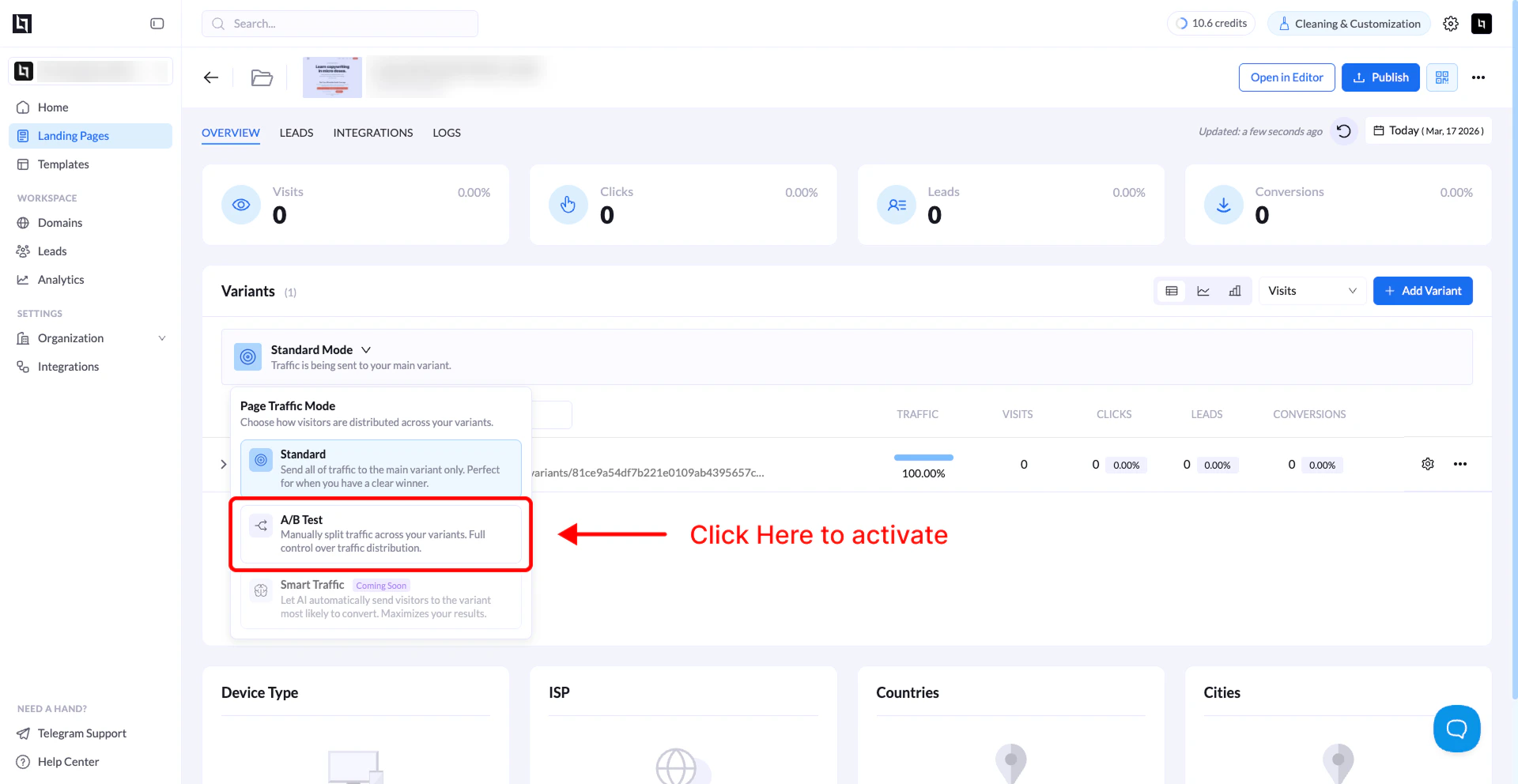
5. Find the **mode selector (Standard Mode)**.
6. Click it and select **A/B Test**.
7. Confirm by clicking **Switch to A/B Test Mode**.
A/B Testing is now active for your landing page.
**Tip:** After activating A/B Testing, remember to **publish or republish your page** so traffic is properly distributed between variants.
***
## Create Variants for Testing
To run an A/B test, you need at least **two variants**.
**Before you begin:**\
Make sure your landing page is **published**. A/B testing requires a live page to properly distribute traffic and collect data.
### Steps
1. Go to **Landing Pages**.
2. Click the landing page you want to test.
3. Make sure you are on the **Overview** tab.
4. Locate the **Variants section**.
5. Find the **mode selector (Standard Mode)**.
6. Click it and select **A/B Test**.
7. Confirm by clicking **Switch to A/B Test Mode**.
A/B Testing is now active for your landing page.
**Tip:** After activating A/B Testing, remember to **publish or republish your page** so traffic is properly distributed between variants.
***
## Create Variants for Testing
To run an A/B test, you need at least **two variants**.
 ### Method 1: Duplicate an Existing Variant
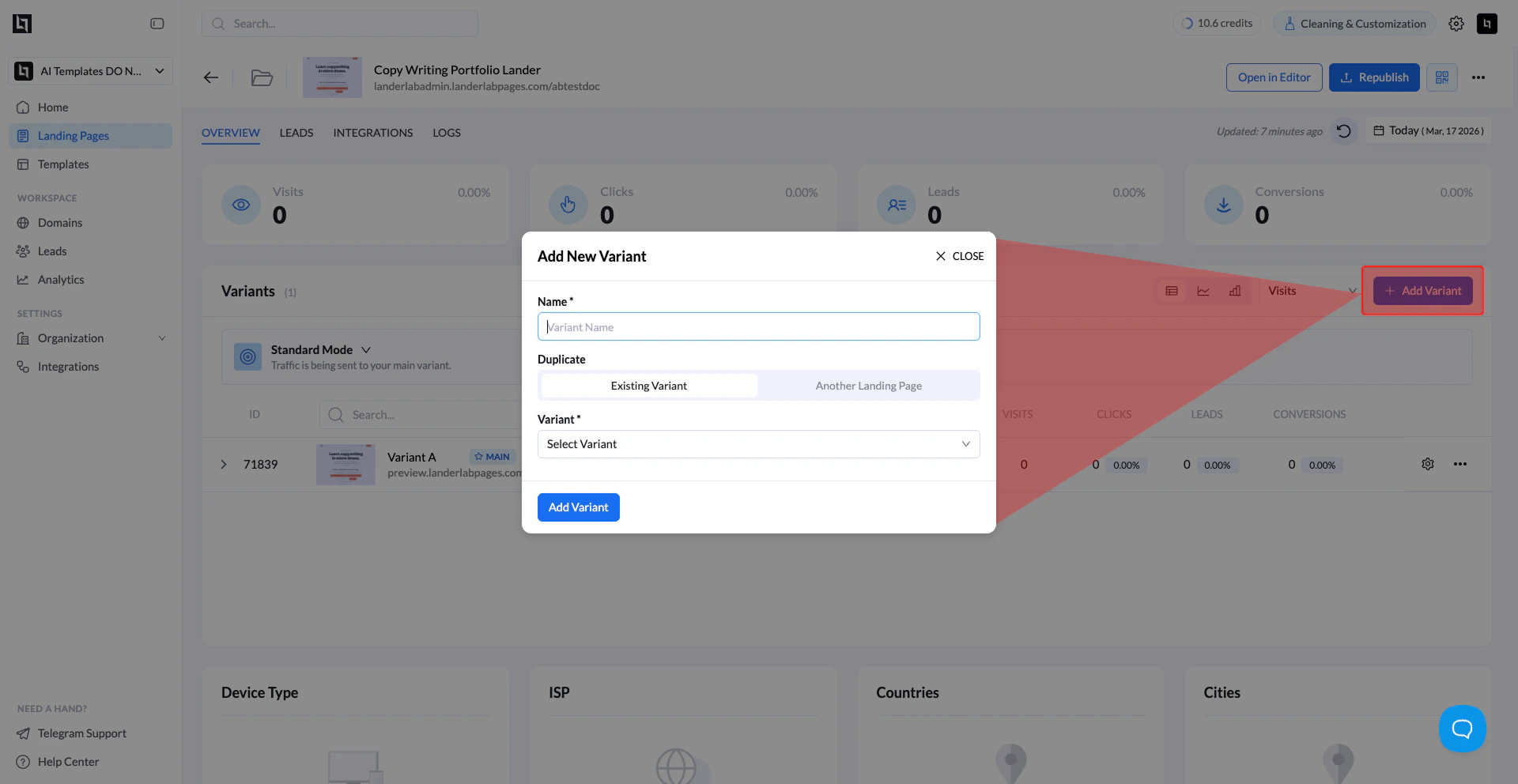
1. Go to the **Variants section**.
2. Click **+ Add Variant**.
3. Select **Duplicate an existing variant**.
4. Choose the source variant (e.g., Variant A).
5. Enter a name (e.g., Variant B).
6. Click **Add Variant**.
***
### Method 1: Duplicate an Existing Variant
1. Go to the **Variants section**.
2. Click **+ Add Variant**.
3. Select **Duplicate an existing variant**.
4. Choose the source variant (e.g., Variant A).
5. Enter a name (e.g., Variant B).
6. Click **Add Variant**.
***
 ### Method 2: Duplicate Another Landing Page
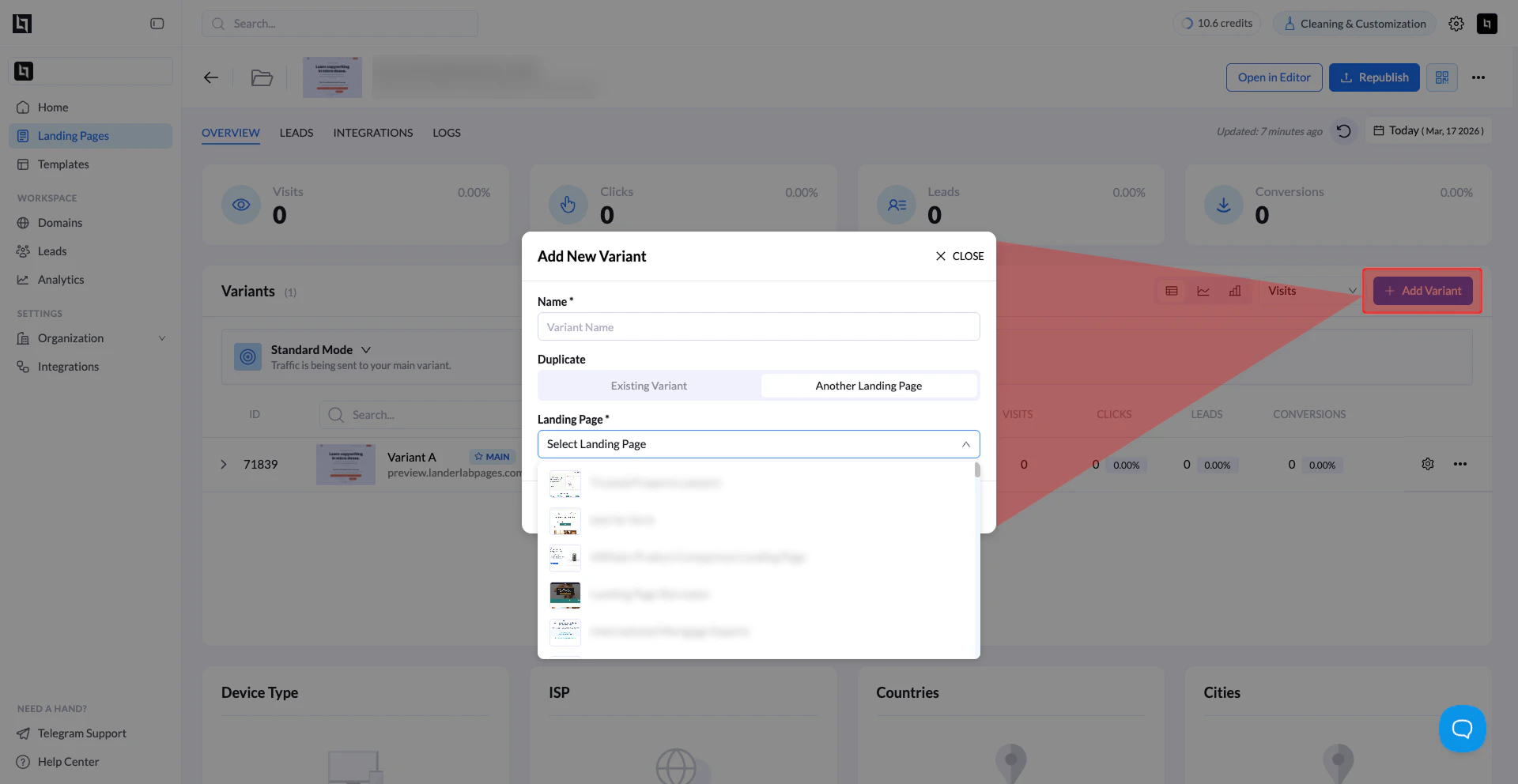
1. Click **+ Add Variant**.
2. Select **Duplicate another landing page**.
3. Choose a page from your workspace.
4. Click **Apply**.
5. Name the variant.
6. Click **Add Variant**.
***
## Manage Traffic Distribution
You can control how traffic is split between variants.
### Method 2: Duplicate Another Landing Page
1. Click **+ Add Variant**.
2. Select **Duplicate another landing page**.
3. Choose a page from your workspace.
4. Click **Apply**.
5. Name the variant.
6. Click **Add Variant**.
***
## Manage Traffic Distribution
You can control how traffic is split between variants.
 ### Steps
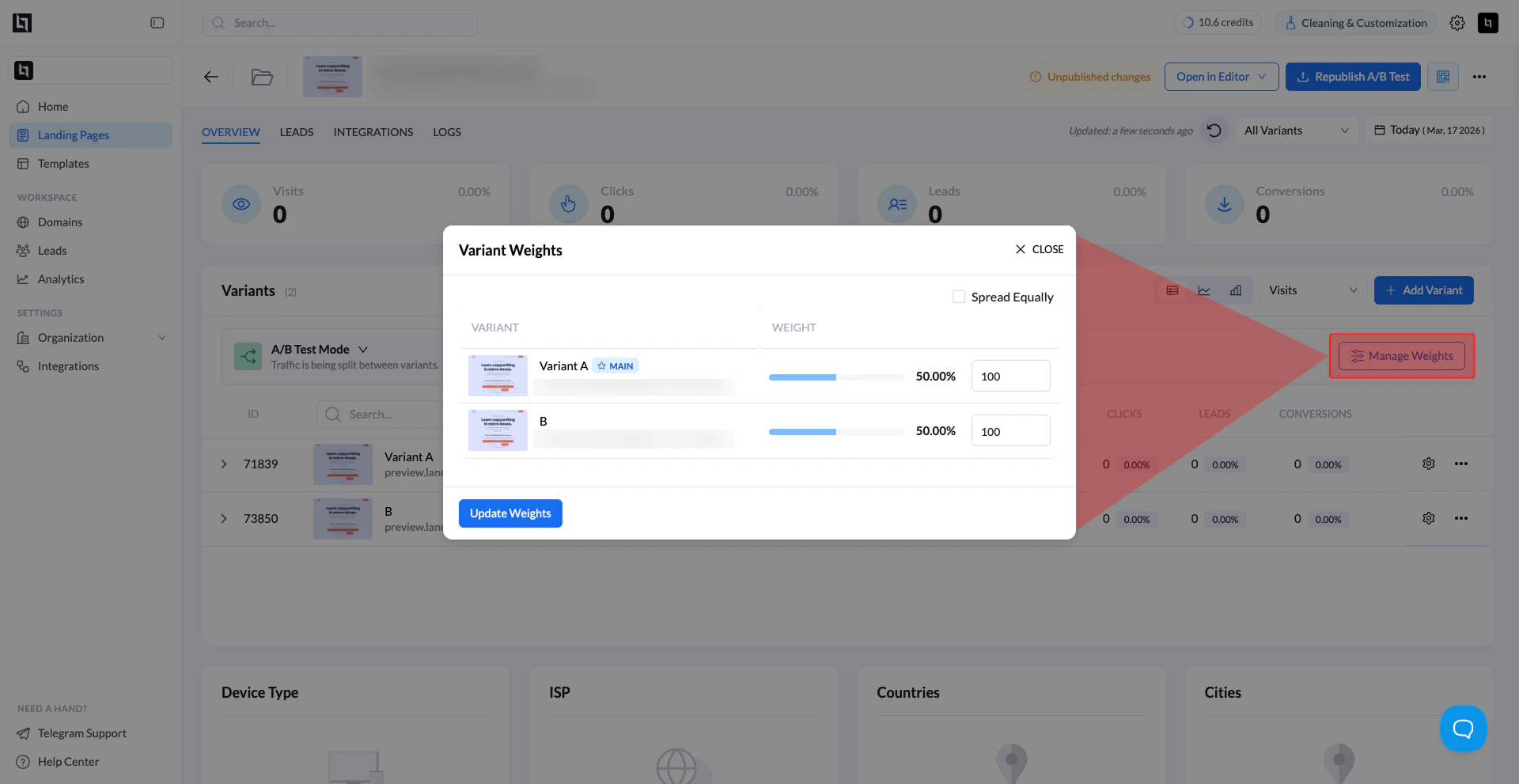
1. In the **Variants section**, click **Manage Weights**.
2. Assign a weight (traffic share) to each variant.
### Examples
* **50 / 50 split:**\
Variant A = 100\
Variant B = 100
* **3 variants (equal split):**\
A = 100, B = 100, C = 100
* **Custom split:**\
A = 300, B = 100, C = 100 → (60% / 20% / 20%)
3. Click **Update Weights** to apply.
You can also use **Spread Equally** to automatically distribute traffic
***
## Set a Winning Variant (Main Variant)
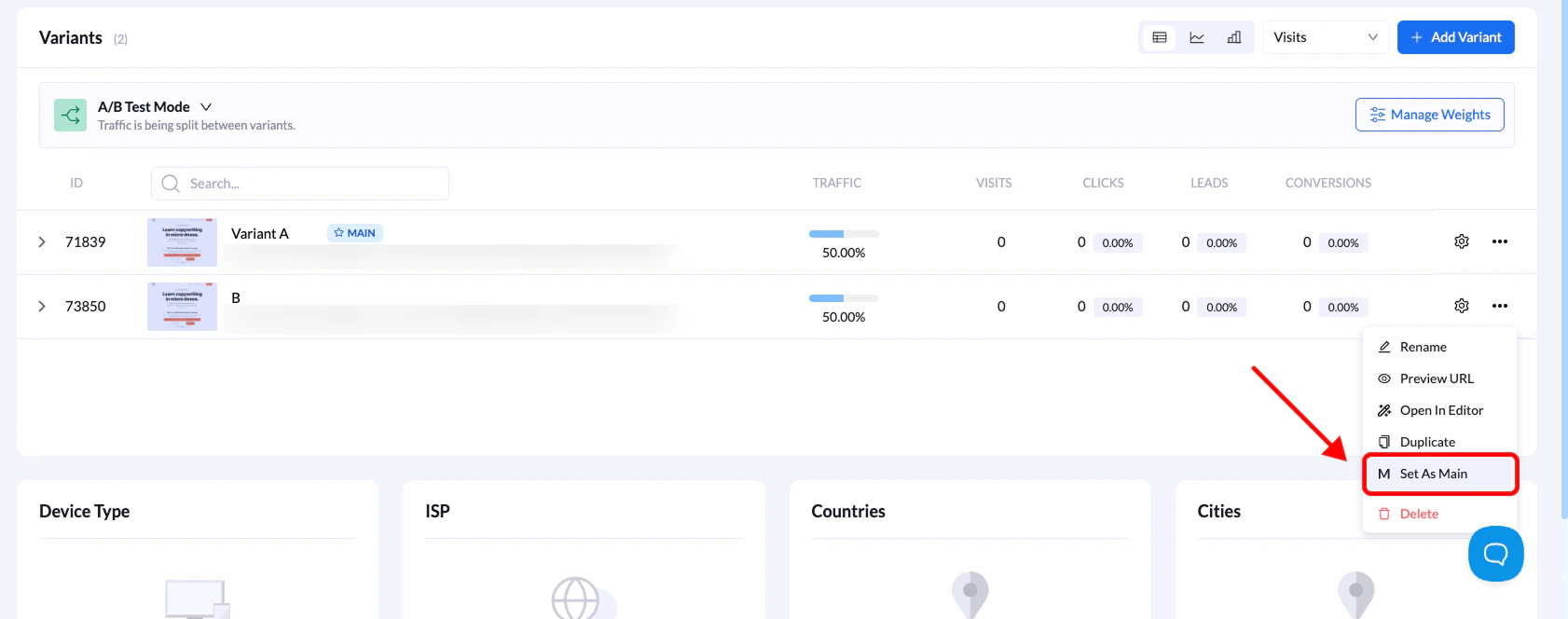
Once you identify a winning variant, you can make it the main version.
### Steps
1. In the **Variants section**, click **Manage Weights**.
2. Assign a weight (traffic share) to each variant.
### Examples
* **50 / 50 split:**\
Variant A = 100\
Variant B = 100
* **3 variants (equal split):**\
A = 100, B = 100, C = 100
* **Custom split:**\
A = 300, B = 100, C = 100 → (60% / 20% / 20%)
3. Click **Update Weights** to apply.
You can also use **Spread Equally** to automatically distribute traffic
***
## Set a Winning Variant (Main Variant)
Once you identify a winning variant, you can make it the main version.
 ### Steps
1. Go to the **Landing Page Overview**.
2. Locate your variants list.
3. Find the variant you want to set as main.
4. Click the **three dots (•••)**.
5. Select **Set as Main**.
***
## Return to Standard Mode
After finishing your test:
1. Switch back from **A/B Test Mode → Standard Mode**
2. The **Main Variant** will receive **100% of the traffic**
***
## Best Practices
* Test **one major change at a time** for clearer insights
* Run tests long enough to collect meaningful data
* Use analytics to compare **conversion rates, clicks, and leads**
### Steps
1. Go to the **Landing Page Overview**.
2. Locate your variants list.
3. Find the variant you want to set as main.
4. Click the **three dots (•••)**.
5. Select **Set as Main**.
***
## Return to Standard Mode
After finishing your test:
1. Switch back from **A/B Test Mode → Standard Mode**
2. The **Main Variant** will receive **100% of the traffic**
***
## Best Practices
* Test **one major change at a time** for clearer insights
* Run tests long enough to collect meaningful data
* Use analytics to compare **conversion rates, clicks, and leads**