> ## Documentation Index
> Fetch the complete documentation index at: https://docs.landerlab.io/llms.txt
> Use this file to discover all available pages before exploring further.
# AI Skills in LanderLab: Use Built-in Skills and Create Custom Ones
> Learn how AI skills work in LanderLab. Use built-in skills for CRO audits, offer copy, advertorials, and tracking, or create custom skills for your own tasks.
**Skills** are saved instructions the AI Assistant loads when your request matches them. They let the AI handle a specific task the same way every time, like auditing a page for conversions or writing copy in your brand voice. LanderLab includes built-in skills, and you can create your own.
## Built-in skills
These skills are available in every account.
| Skill | What it does |
| -------------------------- | ----------------------------------------------------------------------------------------------------------------- |
| **Advertorial / Listicle** | Builds or restructures a page as a native-style advertorial or listicle pre-lander. |
| **CRO audit** | Audits your page to increase conversions, find missed opportunities, and improve the visitor experience. |
| **Offer copy** | Writes offer copy that grabs attention, explains the value clearly, and drives visitors to act. |
| **Page tracking** | Sets up tracking and attribution. URL parameters flow into links and leads, and conversion events fire correctly. |
## How to use a skill
There are two ways to use a skill:
* **Automatically.** Just write your request. If it matches a skill's description, the AI loads that skill on its own.
* **Manually.** Click **+** in the prompt box, hover over **Skills**, and pick the skill you want. Then write your request.
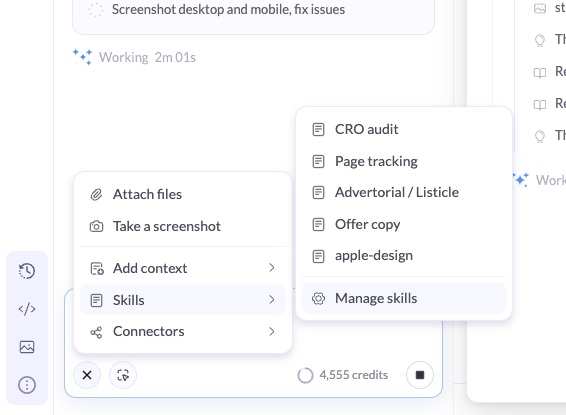 Pick the skill manually when you want to be sure the AI follows it, for example before running a CRO audit on a page that is about to go live.
## Where to manage skills
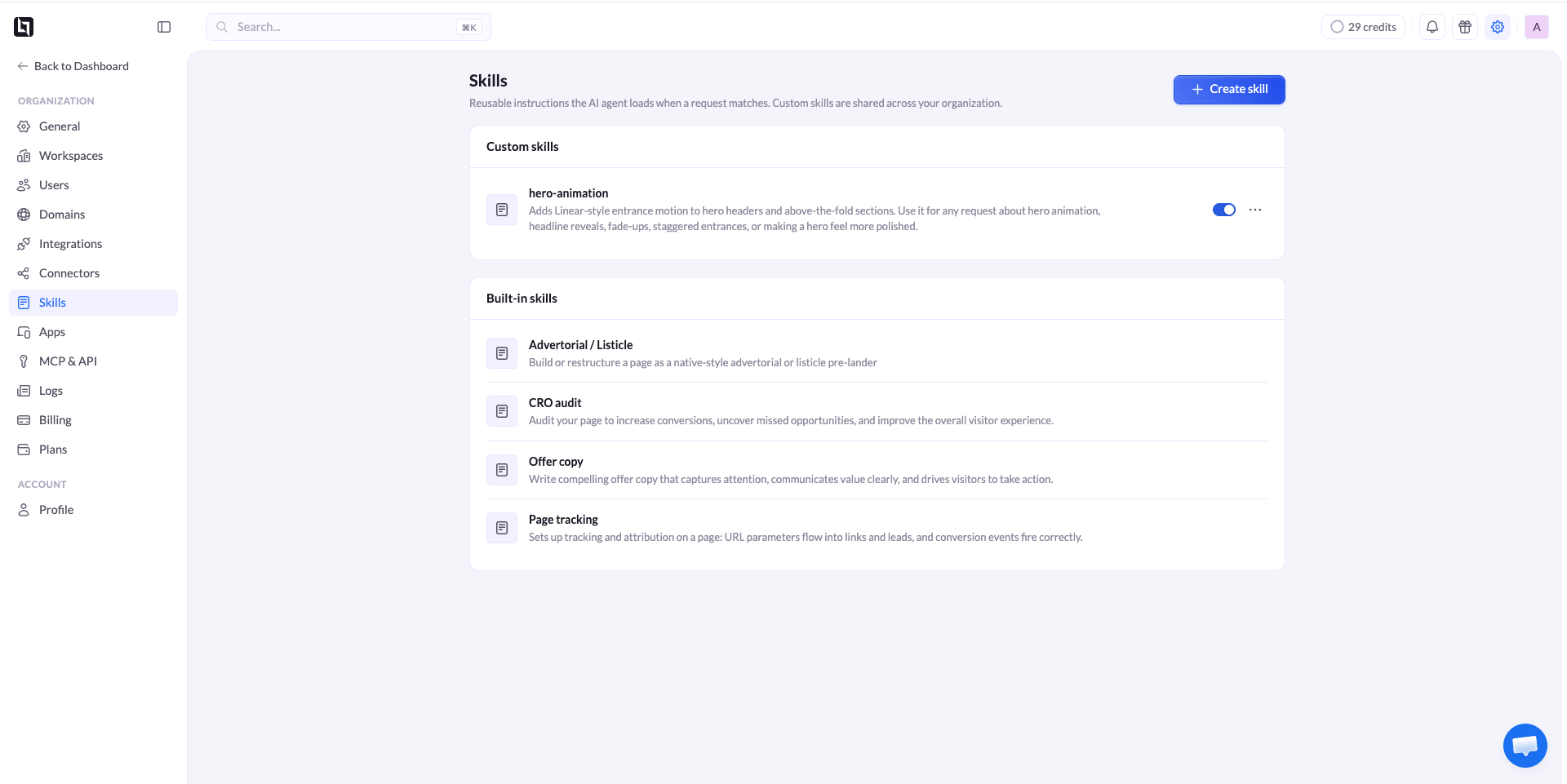
You can manage skills from two places. Both show the same list, where you can see every skill, create new ones, and edit or turn off your custom skills.
* **From the AI Assistant:** click **+** in the prompt box, hover over **Skills**, and click **Manage skills**.
* **From Settings:** open **Settings** and select **Skills**.
Pick the skill manually when you want to be sure the AI follows it, for example before running a CRO audit on a page that is about to go live.
## Where to manage skills
You can manage skills from two places. Both show the same list, where you can see every skill, create new ones, and edit or turn off your custom skills.
* **From the AI Assistant:** click **+** in the prompt box, hover over **Skills**, and click **Manage skills**.
* **From Settings:** open **Settings** and select **Skills**.
 ## How to create a custom skill
Create a custom skill for any task you repeat often, like writing in your brand voice or following your compliance rules.
In the prompt box, click **+**, hover over **Skills**, and click **Manage skills**. Or go to **Settings** > **Skills**.
In the **Skills** window, click **Create skill**.
Add a **Name**, a **Description**, and the **Instructions**. See the table below for what to write in each field.
## How to create a custom skill
Create a custom skill for any task you repeat often, like writing in your brand voice or following your compliance rules.
In the prompt box, click **+**, hover over **Skills**, and click **Manage skills**. Or go to **Settings** > **Skills**.
In the **Skills** window, click **Create skill**.
Add a **Name**, a **Description**, and the **Instructions**. See the table below for what to write in each field.
.png?fit=max&auto=format&n=uWHxd5IAWWFP2kM-&q=85&s=efac74b1f64243e02739ff28d6000ddc) Click **Create skill**. Your skill appears under **Custom skills** and is turned on.
### What to write in each field
| Field | What to write | Example |
| ---------------- | ------------------------------------------------------------------------------------------- | ---------------------------------------------------------------------------------------------------------------------------- |
| **Name** | A short, clear name. | Brand voice |
| **Description** | What the skill does and when to use it. The AI reads this to decide when to load the skill. | Rewrites page copy in our brand voice. Use it for any copy, tone, or headline request. |
| **Instructions** | The exact rules the AI should follow. | Write in second person, short sentences, no exclamation marks. Headlines under 8 words. Every CTA reads "Get my free quote". |
The **Description** decides when the skill loads automatically. Mention the type of requests it should handle, like "copy", "headlines", or "tracking".
## Edit or disable a custom skill
Open **Manage skills** from the AI Assistant, or go to **Settings** > **Skills**.
* **View a skill** to check its name, description, and instructions.
* **Edit a skill** from the **...** menu next to it, then save your changes.
* **Disable a skill** with the toggle next to it. The AI only uses skills that are turned on. Turn it back on at any time.
## Tips for writing great skills
* **Keep one task per skill.** A "Brand voice" skill and a "Compliance rules" skill work better than one skill that does both.
* **Write clear rules.** "Headlines under 8 words" is easier to follow than "keep headlines short".
* **Include must-haves and must-nots.** List exact CTA text, words to avoid, or claims you cannot make.
* **Test and refine.** Try the skill on a real page, then update the instructions if the result is off.
## Related
Give the AI access to data from your other tools.
Combine skills and prompts for higher-converting pages.
Click **Create skill**. Your skill appears under **Custom skills** and is turned on.
### What to write in each field
| Field | What to write | Example |
| ---------------- | ------------------------------------------------------------------------------------------- | ---------------------------------------------------------------------------------------------------------------------------- |
| **Name** | A short, clear name. | Brand voice |
| **Description** | What the skill does and when to use it. The AI reads this to decide when to load the skill. | Rewrites page copy in our brand voice. Use it for any copy, tone, or headline request. |
| **Instructions** | The exact rules the AI should follow. | Write in second person, short sentences, no exclamation marks. Headlines under 8 words. Every CTA reads "Get my free quote". |
The **Description** decides when the skill loads automatically. Mention the type of requests it should handle, like "copy", "headlines", or "tracking".
## Edit or disable a custom skill
Open **Manage skills** from the AI Assistant, or go to **Settings** > **Skills**.
* **View a skill** to check its name, description, and instructions.
* **Edit a skill** from the **...** menu next to it, then save your changes.
* **Disable a skill** with the toggle next to it. The AI only uses skills that are turned on. Turn it back on at any time.
## Tips for writing great skills
* **Keep one task per skill.** A "Brand voice" skill and a "Compliance rules" skill work better than one skill that does both.
* **Write clear rules.** "Headlines under 8 words" is easier to follow than "keep headlines short".
* **Include must-haves and must-nots.** List exact CTA text, words to avoid, or claims you cannot make.
* **Test and refine.** Try the skill on a real page, then update the instructions if the result is off.
## Related
Give the AI access to data from your other tools.
Combine skills and prompts for higher-converting pages.