> ## Documentation Index
> Fetch the complete documentation index at: https://docs.landerlab.io/llms.txt
> Use this file to discover all available pages before exploring further.
# AI Connectors in LanderLab: Connect Apps and MCP Servers
> Connect the LanderLab AI Assistant to ClickFlare, Firecrawl, AdPlexity, HeyGen, and custom MCP servers so it can use real data while building your pages.
**Connectors** let the AI Assistant use data from other apps and MCP servers while it works on your page. For example, it can research a competitor's landing page, pull your campaign data, or bring in content from your design and store tools, all from the same chat.
## Where to manage connectors
You can manage connectors from two places. Both show the same connectors.
* **From the AI Assistant:** click **+** in the prompt box, hover over **Connectors**, and click **Manage connectors**.
* **From Settings:** open **Settings** and select **Connectors** under **Organization**. Here you can see every connector your organization has added and click **Add connector** to add a new one.
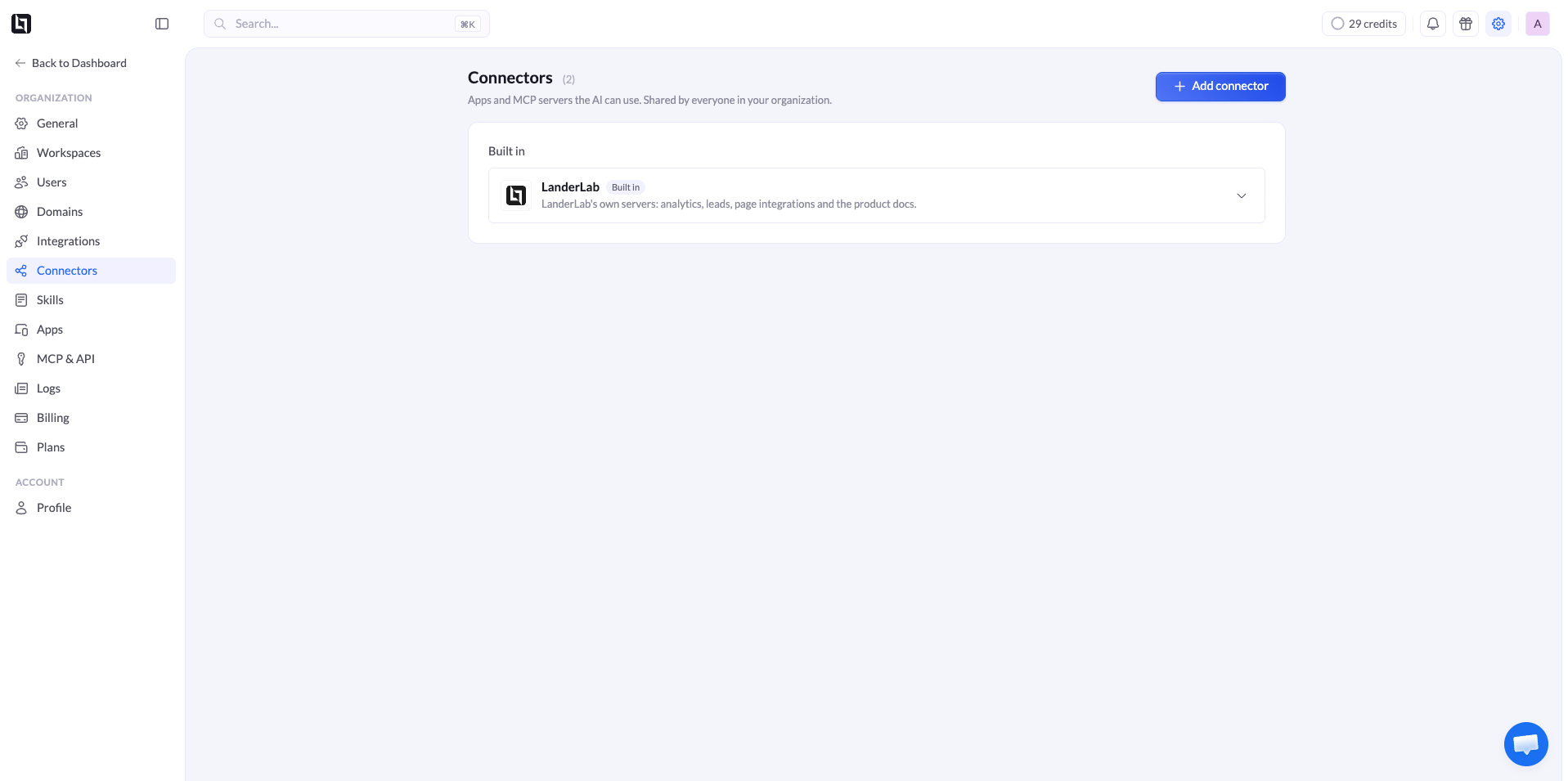 Connectors are shared by everyone in your organization. When you add one, all team members can use it with the AI Assistant.
### Built-in LanderLab connector
Every organization has the **LanderLab** connector built in. It gives the AI access to your analytics, leads, page integrations, and the LanderLab product docs, so you do not need to set anything up.
## Find available connectors
All available connectors are listed in the **Add connector** window. Open it from **Manage connectors** in the AI Assistant, or click **Add connector** in **Settings** > **Connectors**.
Connectors are grouped by category, like **Tracking**, **Research**, **Design**, and **Commerce**, so you can quickly find the right one. Each connector shows a short description of what the AI can use from it. We add new connectors regularly, so check back often.
Connectors that appear greyed out are not available for your account yet.
## How to add a connector
In the AI Assistant prompt box, click **+**, hover over **Connectors**, and click **Manage connectors**. Or go to **Settings** > **Connectors** and click **Add connector**.
Connectors are shared by everyone in your organization. When you add one, all team members can use it with the AI Assistant.
### Built-in LanderLab connector
Every organization has the **LanderLab** connector built in. It gives the AI access to your analytics, leads, page integrations, and the LanderLab product docs, so you do not need to set anything up.
## Find available connectors
All available connectors are listed in the **Add connector** window. Open it from **Manage connectors** in the AI Assistant, or click **Add connector** in **Settings** > **Connectors**.
Connectors are grouped by category, like **Tracking**, **Research**, **Design**, and **Commerce**, so you can quickly find the right one. Each connector shows a short description of what the AI can use from it. We add new connectors regularly, so check back often.
Connectors that appear greyed out are not available for your account yet.
## How to add a connector
In the AI Assistant prompt box, click **+**, hover over **Connectors**, and click **Manage connectors**. Or go to **Settings** > **Connectors** and click **Add connector**.
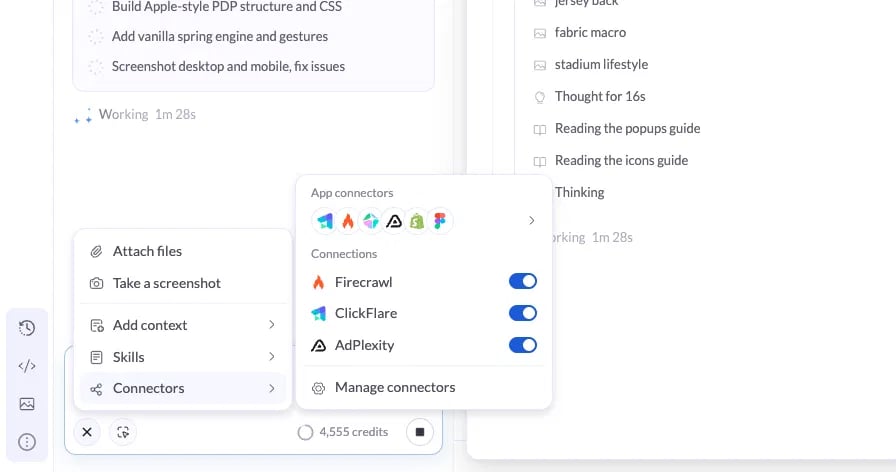 Browse by category on the left, or search by name or capability.
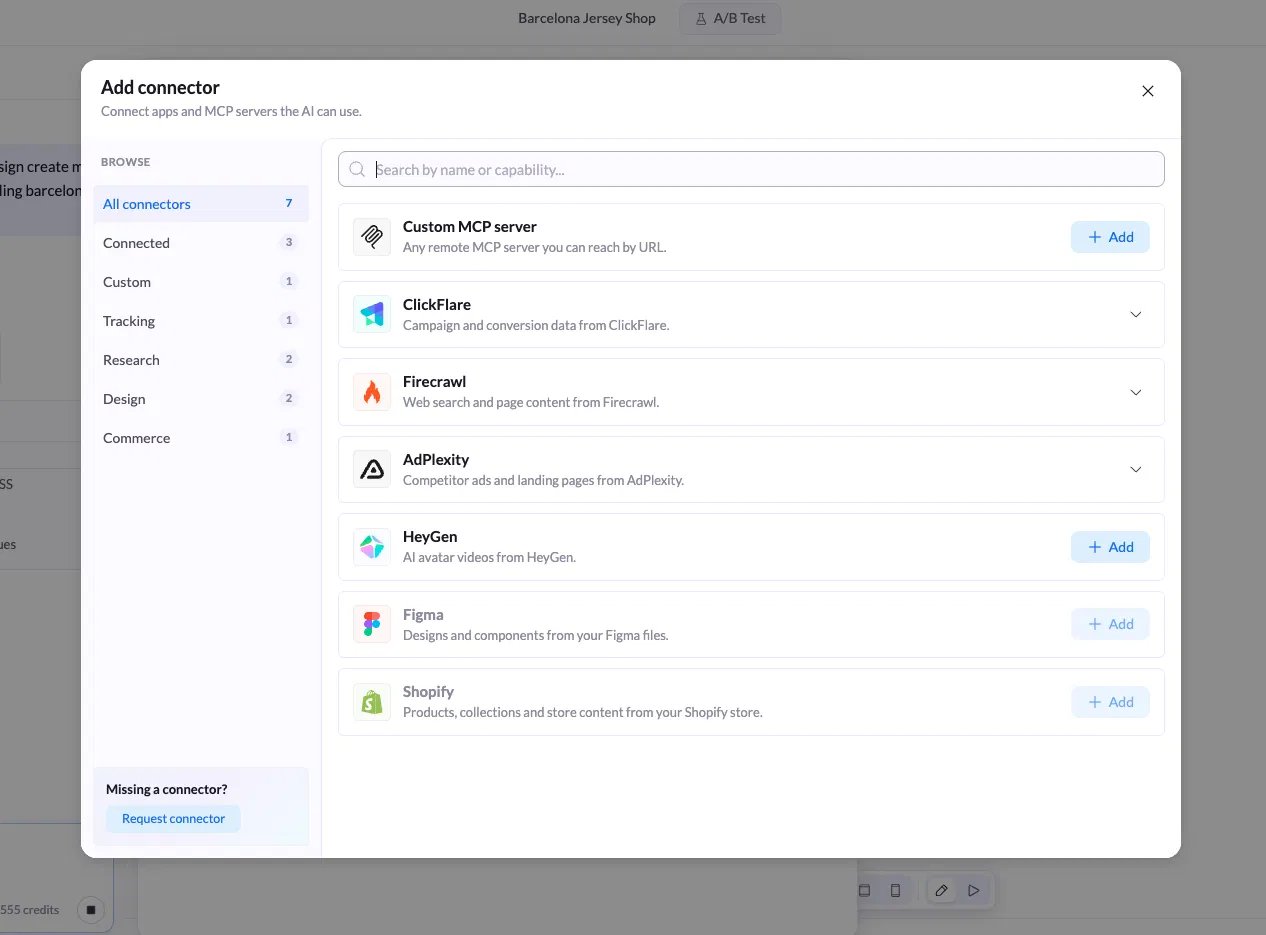 Click **Add** next to the connector and follow the steps to sign in or enter your credentials.
The connector now appears under **Connected** and in the **Connectors** menu of the prompt box.
## How to add a custom MCP server
Use a custom MCP server to connect any tool that is not in the list.
Click **+** in the prompt box, hover over **Connectors**, and click **Manage connectors**. Or go to **Settings** > **Connectors** and click **Add connector**.
Click **Add** next to **Custom MCP server**.
Click **Add** next to the connector and follow the steps to sign in or enter your credentials.
The connector now appears under **Connected** and in the **Connectors** menu of the prompt box.
## How to add a custom MCP server
Use a custom MCP server to connect any tool that is not in the list.
Click **+** in the prompt box, hover over **Connectors**, and click **Manage connectors**. Or go to **Settings** > **Connectors** and click **Add connector**.
Click **Add** next to **Custom MCP server**.
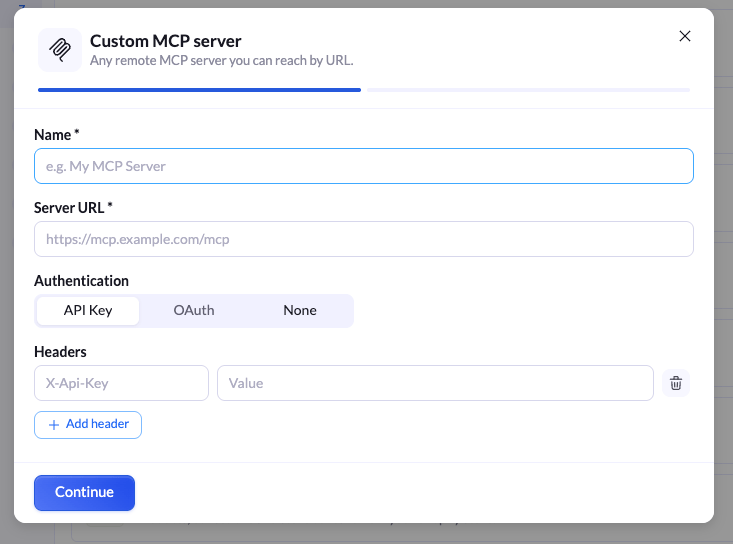 Paste the URL of the remote MCP server and complete any sign-in it asks for.
Only connect MCP servers you trust. The AI can read data from any server you connect and use it on your pages.
## Turn connectors on or off
Click **+** in the prompt box and hover over **Connectors**. Under **Connections**, use the toggle next to each connector to turn it on or off.
Turn off connectors you do not need for the current task. This keeps the AI focused and can save AI credits.
## Example prompts
Once a connector is on, just ask for what you need in plain English. You can name the connector in your prompt to make sure the AI uses it.
```text theme={null}
Read this competitor page and list their main offer, headline, and CTA: https://example.com
```
```text theme={null}
Find 3 top competitor landing pages for keto supplements and suggest what to test on my page.
```
```text theme={null}
Pull last week's conversion data for this lander from my tracker and tell me where visitors drop off.
```
## Missing a connector?
Open **Manage connectors** and click **Request connector** at the bottom left to tell us which app you want to connect.
## Related
Save reusable instructions for recurring tasks.
Use LanderLab from Claude, ChatGPT, and other AI assistants.
Paste the URL of the remote MCP server and complete any sign-in it asks for.
Only connect MCP servers you trust. The AI can read data from any server you connect and use it on your pages.
## Turn connectors on or off
Click **+** in the prompt box and hover over **Connectors**. Under **Connections**, use the toggle next to each connector to turn it on or off.
Turn off connectors you do not need for the current task. This keeps the AI focused and can save AI credits.
## Example prompts
Once a connector is on, just ask for what you need in plain English. You can name the connector in your prompt to make sure the AI uses it.
```text theme={null}
Read this competitor page and list their main offer, headline, and CTA: https://example.com
```
```text theme={null}
Find 3 top competitor landing pages for keto supplements and suggest what to test on my page.
```
```text theme={null}
Pull last week's conversion data for this lander from my tracker and tell me where visitors drop off.
```
## Missing a connector?
Open **Manage connectors** and click **Request connector** at the bottom left to tell us which app you want to connect.
## Related
Save reusable instructions for recurring tasks.
Use LanderLab from Claude, ChatGPT, and other AI assistants.