> ## Documentation Index
> Fetch the complete documentation index at: https://docs.landerlab.io/llms.txt
> Use this file to discover all available pages before exploring further.
# Fire Meta Pixel Lead Event on Quiz Submit
> Learn how to fire a Meta Pixel Lead event when a visitor submits your LanderLab quiz, including the JS snippet, verification steps, and common fixes.
When a visitor completes and submits your LanderLab quiz, you can fire a Meta Pixel **Lead** event at that exact moment. This is one of the most useful conversion signals you can send to Meta because it captures high-intent users who went through your entire quiz flow, not just people who landed on the page.
This guide covers the full setup, how to verify it is working, and what to do if it is not.
Your landing page must already have the **Meta Pixel base code installed** before following this guide. If you have not done that yet, see [Set Up Meta Pixel Integration](/integrations/pixels/meta-pixel) first.
## How It Works
LanderLab fires a custom browser event called `ll-quiz-submit` every time a visitor submits the quiz. The code you will add in this guide listens for that event and tells Meta Pixel to track it as a `Lead`.
The snippet also includes a guard (`typeof fbq === "function"`) to prevent errors if the Pixel base code has not loaded yet.
## Setup
Go to **Landing Pages** and click the name of the landing page that contains your quiz.
Click **Edit** to open the quiz builder.
Inside the quiz builder, find and click **JS Code**.
If there is any existing code in this field, delete it before pasting the new snippet. Having multiple listeners for the same event is the most common cause of the Lead firing twice.
Copy and paste the following code into the **JS Code** field:
```js theme={null}
// Meta Pixel: fire Lead on quiz submit
window.addEventListener("ll-quiz-submit", function () {
if (typeof fbq === "function") {
fbq("track", "Lead");
}
});
```
Do not wrap this code in `` tags. The JS Code field only accepts plain JavaScript.
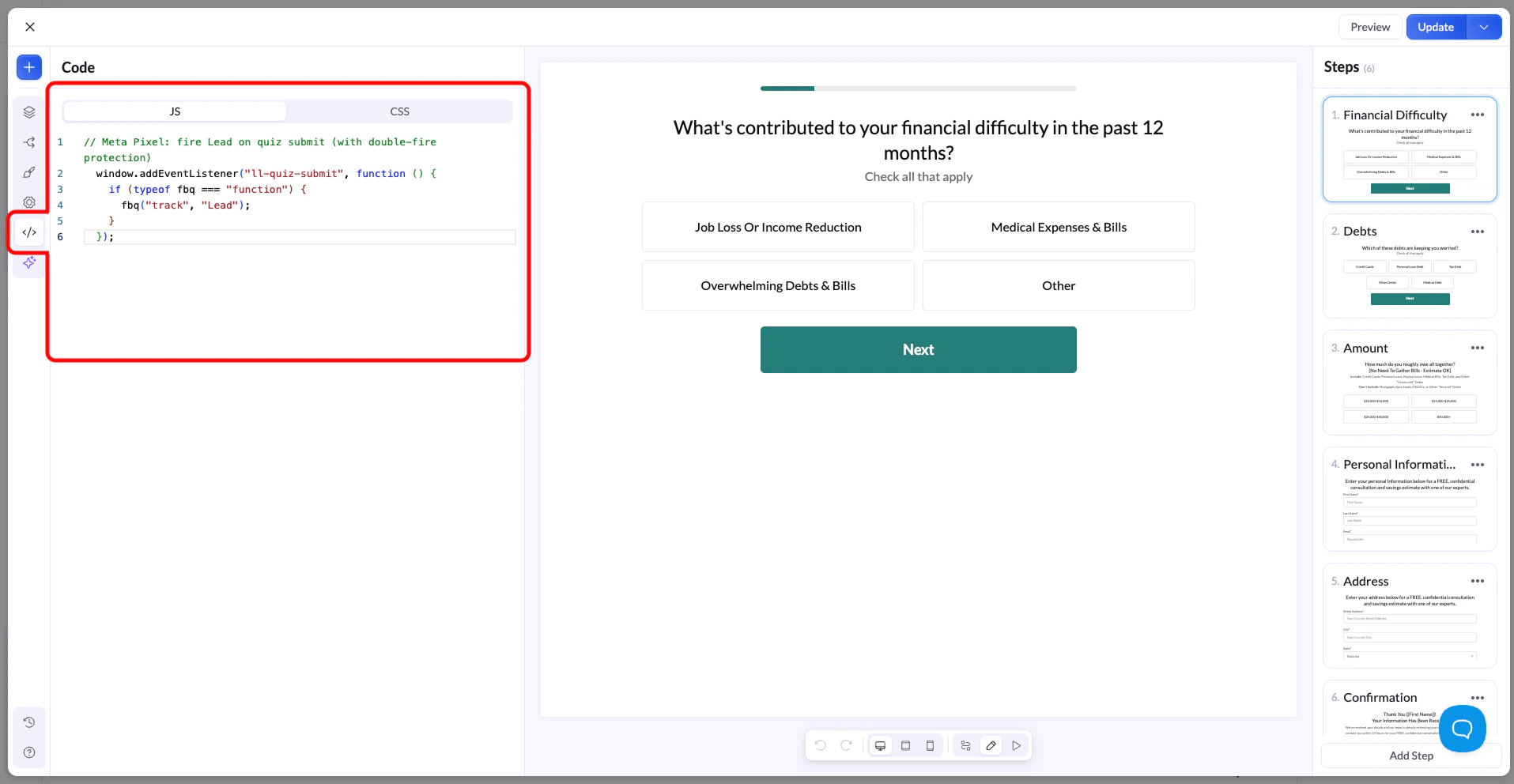 Click **Update** in the top right corner to save your changes.
Click **Preview** and complete the quiz yourself to test before going live. Once you have confirmed it is working, publish your page or funnel as usual.
## Verify the Lead Event Is Firing
Choose one of the following methods to confirm Meta Pixel is receiving the Lead event.
1. Install the [Meta Pixel Helper](https://chromewebstore.google.com/detail/meta-pixel-helper/fdgfkebogiimcoedlicjlajpkdmockpc) Chrome extension.
2. Open your quiz page in the browser.
3. Complete the quiz and submit it.
4. Click the Pixel Helper extension icon and confirm a **Lead** event appears in the list.
This is the fastest way to verify. The event shows up immediately after submission.
1. Go to [Meta Events Manager](https://business.facebook.com/events_manager) and select your Pixel.
2. Click **Test Events**.
3. Open your quiz page using the test link provided by Meta.
4. Submit the quiz.
5. Watch the Test Events panel for a **Lead** event. It may take a few seconds to appear.
## Troubleshooting
Check the following:
* **Meta Pixel base code is not installed.** The `fbq` function must exist on the page before the snippet can call it. Complete the [Meta Pixel setup](/integrations/pixels/meta-pixel) if you have not already.
* **Script tags were included.** The JS Code field does not accept HTML. Remove any `` tags from the snippet.
* **Code is in the wrong place.** Make sure the snippet is in the quiz builder's **JS Code** tab, not in a page header or global script area.
This happens when the same listener is registered more than once. Check that the Lead snippet only exists in one place. Common sources of duplication:
* The snippet is in both the quiz **JS Code** tab and the page header.
* The same snippet was pasted twice inside the JS Code field.
* A global script area on the page also contains the same listener.
Remove all duplicates and keep only the one instance inside the quiz JS Code tab.
Click **Update** in the top right corner to save your changes.
Click **Preview** and complete the quiz yourself to test before going live. Once you have confirmed it is working, publish your page or funnel as usual.
## Verify the Lead Event Is Firing
Choose one of the following methods to confirm Meta Pixel is receiving the Lead event.
1. Install the [Meta Pixel Helper](https://chromewebstore.google.com/detail/meta-pixel-helper/fdgfkebogiimcoedlicjlajpkdmockpc) Chrome extension.
2. Open your quiz page in the browser.
3. Complete the quiz and submit it.
4. Click the Pixel Helper extension icon and confirm a **Lead** event appears in the list.
This is the fastest way to verify. The event shows up immediately after submission.
1. Go to [Meta Events Manager](https://business.facebook.com/events_manager) and select your Pixel.
2. Click **Test Events**.
3. Open your quiz page using the test link provided by Meta.
4. Submit the quiz.
5. Watch the Test Events panel for a **Lead** event. It may take a few seconds to appear.
## Troubleshooting
Check the following:
* **Meta Pixel base code is not installed.** The `fbq` function must exist on the page before the snippet can call it. Complete the [Meta Pixel setup](/integrations/pixels/meta-pixel) if you have not already.
* **Script tags were included.** The JS Code field does not accept HTML. Remove any `` tags from the snippet.
* **Code is in the wrong place.** Make sure the snippet is in the quiz builder's **JS Code** tab, not in a page header or global script area.
This happens when the same listener is registered more than once. Check that the Lead snippet only exists in one place. Common sources of duplication:
* The snippet is in both the quiz **JS Code** tab and the page header.
* The same snippet was pasted twice inside the JS Code field.
* A global script area on the page also contains the same listener.
Remove all duplicates and keep only the one instance inside the quiz JS Code tab.